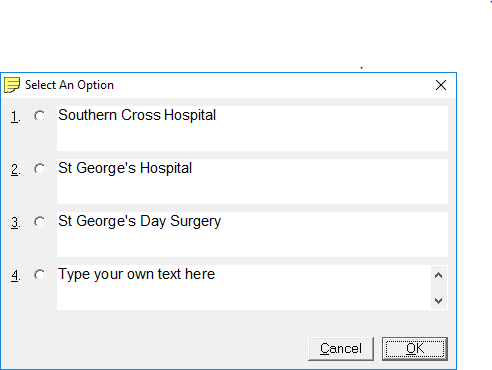
These are two types of form fill options. The first fills in data automatically, the second prompts for the data at the time the form is to be printed. Manually filled in data can be from the keyboard, or from a picklist.
Merge Fields
If you wish to merge selected information from the patient's file into the form letter, you may do so by way of the Merge Fields. This happens automatically when you run the form.
- To select a Merge Field, press Function Key F9.
A Tabbed List box will appear.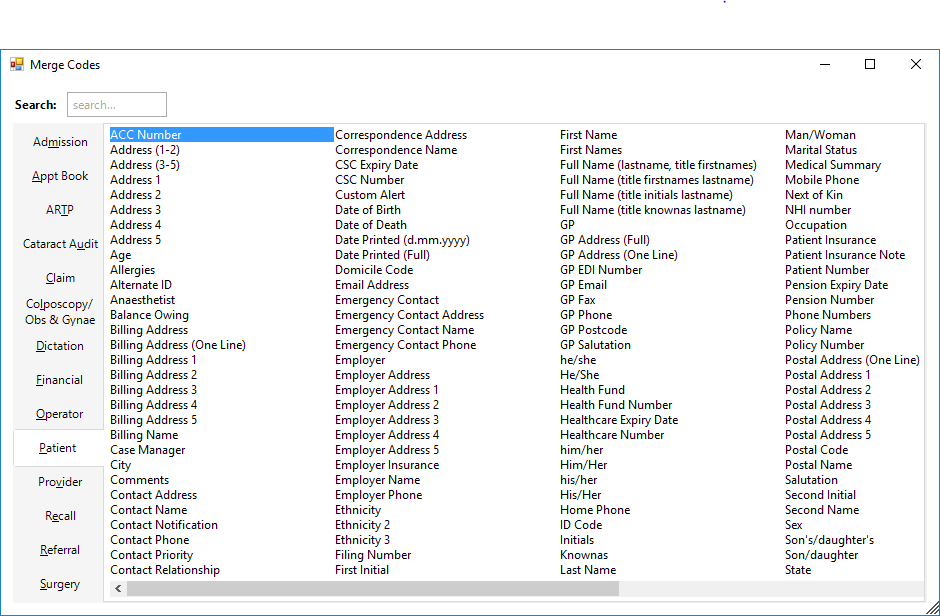
- Select the appropriate field.
- The code for that Merge Field will appear. For example, selection of date printed (full) would result in <fulldateprinted> showing on the screen.
- Position and format the Merge Fields as you want the text to appear in the final printed document.
Keyboard Fill-in
To have the form stop and prompt you to type text manually, enclose the prompt in <>. For example if you want to prompt for an operation date you would type something similar to this:
Date of Operation:<date of operation>
As with the merge fields above, position and format the text as you wish it to appear in the final printed document.
Pick-list Fill-in
To have the form or letter stop and prompt you to select from a pick-list, enclose the choices in <>, separating each option with //. For example if you want to prompt for selection of a hospital, type something similar to this:
Your operation will be carried out at <Southern Cross Hospital//St George's Hospital//St George's Day Surgery>.
Position and format the text as you wish it to appear in the final printed document.
When you run the form, a screen similar to the one below will display. Select the appropriate number for your choice. If you have a large pick list and the number is 10 or more you will need to you the mouse to select.