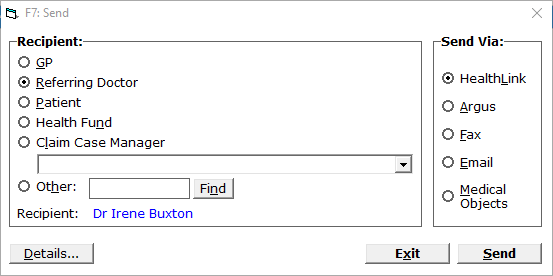
Function key F7 allows you to send selected patient records (other than financial) electronically as either an HL7 message (via a messaging carrier such as Healthlink or Argus), or via Fax or Email.
The method that can be selected will be dependent on what method the recipient can receive and what options you have installed (such as Healthlink, Argus, Faxing or Emailing).
To send patient records electronically
- Tag the items to be sent (see F6 TAG or SHIFT + F6 TAG ALL).
- Press F7.
The F7: Send screen will display.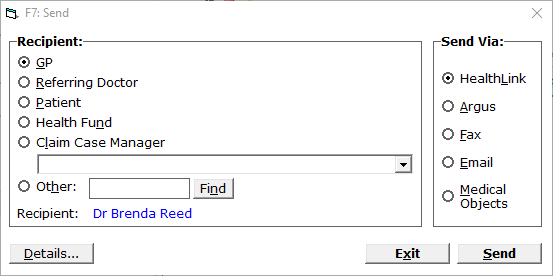
- Select your Recipient.
- Select the method you wish to use to send via.
Depending on which method for sending has been selected, additional data input may be required (see below). - Select 'Send'.
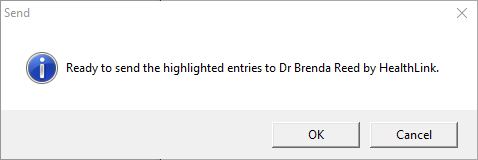
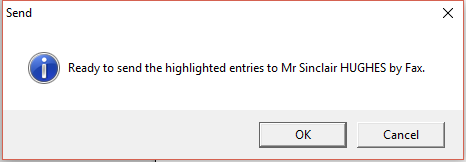
- Select 'OK' to confirm the sending of the tagged entries to the selected recipient via the method selected.
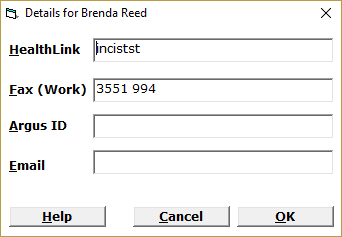
Details | If GP, Referring Doctor or Other is selected, then it is possible to display (and alter) the following information:
This will update the information for this Contact (see CORRESPONDENCE).
| ||||||||
Exit | To exit without sending, select | ||||||||
Send | Selecting 'Send' will (attempt to) send the tagged items to the selected recipient by the chosen method. |
Recipient
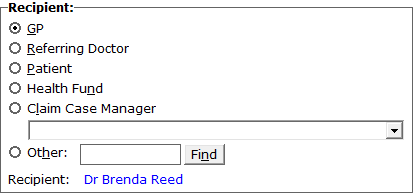
GP | This is the default selection for F7 Send.
|
Referring Doctor | Selecting Referring Doctor will display the referrer for the current referral.
|
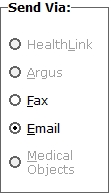
Patient | If patient is selected, the only options to select are Email and Fax (as the other methods are not valid).
|
Health Fund | The Health Fund as entered in the Patient Registration will be listed at the bottom of this section. This in turn will link to the Contacts - Health Fund for either the fax number (if entered) or the email address. |
Claim Case Manager | The Claim Case Manager as entered in the Claim. |
Other |
Via HealthLink
There are two different message types when sending via Healthlink (HealthDocs and HL7 2.4 message with attachment). HL7 2.4 is restricted to sending one attachment per message - a message may display if you try to tag multiple items.
Via Argus
Via Fax
If Fax is selected as the Send method, the lower part of the Send screen will expand to with the Fax Options.
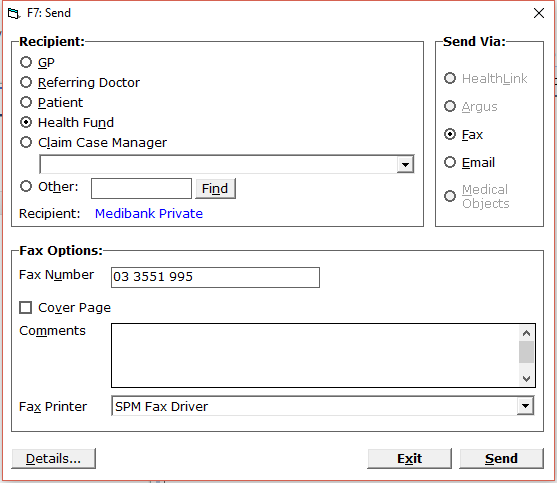
Fax Number | If the fax number is recorded for the recipient, it will appear here. |
Cover Page | If a Cover Page is required, check this option on. |
Comments | If a Cover Page is selected, comments can be entered to print out on the cover page. Don't forget you can use your F8 Codes here. |
Fax Printer | The Fax Printer driver as configured for the workstation will be listed (see CONFIGURATION - workstation). |
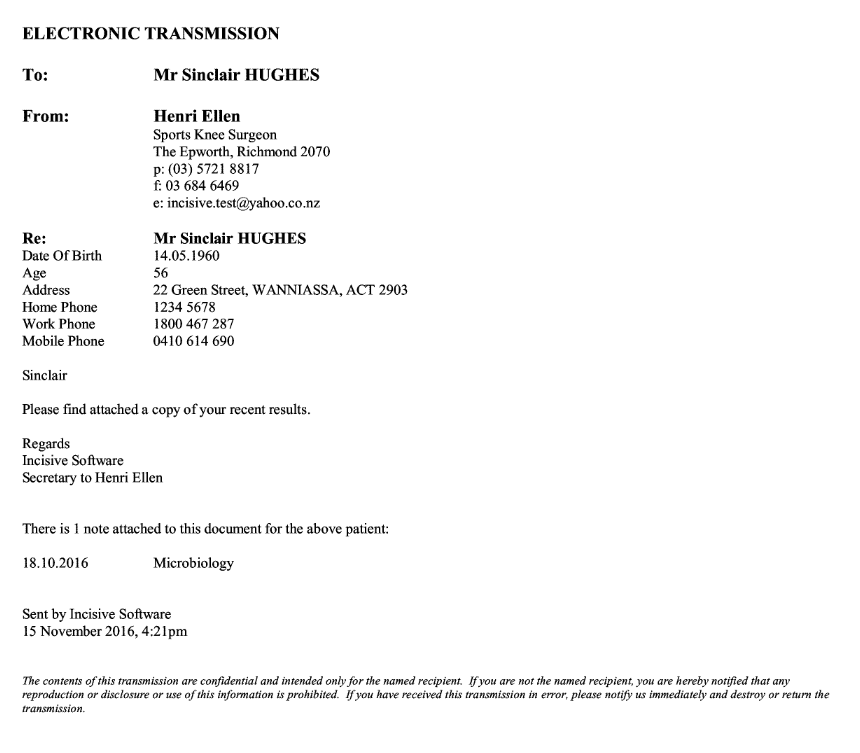
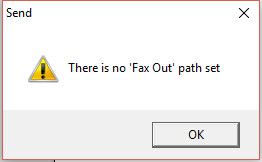
Troubleshooting
Via Email
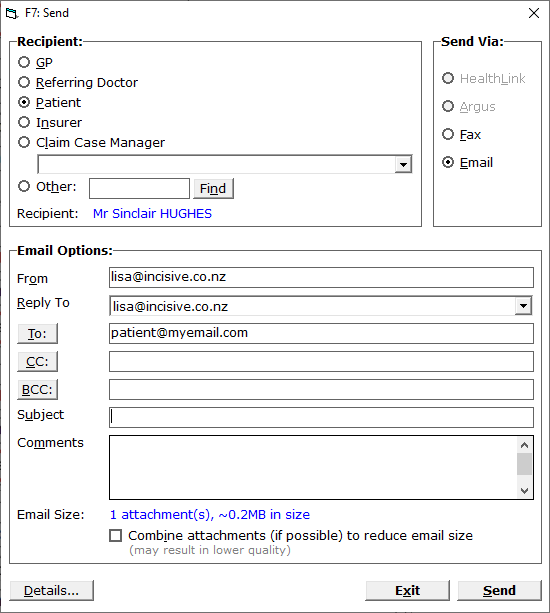
From | By default, the email address specified in the From field in Setup > Provider > Email will be used. |
Reply To | By default, the email address specified in the Reply-To field in Setup > Provider > Email will be used. |
To | The recipient's email address will be entered for you, however you can over-ride it. |
CC | Enter an email address or select from the Contacts |
BCC | Enter an email address or select from the Contacts |
Subject | Enter a subject for the email. This is mandatory. In version 409.6 and later you have the ability to use the 'F8' code function. |
Comments | Add your own text. You can use the F8 Quick-codes function to insert commonly used text. |
Email size | Some email servers will not deliver emails that have attachments over a specified size. |
