To Edit an Expense Entry
Office > Expenses
- Select the Expense entry to be edited.
- Select Edit.
- The expense entry will appear on the screen will the allocations previously made.
Amend the data input as required.
While you cannot delete a complete line of the Expense Account allocation, if an entry is incorrect, set the amount to $0.00 and enter a replacement allocation by pressing F8 on a new line.
- Select OK to save your changes.
- A reversal entry will be created for the original transaction and a new entry created.
Reconciled Expense Entries
An Expense entry can only be edited if it has not been reconciled in the cashbook (or deleted).
If you try to edit the transaction the following message will display.
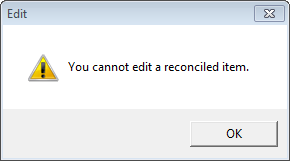
If you need to make alterations to an expense entry that has been reconciled either:
- Un-reconcile the entries in your cashbook so that the entry is no longer reconciled and save the changes.
- Enter journal entries to reverse the incorrect entry and create a new entry with the correct information.