Expenses are payments you make that come out of or are deducted from your your bank account.
To enter a new expense
Office > Expenses
Select New.
A screen similar to the one below will display.
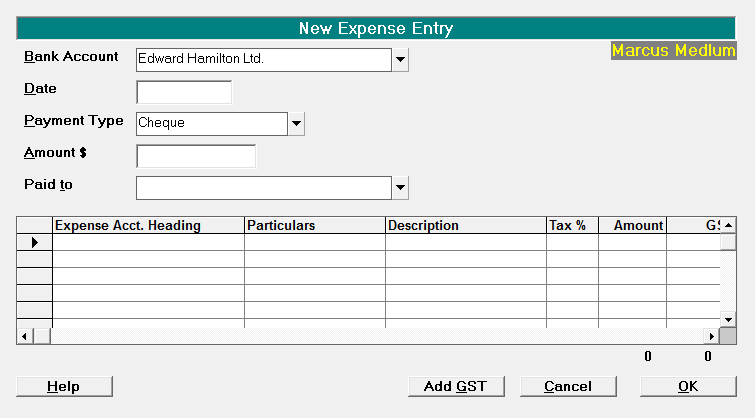
- Complete the entry as applicable.
- Select OK to save.
- The screen will clear. Continue entering further expenses as required.
- Select Cancel to exit.
Bank Account | The default bank account for the User is selected. |
Date | Enter the date for the expense. |
Payment Type | Select the correct Payment Type from the list.
|
Cheque No. | If Cheque is selected as the payment type, this field will display. The number will default to the last cheque number entered incremented by one. Accept or alter if incorrect. |
Amount | Enter the total amount paid (that will appear on your bank statement). |
Paid To | Enter who the payment was made to (eg Vodafone) in the Paid to field. Either select from the list or type the recipient, adding the item to the list if you will require it again. |
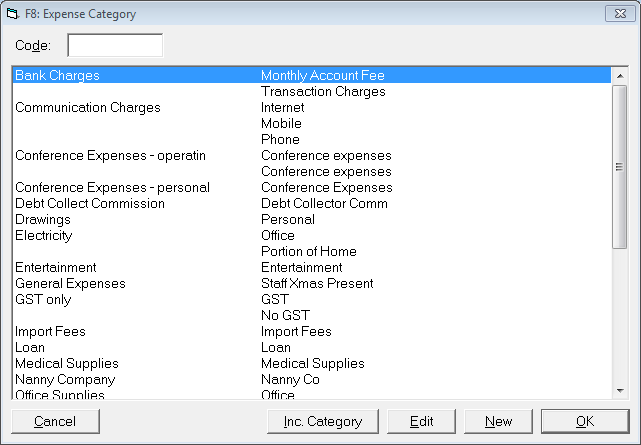
Expense Account Heading | Press F8 to get a list of account codes. Select the relevant code. |
Particulars | Completed automatically from the secondary heading for the Expense Account Code. |
Description | Type additional information if required. |
Tax % | The Taxable percentage will be completed automatically from the Expense Account Code selected. You cannot change this percentage here. |
Amount | This will default to either the amount of the payment or the balance left to allocate. Change the amount if necessary. |
GST | If the Expense code is set to be GST applicable, the GST content is calculated and will display. You cannot alter the GST amount here, |
Selection of Expense Account Codes
All expenses are allocated to one or more expense account codes. F8 is used to access these.
Add GST
If the amount you are entering for an expense item is exclusive of GST (for instance if you are analyzing items off a statement with a single total for GST at the bottom), by selecting the Add GST button, GST will be added to the amount that you have entered. However you must type the amount and press 'Enter', then bring the cursor back to the amount column for this to work.