This program is designed to assist the planning required to manage the annual funding from a health purchaser so that the budget is conservatively managed for cashflow purposes.
There are three sections to the program:
- Nominating the value of the procedures that can be performed in each month for each Health purchaser
- Adding a patient and planned operation to the planning process
- Printing a 'Request for Approval' (RFA)
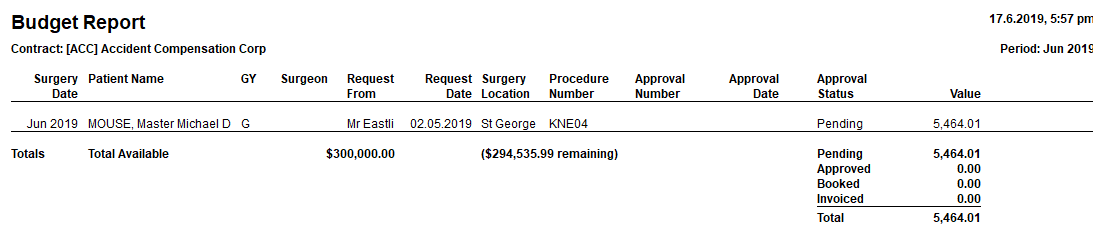
- Reporting progress of planned funding as against actual invoicing
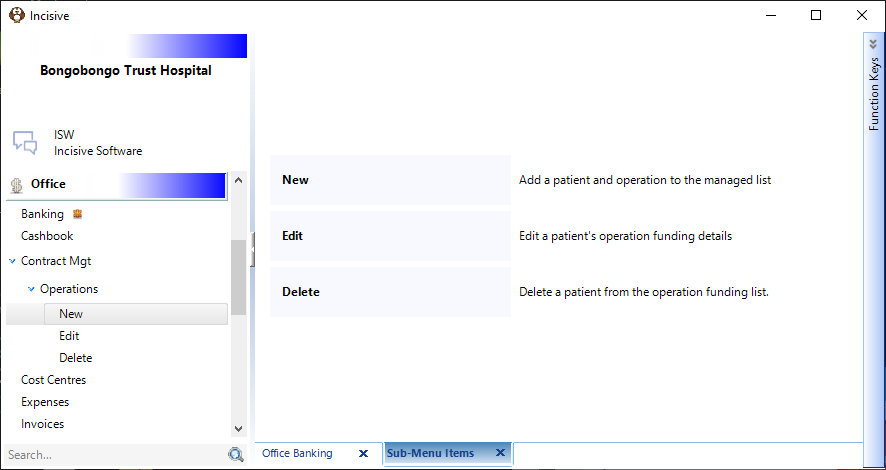
Add A New 'Pending' Operation
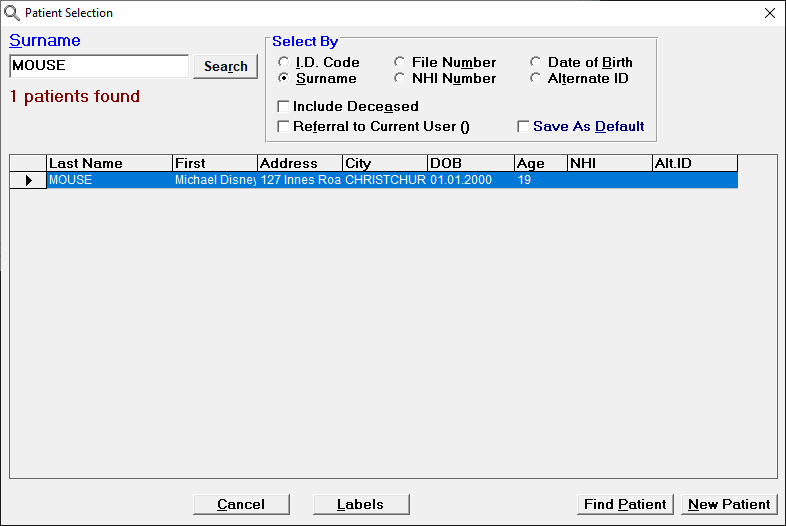
- Select the patient you are entering the operation for. Use the patient's ID code or surname.
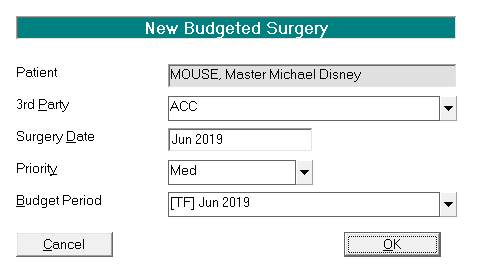
- Enter details about the purchaser and the amount The 'Surgery Date' field allows flexible date formats – day, month, quarter, annual
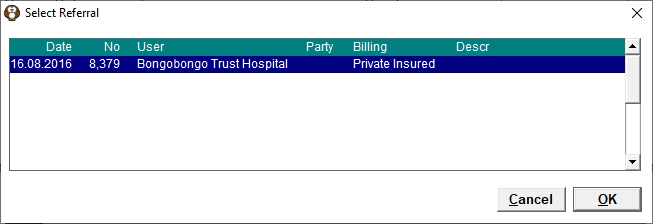
- Select the referral related to this operation.
- Enter the planned Procedure(s)
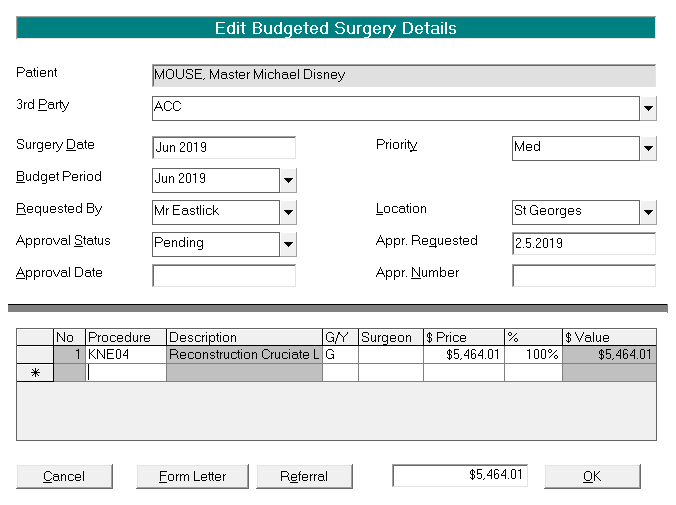
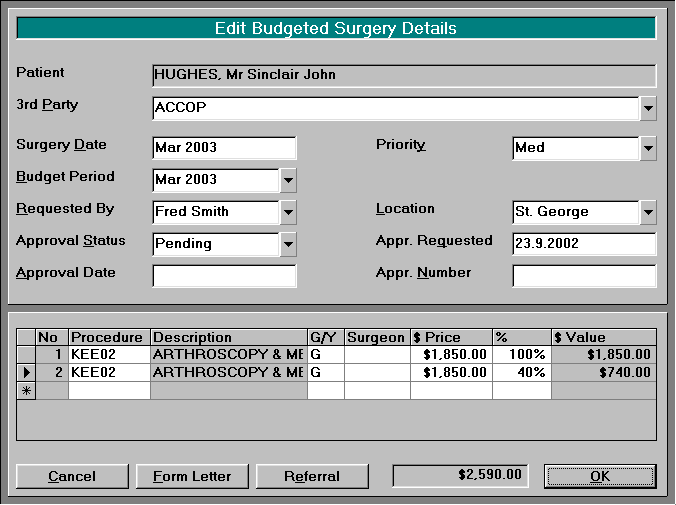
Add more details about the operation.
3rd Party | Name of the Health Purchaser. |
Surgery date | Expected period of surgery |
Priority | Low, Medium or High priority |
Requested by | Name of entity requesting the surgery (may not be the surgeon) |
Location | Where the surgery will be performed |
Approval Status | Pending, Approved, Booked |
Invoiced Procedure | Enter the full or partial procedure code and select from the list. The procedure codes are retrieved from Setup > Operations/Procedures module where the Categories are marked as 'Procedures' |
G/Y | Green or Yellow |
Code | Surgeon's code (make up your own code) |
Price | Manually alter the Price if necessary |
% | 2nd and subsequent procedure prices are adjusted accordingly by the % specified for |
If the budget periods for this Purchaser are entered in monthly but the Surgery Date is expected to be within a 'Quarter' then you will see displayed in the Budget Period list the three months relevant for the nominated quarter. For example: Surgery Date 1.4.2017 – 31.6.2017 Budget Periods listed April 2017, May 2017, June 2017
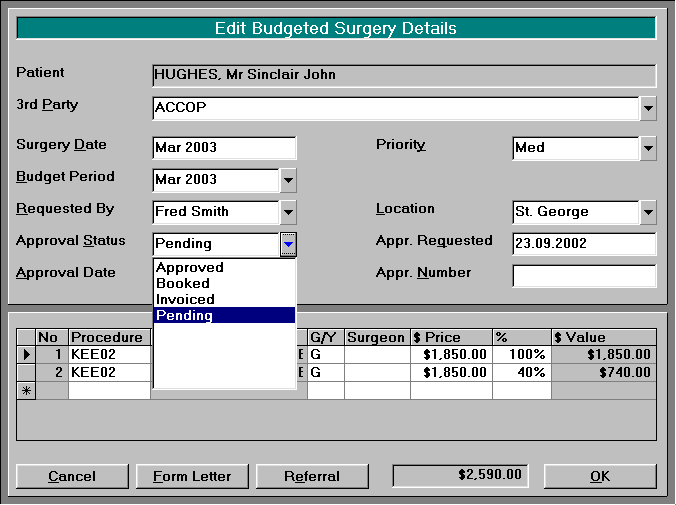
Changing Approval Status
- Select Edit
- Choose the patient by typing in the ID Code or their surname
- Alter the Approval Status
Form Letter
Some hospitals like to send a 'Request for Approval' covering letter to the Purchaser.
- Set up the form letter in Setup > Templates > Form Letters in the main PHM software. You can use a separate form letter for each 3rd Party or Health Purchaser
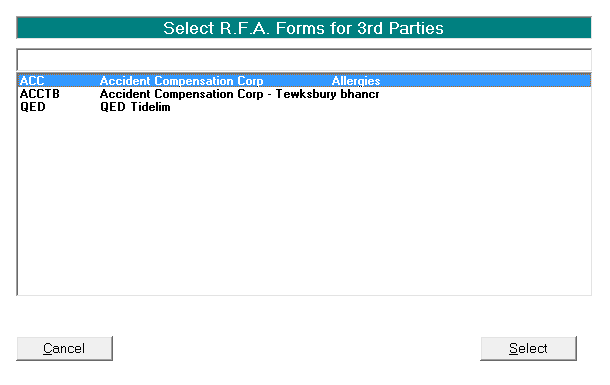
- Click on Setup > Contract Mgt > 3rd Party RFA
- Choose the 3rd Party/Health Purchaser
- Select the relevant form letter from the list
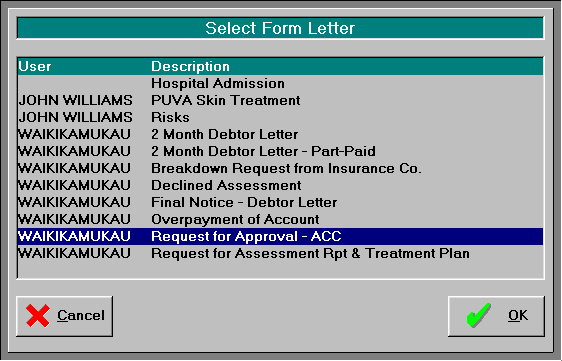
The form letter can then be printed from the 'Budgeted Surgery Details' screen Some special F9 merge codes are available to be used in the 'Request for Approval' form letter
<%surgery> | inserts the Proc. Code, Description, MBSE No., Price, Percent, Invoice value This merge option needs to have the tab stops properly configured for the merge contents to display correctly on the form letter |
<%surgerydate> | inserts the proposed date of surgery |
<%priority> | inserts the priority assigned to the surgery |