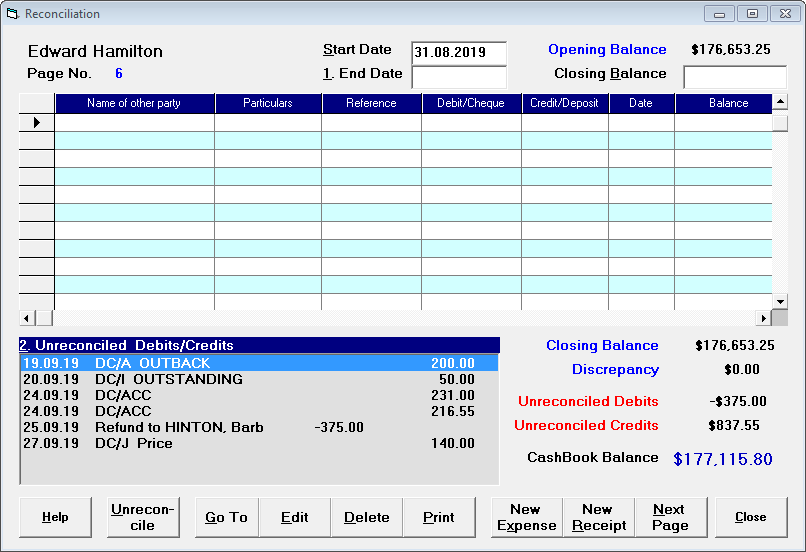
Start Date | This is the starting date for the bank statement being reconciled. This should be the same date as the end date from the previous page reconciled. Under normal circumstances, this date should not be altered. |
End Date | This is the date you are reconciling transactions up to. You will not be able to reconcile a transaction with a date beyond this date. |
Opening Balance | The Opening balance will carry over from the Closing Balance on the previous page. You cannot alter this. |
Closing Balance | This is the Closing Balance from the Bank Statement you are reconciling. If the account is in overdraft, enter the balance as a negative i.e. -10,000.00 |
Unreconcile | If you find you have an error with the amount of one of the entries in the cash book, you must unreconcile the entry using the unreconcile button at the bottom of the screen. All entries up to and including the one with the mistake need to be unreconciled. You may only edit an entry when it is in the list of Unreconciled Debits / Credits and reconcile the corrected entry. |
Go To | The 'Go To' button allows you to go back to a previous page number or statement. |
Edit | If you encounter an entry in the list of Unreconciled Items that is incorrect, you can edit the entry here rather than having to go to the Expenses or All Receipts Tabs to do so |
Delete | If you find you have a duplicate entry for an "other receipt" or "expense" which has already been reconciled in the "unreconciled debits/credits" box you can delete these by using the Delete button. It is advisable to check, correct and/or delete these entries prior to printing any cash book reports. If a cheque remains unpresented for a long period (normally six months or more) you should delete the entry, as a this stage it is unlikely to ever be presented and is no longer valid. If GST was claimed on the original entry in a previous GST period, an appropriate reversal will appear in the current GST period. If there is an error in a patient receipt you have to go back into patient mode and make any corrections on the patient's file. |
The 'Print' button allows you to print a number of CashBook reports. | |
New Expense | For convenience, expenses can be entered here at the time of reconciling the bank statement. If the expense is an Automatic Payment and it does not appear in the list of unreconciled items, you should ensure that the AP's have been 'committed' rather than entering a new expense. |
New Receipt | For convenience, expenses can be entered here at the time of reconciling the bank statement. If the expense is an Automatic Payment and it does not appear in the list of unreconciled items, you should ensure that the AP's have been 'committed' rather than entering a new expense. |
Next Page | For convenience, expenses can be entered here at the time of reconciling the bank statement. If the expense is an Automatic Payment and it does not appear in the list of unreconciled items, you should ensure that the AP's have been 'committed' rather than entering a new expense. |