Office > Cashbook
The Cashbook tab displays all bank accounts for the current Provider including the Opening Balance of the current page being reconciled.
- Select the bank account to reconcile.

- Select Reconcile.
A screen displays, the top half representing a bank statement.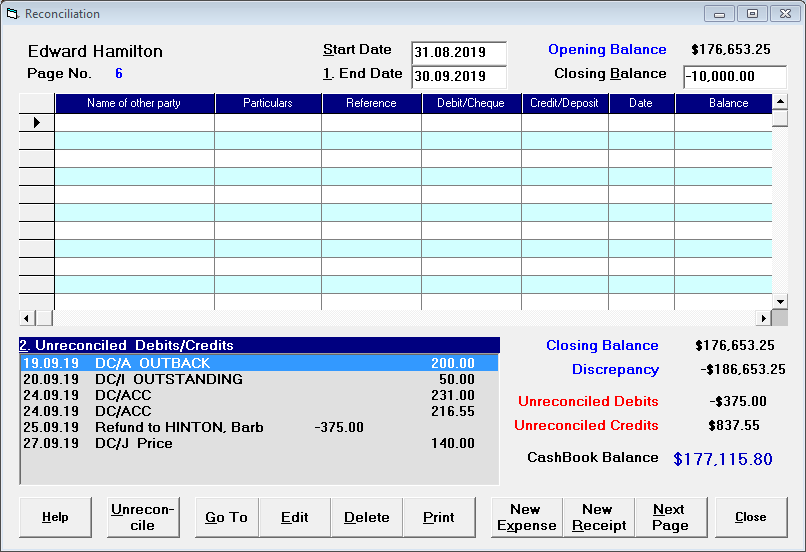
- Enter the End Date from your bank statement.
- Enter the Closing Balance from your bank statement.
- Reconcile the items in the order that they appear on you bank statement.
When you have finished reconciling to the end of the page on the bank statement, the Closing Balance at the bottom of the screen should match the Closing Balance at the top of the screen and the discrepancy should be zero. If the discrepancy is other than zero, then there is either an error in the amount entered of one or more items, or one or more items have missed being reconciled.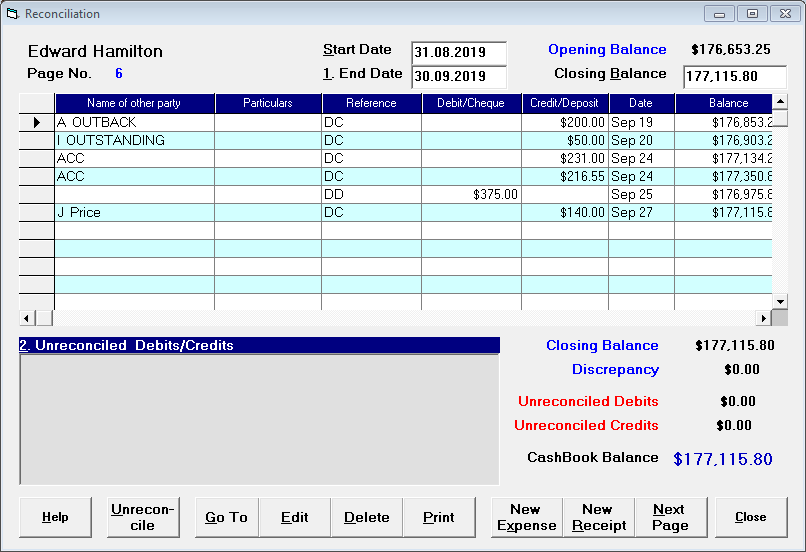
- Select Next Page to advance to the next bank statement page number.
- When you have finished reconciling, select Close to exit. The items reconciled are automatically saved.
On this page:
Training:
- Preparation for Initialisation of cashbook
- Adjustments and Journals
- Direct Credits
- Managing Unreconciled transactions