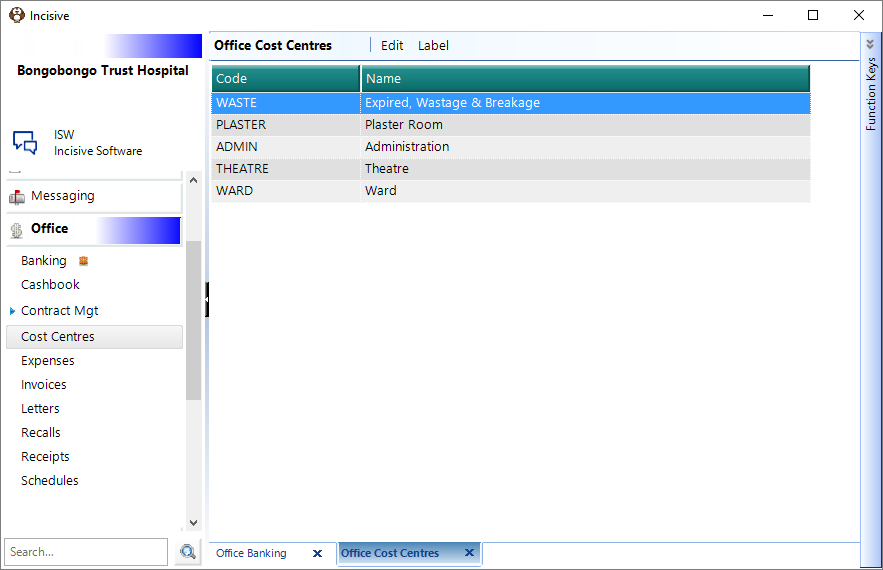
Cost centres are designed to be entities that can have costs allocated to them that are not easily able to be charged to an individual patient, or where the cost of the individual stock items are already included within a consolidated charge that is able to be charged to the patient.
eg Paracetamol tablets are part of the accommodation charge; swabs are part of the theatre fee
Stock items can be either chargeable to the patient or non-chargeable.
Normally the consumption of these items will be recorded on a separate 'Costs' worksheet in either the Ward or Theatre and when an item is consumed that is not to be charged to the patient it will be marked off on the 'Cost' worksheet. At the end of the month (or other chosen period) these worksheets are collected and the values allocated to the respective Cost Centres.
The Quantity and Value of the stock assigned to Cost Centres will be deducted from 'Stock-On-Hand' reports.
To help keep track of the value of stock that is being consumed but not charged for, you can allocate the non-chargeable stock items to a cost centre e.g. theatre or ward etc.
Other cost centres that are used are:
- Wasted, broken & Expired
stock that has been wasted, broken or has expired - Lumps, bumps & endo (fixed priced procedures)
For procedures that are often provided at a fixed price and are usually done in a non-sterile theatre. The actual costs involved are recorded against the entity providing the fixed price procedures - Contract – extras
For additional costs associated with procedures that are done on contract but the patient has come in again for wound dressings etc. (generally < 1 hour)
Edit | Select a Cost Centre and allocate stock items to it |
Label | Print a Patient label
|
Allocating stock used to Cost Centres
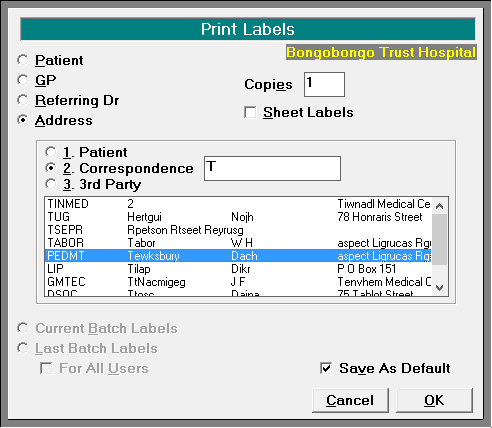
Once the Cost Centres have been set up you can then allocate stock consumed to them. Select the Cost Centre in Office > Cost Centres and choose the Edit button.
If you are posting the entries for a period, check that the previous period has been closed-off. If it hasn't, items entered in the period will still be visible.
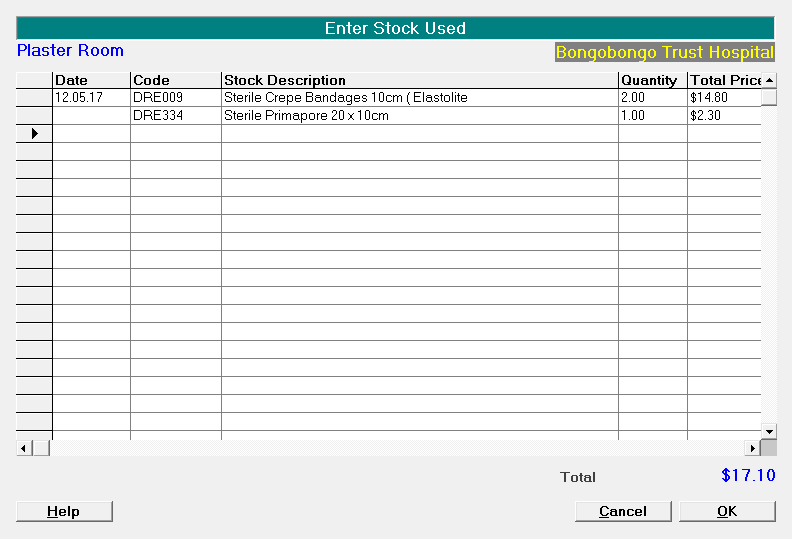
Date | The date entered should reflect the date that the item is used/consumed (service date). |
Code | Type in the partial or complete code of the stock item you want allocated. If you don't know the exact code to use, enter in the segment you do know then press Enter. This will filter the stock items to show only those that start with the letters or numbers already partially entered.
|
Description | The description of the item selected will be automatically entered. You can type over this entry to change it. |
Quantity | Enter in the total number of items you want to allocate to the Cost Centre as having been consumed or used. Remember that this will be on a 'Dose' equivalent basis. Negative values can be entered which will add to the Stock on Hand. Add a minus sign in front of the quantity value e.g. -25 |
Total Price | The total chargeable value of the stock consumed is then calculated |
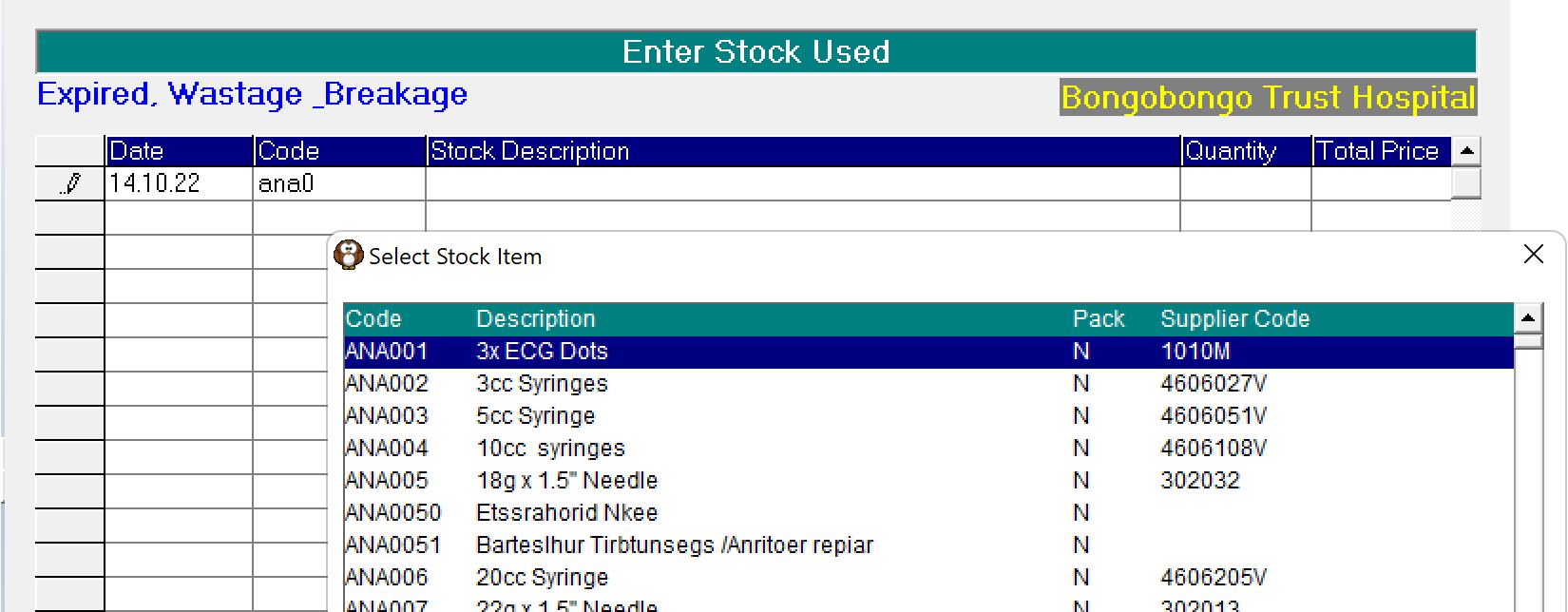
The items consumed can be entered at any time. When you want to finish the stock entry because of an end of period you need to select the option in Stock > Cost Centres > Close-off Cost Centre
On This Page:
Related:
- Adding a Cost Centre
- Close-off a Cost Centre
- Cost Centre usage report
- Setting up Cost Centres
- Close-off & SOH adjustments
Training:
- Steps to perform a stocktake
- Store/Location specific stock-take count sheets
- Order By; Count By; Use By
- Closing off a period
- Invoice Items at Cost
- Rearrange Categories in Worksheets
- Create Worksheet from Invoice
- Removing obsolete procedure Categories
- Update Stock/Services Prices
- Variable Pricing
- Purchase Order - Minimum value alert
- Overdue Orders
- Stock Arrivals
- Cost Centre usage