This option has several functions:
- Query ACC system for Payment Remittance advice
- Receipt the payment
- Reconcile the payment with paid/unpaid items on the schedule or invoice
- Display the reason for partial or non-payment.
Search for Payments
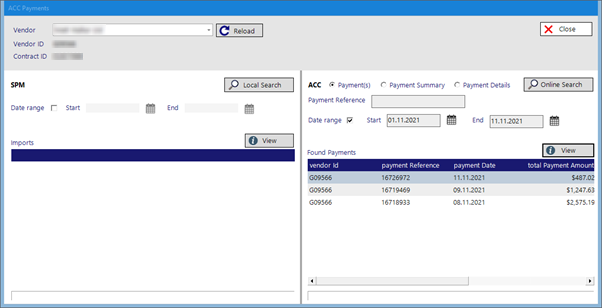
SPM panel | |
|---|---|
Local Search | Search your Incisive database |
Date Range | Choose a Start and Finish date to filter the transactions that have an invoice date between this range. |
View | Expand the information relating to the selected transaction. |
ACC panel | |
|---|---|
Online Search | Search the ACC system for payments relating to the Vendor and Contract ID |
Payments | This allows you to search online for all payments made by ACC. Select this option and use in conjunction with the Date Range. |
Payment Summary | The Payment Summary option requires the entry of a valid Payment Reference. After entering this, select 'Online Search' to find the payment in the ACC system. Once found, use 'View' to display further information about the payment. |
Payment Details | The Payment Details option requires the entry of a valid Payment Reference. It will show the individual details for the payment. |
Date Range | Choose a Start and Finish date to filter the transactions that have a payment date between this range. |
View | Expand the information relating to the selected transaction. |
View Payment
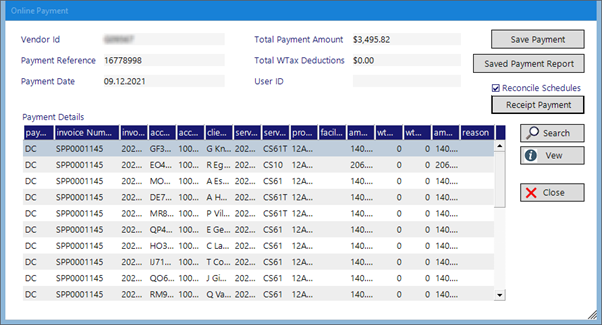
Save Payment | After completing an Online Search (normally for a Date Range), select 'View' on a payment. 'Save Payment' will |
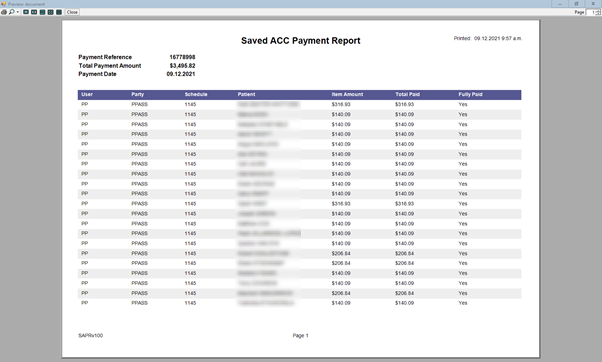
Saved Payment Report | Select this option to obtain a report of the payment. |
Reconcile Schedule | Select this option if the schedule has been paid in full, and you want the program to reconcile the payment. |
Receipt Payment | Select this option to receipt the payment (and optionally reconcile the schedule). |
Search | This option will query the ACC system for the Payment information about the selected payment. |
View | Shows the detail of the selected item. |
Saved Payment Report