The process of submitting invoices and claim schedules to ACC is completed automatically at the time you either complete the invoice or you close and process a claim schedule.
If the ACC portal is not accepting remote connections the invoice or processed claim schedule will still be created but it will be stored in the Incisive database until you select the retained transactions an choose to upload them to the ACC portal again.
Submitting a Claims Schedule
- Office > Schedules > Process
- Enter a date you want to use as the Schedule Invoice date
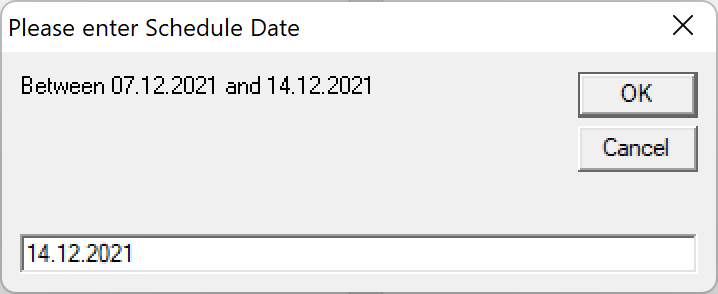
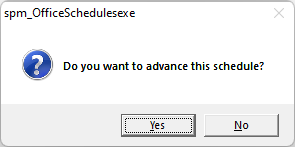
- Proceed through the prompts
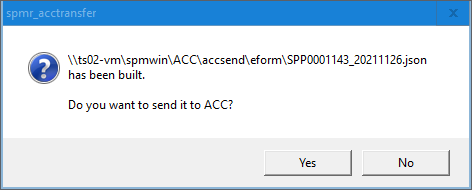
- Confirm upload to ACC
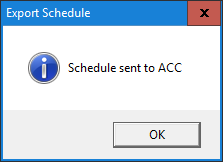
- Notification of delivery
Submitting an Invoice
Invoices can be submitted from:
- Patient > Stock Used
- Patient > Financials
- Dictation > Type
- Create the invoice as you normally do by clicking on the OK button
- Confirm upload to ACC
- Notification of delivery.
See Also:
- ACC PAYMENTS
- ACC QUERY (Invoice)
- ACC ONLINE (Setup)
- ACC EXPORT LOG
- ACC API Responses
- Sending Clinical Notes to ACC