ACC have been making changes over the past few years to purportedly make it easier for their customers to use ACC services by introducing new digital solutions. These solutions will replace their legacy services. Shortly, these services will no longer be available.
Some of the impacted services include:
- eBusiness Gateway
- Java invoice upload applet.
We have been working with ACC to change our application to use the new ACC API's (Application Programming Interface).
We have passed our Compliance testing and have been working with a small number of clients and ACC Digital Operations to test in the production environment. All submissions have been validated by ACC and they have reported no issues at their end.
On 31 March 2022, ACC are closing their eBusiness Gateway and require that all claims for Elective Services, Clinical Services, and Regulations will need to be submitted through the ACC API portal. You will no longer be able to use the Java applet to upload an invoice file. To implement this change you will be required to update your Incisive application to version 410.0 (or newer).
Because of the number of Incisive clients that will need to be updated in a comparatively short space of time, you will require the services of your IT technician to assist with this process.
The following steps will need to be carried out for sites changing over to use the new ACC API's.
Terms and Conditions of using the ACC API
ACC require that we convey the following information to you, regarding your use of the ACC API:
- Incisive Software are to be the initial point of contact with regards user service desk requests;
- Incisive Software will escalate any issues to ACC, if appropriate; and
- Incisive Software will keep you regularly informed. This will be via the News feed in the Message Centre.
ACC are imposing a mandatory integration for your business to interact directly with their systems. These demands have required substantial investment by Incisive for development and also for the future support services that ACC requires us to provide to you. Incisive have made direct requests to ACC for financial assistance to lessen the development and considered future support costs, but this has been rejected. As a direct consequence of ACC's intransigence on this issue, your usage of the Incisive functions to interact with the ACC API portal will be reflected with a change to the monthly charge. This is a cost-of-business to work with ACC. We recommend that you factor this into the renegotiation of your contracts with ACC.
Permissions in Incisive
- Permissions to configure the application to enable upload to the ACC portal
- Grant menu permissions via Setup > Personnel > Permissions to give the relevant Role(s) to access to the following menu item: Setup > System > ACC Online We would recommend that this is only given to a SysAdmin role
- Permissions to submit invoices through the ACC portal
- Grant permissions to Roles (Secretaries etc.) to ACC Online functions:
Office > Invoices > ACC Query
Office > Schedules > ACC Query
Office > Receipts > ACC Payments
- Grant permissions to Roles (Secretaries etc.) to ACC Online functions:
- Log out and back in for new permissions to take effect.
Enable ACC Online
Enabling the ACC Online function will disable the ability to export the invoice as a file and allow you to have remote access to the ACC Online portal.
- Setup > System > ACC Online > Enable.
- Set Environment to 'Production'.
- Save the settings.
Note: Only enter the Certificate Path and Password on this screen if you have a single Practice certificate to be used by ALL operators. If you are using individual HealthSecure digital certificates, leave the Path and Password fields blank. 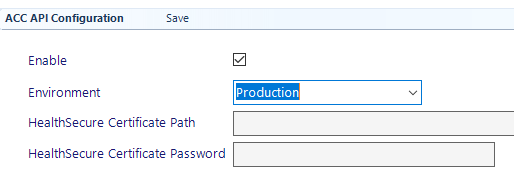
Enabling this option will turn it on for ALL Providers in the database. Make sure they are ready and have uploaded any existing invoices.
Digital Certificate(s)
Copy the files from the HealthSecure digital certificate (supplied by Healthlink) to a location on either the local computer or server.
Our recommendation is to create a 'Certificates' folder off the \Spmwin\ACC folder on the server.
For Incisive inCLOUD clients, a 'Certificates' folder can be created on the Incisive Files mapped drive e.g. create the folder off your \\incisivefiles\practice\ACC folder.
Operator Configuration
Each operator who will be using the ACC Online function to upload claims to ACC will need to configure their settings:
- Setup > Operator > Settings > Edit.
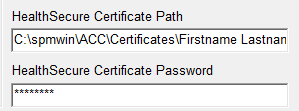
- Enter HealthSecure Certificate Path (including name of certificate). We recommend a copy and paste of the path, rename the file and copy the name. e.g. C:\spmwin\ACC\Certificates\Firstname Lastname_1847272768.pfx
- Enter the HealthSecure Certificate Password (provided to you by Healthlink).
Contacts/Third Party Configuration
If you are already creating electronic invoice files and uploading to ACC then you do not need to make any changes, except if you are claiming using ACC Regulations.
Schedule claiming
See Third Party configuration for schedule claiming
ACC Regulations
If you are claiming under the ACC Regulations contract for any services that are based on time, you will need to edit each of the relevant services and set the Time variable as applicable.
Setup > Financial > Charges > Schedules > ACC Regulations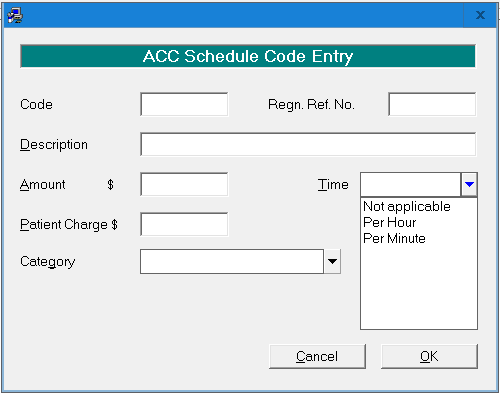
Invoicing
See Third Party configuration for invoicing
Configure Export file type
Use the Import/Export button to choose the Export to ACC option for the correct file format.