Account Setup
SMS Account details must be entered into SPM, this will be done by Incisive. This is done via Setup > Provider > SMS Messaging.
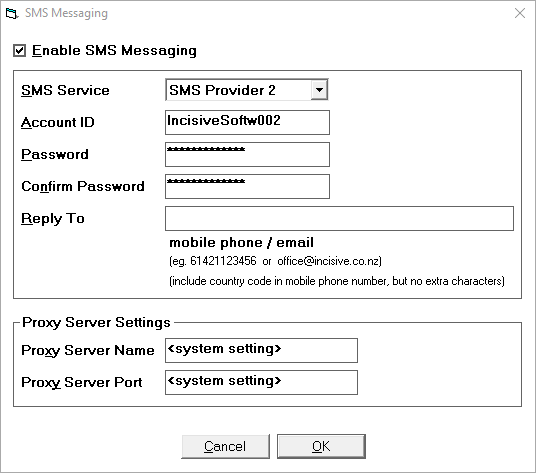
Reply To
This should be left blank.
Appointment Session text
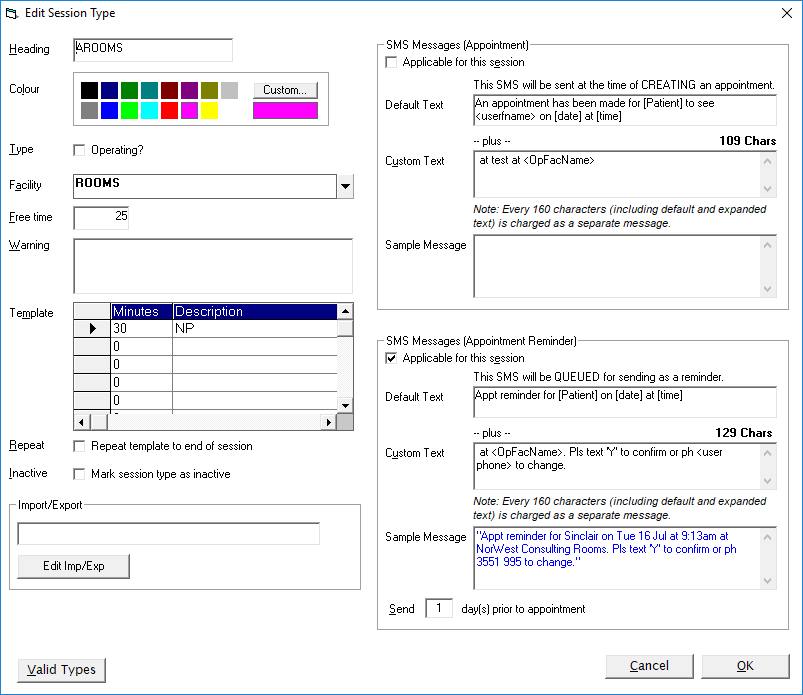
Each Session Type can have SMS enabled or not. It is likely that you will want to send SMS reminders for the consultation patients but not for those booked in for an operation. If the SMSMessage option is not enabled no SMS messages will be sent even if the patients have been marked as 'Opt in to SMS Messaging'.
You can also customise the SMS message to be sent.
In Setup – Appointments – Session Type select the session you want to enable for SMS messaging and then click on Edit.Setup -> Appointments -> Sessions
Edit the session and change the 'Custom Text' that is sent out with the SMS, to include instructions to send back a YES or NO reply.
Default Text
The Default Text is "Appt reminder for [Patient] on [date] at [time]", which will have the appropriate information completed.
Custom Text
The Custom Text field can have any additional text inserted that you may want to send.
The Custom Text will always follow on from the Default Text in the same SMS message. To ensure that the message reads correctly, if you are placing text in this field, add a full stop, a space or a comma first followed by a space before starting the message.
The maximum number of letters in a text is 160, which includes blank spaces. If your text is longer than 160 characters it will be split up and sent in two or more separate SMS messages. There is a charge for each text.
To force the text onto a new line press the keys Ctrl + Enter
An example of extra text might be: with Mr. Jones. Please call if you are unable to attend.
In the above example include a space before the word 'with' so the whole SMS message reads correctly.
Reply prompts
If you are wanting a patient to confirm their attendance your custom wording might look something like:
"Please txt a reply, YES to confirm or NO to cancel"
The Incisive application will recognise YES, Y, NO or N
If you want to add extra information such as the Location you can include the Facility merge code <ApptFac> which will pick up the Facility address for the Session Type and automatically insert it in the outgoing SMS message. 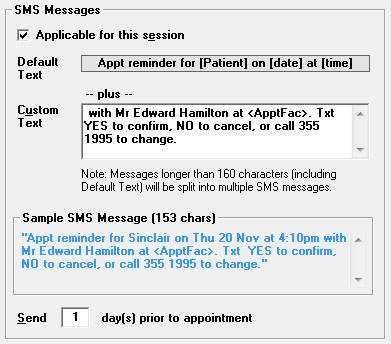
You will need to check that when the full name of the facility is inserted that it doesn't cause the text to go over 160 characters.
If you do exceed 160 characters the SMS message will still be sent however it will be split into two messages and you will be charged for them both
F9 Merge Codes
F9 Merge Codes are available to use in the Custom Text field, this is particularly useful if your Appointment Codes are set to Global or Group.
For example to add the User Name to the Custom Text field, click in the field, press F9, press U and then double click on User Fullname 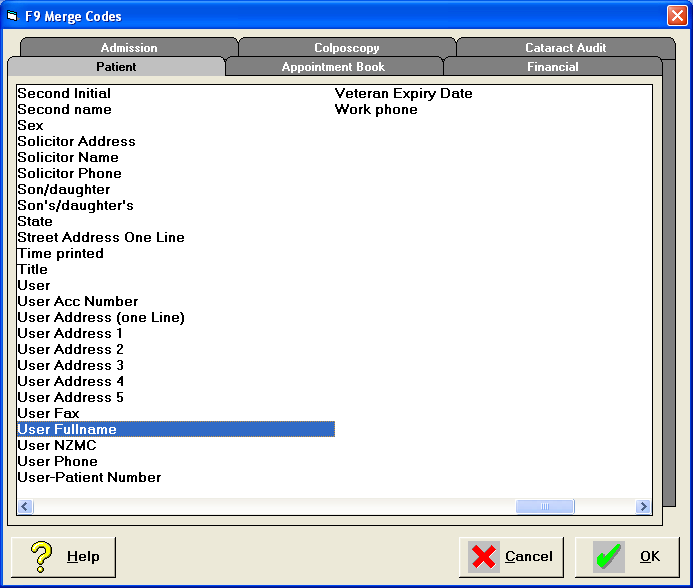
This will insert the field <userfname> into the Custom Text, once complete press OK to save.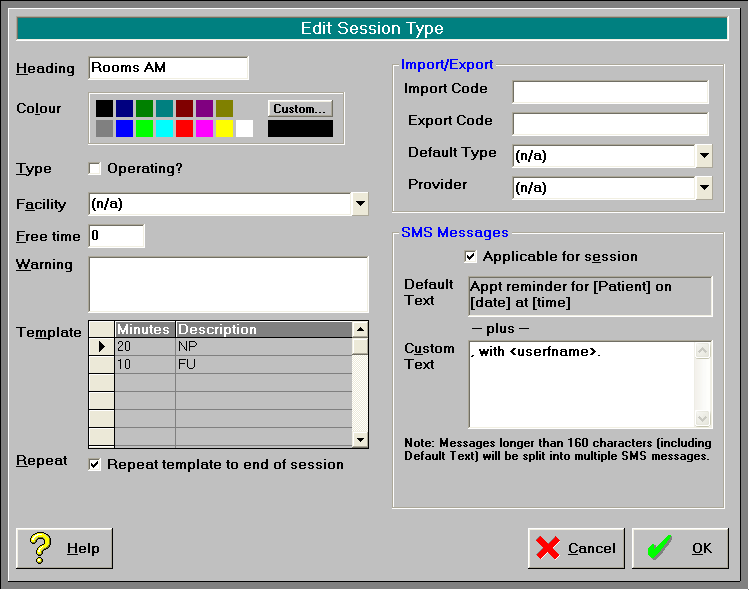
Examples of Text
A few of examples of message texts with some Custom Text added.
Appt reminder for Jennifer on Wed 18 Feb at 10:30 am with Dr Susan Smith. If you cannot keep this appt please phone 254-5078 immediately.
Appt reminder for Donald on Tue 17 Feb at 5:05 pm with Dr George Jones. Please ring 2794050 if unable to attend.
Appt reminder for Carol-anne on Fri 27 Feb at 10:00 am with Mr Herbert Wilson. Please reply YES to confirm or NO to cancel appointment or phone us on 8717 1222.
Be careful not to add too much to the Custom Text so that it doesn't needlessly span over two texts (limit of 160 charaters per txt sent).
If more than 160 characters are sent it will appear a a single txt message on the patient's phone.