The Windows Task Scheduler needs to be configured to run the SMS Sender application to automatically send out SMS (text) messages. These can be messages that have been queued, i.e. appointment reminders or other appointment related messages, i.e. for a cancelled clinic that need to be sent immediately.
Depending on whether a practice requires a single daily batch of SMS messages to be sent (normally for the queued appointment reminders), or regular transmissions throughout the day will determine whether one, two or three tasks are created.
Prerequisites:
The task must be created on a computer that runs the Incisive application as it relies on the ODBC entries to connect to the database. Ideally this would run on the server, or a workstation that will not be turned off.
The scheduled task must be created with a Windows User Account where the password will not expire.
Check that you can run the task from the command line before commencing to set up the scheduled task:
C:\spmwin\SMSSender.exe
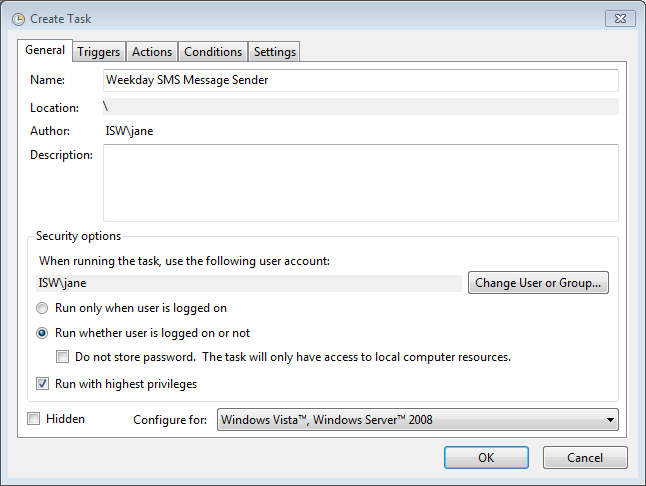
Weekday SMS Sender
Create a new task.
General
Security options
-
- Run whether the user is logged on or not.
- Run with the highest privileges.
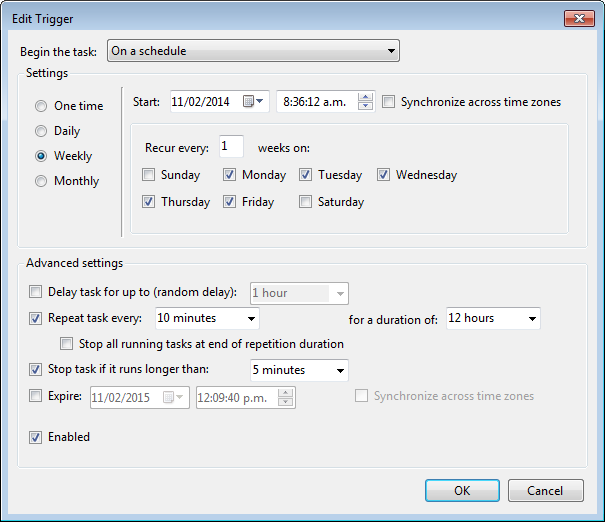
Triggers
Start: |
8.00 a.m. |
Settings: |
Weekly |
|
Monday, Tuesday, Wednesday, Thursday, Friday |
Repeat task every: |
10 minutes |
Stop task if it runs longer than: |
5 minutes |
. 
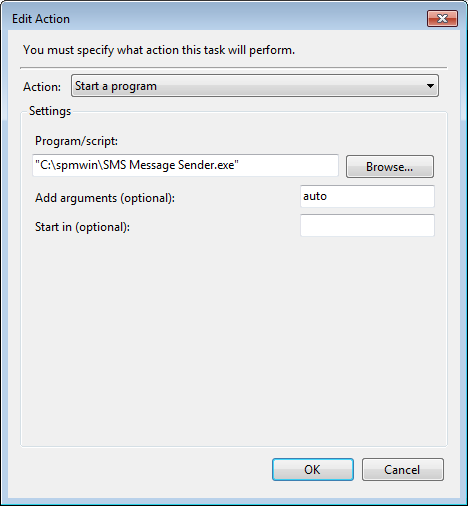
Actions:
Program/script |
SMSSender.exe needs to be set to run from the program directory (normally c:\spmwin). |
Add arguments: |
Auto |
. 
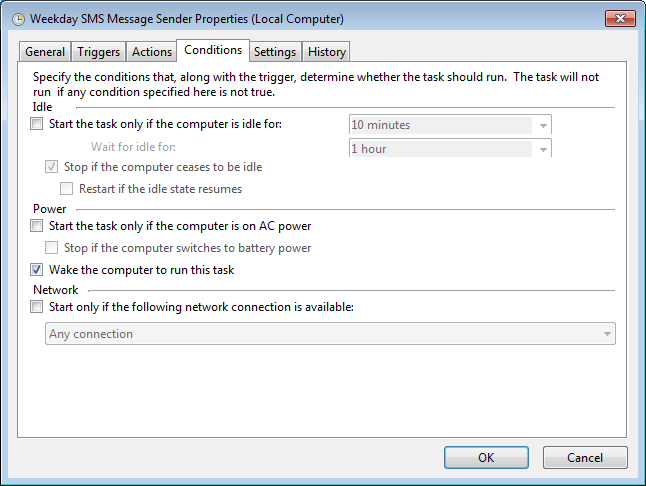
Conditions:
-
- Wake the computer up to run the task.
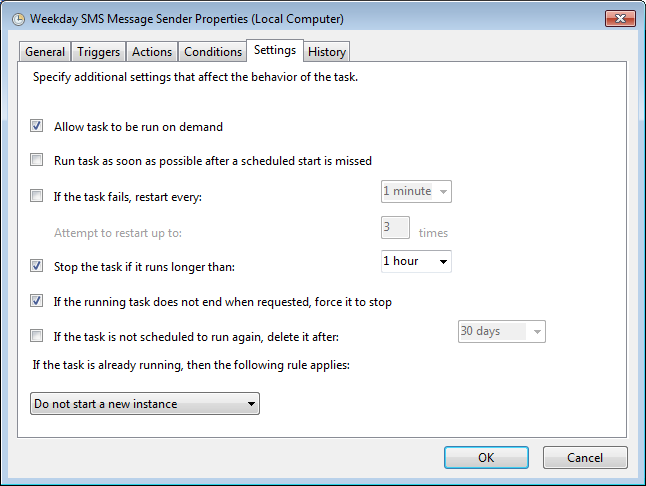
Settings:
-
- Allow the task to be run on demand.
- Stop the task if it runs for longer than 1 hour.
- If the running task does not end when requested force it to stop.
Sunday SMS Sender
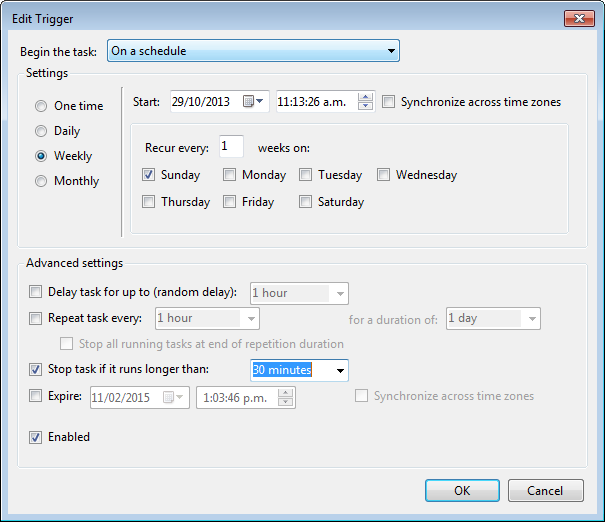
This task should be created to run once on a Sunday, normally late morning or early afternoon. If it is set to run too early, it may wake some people up! Ensure that the correct usage of AM or PM is selected depending on the time set.
Create a new task with the same settings as the Weekday SMS sender, setting the task to run only on a Sunday. No repeat is required.
Triggers
Start: |
10 a.m. |
Settings: |
Weekly |
Recur every 1 week on: |
Sunday |
Stop task if it runs longer than: |
30 minutes |
Receiving SMS messages
A third scheduled task needs to be set up for the SMS Sender application to poll more frequently for incoming messages.
"SMSSender.exe /replies"
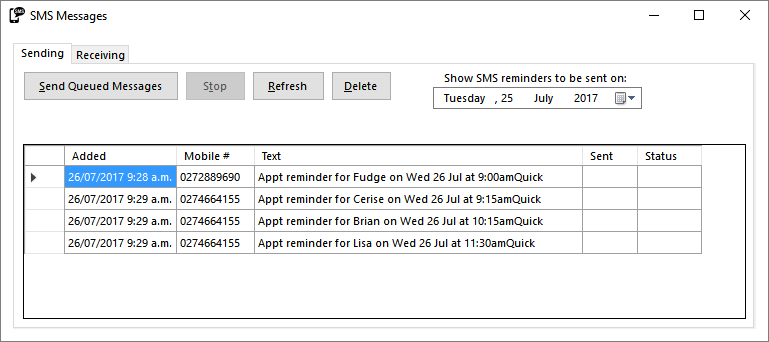
This task should probably be run every 10 minutes and will poll the Provider's SMS account, then retrieve them. Alternatively you can manually run the process by clicking on the 'Check for SMS Replies' button found on the 'Receiving' tab.
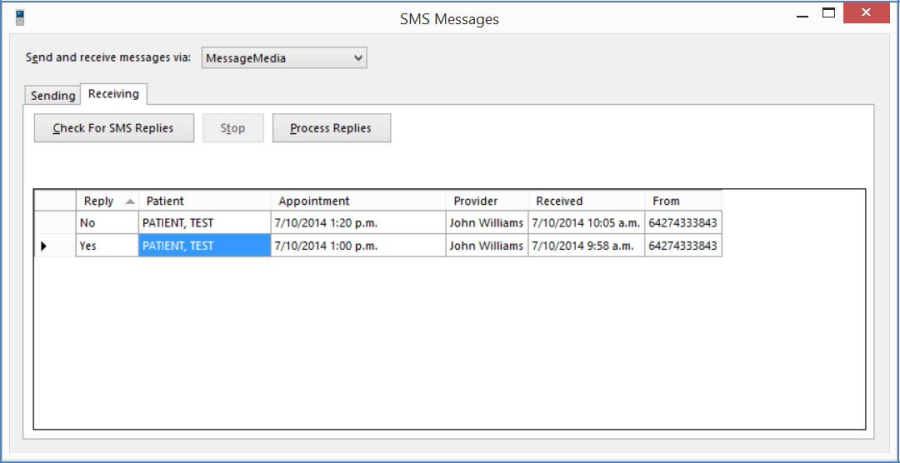
If the above automated /replies option is used, the program will automatically update the Status of the patient's appointment. Otherwise it can be run manually by clicking on the 'Process Replies' button on the Receiving tab.
On This Page:
Related: