Invoicing (ACC) Non-Core Surgery
Non-core invoicing is used where the operation does not meet any of the existing contract procedure codes and special approval is required from ACC for the surgery to proceed.
Setting up the system for non-core invoicing and generation of an XML file requires importing codes and configuring the application. This will be performed by Incisive staff. The details are at the end of this document. Electronic claiming for Non-Core Surgery is only available when using the Inventory invoicing.
Entering non-core stock & services
Referral
Ensure the correct Billing Type is selected in the referral screen.
Stock Used
Enter the stock used for the operation. 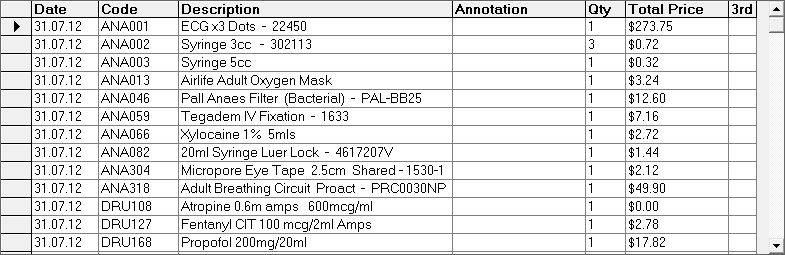
The Date Admitted and Date Discharged (from the ADT screen) should display. The number of nights stay will be calculated from these dates.
Theatre time is calculated from the Operation Information (Time in / Time Out fields).
This information is used to calculate the ESR units, so care should be taken to ensure the data entry is correct. 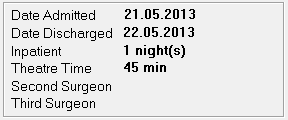
On completion of entering the stock used, select the ACC Non-Core icon.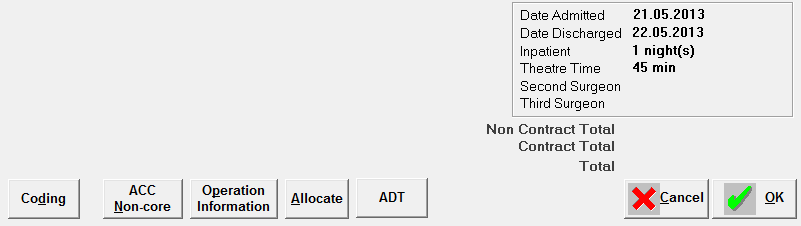
Note, this option will only display if the Billing Type Pricing Mode is set as ACC Non-Core.
Building the non-core invoice
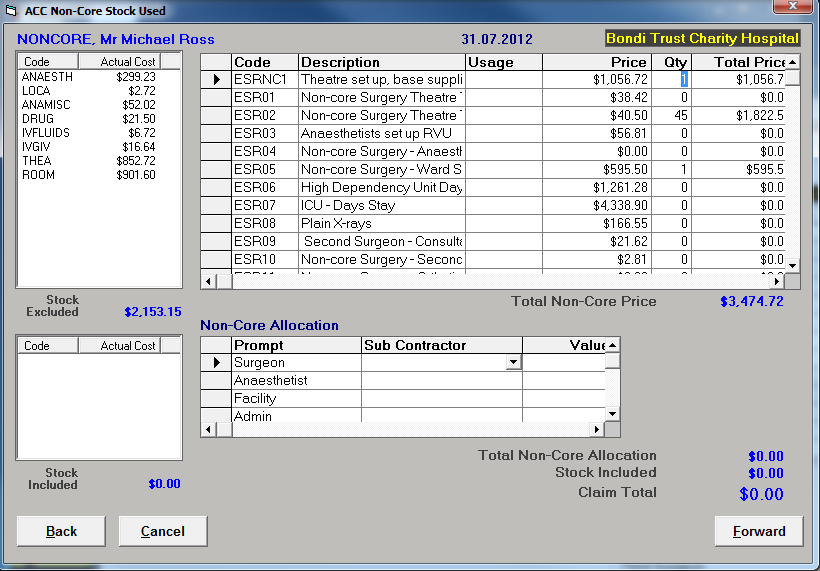
Non-Core Item Prices
The ESR units will be partially completed based on the stock used on the previous screen, together with the theatre time and number of nights (or day stay).
You can adjust the values for the 'Provider Determined' in the Quantity column and also the Total Price column.
Changes to the Price of the ESR item can be made by editing the Item in Setup > Operations/Procedures > Procedure Items
Stock Included
Some stock items are not to be excluded from the Non-Core Surgery Claim. These are stock items that belong to Categories that have been marked as either Contract or Implant. These items will be added to the ESR Total Non-Core Price.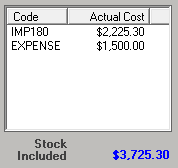
Stock Excluded
The non-contract items used in the surgery, display in the left hand area of the screen for reference. These stock items are excluded from the Non-Core Surgery Claim (but need to be recorded for stock control purposes and reporting Profit and Loss Reports).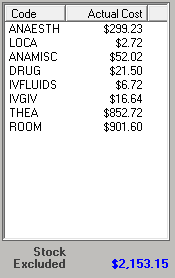
It is up to you to determine which, of these amounts, you want to include in your invoice claim. You can manually update the Quantity and Total Price for the following codes.
ESR04 Anaesthetic other, Provider Determined
ESR11 Orthotics/Splints, Provider Determined
ESR12 Other unique supplies, Provider Determined
ESR13 Unspecified Costs, Provider Determined
ESR14 Laparoscopic/endoscopic supplies, Provider Determined
Non-Core Allocation
On completion of entering the ESR Units, you need to allocate the funds to the various parties.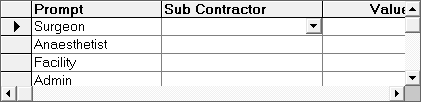
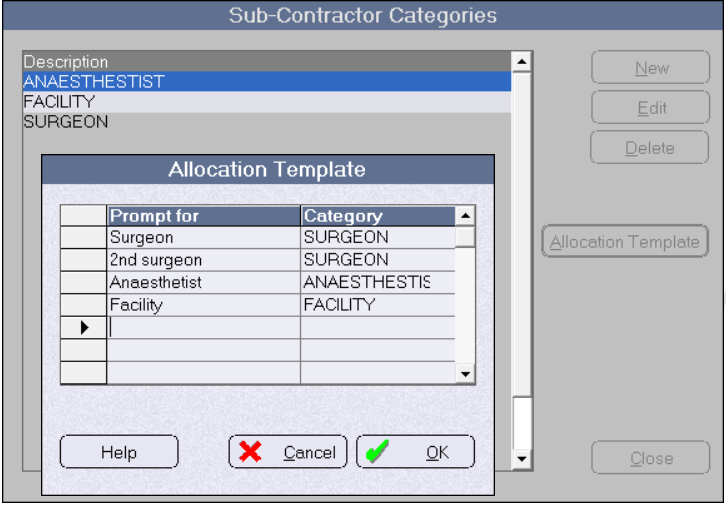
(The sub-contractor category prompts, if they do not already exist are set up via Setup – Contacts - Sub Contractor Types – Allocation Template.)
Allocate the required amounts to each sub contractor. You can just allocate it all to the 'Facility' only.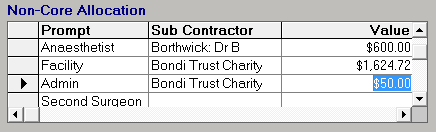
The Total Non-Core Allocation must equal the Total Non-Core Price.
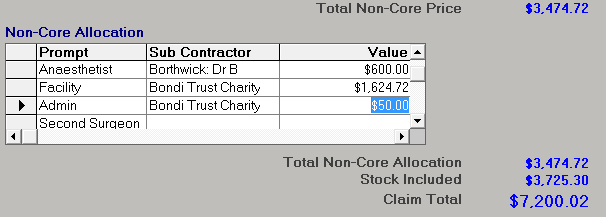
The Claim Total is made up of the Non-Core Price plus those stock items to be included.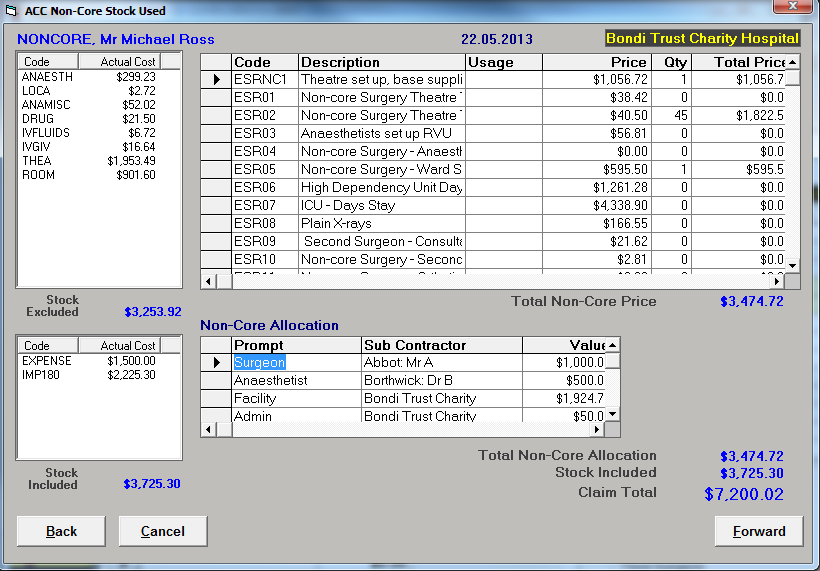
On completion of the allocation, select Forward.
Confirm that you wish to continue.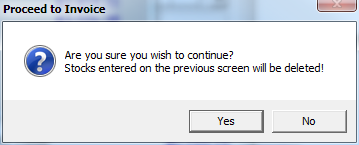
Processing the Non-Core Invoice
The Non-Core Invoice screen will display the total (exclusive of GST) for each of the non-core units, together with the implants and expense medical consumables.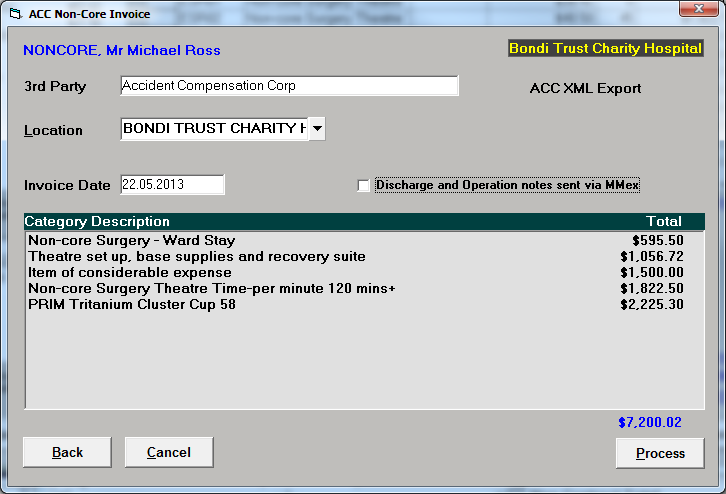
3rd Party | The 3rd Party to invoice will default to the party of billing selected in the Claim screen. If the party is configured to export an XML file to ACC, this will indicated. |
Location | Ensure the correct Location is selected. This will ensure that the correct Facility Code ID is transmitted in the XML file. |
Invoice Date | The Invoice Date will default to the setting in Setup -> Provider -> Config3 -> Default Invoice Date:
|
Discharge and Operation notes sent via MMex | MMex is a mailbox used by Healthlink. Currently this has not been implemented on the ACC system. If ticked, this will indicate to ACC that the notes are being sent via MMex. |
Process the claim in the normal way.
Creating the XML file
If the Export option has been selected, an XML file, in a format that can be uploaded to ACC, is automatically generated and placed in the directory specified in System -> File Locations.
Uploading the XML file
Use the ACC eForm option (Messaging -> eForm) to upload the file and also to troubleshoot and manage other aspects of the eForm file.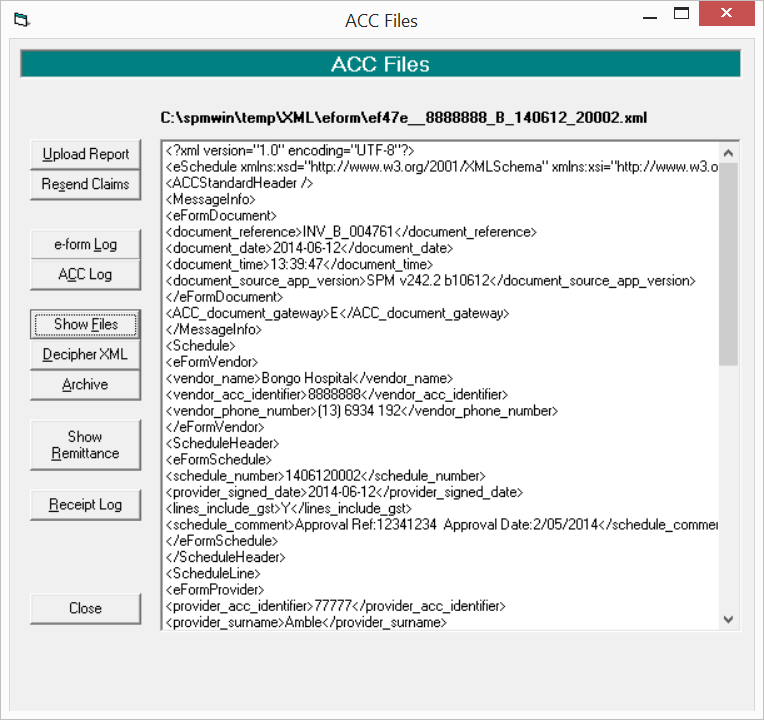
Setting up SPM /PHM for Non-Core invoicing
Billing Type
A Billing Type with the Pricing Mode set to Non-Core must be created if one has not already been created (Setup – Charges (System) - Billing Types; or Setup – Financial – Charges – Billing Types (System)).
The name can be something like 'ACC Non-Core'.The 'Pricing Mode' must be set to Non-Core.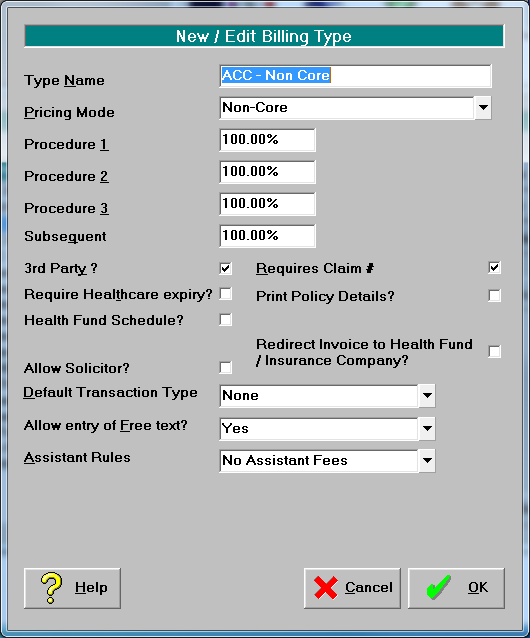
Third-party
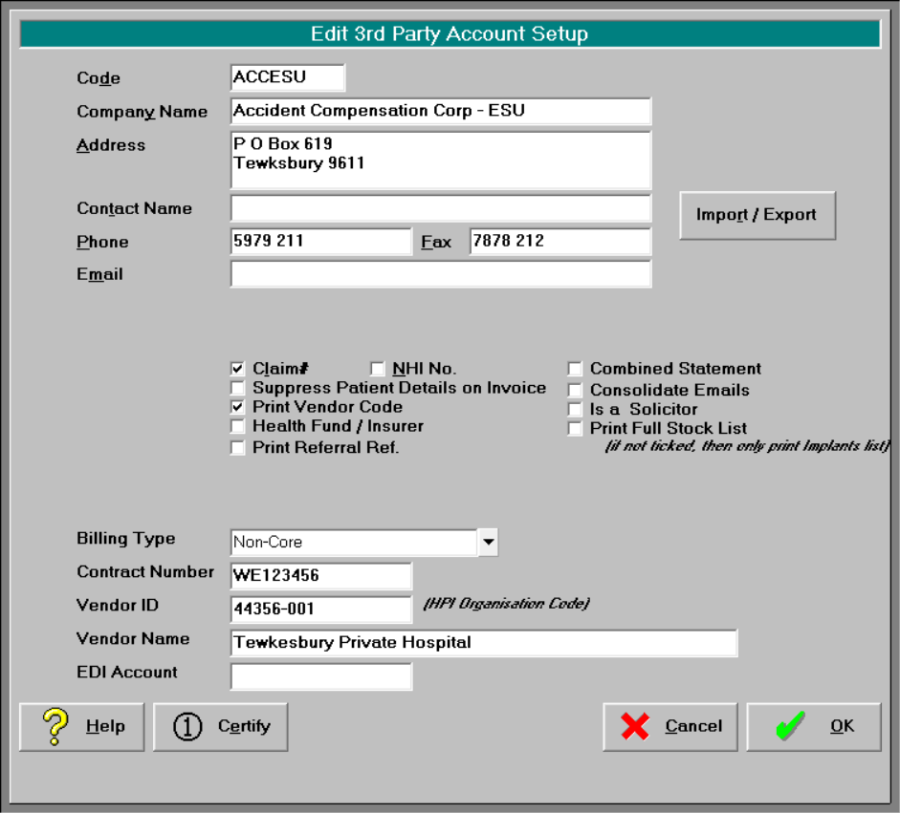
The third-party that will receive the invoice need to be created or configured.Setup -> Contacts -> Invoice/Reports.
Contract Number
For Clinical Services Contracts (normally claimed on a bulk bill schedule), the Contract number needs to be entered in the Vendor Contract field: Setup -> Contacts -> 3rd Party Schedules This is in the format CLSxxxA.
For Elective Services claims, the Contract number needs to be entered in the Vendor Contract field Setup -> Contacts -> Invoicing/Reports
HPI Organisation Code / Vendor ID
The HPI Organisation code is normally in the format G0xxxx (Gzeroxxxx). This is entered in the Vendor Code field as above.
HPI Provider Codes / Provider ID
If you have been issued with HPI Provider codes, these are in the format xxAAAA , where x is a number and A is a letter.
Individual Users For each User in the database the HPI Provider Code / Provider ID needs to be entered in the ACC Number field. Setup -> Provider -> User Config
Subcontractors
If Sub-contractors are involved for 3rd Party Schedule Claims, the Provider ID or HPI Provider Code needs to be entered in the ACC Provider No field for each sub contractor. Setup -> Contacts -> Sub-contractors -> Sub Contractor
Referring Doctors / Surgeons
Inventory Invoices pull the HPI provider number from the Referring Doctor details. The HPI Provider Code or Provider ID therefore needs to be entered in the ACC Provider Number field for each surgeon operating at the facility. Setup -> Contacts -> Correspondence
Facility Code
If you have a Facility Code (hospitals only), this needs to be entered in the ACC Location ID field against the correct location: Setup -> Locations -> Locations
If an XML file is to be created instead of a paper invoice you need to enable the Export function by clicking on the Import/Export button.
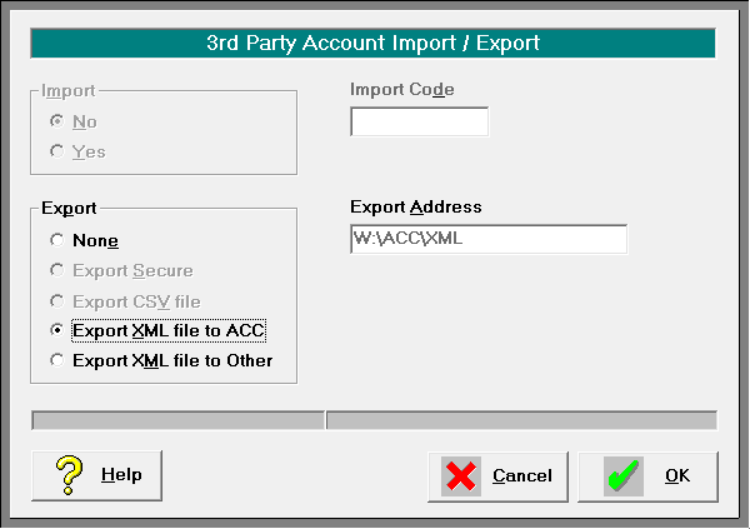
The location is set is Setup -> System -> File Locations -> ACC Export
Non-Core Category
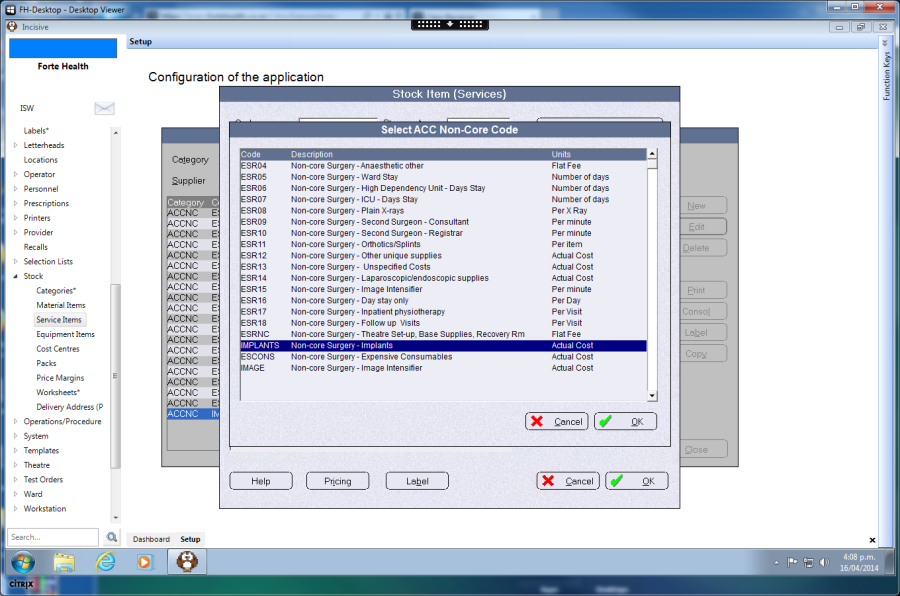
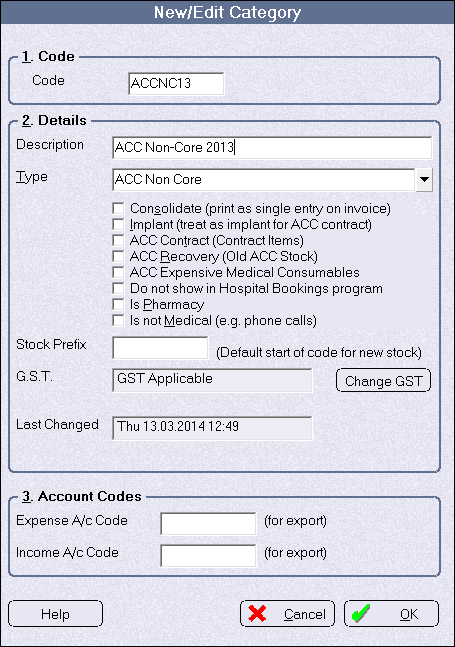
The non-core items need to have their own Category setup and then entered (imported) into this category. The Type field must be set to 'ACC Non-Core'. The category will be automatically created when the non-core codes are imported so there is no need to manually create one.
If you do use the import process to create the Category you will need toedit the Category and change the Description, Type and remove the check on the ACC Contract checkbox.
Sub-contractor allocation template
The sub-contractor category prompts, if they do not already exist are set up via Setup – Contacts - Sub Contractor Types – Allocation Template
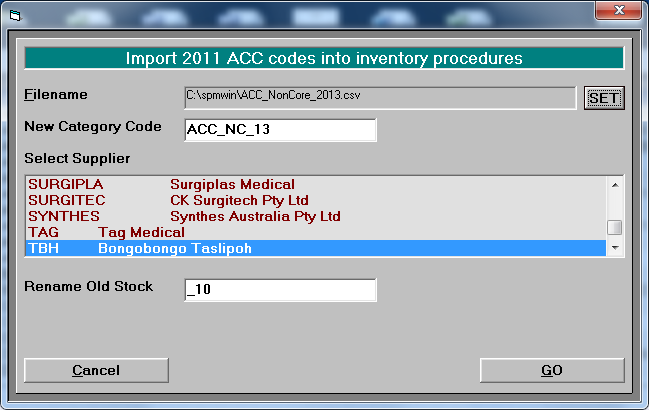
Importing non-core codes
Each time the fees for the Non-Core items change you need to import the new rates which will create a new Category for them.
Use the ACC codes import tool e.g. ACC2014.exe.
Ensure there are 22 items listed. If not, add the additional items.
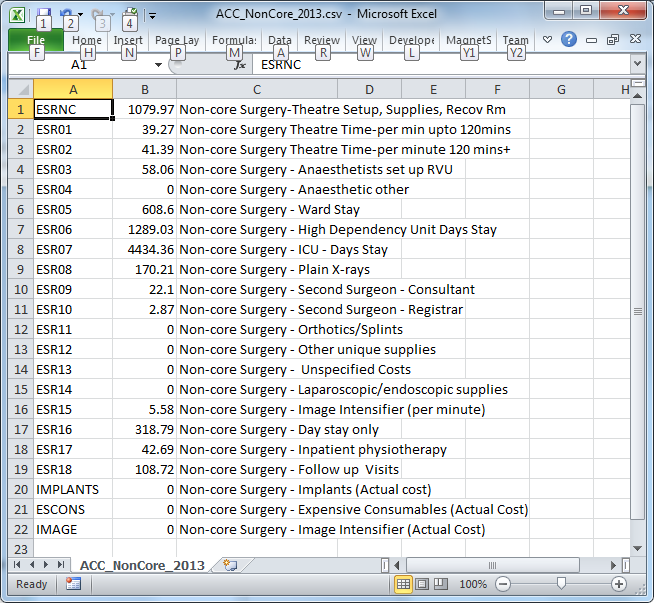
Editing non-core codes
In Setup -> Stock -> Material items select the Non-Core category to list the non-core items
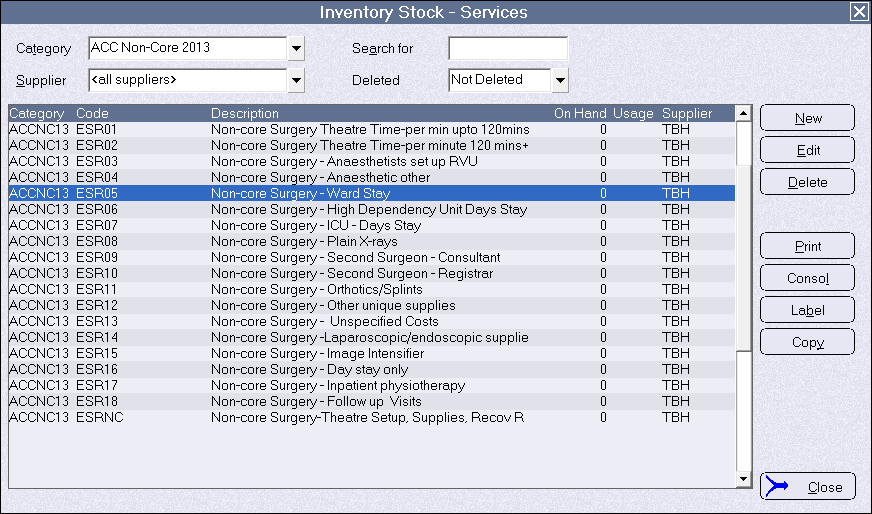
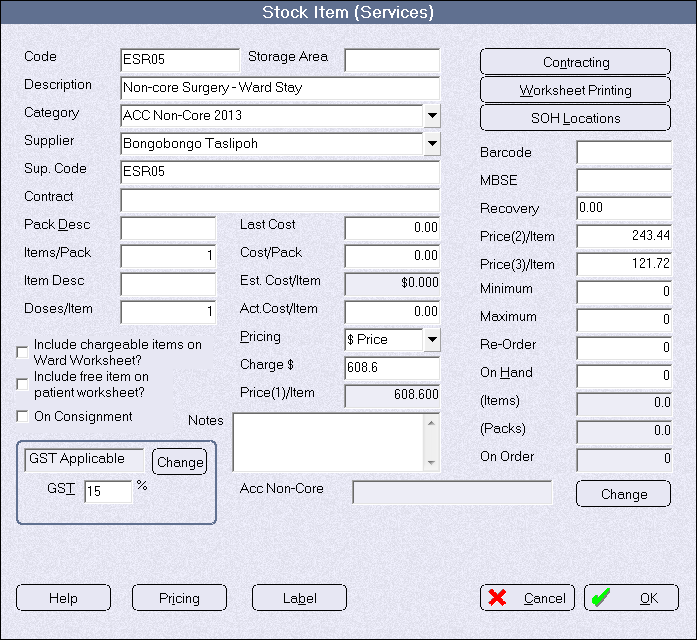
Edit each of the items and select the 'Change' button next to the 'ACC Non-Core' field.
From the list, select the respective entry. There should be a one-to-one match for each of the items and entries in the AccNonCoreCodes table.