This article is obsolete if you are using the ACC portal to upload your invoices directly from the Incisive application.
How to delete an Invoice where the claim has been uploaded to the ACC website (in the absence of a rejection by ACC)
Versions 408.6 or greater have the ability to manually reject an invoice or claim and delete it using the ACC - Reject menu option located on the Transactions tab for a patient. If you are not running 408.6, the following steps will allow you to delete the invoice,
To locate a file that has been uploaded to the ACC website, use the ACC eForms program which is located in Utilities.
- Select ACC eForms.

- Select Decipher XML

- Navigate to the Upload folder (this will contain the files that have been successfully uploaded to the ACC web site.

- Once you are in the Upload folder, sort the files by 'Date modified'.
- If you know the date that you produced the file, i.e. date the claim was produced, start by selecting these one at a time and selecting 'Open'..

- The information contained in the selected file will help you to identify whether you have the correct one, If not, keep repeating steps 2 -5 until you have the correct file.
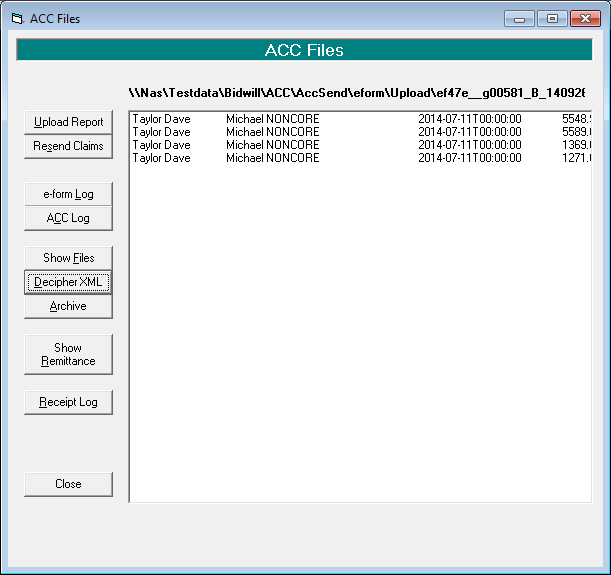
- Once you have the name of the file, make a note of it.
- Select Show Files.

- Navigate to the Upload folder and find this file.
- Right mouse click on the file and select 'Cut'.
- Arrow back to the previous screen.
- Right mouse click and paste the file back into the 'eform' folder

- You will now be able to delete the invoice from the Transactions tab for the patient.