Each Workstation (laptop/server etc.) is able to have some specific settings configured for it.
A 'Workstation' can be a physical computer or, if it is configured to use the 'Terminal Server' option, it can be regarded as a 'virtual workstation'.
For Technicians and Administrators.
A physical workstation will store many of its configuration settings in the SPM.INI file in the application directory on the workstation.
A virtual workstation will make a copy of the SPM.INI file and create a new one called SPM_<login name>.INI and save it into the common 'Shared' directory. For example, if I log onto the network as 'JOHNB' - the file created will be called SPM_JOHNB.INI
The virtual workstation is only used if CITRIX=TRUE is set in spm.ini file.
The location of the common 'Shared' directory is specified in the MDB=<path> setting in the spm.ini file.
There are some occasions where the workstation is not using a Terminal Server connection but you still want to have separate configuration files for each login.
The 'virtual workstation' is ideal for use in a Terminal Server environment were there is only instance of the Incisive application and some configuration settings could be overwritten as different staff members make changes.
Turning the 'virtual workstation' option ON allows each Operator to select and save their own configuration settings that are related to the Location they are working from.
To change the workstation configuration
Select Configuration.
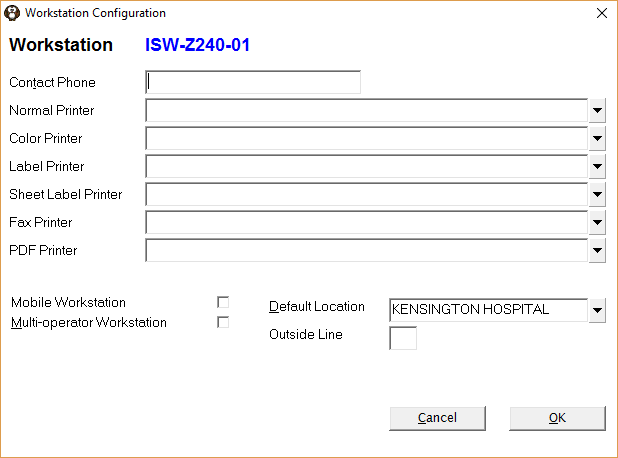
Change settings as required.
Select 'OK' to save the changes.
Workstation | This is a display field only. The name of the workstation will display (or network login if on a Terminal Server). |
Contact Phone | A contact phone number can be entered here. This will print out on any Run-time Errors so that we know who to contact (if the error message is sent through). |
Normal Printer | Select a printer from the drop down list. This is the laser-jet printer that you will be printing to. |
Color Printer | Reserved. |
Label Printer | Select a printer from the drop down list. Only printers marked as being a Label Printer will display in this list. |
Sheet Label Printer | If you are printing sheet labels, select a printer from the drop down list. |
Fax Printer | Select a fax driver, normally SPM Fax Driver, from the drop down list. This is required if you are faxing out of the Incisive application. |
PDF Printer | If you have a PDF Printer driver installed, select it from the list. This would normally be something like CutePDF Writer or PDF Writer. |
Mobile Workstation | If the workstation can log in from multiple locations, check this option on. This will allow you to select the location as you log in (which can populate the printers for you). |
Multi-operator Workstation | If more than one operator uses the workstation, i.e. in a reception environment, it is often not practicable to log in and out of the Incisive application. A generic login with minimal access rights can be created and this used by all staff to log in to the Incisive application. When the generic login does not have rights to carry out a function, if this option is enabled, you will be prompted to enter a new login and password to carry out the task (if permissions allow). |
Default Location | Select the default location from the drop down list. This is the location that will appear (by default) when logging in. If the option 'Mobile Workstation' is also selected, you will be able to change the location when logging in. |
Outside Line | If you are faxing (using a fax modem) and you need to dial a number for an outside line, enter the number here. If you are using a product such as GoFax, this is not required. |