A 'Waiting List' is a list of patients that you want grouped and sorted prior to giving them a booking in the Appointment tab. You can set up a range of different Waiting Lists.
Using the Waiting List
Go the Appointment module. Select the Waiting List tab that you wish to use.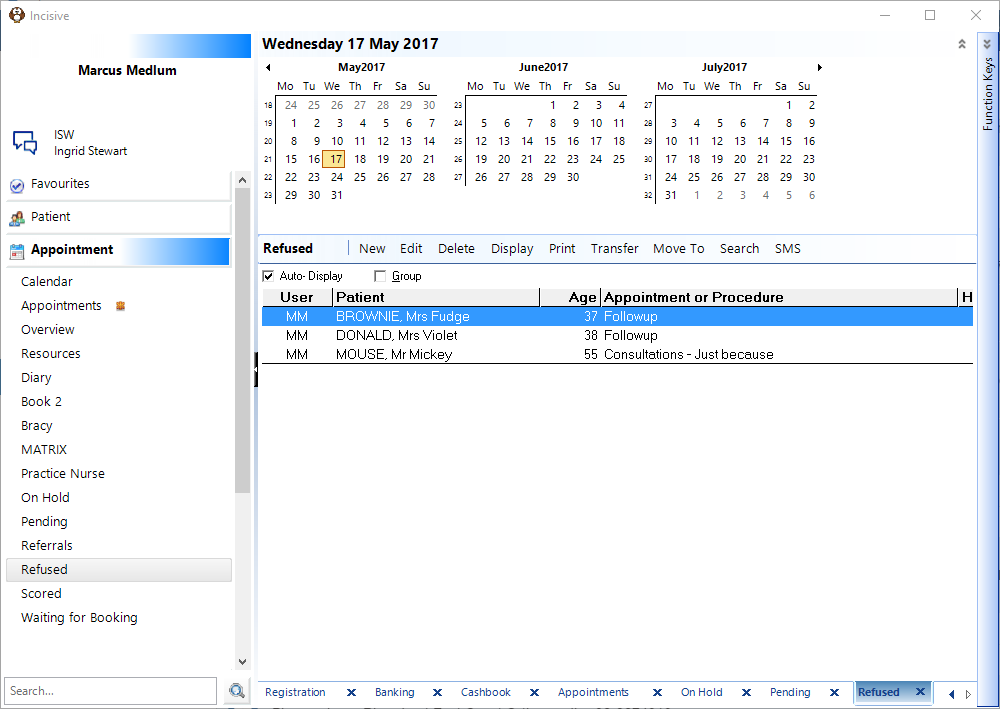
New | Enter a patient onto a Waiting List |
Edit | Change an entry on a Waiting-List |
Delete | Delete an entry on a Waiting-List |
Display | Change the display order of the patient's in the list |
Print the Wait-List | |
Transfer | Transfer a patient FROM another Waiting List TO this Waiting-List |
Move To | Transfer a patient FROM this Waiting-List TO another Waiting List |
Search | Search for a patient's appointment or Wait-List entry |
SMS | Send SMS messages to a patient or all patients in the Wait-List |
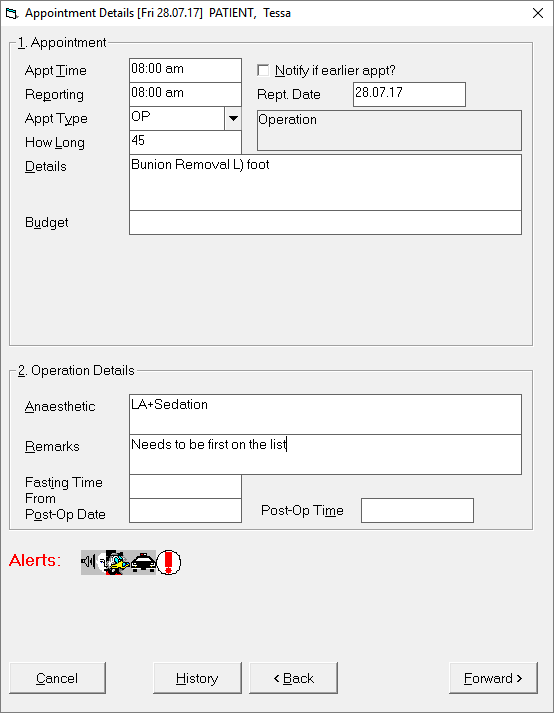
Add a patient to the 'Waiting List'.
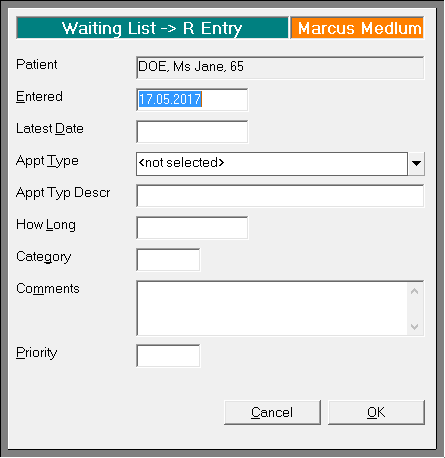
Entered | date of entry (mandatory) |
Latest date | date you want this entry to be sorted on eg end of approval eligibility (optional) |
Appt Type | select the type of booking the patient will have in the future (mandatory) |
How Long | length of booking. Alter if different from the default (mandatory) |
Category | any text can be entered in. Use to allocate patients to a category (optional) |
Comments | add text about the entry of the patient to this Waiting List (optional) |
Priority | allocate a number of 1-9 to indicate a priority (optional) |
The patient is now added to the Waiting List. Make sure the 'Auto Display' box is Checked-On
Moving a Patient From a Waiting List to a Consultation or Theatre booking
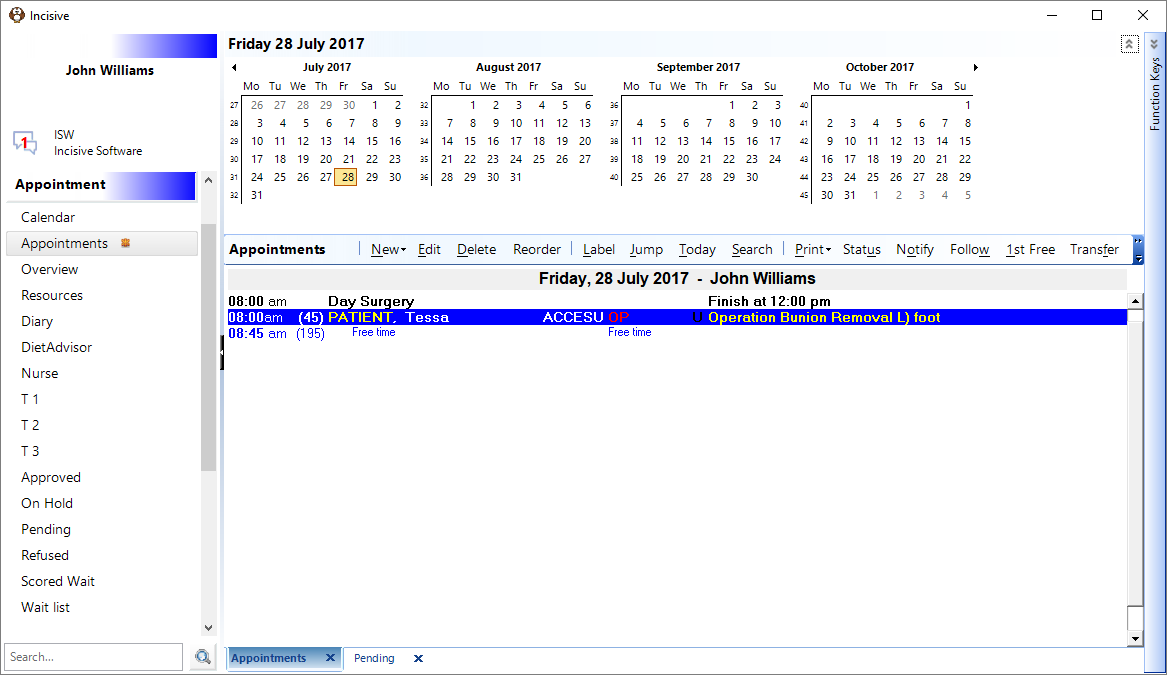
Go to the correct day in the Appointments tab and choose an empty space in the Book that you want to move the patient into.
Don't highlight an existing patient in the list as the Transfer function will assume you want to move the patient to a Wait-List
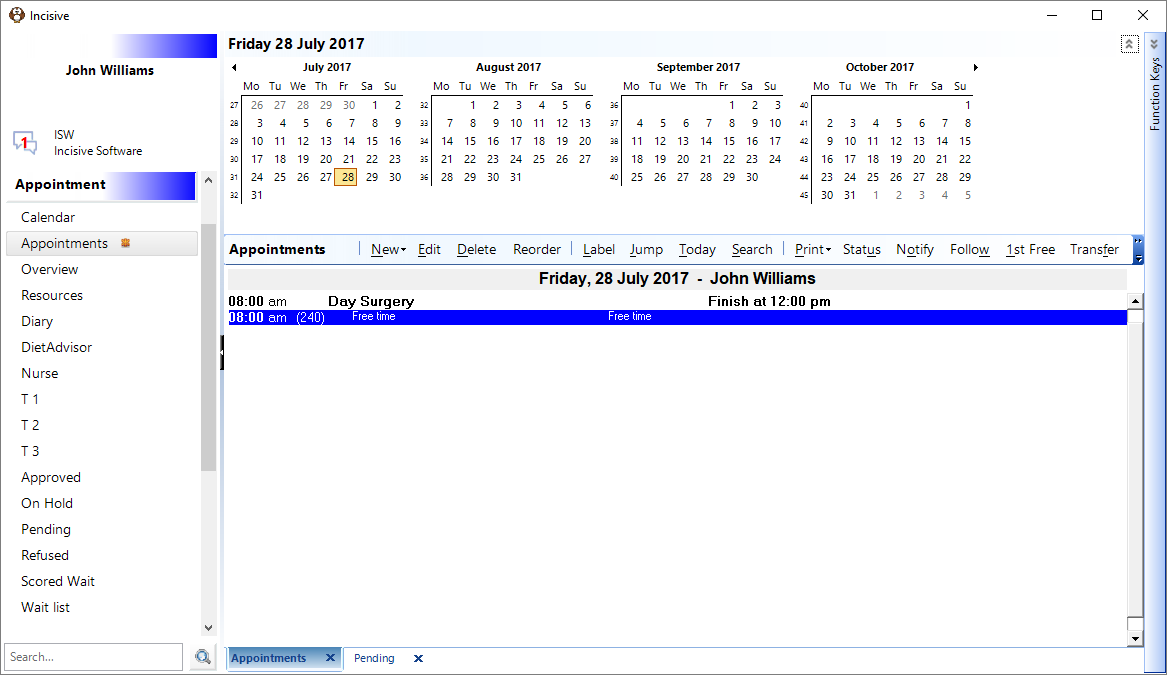
- Click on the 'Transfer' button and select the Waiting List that you are retrieving the patient FROM and highlight the patient.
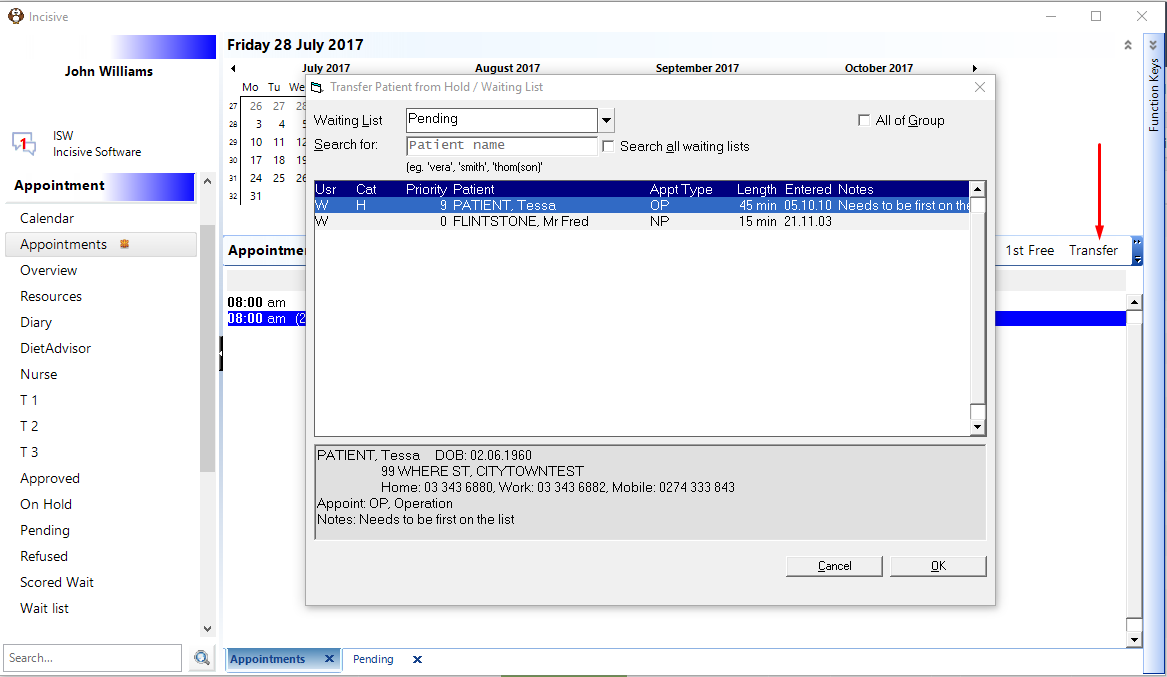
- When you click on the OK button you will be lead through the usual process of booking a patient who will then appear on the Appointment tab.
On This Page:
Training:
- Appointment Confirmation
- Cancel a Clinic
- Change an Appointment
- Create or Roster a Session
- Delete Appointment
- Deleting multiple sessions
- Find 1st Free Appointment
- Link Session to a Facility
- Make a further appointment
- Make an Appointment
- Notify
- Print a Session
- Print Labels for a Session
- Referral Entry
- Reorder Appointments
- Resources - Configuration
- Resources - Stop double-booking of treatment room
- Search
- Sending an Appointment List
- Setup New Session Type
- Share an Op list with Anaesthetist - using inTOUCH app
- Transfer Appointment to/from Wait-list
- Transfer Session
- Waiting Lists