The Session Import Dashboard provides you with a view of the theatre sessions that have the bookings automatically imported and also allows you to manually import the files have not been automatically imported.
Dashboard display
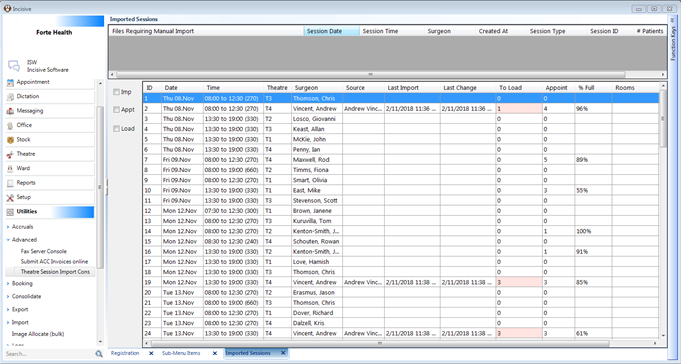
Manual Import
This lists the files which include session data that has data that is insufficiently matched to allow the session bookings to be automatically imported. Double-click to start the matching wizard
Session List
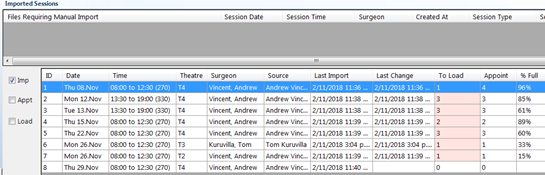
This lists all the sessions for the period specified and with the required filters. Only the sessions that are configured to allow bookings to be imported will display the date/time that the booking data was last imported.
ID | This is just a row counter for the dashboard |
Date | Date of a Session in PHM |
Time | Start and Finish time of the Session in PHM |
Theatre | Theatre name the Session is allocated to |
Surgeon | Name of the surgeon/sub-contractor linked to the Session in PHM |
Source | Name of the Provider retrieved from the SPM data file |
Last Import | Date that the Session file was last imported |
Last Change | Date that the bookings in the PHM session were last changed automatically by the import process. Note that there is the possibility that an updated Session file has been received and parsed but none of the patient or booking data has been changed because the date/time imported falls within one of the two 'time windows' that restricts or disallows the application to make changes automatically. |
To Load | The session has bookings that need to be ‘Loaded’ |
Appoint | Total number of bookings in the Session in PHM |
% Full | Percentage of the Session time that has been filled from the operation times that the surgeon provides. |
Rooms | Final or Revision text will appear if the surgeon’s rooms have marked the session as Finalised |
Hospital | Final or Revision text will appear if the hospital have marked the session as Finalised |
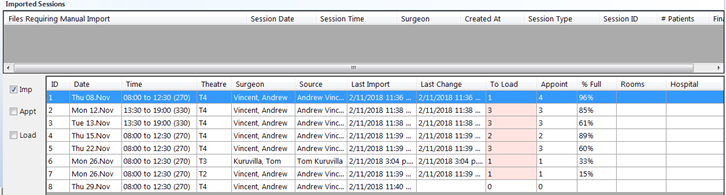
Sessions imported previously
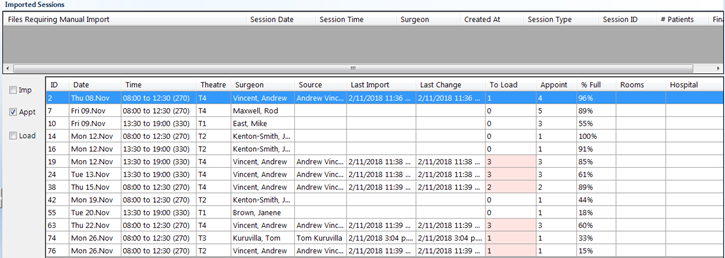
Sessions with appointments
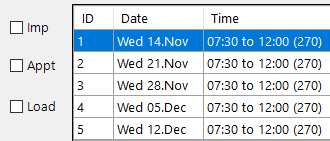
Filters
| Imp = Show sessions that have been imported |
Appt = Show sessions that have appointments/bookings | |
Load = Show sessions that have bookings that need to be Loaded |
Security
All files are encrypted during the export process and also the https protocol is used during the upload and download transfer.
To ensure the file is received only by the intended recipient, an authentication process using a Private/Public key is used for each sender/receiver conduit.
Microsoft Azure Storage Blob Containers are used as the transfer cache.
Import Actions
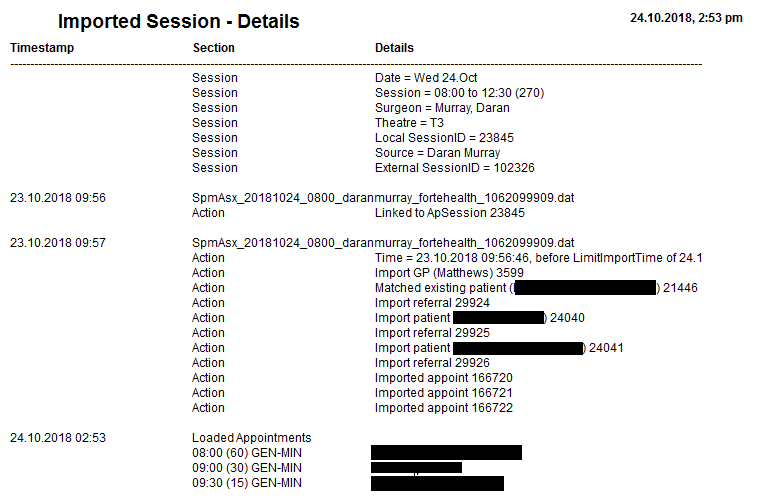
Double-click on an imported Session to see the actions performed during the import process and also the names of the patients and the new bookings created.
Matching Records
Matching patients
If the patient in the export file has an NHI number, then only an exact match on lastname, dob, and NHI will be accepted as a match. (Firstnames are ignored in this case).
If the export file doesn't have an NHI number, then the program searches for an exact match on DOB, then looks for patient with the same lastname and firstnames (ignoring punctuation). It will allow a very small amount of variation (e.g. "Allan" vs "Alan") BUT only if there is only one possible matching patient. If it has to decide between two 'fuzzy' patients, it won't match and will create a new patient.
If the same patient exists then NO patient details will be imported, even if the surgeon has newer or more complete registration details about the patient.
Matching GP's
An attempt is made to match the patient's GP with an existing GP in the hospital system. Key identifiers such as NZMC, HPI and Provider numbers are used as well as the doctor's name and address.
If the GP has multiple address entries the import process will attempt to make the best match using the address provided by the surgeon's rooms.
If no match is made the GP will be added to the hospital's Contacts.
Matching referrals
If there is already a referral for the patient in PHM from the surgeon for the same referral date (date of operation), the existing referral will be used. Otherwise a new referral will be created.
Matching Billing Types
NO attempt is made to match the Billing Types between the surgeon's rooms and the hospital.
ALL bookings that are imported will be automatically assigned to a single, specified Billing Type e.g. Funding Unknown (configured in SessionImport.exe config). The correct Billing Type will need to be selected when the booking is 'Loaded'.
Matching Claims
If imported claim has the same claim number as an existing claim record, the existing claim will NOT be replaced or updated. If there is not an existing claim number that is matched, a new claim will be created.
Matching bookings
Once a booking has been imported or made for the patient it will remain there unless deleted by the hospital staff or cancelled by the surgeon. Changes to the booking by the import process will only be allowed according to the rules of the Open, Shared and Restricted periods.
If the duration of a booking or the listed order of patients is changed by the hospital during the Open period, the order will revert to the specialist's order when the session is next imported (during the Open period).
Cancelled bookings
If a patient cancels a booking and the specialist's secretary removes it from their operating list, the change will be uploaded to the hospital and the corresponding booking will be deleted from the Session in PHM if the change period is still in the 'Open' phase. The patient, surgeon's referral and the associated data will remain and are not deleted.
If the cancellation is within the 'Shared' or 'Restricted' periods the existing booking in the hospital list will NOT be removed.
Matching sessions
When the session is imported, the specialist's name is matched with a surgeon (sub-contractor) in PHM. If a match is not made the file will not be automatically imported and will instead appear in the Manual section of the Dashboard. When manually importing the file a selection list of surgeons will appear to allow you to match the specialist with the surgeon list, which will be saved for the next import.
The date and start time of the imported session is then matched to an existing theatre session for the surgeon. A degree of fuzziness around the start and finish times of the sessions is allowed, but not more than 30 minutes.
If the specialist's rooms later extend their session to add another patient, the theatre session in PHM will NOT be extended. If imported during the Open or Shared periods the patient will be added to the theatre list but the Duration of the operation (and possibly other operations) will be automatically adjusted to fit within the existing theatre session period.
Matching Appointment-Type
An attempt is made, as the session is being imported, to match the Appointment Type provided by the surgeon with a same or similar one in PHM. This is, however, often unsuccessful as the types are usually dissimilar.
The duration (operation length) associated with the booking received from the surgeon will be used as the duration for the booking created in PHM – irrespective of which Appointment Type the imported booking has been matched to. If the surgeon’s times are significantly different than the duration you allow, it will be best to see if they can adjust their Appointment Type duration to match yours.
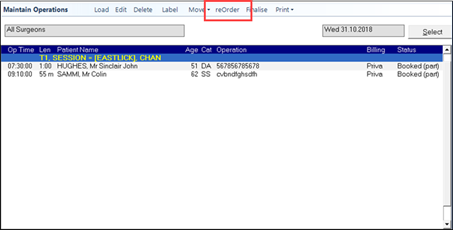
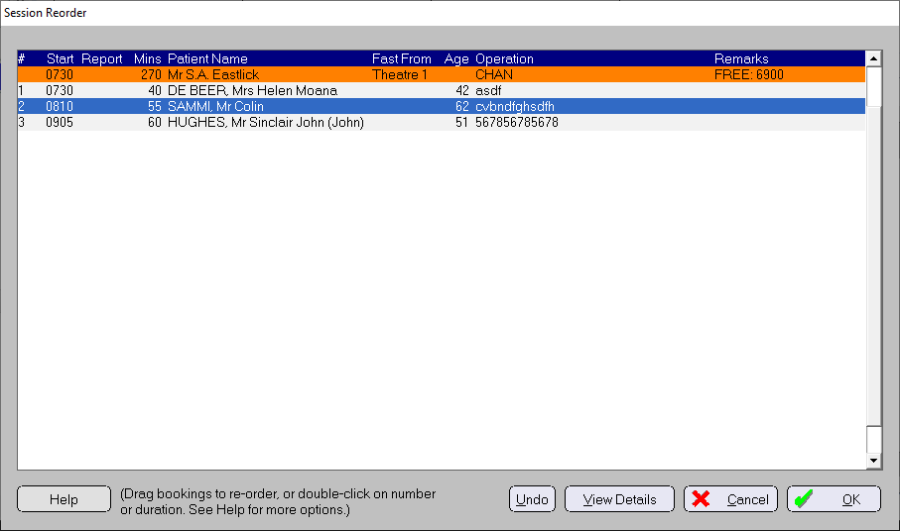
The duration of an operation in PHM must be manually changed using the ReOrder option so that the other bookings can have their start times adjusted correctly and also that the bookings don’t extend past the end of the session.
Matching procedures
If the surgeon is using the extended Operation feature in SPM, they will have the ability to select the procedures from a list of Medicare codes, for the operation. The selected procedure codes will be transferred with the exported session.
When they are imported in with the booking into PHM, the import program will try to match the supplied procedure codes with an equivalent procedure code in PHM. It does have to be an exact match.
The procedure codes used in PHM can be ‘mapped’ to an equivalent Medicare code.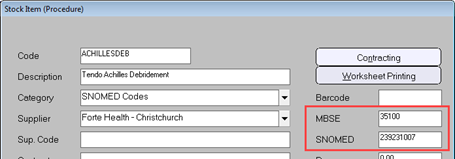
Finalised session
If a session is marked as Finalised by the specialist’s rooms, it has NO effect on the status of the session in the Theatre Register and will not cause the theatre session in PHM to be as Finalised. However, the Finalised status will appear in the ‘Rooms’ column. Each revision of the list at the rooms will appear as ‘Rev-1’, ‘Rev-2’ etc.
When the Hospital marks their theatre lists as Finalised, this status will appear in the ‘Hospital’ list column.
Change Periods
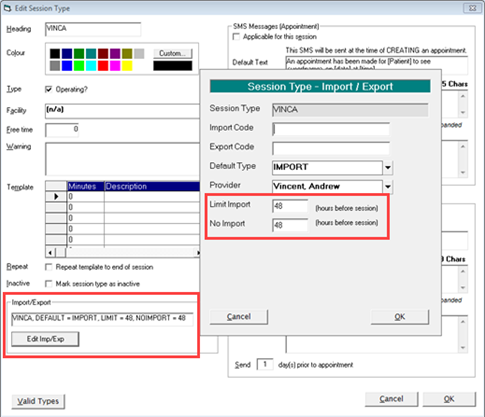
You can specify, for each surgeon/session, periods of time prior to the start of the operating session, during which both the surgeon and the hospital know who has permission to update key records relating to the patient's booking. The change period limits are set in Setup > Appointments > Session Types
Open – Surgeon
In the first period, the following can occur in the hospital system:
If a corresponding session does not exist, an option is provided to create a new theatre session for the surgeon (useful if the surgeon has added a new operating session and not yet told the hospital)
If the patient does not exist, a new patient will be added, using all the registration details sent from the surgeon's rooms.
If a match is not made with the patient's GP, a new GP record will be added.
If the referral does not exist for the date of the operation, a new referral will be added.
If the (ACC) claim number does not match with an existing claim number, a new claim will be added.
If a patient does exist, no changes will be made to the existing information in their Registration tab
If a patient referral does exist for the same date as the operation, no change will occur to the referral.
If the booking does not exist, a new booking will be made in the session.
If a booking does exist, the operation description, associated details and list order will change to match the text and order from the surgeon's list.
It WILL overwrite any changes that hospital staff make to the:
operation description,
duration
anaesthetic description
remarks text and;
list order
It will NOT overwrite any changes hospital staff have added to the initial imported booking such as:
Billing Type
Third Party for billing
Reporting date & time
Fasting From time
expected Admission & Discharge date/time
expected Nights
Procedure coding
Bed allocations
Diet & additional requirements
- j. If a patient is cancelled from the surgeon's list it WILL be automatically removed from the hospital's list.
2. Limited – Shared
The second period is determined by the number of hours specified in the 'Limit Import' field of the Session (e.g. 60 hrs), before the actual start time of the theatre session. If it is less, the import process:

WILL allow
new bookings to be added to the theatre list (they will be appended to the end of the operating list so the order doesn't change)
changes to the Operation Description, Anaesthetic details & Remarks to occur
new patients, GP's, referrals & claims to be added
will NOT allow changes to:
to the operating list order
duration of an operation (including 'Type' selection)
booking details
If a patient is cancelled from the surgeon's list they will NOT be automatically removed from the hospital's list.
Note that the surgeon does NOT have any direct or automatic notification in their appointment system of the restriction periods you have imposed on your theatre sessions and may not be aware that changes they make in their list order are not automatically made in the hospital list.
3. Restricted – Hospital

The third period is determined by the number of hours specified in the 'No Import' field of the Session (e.g. 24 hrs), before the actual start of the theatre session. If it is less, the import process:
- will NOT
- add any additional bookings to the list
- change any existing booking/operation details or the list order
- remove from the list, a patient cancelled by the surgeon.
- WILL
- allow new patients, GP's, referrals & claims to be added to the hospital database
- will NOT
There MUST be an agreed protocol between the surgeon and the hospital regarding how to communicate any changes to the planned operations during this Restricted period.
Hospital staff are able to add or modify any information relating to the theatre list without fear of it being overwritten.
4. None
If the theatre session has already started then NO data for the session will be imported.
Configuring the Change Periods
Notifications
Surgeon
The surgeon's rooms will receive a notification email when the exported file is uploaded to the hospital's container.
When the file is imported into PHM the surgeon does NOT get notified if:
- their patient order has been changed during the Shared period
- bookings are not added to the operating list because the files were imported during the 'Restricted' period.
Hospital
The hospital will receive a notification email when a file is downloaded from the hospital's container. The notification can be sent on Success, Failure or both.
Reports
There are several reports to provide you with information on the import process
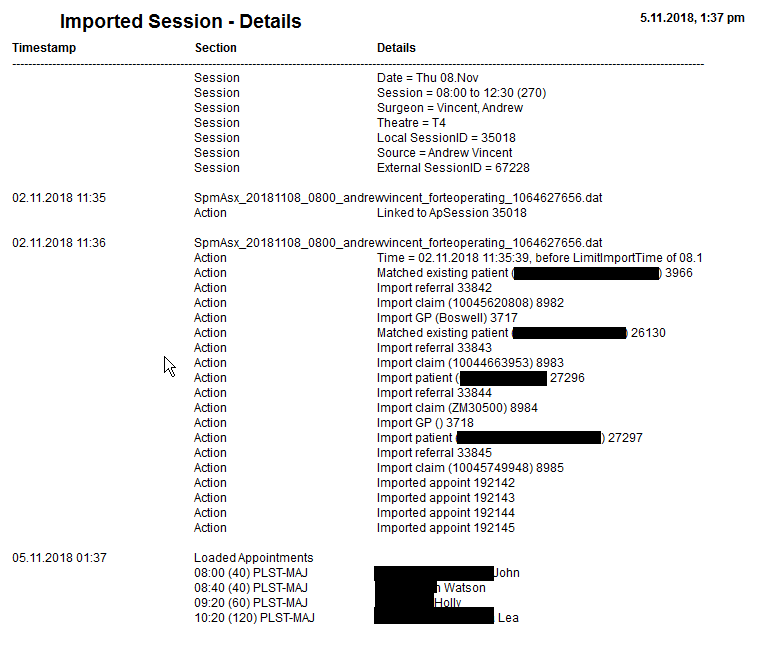
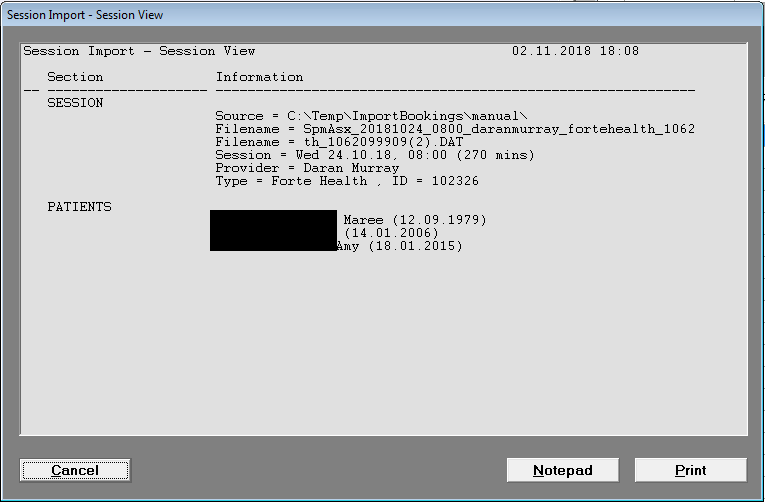
Import Session - Details
Double-click on the session row
View button - Manual
Lists the patients included in the session manually imported
Import process
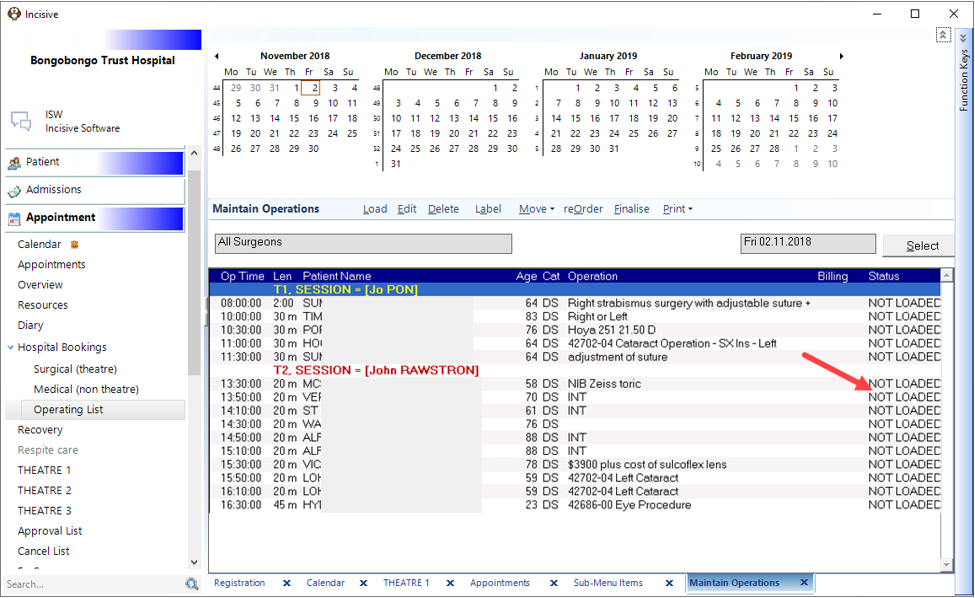
After the files have been imported they will be visible in the Dashboard display.
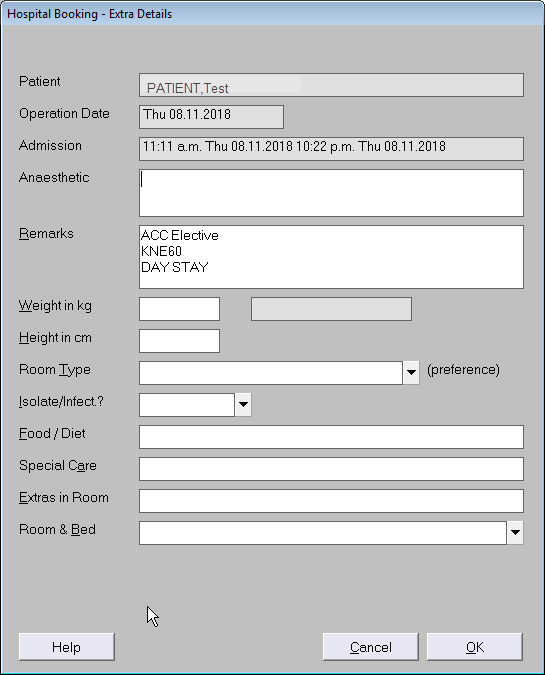
All newly imported bookings are marked as 'Not Loaded' and need to be 'Loaded' to view the data that has been transferred and also to add additional information. The 'Load' button is available on the Toolbar in Appointments > Hospital > Maintain Operations or Theatre > Theatre Register
LOAD the booking
Choose the 'Load' button on the toolbar of Appointments > Hospital > Maintain Operations or Theatre > Theatre Register
Load the booking
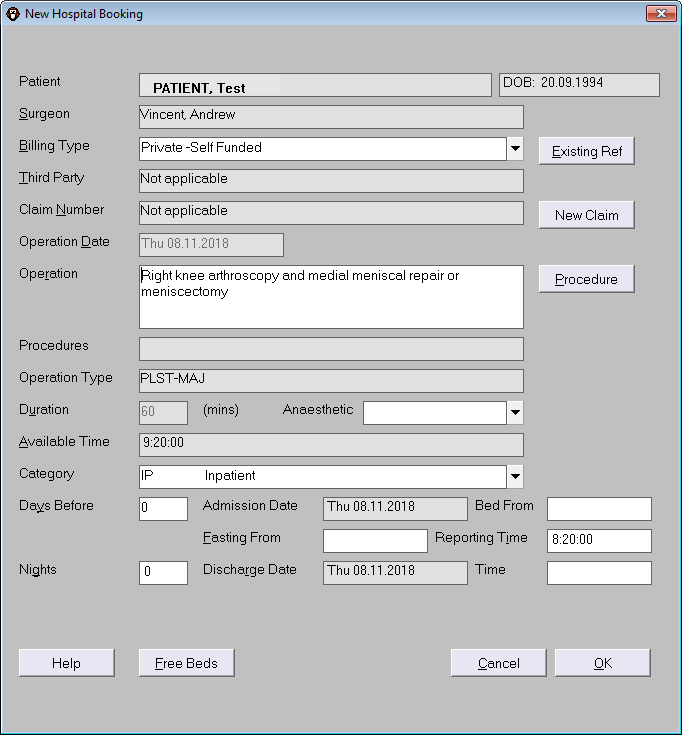
Billing Type defaults to the option preselected in ImportSession.exe Config
Claim number appears only if Billing Type requires one.
Operation Type is ‘best match’
Category defaults to Day-Stay or Inpatient depending on value in ‘Nights’ field.
Change the order,duration & reporting times using the Reorder button & Duration
On This Page:
*** ISW ONLY ***
Information on the configuration of the Session Export and Import is available from Session Export-Import