This option allows you to add, change or remove suppliers from you list.
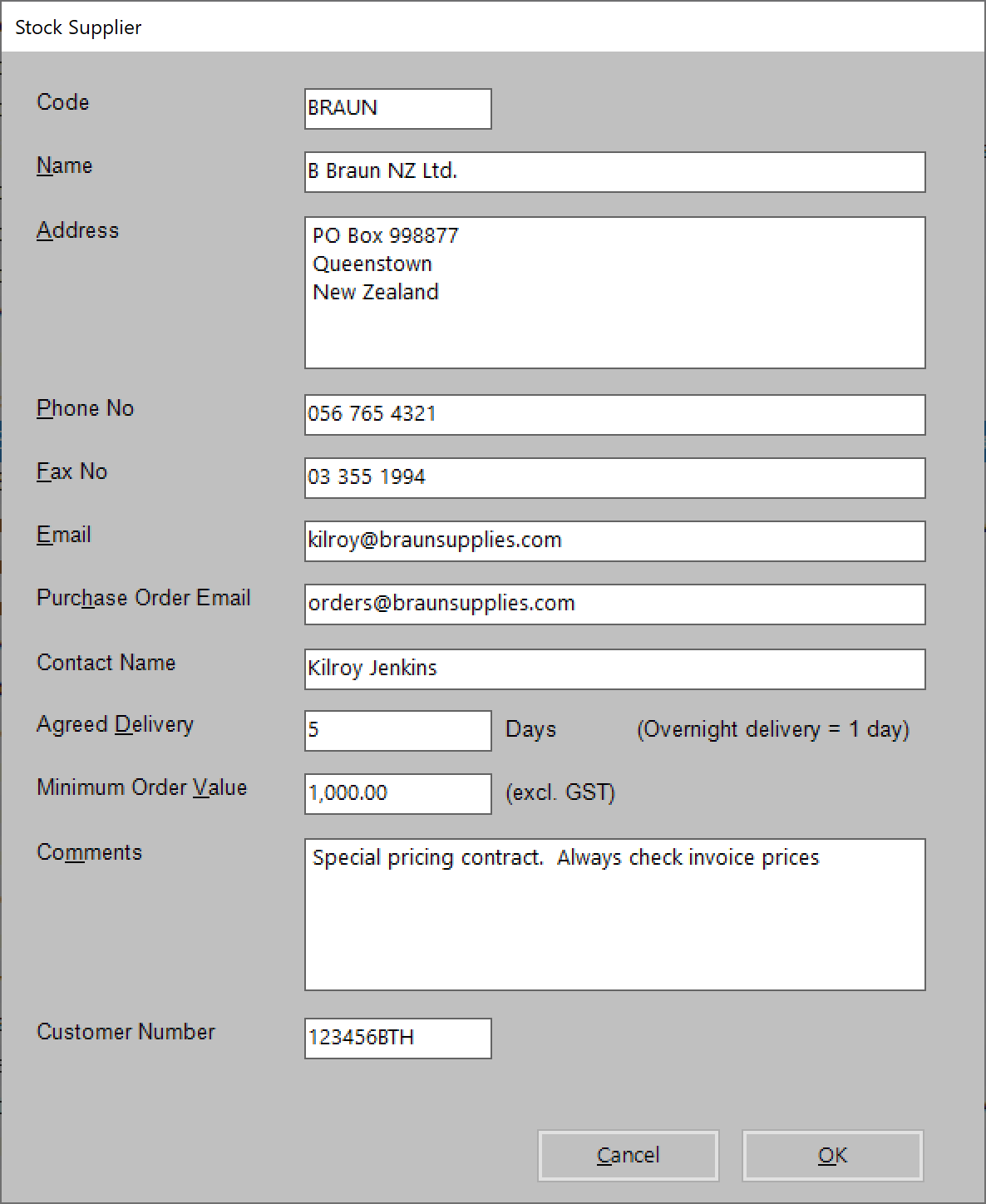
Field name | Description |
|---|---|
Code | A code that you allocate for the supplier |
Name | Name of the supplier. This appears on the Purchase Order document. |
Address | Address of the supplier. |
Phone No. | Phone number of the supplier. This appears on the Purchase Order. |
Fax No. | Fax number of the supplier. This appears on the Purchase Order. |
Email address of the company or contact person | |
Purchase Order Email | Email address that the Purchase Orders will be sent to when the Email option is used. |
Contact Name | Contact name of a person at the supplier. |
Agreed Delivery | Agreed number of days you can expect for delivery from the supplier. |
Minimum Order Value | The minimum value of a Purchase Order under which an additional fee might be charged. |
Comments | |
Customer Number | The identifier used by the supplier |
To add a supplier
- Select New.
- Give the supplier a unique ID code up to six characters. Try to make the code easy to recognise. Carry on filling out the rest of the information fields.
- Name. Type the name of the company.
- Address. Type the address as it is to appear on any correspondence/purchase orders or labels.
- Phone.
- Fax
- Contact. Type the name of the person who you deal with.
- Agreed Delivery. Number of days you expect delivery, after which it becomes Overdue.
Report the Due and overdue items in Reports > Stock > Stock Management > Stock on Order - Comments. If you have come to any special arrangement with the supplier regarding pricing etc then put this information in this field.
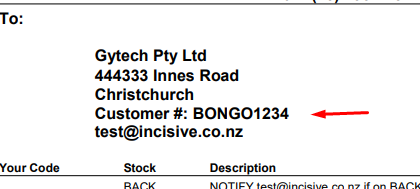
- Customer Number. This is your Customer code with the Supplier. If there is one it will print on the Purchase Order.
To change a supplier
- From the list of suppliers highlight the supplier you wish to change.
- Select Edit
- Make the necessary changes.
- Select OK.
To remove a supplier
- From the list of suppliers highlight the supplier you wish to remove.
- Select Delete.
- Select Yes to confirm the deletion.
To consolidate suppliers
- Highlight the Supplier to be consolidated with another one , then click the 'Consolidate' button.
- Select the Supplier whose details are to be retained.
Price Update
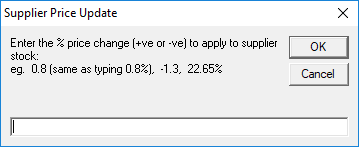
This allows you to apply a percentage increase or decrease to all of the suppliers stock.
Extreme caution should be exercised when using this option. It is not reversible.