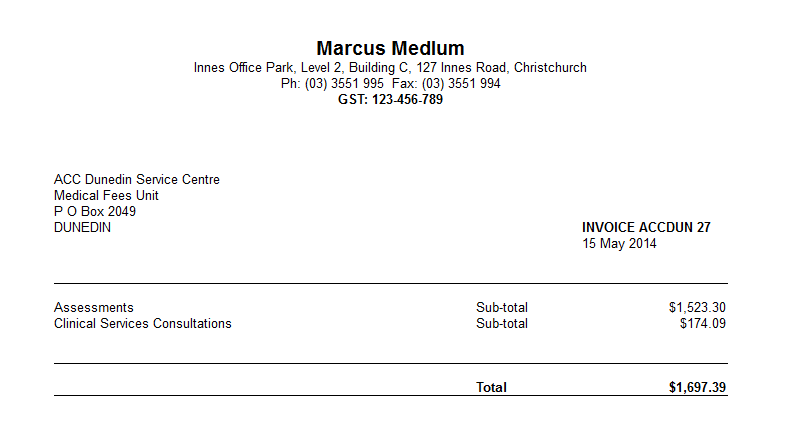
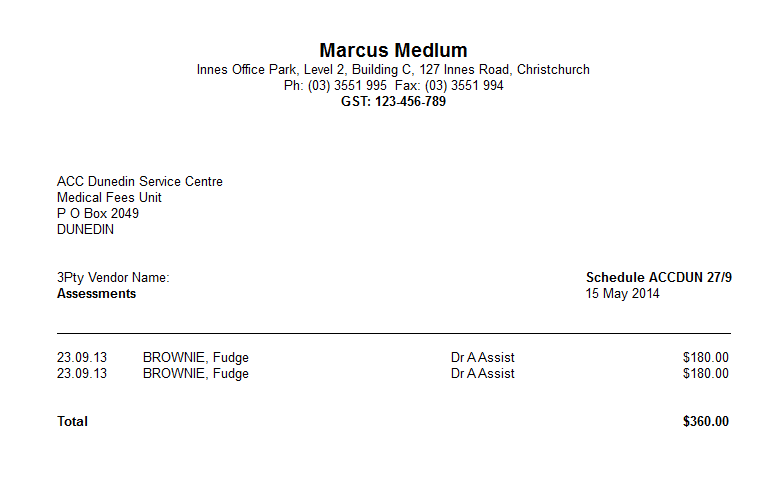
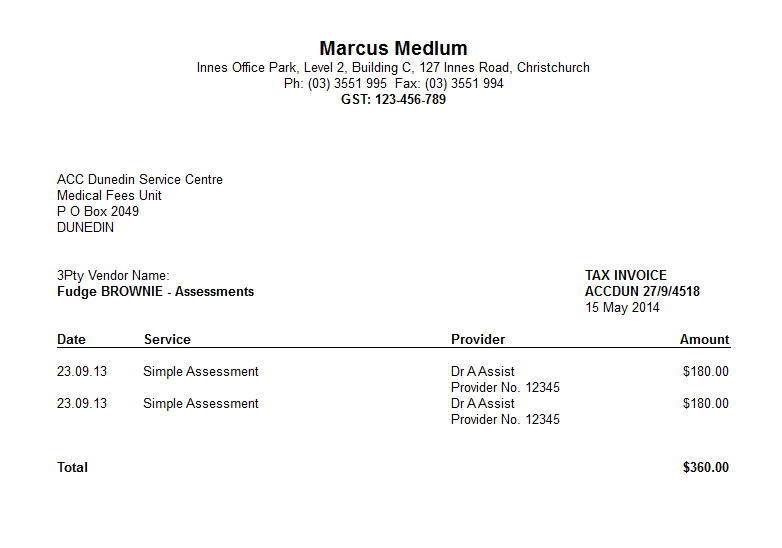
This Tab is for setting up the address details of third parties (if any) that you are required to bulk bill (with the exception of ACC and Maternity Benefit Schedules that are Set-up under Claims). Examples of third parties that you may bulk bill are the Defence Forces, Police Department and various Companies that belong to an Accredited Employer Program instead of their employees claiming ACC.
Setup - Contacts - Third Party Schedules
To add a new Third Party Schedule entry
- Select 'New'.
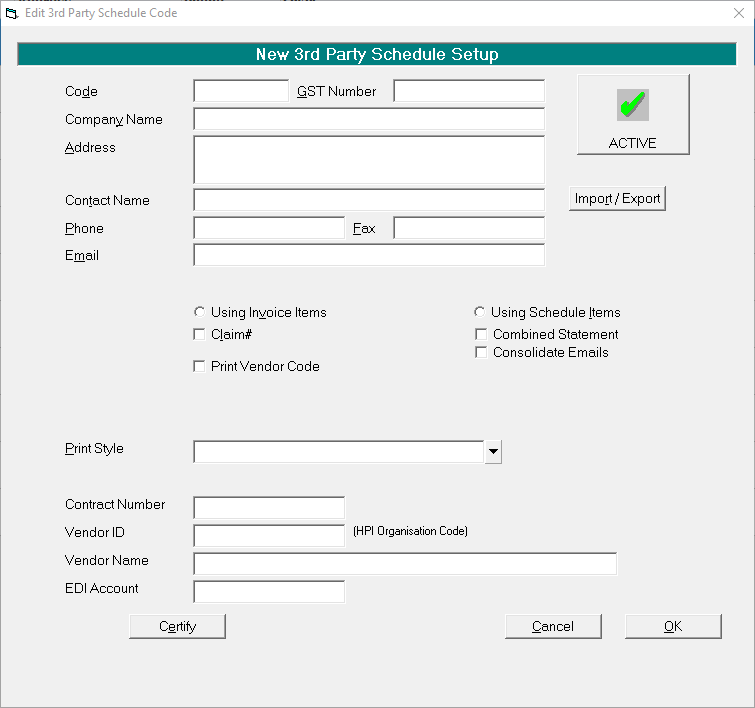
- Complete the details as required.
- Select 'OK' to save the new entry.
Code | Enter a code to identify the schedule entry. You may use up to six characters. In a group database, it is advisable to have a separate ACC Clinical Services schedule for each surgeon. Start the code with Providers initials, followed by the party to be billed, i.e. DAACC. |
GST Number | Enter the GST number of the business entity making the claim. Where an ACC contract is held by another party, i.e. a group on behalf of a number of surgeons, the GST number entered would be for the Group if the surgeon is submitting the claim direct to ACC. If the surgeon is billing the group, then the GST number entered here would be the surgeons own GST number. |
Company Name | Enter the name of the Company you will be claiming payment from. |
Address | Enter the full postal address if the schedule is to be sent by standard post. If the schedule is being select electronically, the address may not be needed. |
Contact Name | Record a Contact Name if you have one. |
Phone | Enter the phone number if required. |
Fax | Enter the fax number if required. |
Enter an email address if required. | |
Using Invoice Items | For this schedule entry, you will need to choose between using Invoice Items and Schedule Items. |
Using Schedule Items | Normally for ACC Clinical Assessment Claims, Incisive recommends using Schedule Items as these are set up once at a System level. When prices change, the amounts only need to be changed once, rather than for all Providers. |
Claim # | If a Claim number is required, check this option on. |
Combined Statement | Not applicable for Schedules. |
Consolidated Emails | Not applicable for Schedules. |
Print Vendor Code | If the schedule is for an ACC Contract, enter the Vendor Code here. This field is mandatory if the schedule is to be exported in XML format to ACC or similar. |
Print Style | Select a schedule print style from the drop down list. If the schedule is being exported, this is largely irrelevant but you should keep a paper copy of the schedule for your own records. Incisive recommends the 'Contract - Clinical Assessments' style for ACC related claims.
|
Contract Number | If the schedule is for an ACC Contract, enter the Contract Number here. This field is mandatory if the schedule is to be exported in XML format to ACC or similar. |
Vendor ID | If the schedule is for an ACC Contract, enter the Vendor ID Code here. This field is mandatory if the schedule is to be exported in XML format to ACC or similar. |
Vendor Name | If the schedule is for an ACC Contract, enter the Vendor Name here. This field is mandatory if the schedule is to be exported in XML format to ACC or similar. |
EDI Account | |
Active / Inactive | This is a toggle icon. If the schedule is (currently) Active but is no longer required, select Active and it will change to 'Inactive'. Inactive schedules cannot be selected when entering claims. The Third Party Schedule Address entry will not be listed unless 'Show Inactive' is selected. If the Third Party Schedule Address entry needs to be reactivated, edit it and select 'Inactive' to change the status back to 'Active'. |
Import / Export |
Import / Export
Third Party Schedules can be imported from another source, i.e. from a surgeon to the (Clinical Services) Contract Holder and then processed and exported out again (in the name of the Contract Holder).
Schedule Print Styles
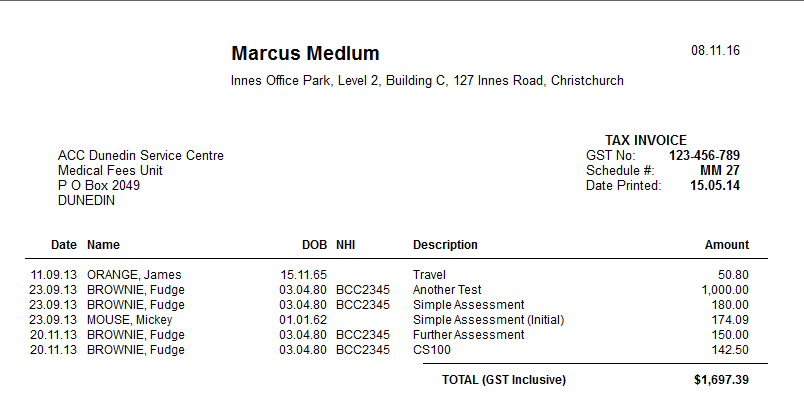
3rd Party Schedule
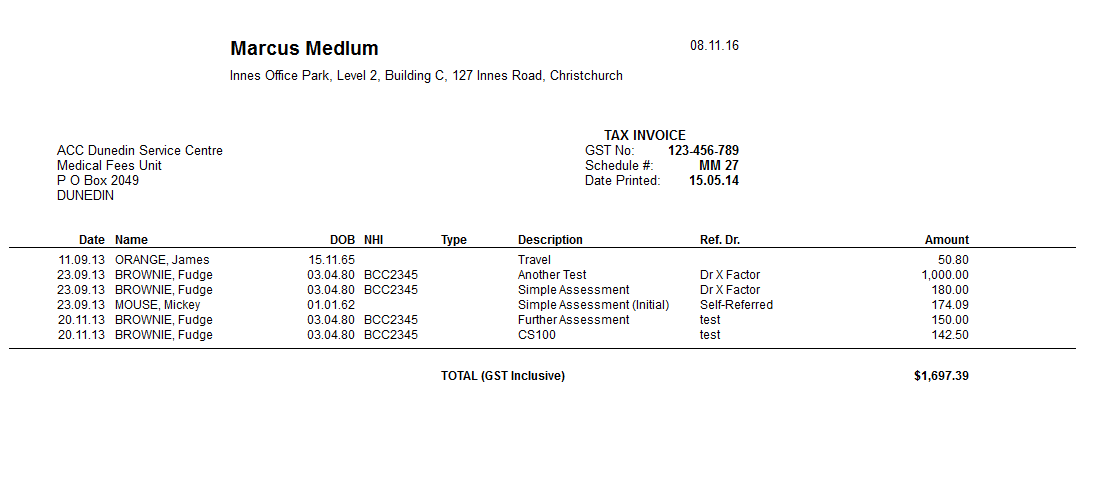
The 3rd Party schedule print style includes columns for date of service, patient name, date of birth, NHI number, Description of services and amount claimed.
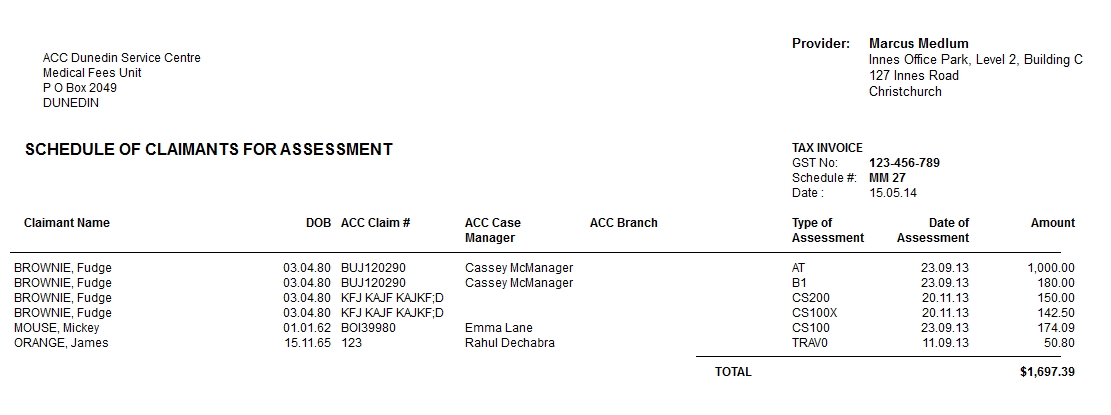
ACC Contract Schedule
The ACC Contract Schedule print style includes columns for claimant name (patient), date of birth, ACC Claim Number, ACC Case Manager, ACC Branch, ACC Short Code / Item number, Date of Assessment and Amount claimed.
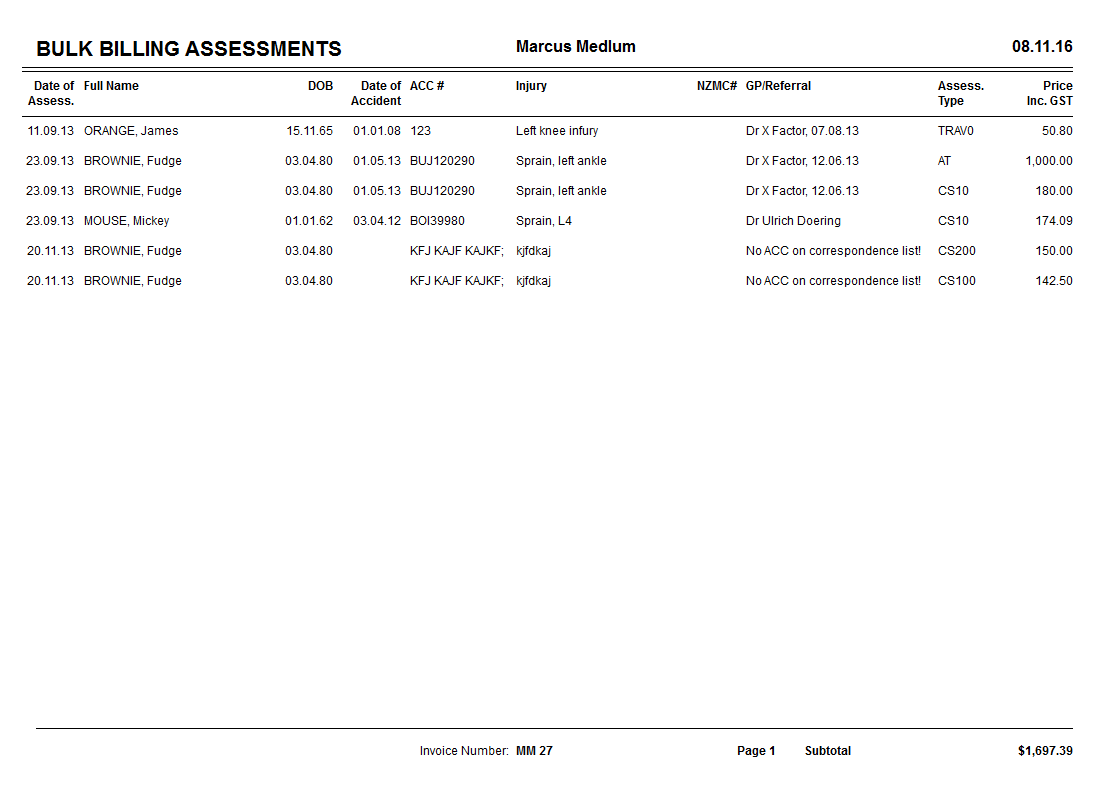
Bulk Billing Assessments
The Bulk Billing Assessments Schedule print style includes columns for:
Date of Assessment, Patient Name, Date of Birth, Date of Accident, Claim number, Injury details, NZMC Number of provider, Referral information, Assessment Type, Amount Claimed (GST inclusive).
Each page of claims is then listed on a summary page.
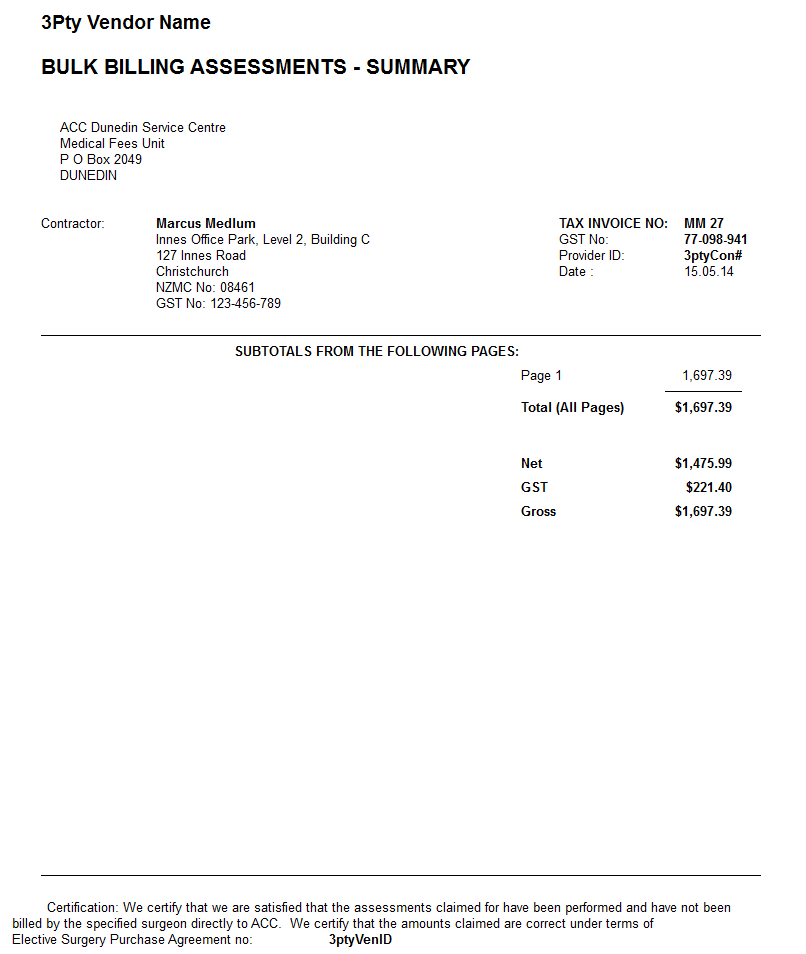
Buyer Generated Invoice
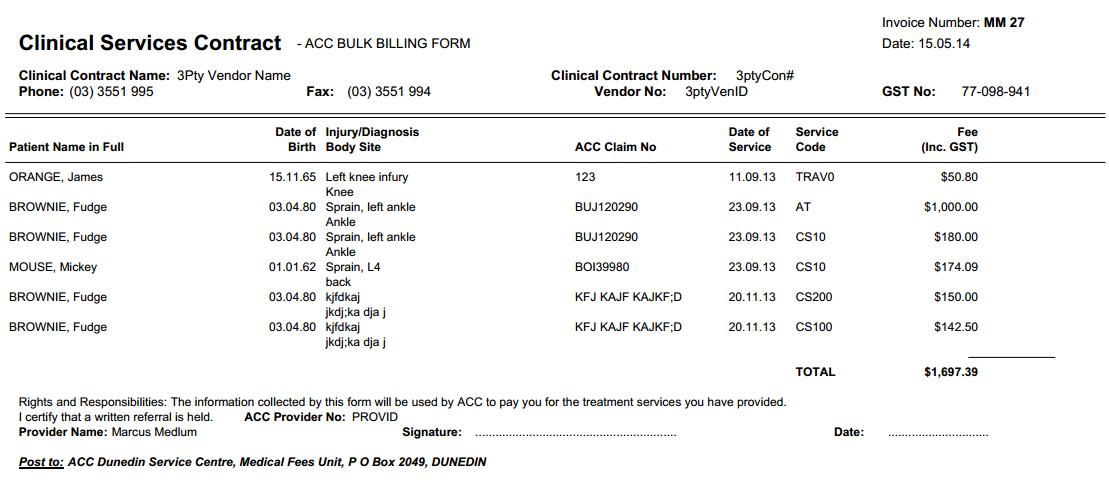
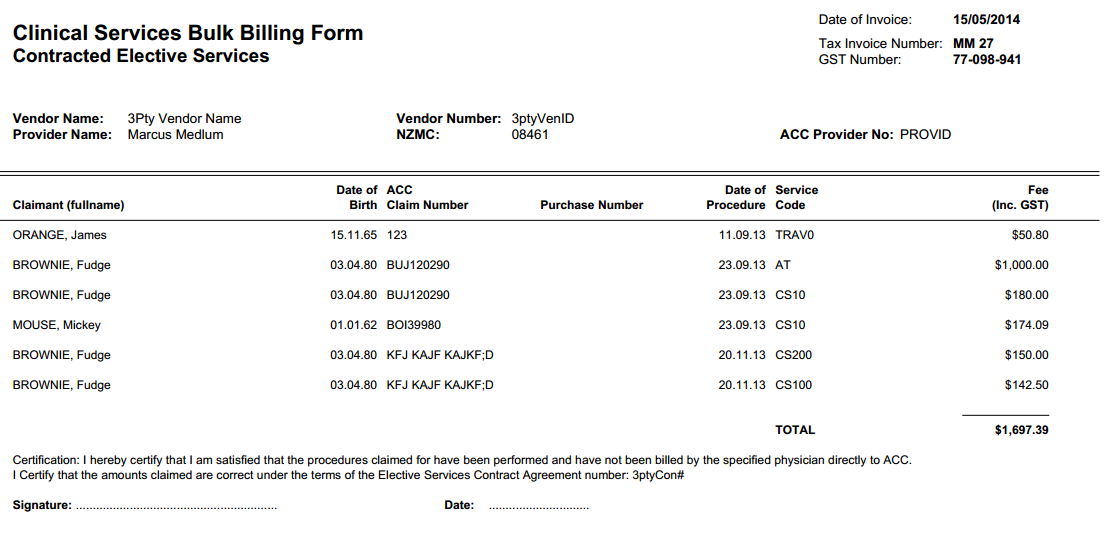
Clinical Services Bulk Billing
The Clinical Services Bulk Billing Schedule print style includes columns for:
Claimant Name, Date of Birth, Claim number, Purchase Number, Date of Procedure, Service / Item Code, Fee (GST inclusive).
Custom1
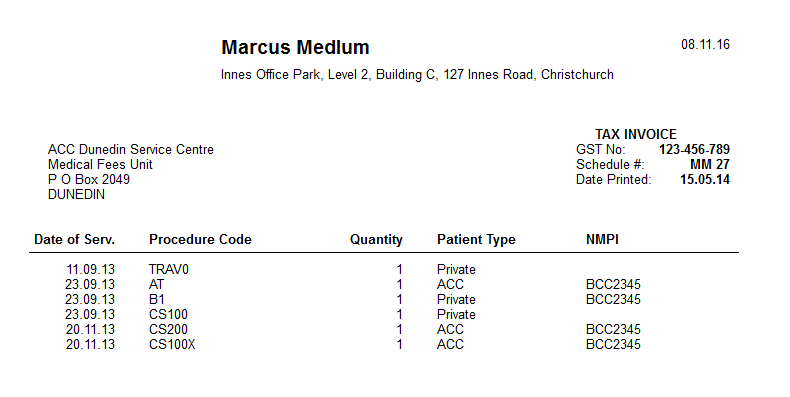
Custom2
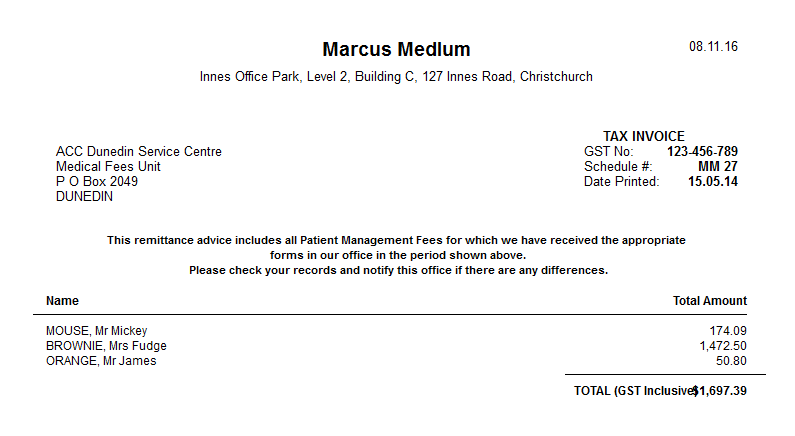
Custom3
Custom4