The NZePS require that only authorised Prescribers are allowed to use the ‘Send’ buttons to upload an ePrescription to the NZePS hub and pharmacy.
You need to configure the menu permissions to allow access to the Send button for the Prescriber and disallow access to all other staff.
Permissions for the Prescriber
Log in as an Operator who has sufficient privileges to be able to alter and assign menu Permissions.
Go to Setup > Personnel > Permissions. Import a new menu if prompted.
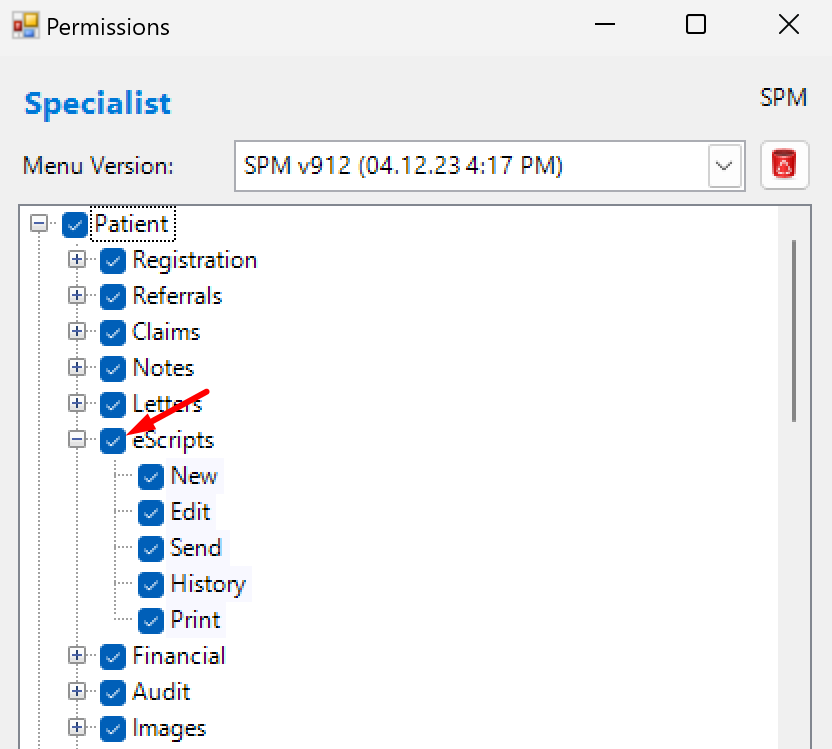
Navigate down the list and enable Patient > eScripts
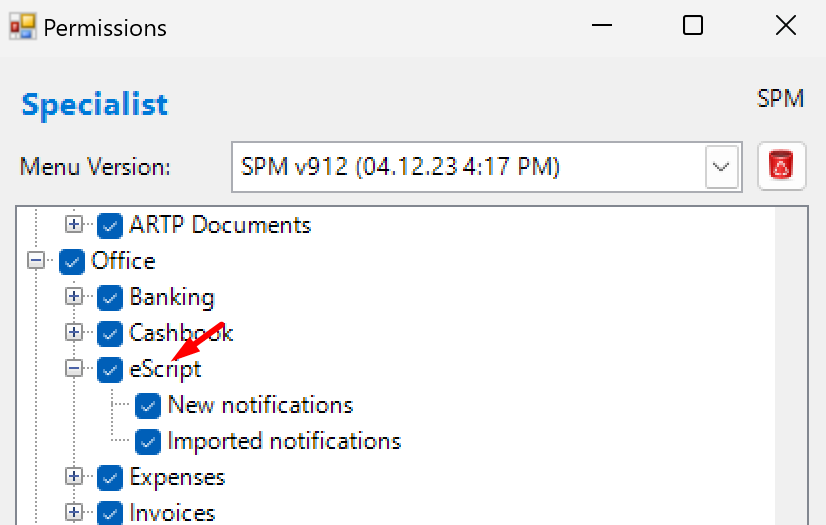
Then go further down and enable Office > eScript
Permissions for staff who can manage prescriptions.
Log in as an Operator who has sufficient privileges to be able to alter and assign menu Permissions.
Go to Setup > Personnel > Permissions.
Click on the ‘New’ button to create a new Role called something like 'RX Manage only'.
Highlight the new Role and click on the ‘Permissions’ button.
Import the latest menu if you are prompted.
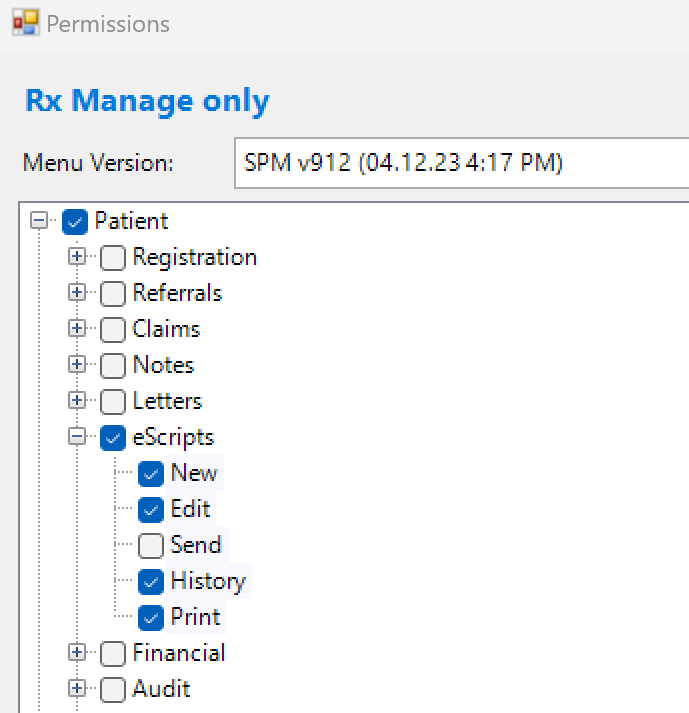
Navigate down the list and put a ticks against the items in Patient > eScripts, except for the Send item.
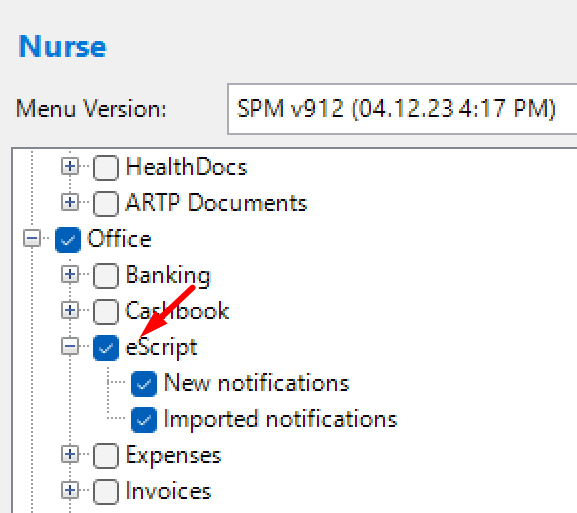
Navigate further down and enable permissions for Office > eScript
Click the Apply button and close.
Close the Permissions window and choose Setup > Personnel > Operators
Highlight the Prescriber and click on the ‘Edit’ button in the top toolbar.
Select the ‘Assign Roles’ button and put a tick in the junction of the ‘Rx Manage Only’ row and the Providers that are allowing the role.
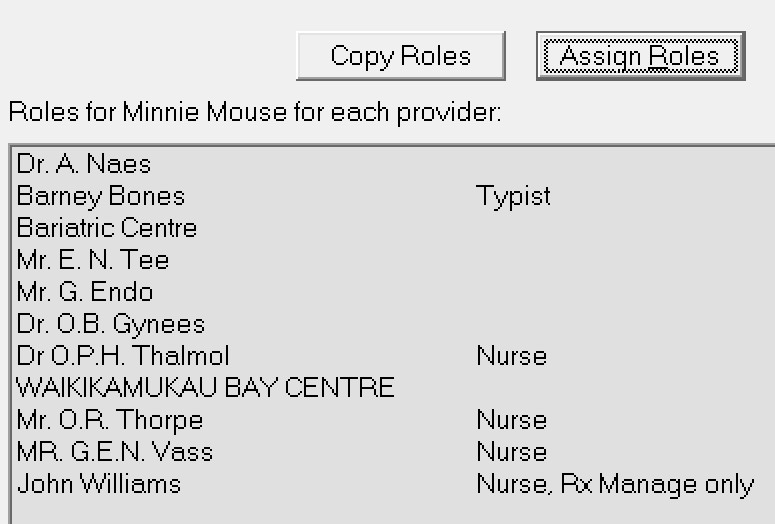
In this example, Minnie is a nurse for 4 providers but can only manage the ePrescriptions for 1 provider.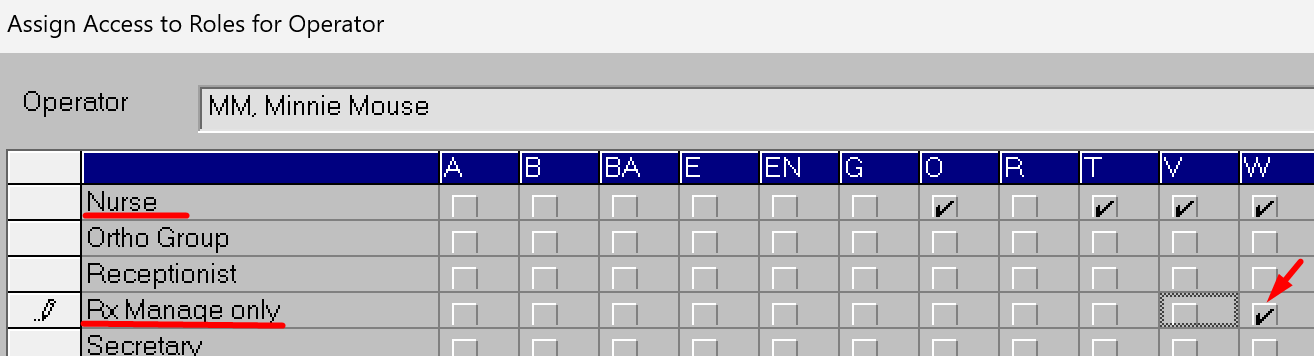
This is how Minnie’s Roles would appear
Click OK to save.
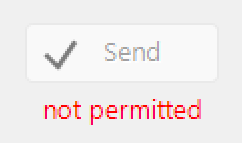
The Send button on the Patient > eScripts toolbar and in the New ePrescription form will be inactive.
If you are allowing other staff to manage or view the patient’s prescriptions, you can edit the permissions for the Roles and enable the options they are permitted to use.