Creating a Prescription Template
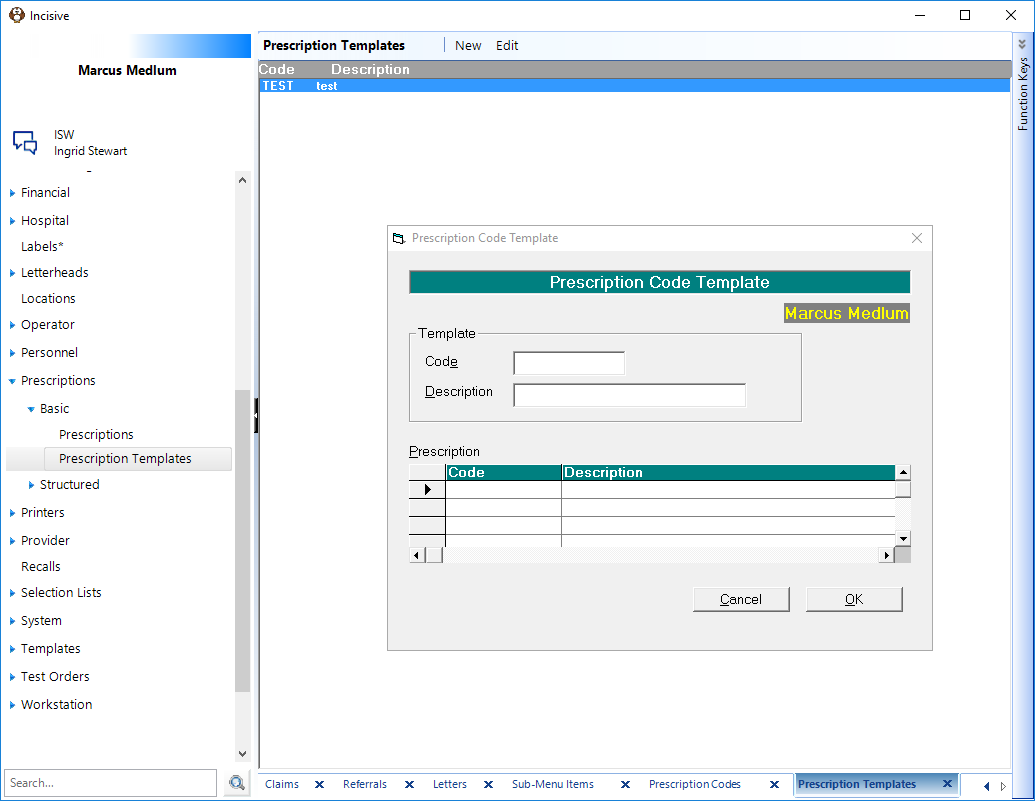
- To set up the Prescription Codes go to Setup - Prescriptions - Basic - Prescription Templates
- Enter the Code (Make this a short abbreviation you will remember easily).
- The description is a brief description of the drug.
- The text is the information you would like to see on the prescription - 'OK' to save the changes.
(Create more than one code before attempting to use these in patient mode)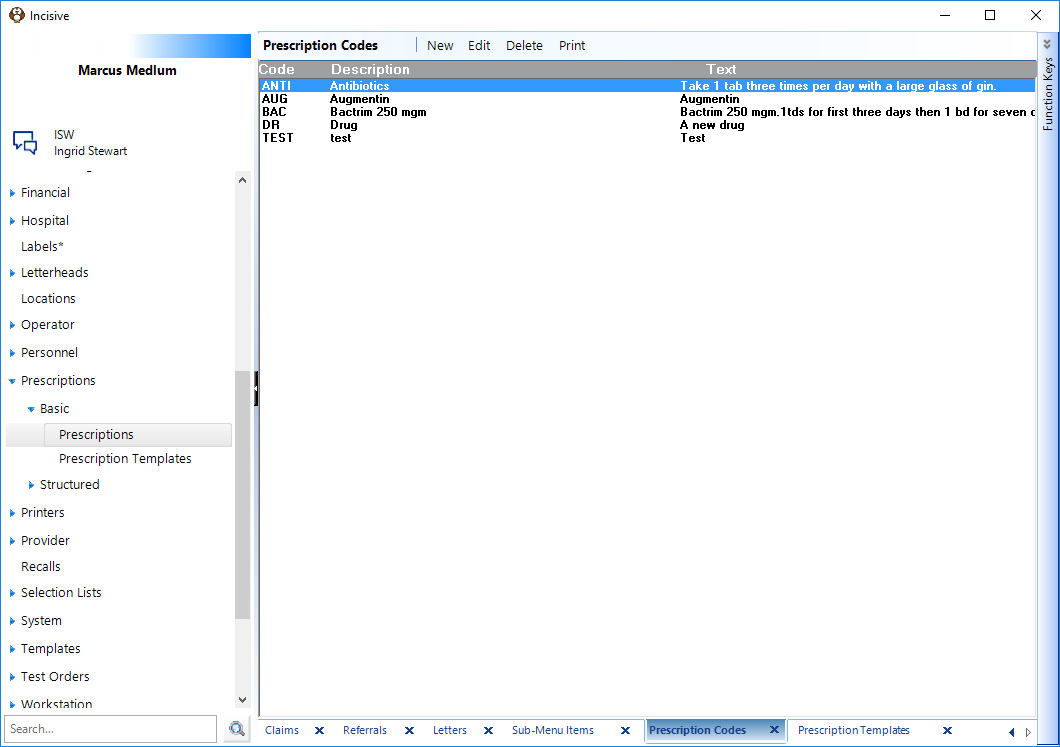
- Once you have the codes set up you can create a prescription template which is useful for pre or post procedure preparations or standard prescriptions for a particular condition.
- Go to the Prescription Template tab - New
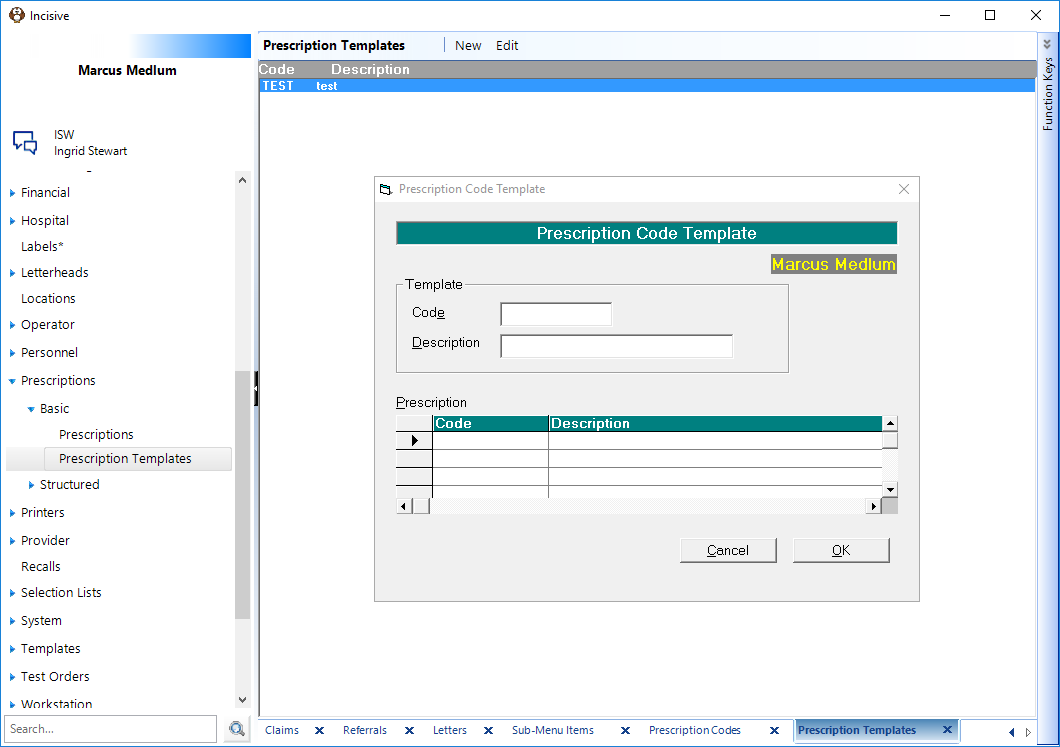
- Again type a short code and an informative description. Take the cursor to the Code field and press F8, this will give you the list of your prescription codes, highlight the one you want and press 'enter'. Continue until you have all entries for the template - 'OK' to save your changes.
Applying the template in a prescription
- In Patient Mode load your patient, go to the 'Notes' tab and select 'Prescription'
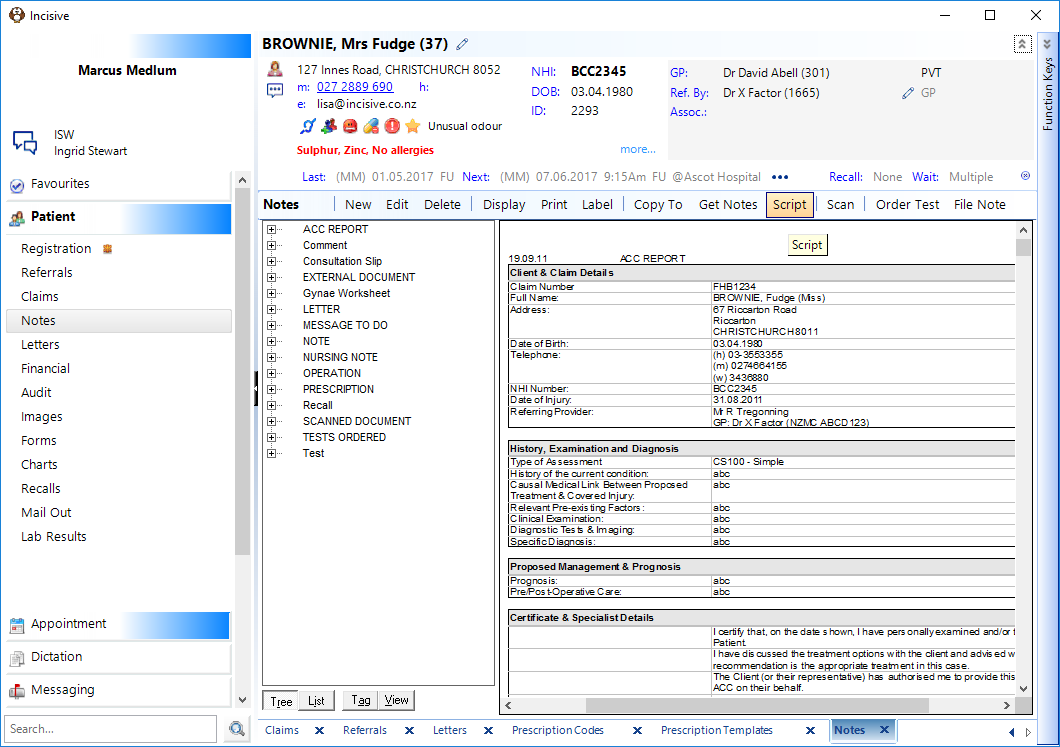
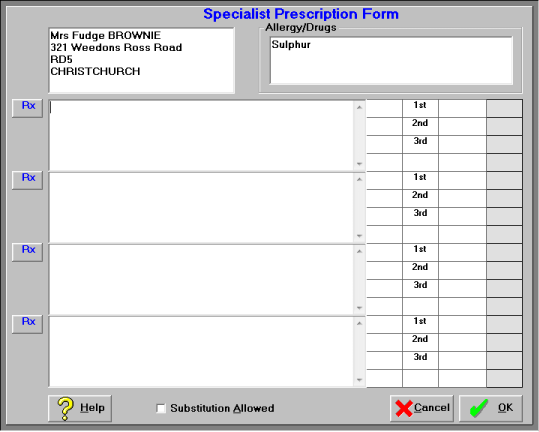
- Put your cursor in the first Rx field and type the code or simply press F8 which will drop down the list of Prescription Codes you have entered. Highlight the appropriate code and press 'enter'.
- If you want a Prescription Template - type the code and press Shift + F8.
- On 'OK' the Prescription will print and a note written to the database recording the text.