- Select 'Prepay' from the Office Receipts screen.
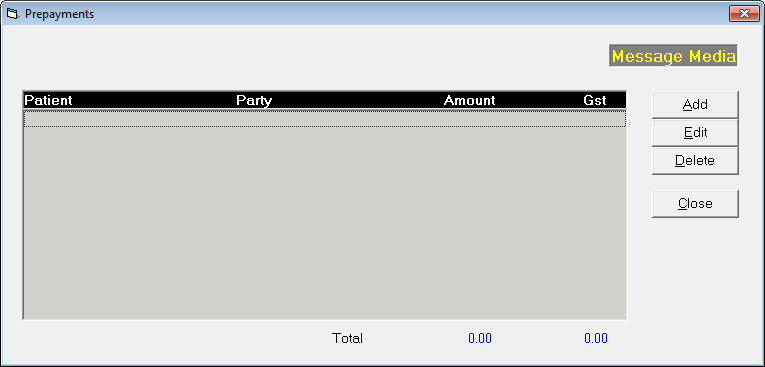
- Select 'Add' from the Prepayments screen.
- Select the patient the prepayment is for from the Patient Selection screen.
- The patient name will appear in the New Prepayment screen.
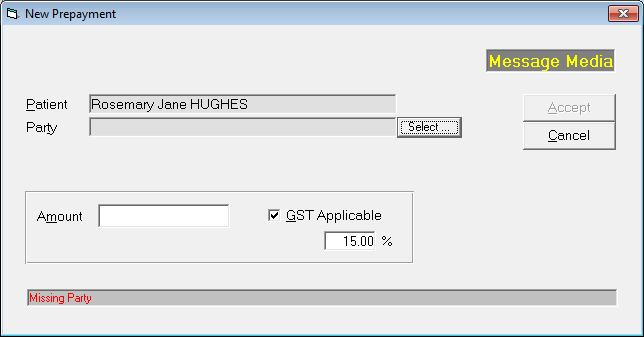
- Next select the Party that the prepayment is from by clicking on 'Select'.
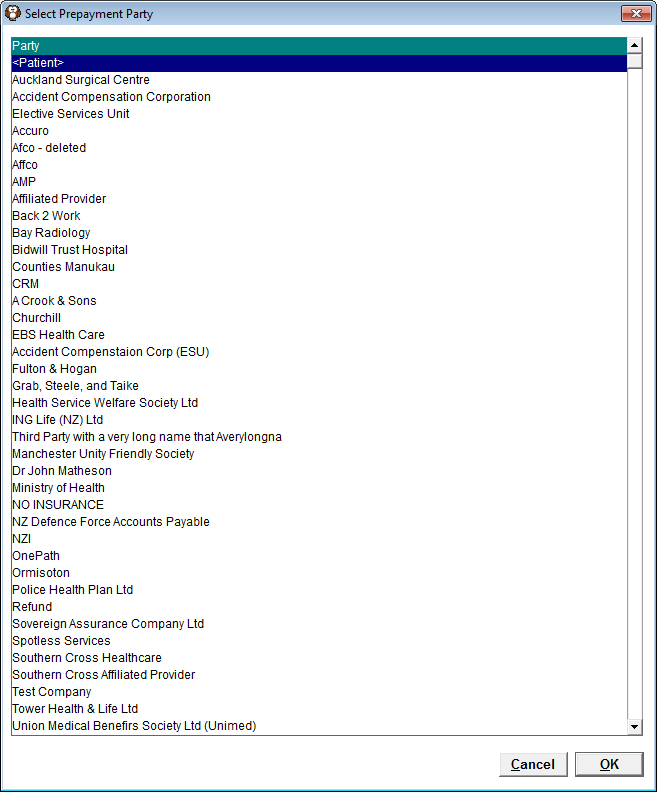
- From the list of 3rd Parties, select the appropriate option or select 'Patient' if applicable from the top of the list.
- Enter the amount for the prepayment for the selected patient and select whether the payment is GST applicable. For New Zealand this would be the case, but this will vary in Australia).
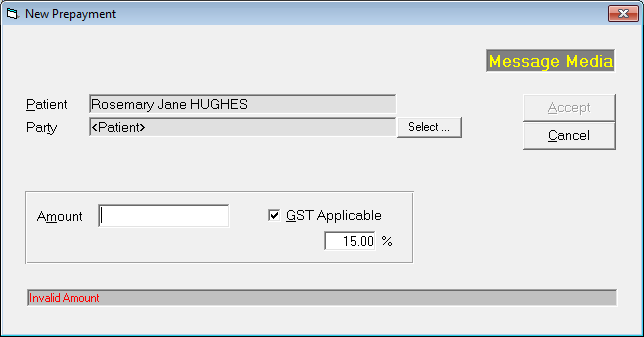
- Select Accept.
- The patient and the amount of the prepayment will be listed.
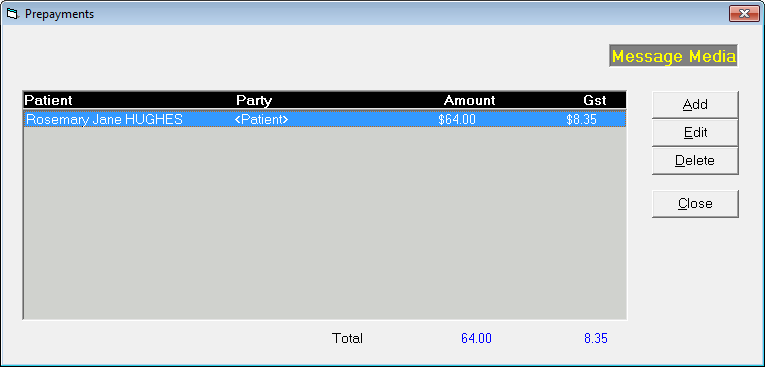
- Continue to add other patients and prepayments as necessary.
- Close to return to the Office Receipt (Analysis) screen.
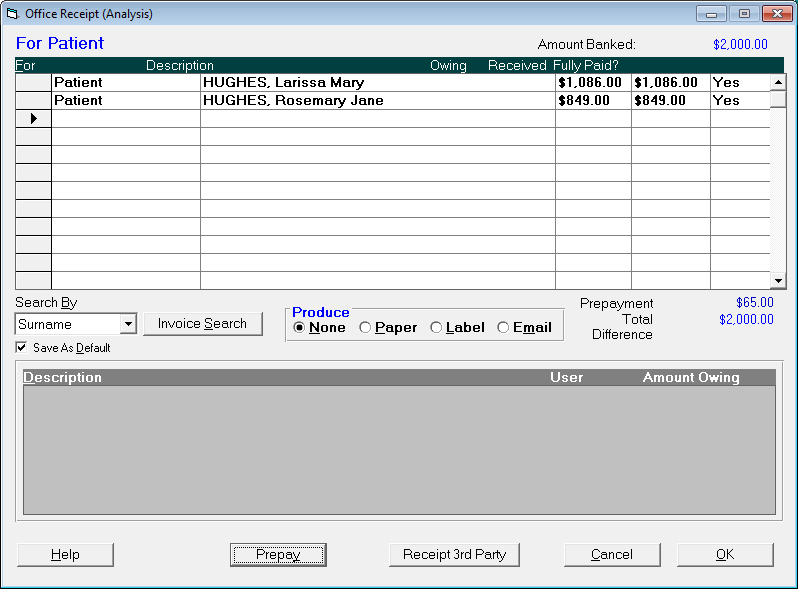
- Provided the amount banked equals the amount allocated between patients and the prepayment, select OK to save the receipt.