Permission based security
The security mechanism to allow Operators (staff members) access to various functions with the SPM or PHM application is based on the Operator's membership of Roles. The Roles are defined by the business and each Role can be configured to have access to the menu items and toolbar buttons in the application and for a specific User (Provider). If an Operator is a member of the Role they will inherit the permissions of the Role.
For example, a role called 'Receptionist' can be configured to allow access to patient records, making appointments, but not access to Setup or Reports.
An Operator can be a member of more than one role or group.
Some menu items are always available to the Operator, such as the ability to change their password and other Operator settings, and will over-ride any permissions assigned to their Roles.
This method of securing access rights to the application can be configured to be as simple or as complex as you require. At the simplest level all Operators belong to one Role, which has permission to all menu items and buttons. In a larger facility you may have 12-16 different types of Roles and each Operator may be assigned membership of 2-6 of the Roles.
It gets more complex where a hospital (using PHM) also has specialist suites attached (using SPM), as the permissions for an Operator need to be configured not just for the hospital User but also for each specialist User.
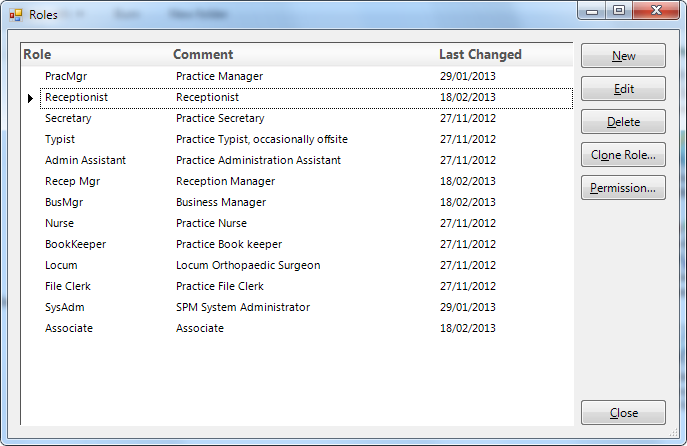
For each Role, permission is granted to allow access to the menu items.
From time to time Incisive may provide a modified menu structure as we add functions to the application. The new menu can be imported into the program and permissions granted for the new menu items to the various Roles.
If an Operator does not have any permissions granted to them for a whole module e.g. patient, appointments etc., the module will not appear at all for them in the application menu. Other menu options will be greyed-out if they do not have permission to a particular menu item.
Generally, access to change menu permissions (Setup -> Personnel -> Permissions) available to each Role should be restricted down to a few staff with high-level responsibilities.
Access to select which Operators belong to specific Roles can be delegated to the HR or Practice Manager role.
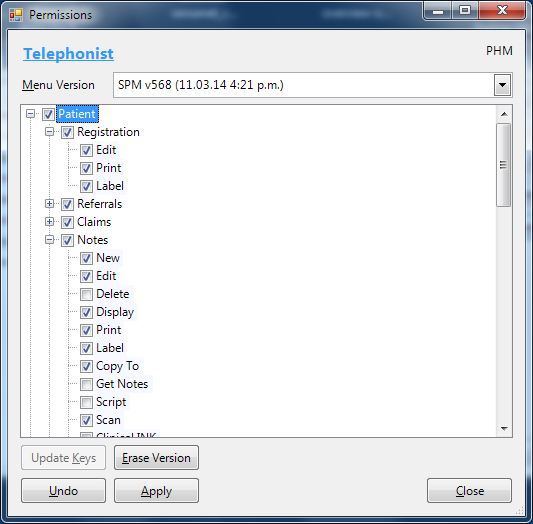
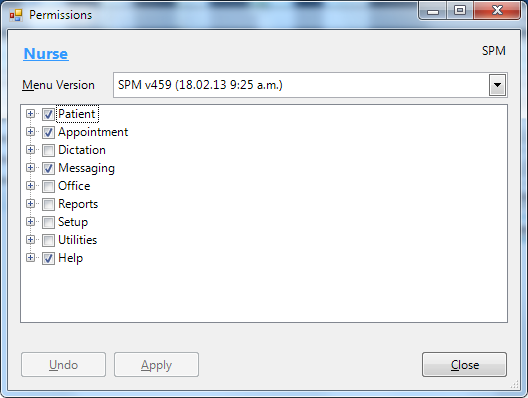
Incisive have a tool to allow a standard template of Roles and Permissions to be imported into an existing database.
Setting up Roles
Defining a Role will often broadly follow the employment roles that are used within the practice or hospital, but they can also be refined to a more specific function.
A good idea is to start off with a Role that everyone will belong to e.g. Base Clinical and/or Base Administration. These Roles would then be given quite general access rights (permissions) to the basic functions in the application, such as creating a new patient or entering an appointment/ booking. At the more extreme level you may make a Role for a single task such as 'Closing off the Banking'.
As you add more Roles you can assume that the Operator will already have access the all the menu functions assigned to them in the 'Base' Role and therefore you do not need to replicate the menu permissions for the subsequent Roles.
As the Role of 'Close-off banking' only had access to the Office -> Banking -> Close-off menu, it wouldn't be much use if it was the only Role allocated to an Operator – but is relevant if they also have all menu permissions given to them by belonging to the 'Base Administration' Role as well.
If some of the specialists are members of a Group and wish to allow other members to view their clinical notes and images for patients they have separately seen, you can create a Role for each Group and then choose which specialists (or staff) are provided access.
Creating a Role
We will assume you are using a Role that has sufficient permissions to perform this task.
- Go to Setup -> Personnel -> Permissions
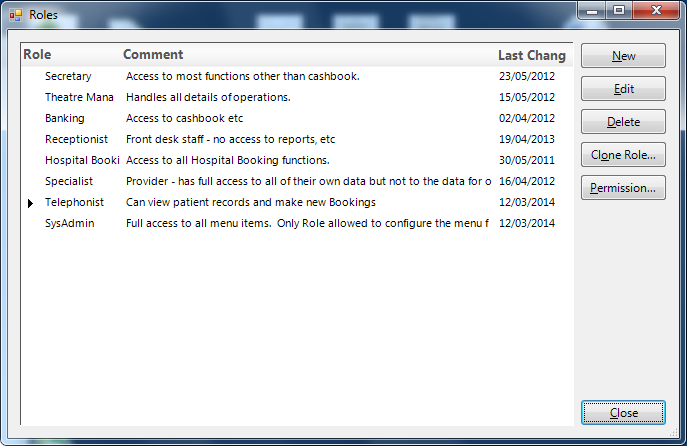
- Select the New button and enter in the name of the Role and a brief description of what this Role is allowed to do.
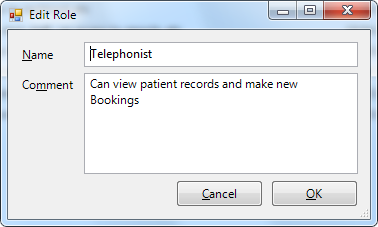
- Click OK to save
If you are wanting to make a new Role that is similar to another one, you can use the 'Clone Role' button. This option will also copy all of the permissions allocated to the original Role.
For a small-medium sized specialist rooms, the following Roles might be sufficient:
Specialist | Full access to all functions. | |
Secretary | Full access to admin functions for the Provider. | |
Receptionist | Add/Modify bookings; Add Notes and other similar patient related clinical records; Add invoices | |
Nurse | Access to all functions allowing them to record their care for the patient and make appropriate appointments. Cannot view financial reports. Has limited access to Setup. | |
Typist | Access limited to the Type Dictation function | |
SysAdmin | System Administrator. Full access rights to all functions, including the ability to set and assign access permissions. | |
Technician | Limited access to some Setup configuration functions only | |
Group A | Restricted to only viewing the Notes & Images tab in Patient section for the members of Group A |
Larger practices may structure their Roles more like a hospital.
For a hospital, the following Roles are often used as an initial template.
SysAdmin | System Administrator. This Role should be given to one person who has the authority to assign access rights to all Operators for all Providers. | |
Manager | Needs BaseAdmin role. Can perform all business and admin related functions. Cannot remove patients from or reorder theatre lists. Can access Setup -> Personnel to change Permissions and Roles. | |
BaseAdmin | Basic permissions related to the administration of the business. Includes invoicing and booking. Very limited access to Setup & Reports. | |
BaseClinical | Basic permissions relating to a patient's care. No access to invoicing or financial related reports. Limited access to Setup & Reports. | |
ClinicalMgr | Needs BaseClinical role. Manages matters relating to the clinical management of the hospital. Can add and delete theatre sessions, waiting lists and resources. Can undischarge a patient. | |
FinanceMgt | Needs BaseAdmin role. Can access restricted financial functions and reports. Can delete invoices and receipts. Has access to Cashbook and Expense ledger. | |
InventoryMgr | Needs BaseAdmin role. Manages stock inventory. Can add and delete categories and items, create purchase orders, receipt arrivals, perform stock-take. Can access inventory related reports | |
Technician | Access to configure functions that interact with external devices/hardware. Cannot change Permissions. | |
Kitchen | Access limited to Dietary requirement report and internal messaging. |
Allocating Permissions to a Role
Once a Role has been created the menu items and buttons that it allowed to access can be allocated.
- Go to Setup -> Personnel -> Permissions
- Highlight the Role you want to work with and select the 'Permission' button. Note that it may take some time to load the menu options.
- Work your way through the menu and button options choosing which of them you want to give access to. Remember that you don't need to duplicate the menu selections if the Operator will always use this Role will always be used in conjunction with another 'Base' Role.
You need to take care with some menu items such as Patient -> Notes -> Scripts as no-one should have access to this item except for the User (Provider) - Click 'Apply' to save the menu items selected to the Role.
A special utility tool called ImportExportRoles.exe allows you to review the permissions of selected Roles and if necessary, to modify them. This makes it easy to check and ensure that some of the more specialised or restricted menu options do have the appropriate access rights.
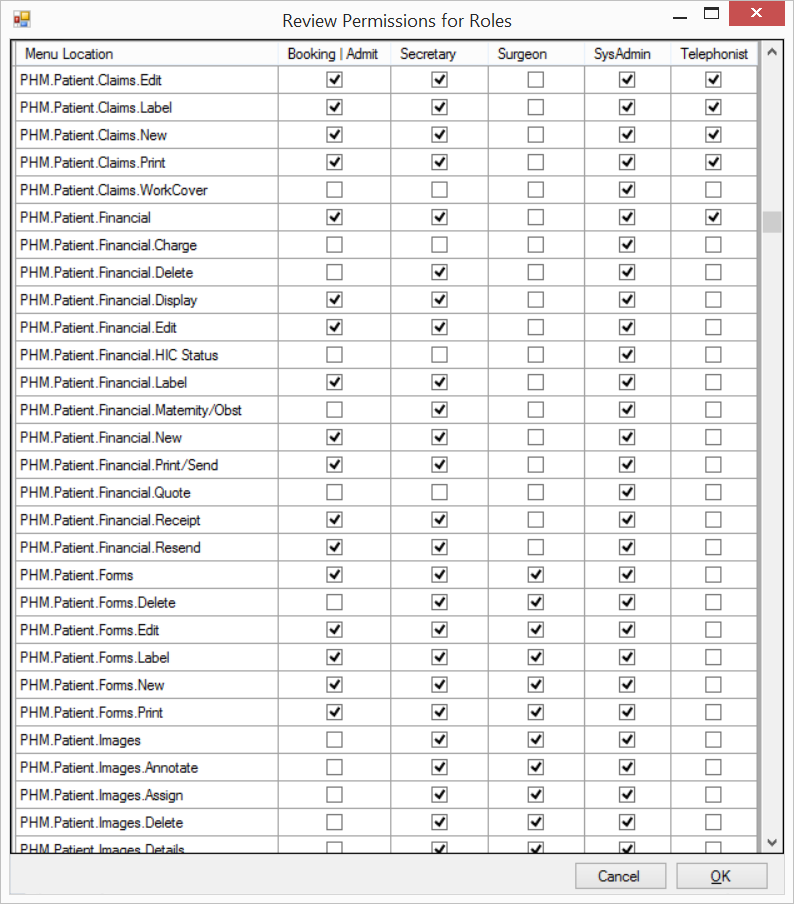
All menu items are listed with their full path, which is the same order as is displayed in the application.
Allow other Providers to view Notes
How to allow other specialists to see the notes & images for the other doctors?
In Setup -> Personnel -> Permissions, create a Role called something like NotesViewOnly and then give it permissions to only view the Notes and Images in the Patient section.
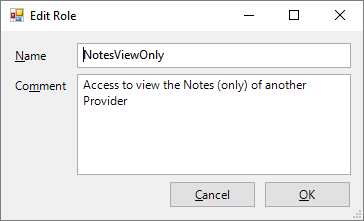
To View the Notes only select the top Notes level
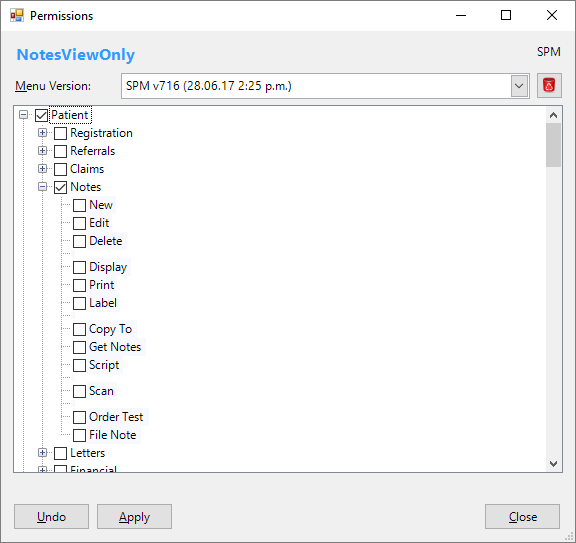
- In Setup -> Personnel -> Roles select the Operators that are allowed these special permissions for the other members of their Group.
In this example, the Operator (identified at the top of the form) is being given the limited access to the notes & images of the three Providers in the list.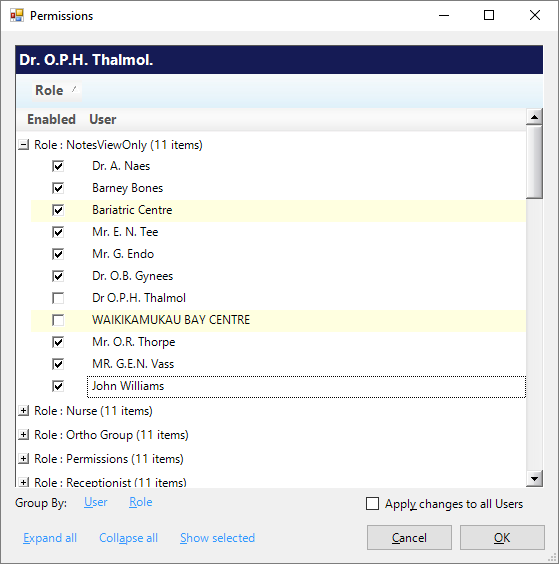
On this page:
Related Pages:
How Do I...
- View patient Notes from multiple doctors