This displays up to a maximum of 40 Users, Books, or Resources at one time.
For each Operator you can configure the layout to display:
One Provider/Book/Resource with multiple date columns (e.g. a Surgeon looking for a space in their future operating lists)
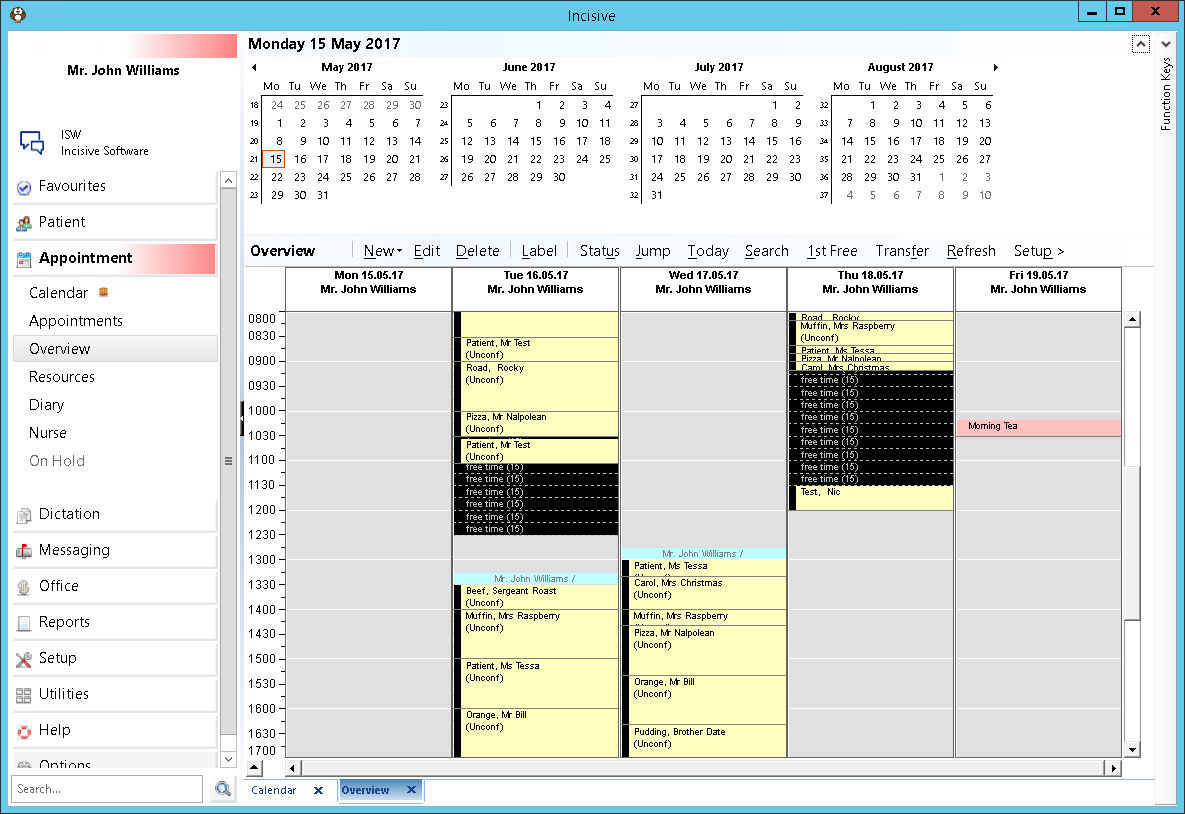
One date with multiple Providers/Books/Resources (e.g. Reception looking after today's patients for multiple doctors)
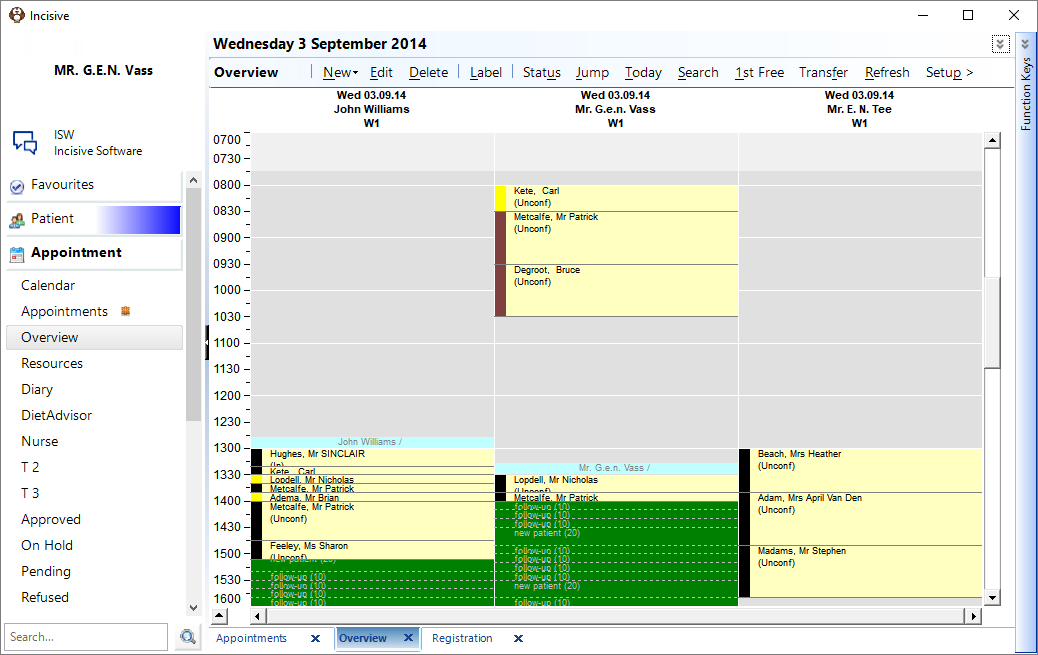
Multiple dates with multiple Books/Resources/Providers (e.g. Clinical Manager looking at the surgery load for the whole week over multiple theatres)
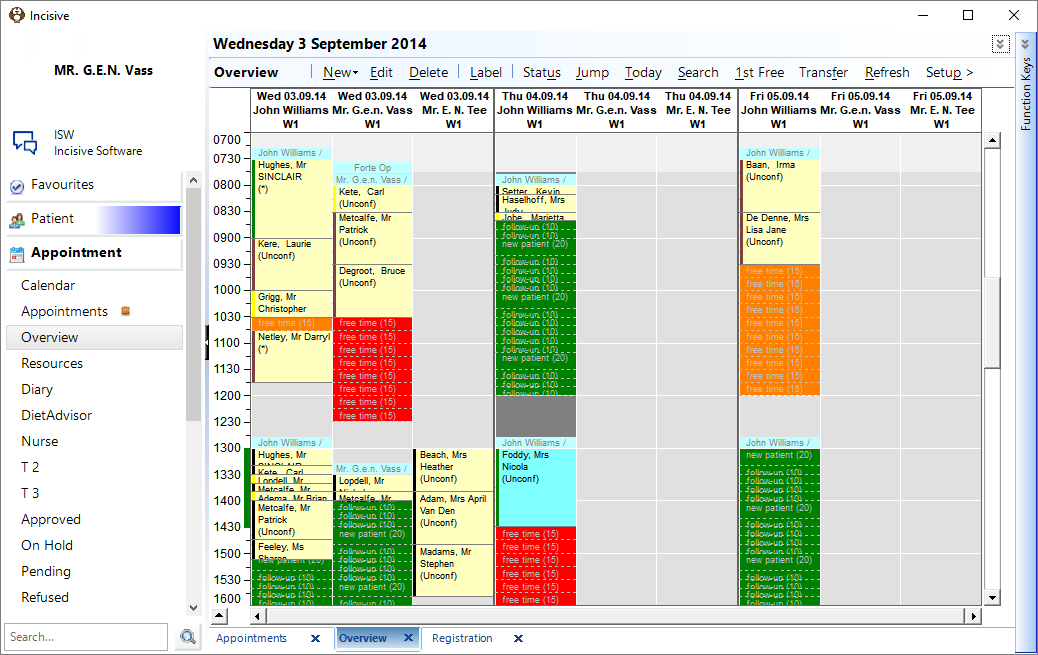
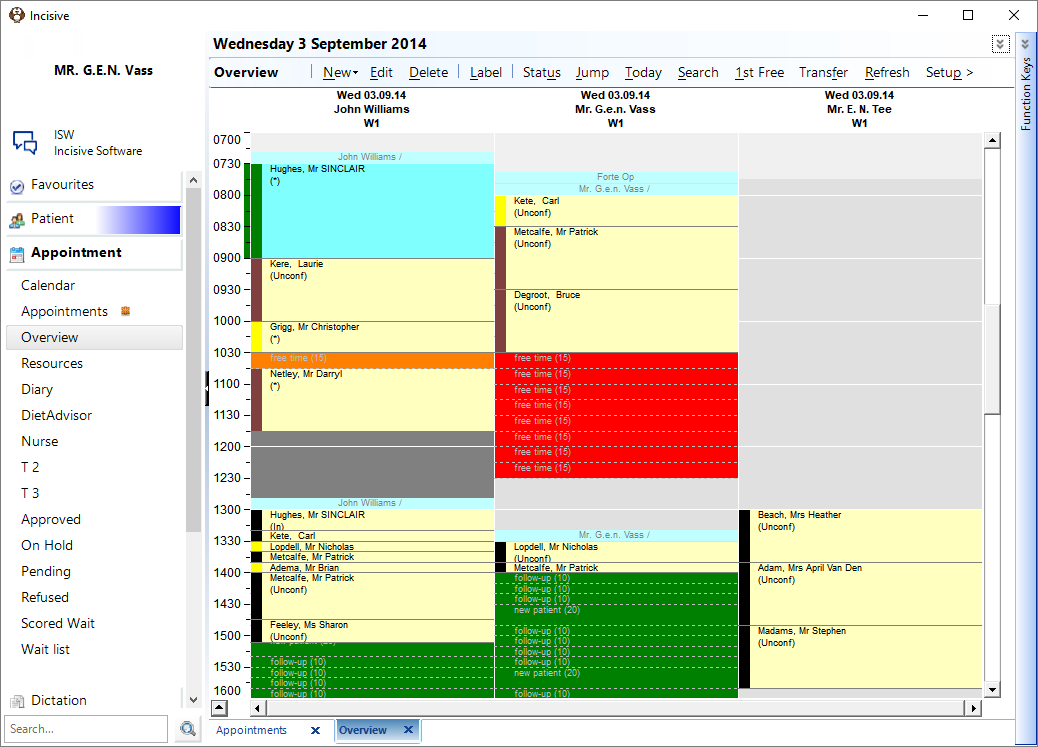
Use the Session and Appointment Type colours to help provide you with a quick snapshot of the types of sessions and appointments that you are looking at
New | Create a new Appointment or a Financial charge for the selected column You are not able to create new Sessions or Breaks |
Edit | Edit the selected appointment |
Delete | Delete the selected appointment |
Label | Print a patient or address label |
Status | Mark the patient as Arrived, In, Out etc. |
Jump | Jump to a future date |
Today | Display the records for today |
Search | Search for the appointments for a patient |
1st Free | Find the first time available for an appointment |
Transfer | Transfer the appointment to/from a wait list |
Refresh | Refresh the information displaying on the screen. |
Configure the layout of the columns for each Operator. | |
| Display registration and appointment details for the selected patient. Pressing the Spacebar on the keyboard also expands or collapses the same display panel |

Expand or Collapse the panel displaying the registration and appointment details of the selected patient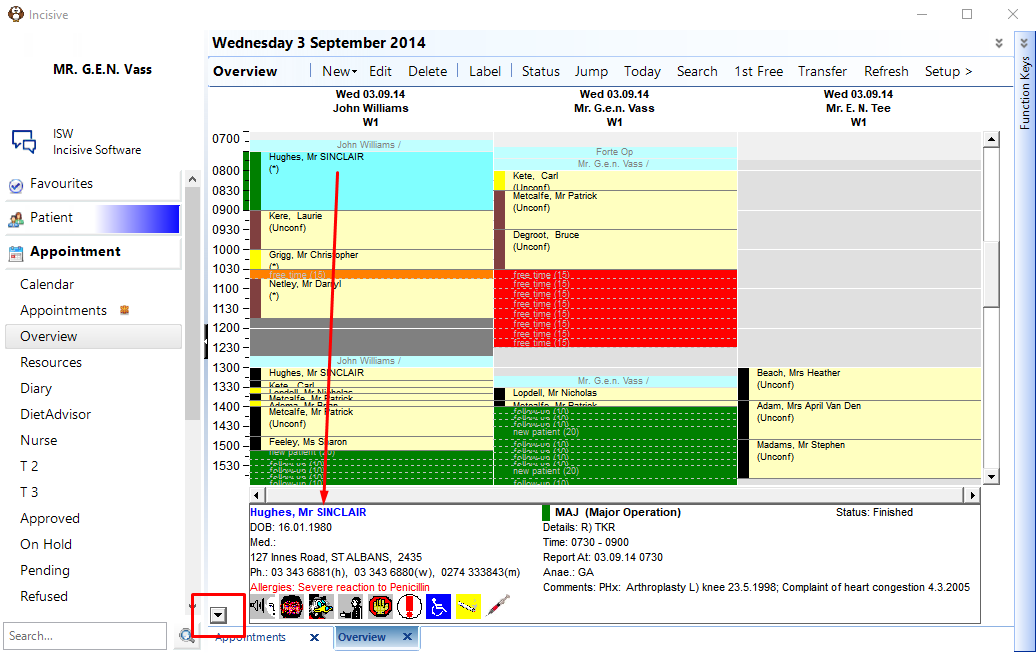
Training:
- Appointment Confirmation
- Cancel a Clinic
- Change an Appointment
- Create or Roster a Session
- Delete Appointment
- Deleting multiple sessions
- Find 1st Free Appointment
- Link Session to a Facility
- Make a further appointment
- Make an Appointment
- Notify
- Print a Session
- Print Labels for a Session
- Referral Entry
- Reorder Appointments
- Resources - Configuration
- Resources - Stop double-booking of treatment room
- Search
- Sending an Appointment List
- Setup New Session Type
- Share an Op list with Anaesthetist - using inTOUCH app
- Transfer Appointment to/from Wait-list
- Transfer Session
- Waiting Lists