An "Other Receipt" is normally something that is not patient related, ie hospital salary, Interest & Dividends received, refunds on purchases.
If you are a new SPM user, then you can use this to receipt payments for pre SPM services (patient & Third party invoices and schedules). Once an invoice or schedule has been generated by SPM, then this option should not be used, otherwise the invoice or schedule will still be regarded as being unpaid and will appear as a Debtor.
- Complete the Office Receipt Entry Screen as detailed previously, selecting 'Other' from the "For" picklist.
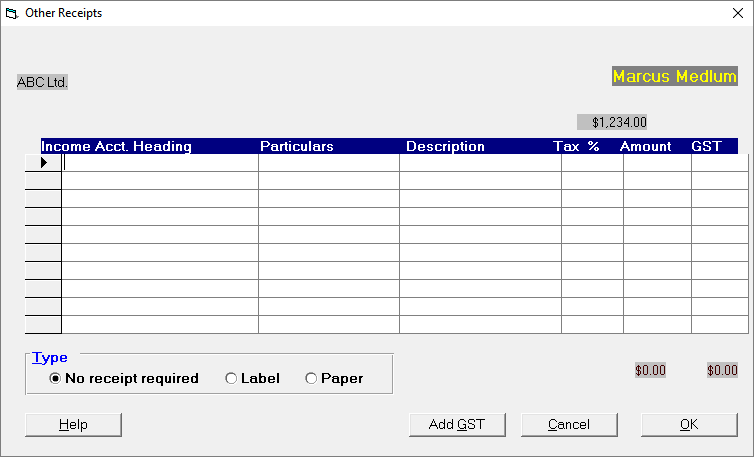
- Press F8 to display a list of Income Headings.
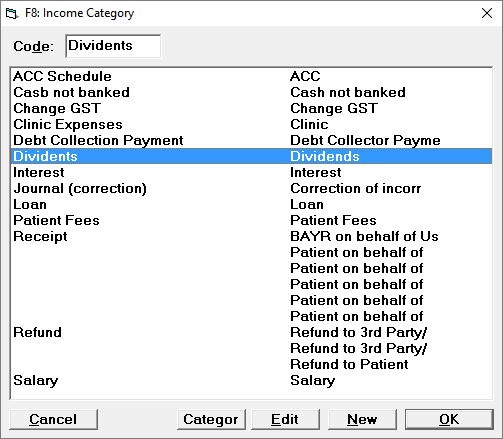
"Other" Receipts are analysed into Income Account Headings and Secondary Headings (see Set-up > Financial > Charges > Invoice Categories). - Select the appropriate Income Category (add a new one if required).
The Income Account Heading and the Particulars will be filled in automatically based on the Income Code selected. - Enter a description if necessary, alternatively leave this field blank.
The Tax % column relates to whether or not the Income Code selected is tax deductible or not. - Press 'Enter' to accept the default % for the selected Income Code.
The amount column displays the amount of the receipt less any amounts already allocated to other Account Codes. - Press 'Enter' to accept the amount or type the amount you want to allocate to the selected Income Heading and press 'Enter'.
The amount at the top of the column must equal the amount at the bottom. - Continue allocating to further Income Categories as required.
- Select the appropriate receipt type (none; label; paper).
- When the amount allocated equals the amount of the receipt, select 'OK'.
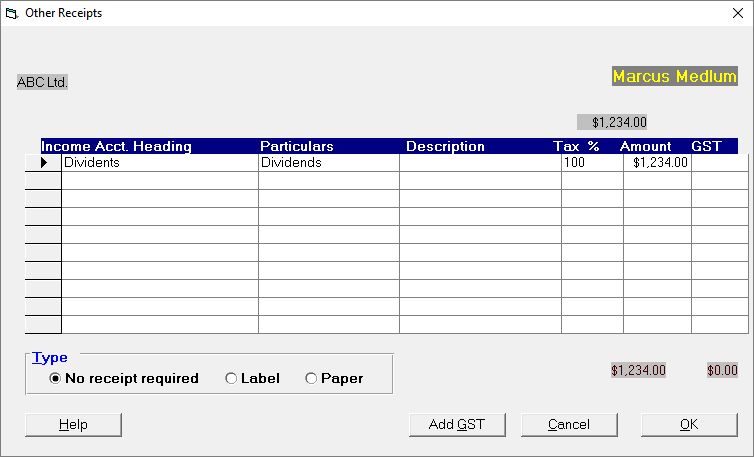
If the amount receipted does not match the amount allocated then the following message will display.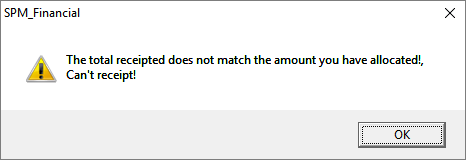
- Select 'OK' to return to alter the amounts allocated or make more allocations as appropriate and select 'OK' when the amounts allocated equals the total.