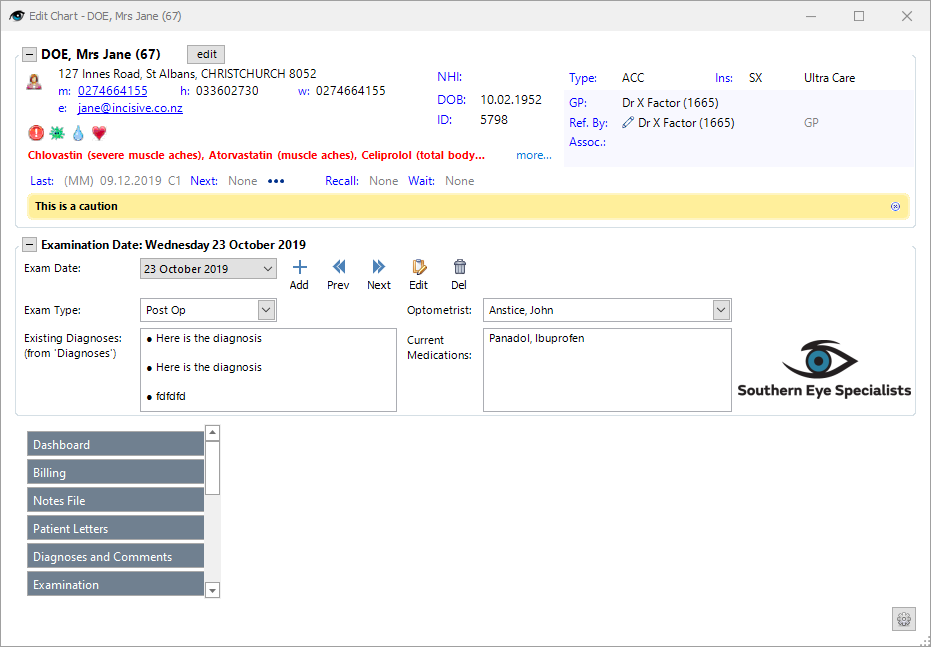
Exam Date | Date examination took place. |
| ‘Sign Off/Actions’ button is used to ‘sign off’ on an examination and mark it as completed. This will create a standard letter, and optionally send a message to the typists, etc if required. This will only show if the operator logged in is also the provider. |
 | 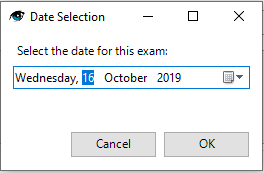 Make your date selection and then select OK to proceed. |
 | Takes you back to an earlier examination date. |
 | Moves you forward to a newer examination date. |
 | This shows that the exam is currently 'locked' to prevent accidental changes. Click here to unlock and allow changes to be made. You will be asked to enter your ID and password to continue. 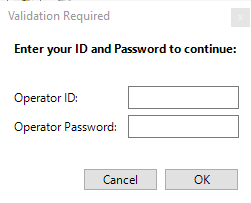 |
| Mark this exam for deletion. You will be required to enter your ID and password before you can continue. 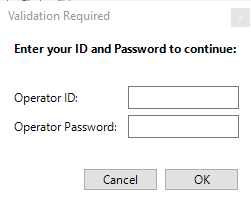 |
Exam Type | From drop down list make your selection: New, Post Op, Return, Urgent |
Optometrist | Choose your optometrist from the drop down list. |
Existing Diagnoses: (from 'Diagnoses') | Shows diagnoses that have been recorded at previous examinations. 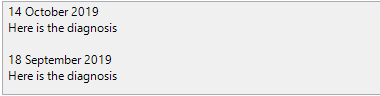 |
Current Medications | Medications that have been entered in the Ocular and Medical History field will appear here. |
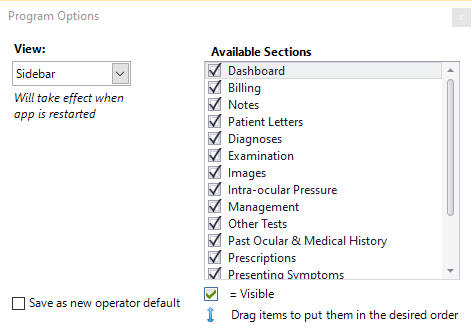
| This setting allows you to alter the view and make selections of which tabs you wish to have visible. 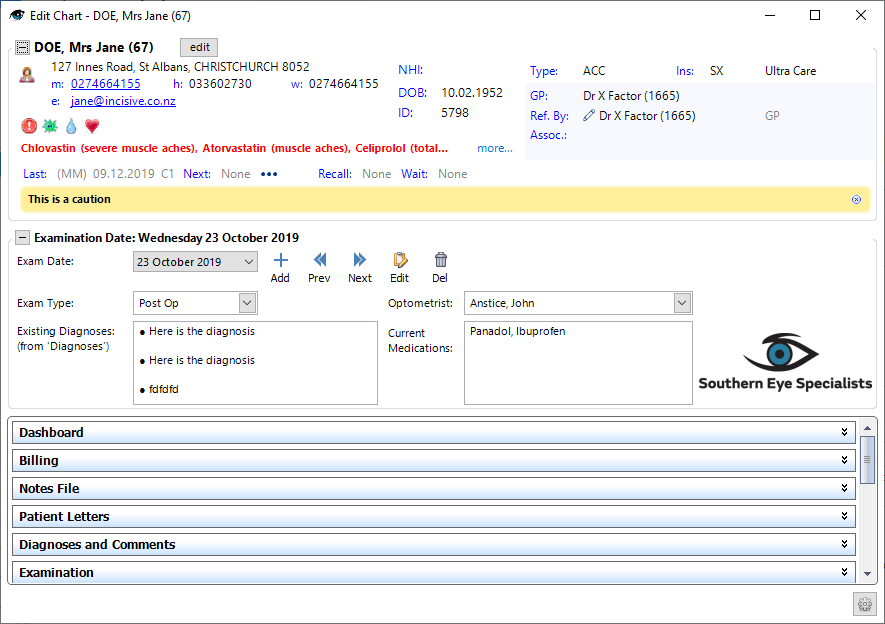 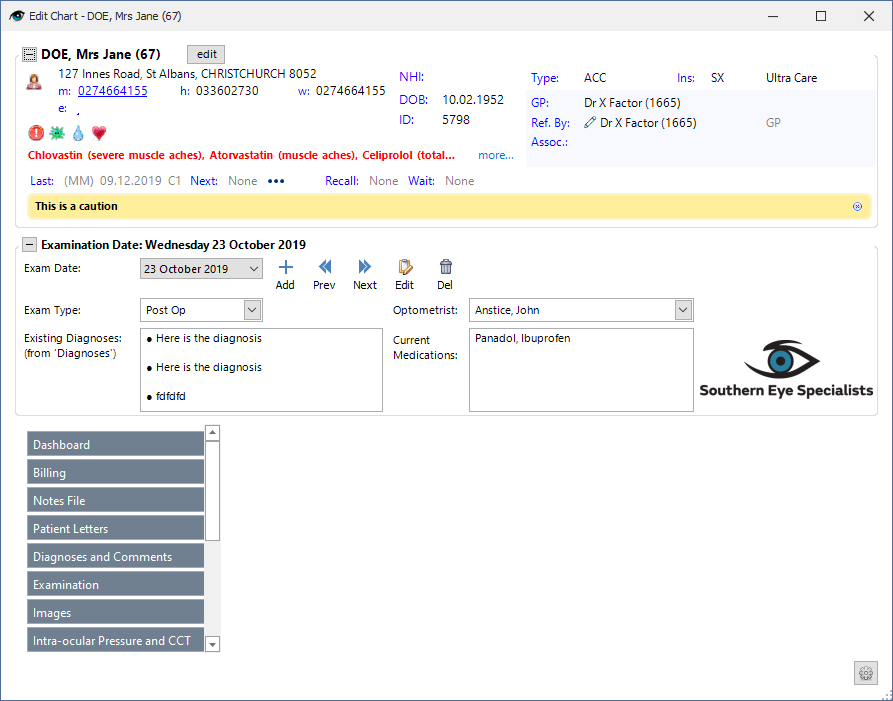 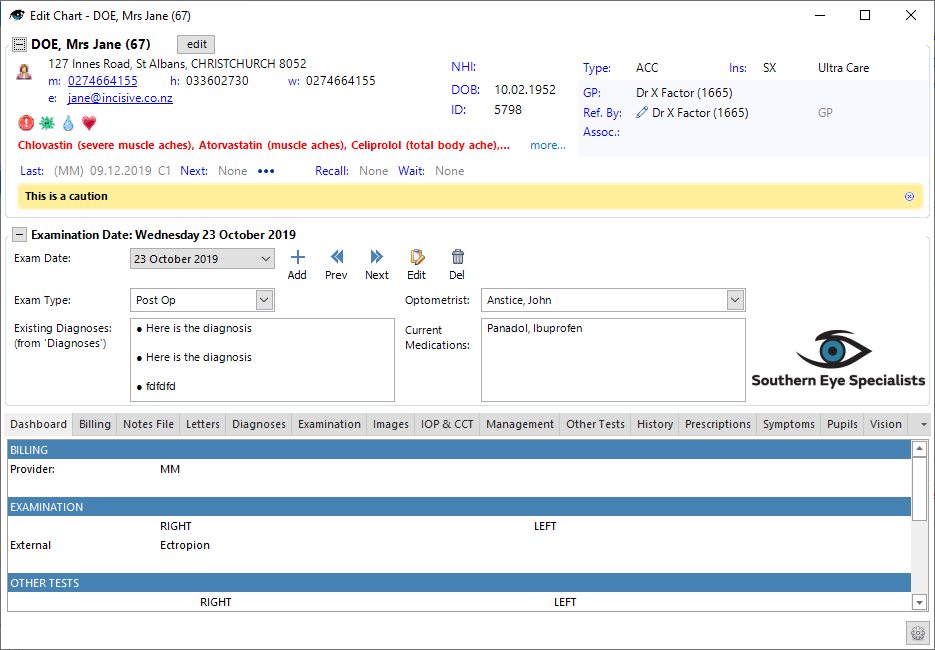 |