Tasks are designed to assist staff to ensure that they complete important services and also to allow the Task creator to be assured that delegated responsibilities are being performed. Tasks are simply Messages that have a Task Type and a Date Due record associated with them.
You can allocate a task to another Operator or you can allocate it to yourself so that it acts as your own check-list.
A Task can be assigned to any number of Operators but once one of them marks it as Complete it will also become Complete for all the Operators.
If multiple tasks have been allocated to a patient, it will only become Complete if ALL of the tasks are marked as having been completed.
The Task Types are:
NFA | Routine - No Further Action required |
FollowUp | Follow up with the patient |
Appoint | Make an appointment for the patient |
Recall | Make a recall entry for the patient |
Other | The task is not specified - you can manually enter the task event |
Create a New task
In the Message Content pane (right-hand side), select the task icon or press Ctrl+T and enter the task type and recipients.

Patient | Is the Task related to a patient? | ||||||||||
Recipient | Search for an Operator to assign the Task to. | ||||||||||
Favourite | Select the Favourites to reduce the list of Recipients. Favourites are set in your 'My Settings' option. | ||||||||||
Select All/Clear All | Select All Operators as recipients or Clear All selections | ||||||||||
Message | 255 character message associated with the Task | ||||||||||
Urgent | Check if you want it marked as Urgent | ||||||||||
Notify By | Send a SMS message or email informing the Operators that a task has been allocated to them | ||||||||||
Tasks | Choose one (or more) of the Task Types
| ||||||||||
Start Due | Today will be the default date to Start the Task. Enter another date if you want to delay the task to a future date. A Due date is optional | ||||||||||
Complete | Mark all the Tasks as Complete |
If the patient already has a task allocated a selection window will appear which will allow you to Add another task or edit an existing one.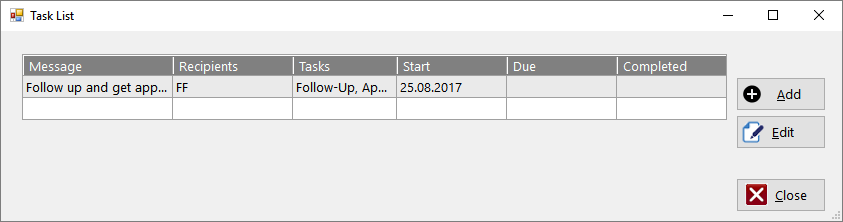
Mark a Task as Complete
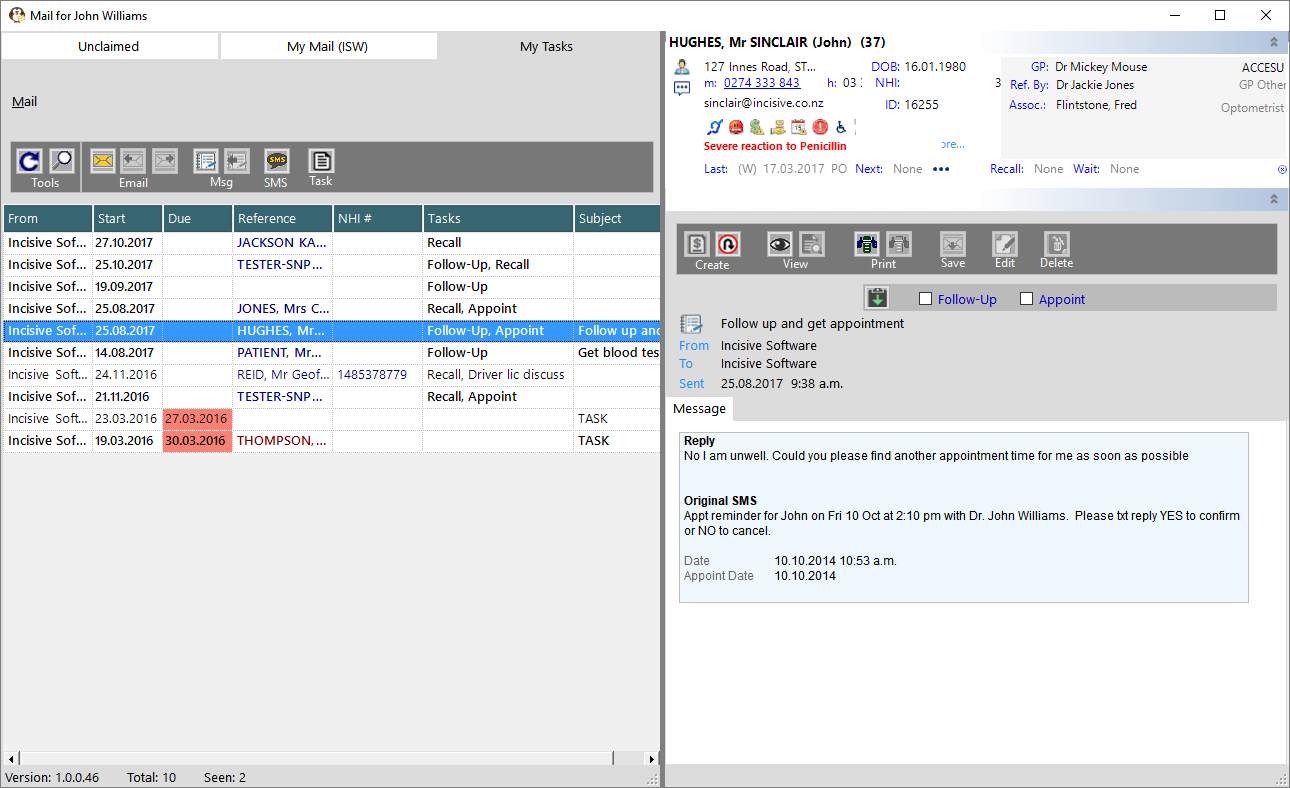
In the My Mail tab and My Task tab the Tasks for a message will appear in the Message Content pane.
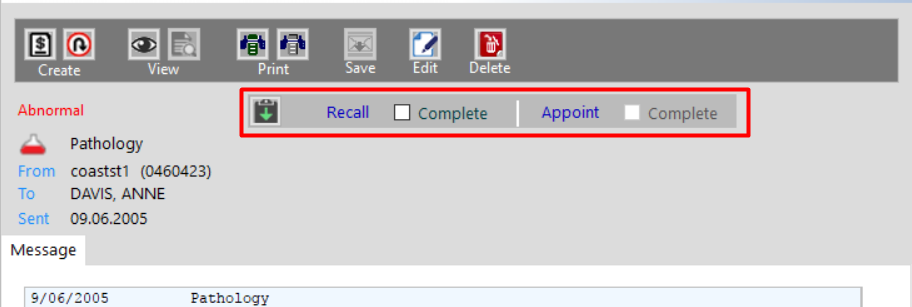
You can mark them as Complete by:
- Checking the box on the message panel.
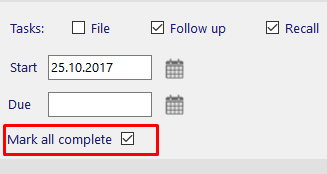
- Selecting the Task button again, Editing the task and click on the 'Mark All Complete' option
- In the Task Report screen (left-hand panel) you can mark each individual Task as complete or tick the box in the All Completed column
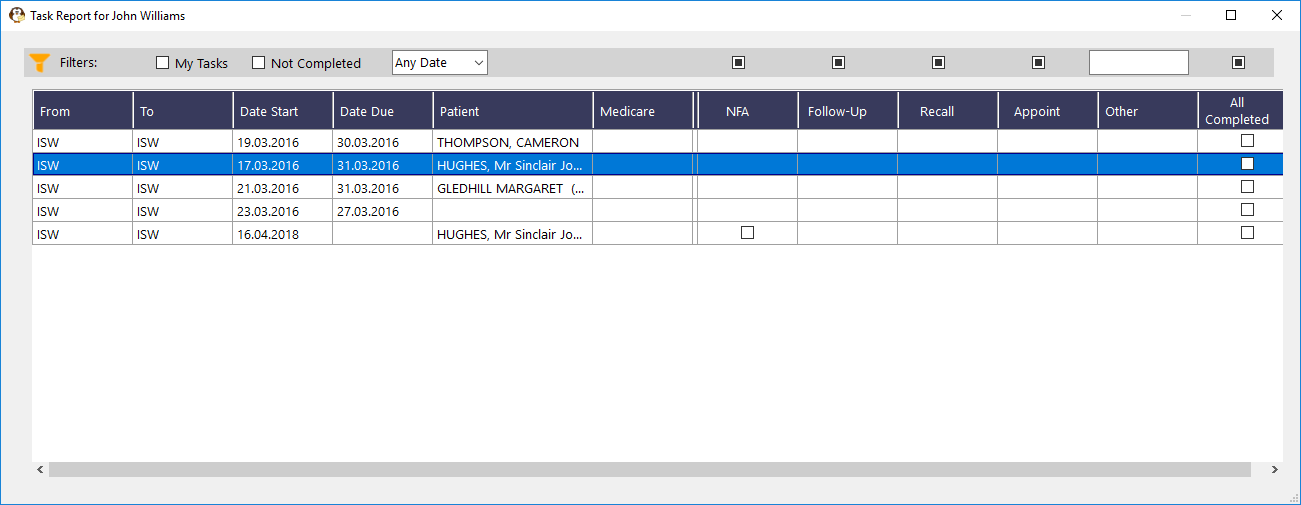
The patient will remain on the My Tasks list until ALL of the individual tasks have been marked as Completed.
Hide Completed Tasks
To hide the list of Tasks that have been completed, in the 'My Tasks' tab, select the Configuration button  in the left-hand pane and choose the option 'Hide task if: Completed'
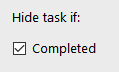
This will NOT change the display settings for any one else - only you.