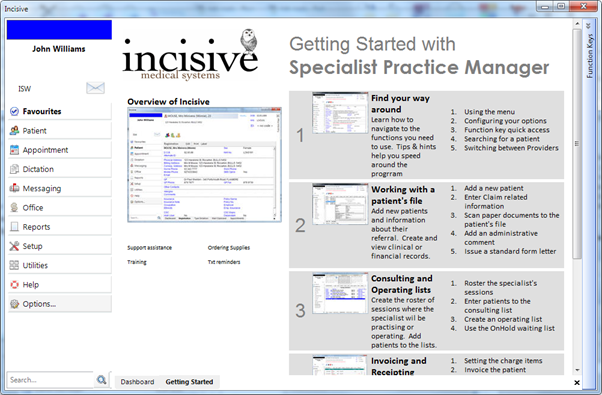
When you log into the application there are some options that allow you to configure the menu to better suit the options you wish to use.
In the menu on the left hand side, select 'Option'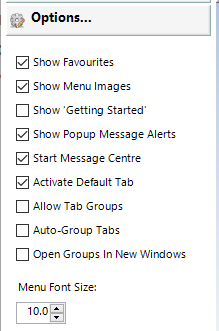
Separate Windows
Each module can be started in their own separate window by right-mouse-clicking on the module name.
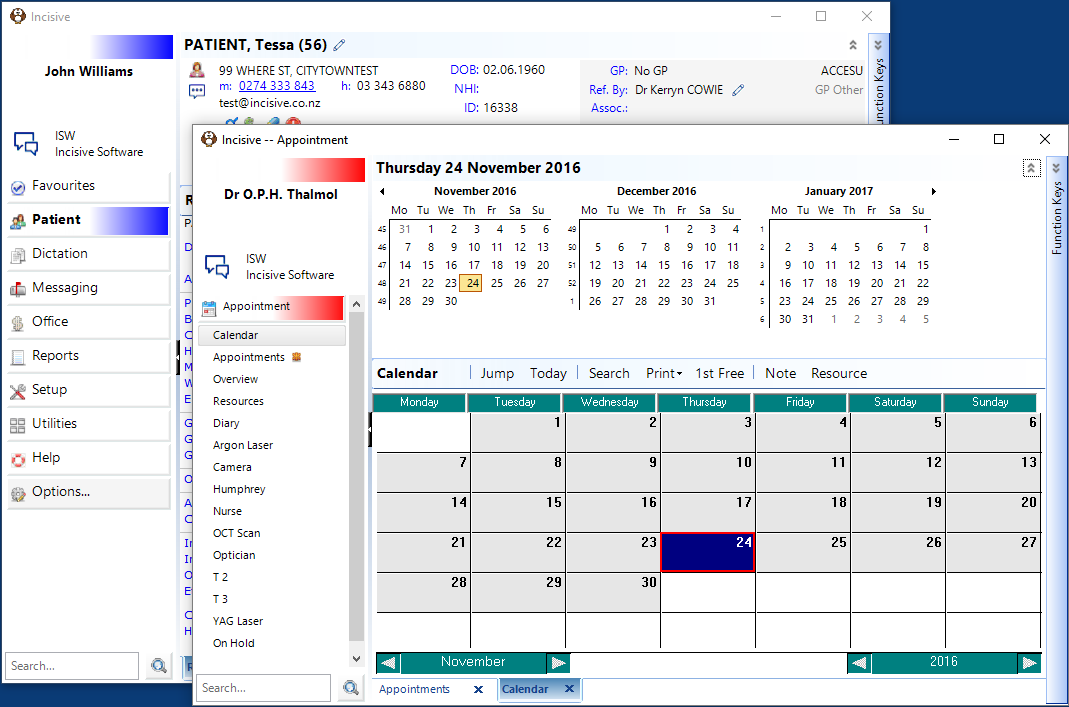
When the module is separated it is also removed from the original menu. When the separated module is closed down it will reappear in the menu.
The module can not be put into a separate Window if any of it's functions are active. Close the active tabs that be long to the module and try again.
Tap on the arrow section in the middle of the divider bar to collapse the left panel
Show Favourites
If there are some software functions that you are frequently using you can create a shortcut to them and hold them in a special area at the top of the menu list.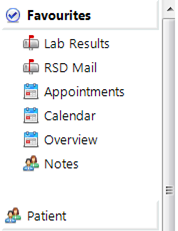
To add menu shortcuts to this Favourites section just go to the actual menu item, right mouse click on it and select 'Add to Favourties' option.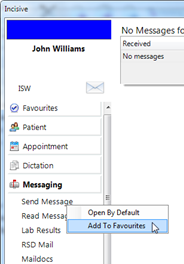
When you next open the Favourites section the new shortcut will appear.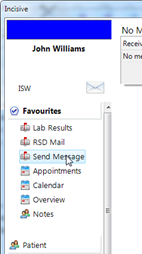
Show Menu Images
This option allows you to display or hide the images on the main menu sections
Displayed Hidden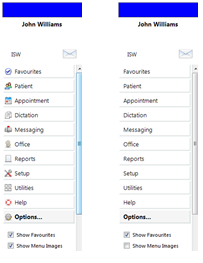
Show 'Getting Started'
To help you get used to the functions available in the application a web page can be displayed that will help provide links to specific help pages and also to screencast videos. 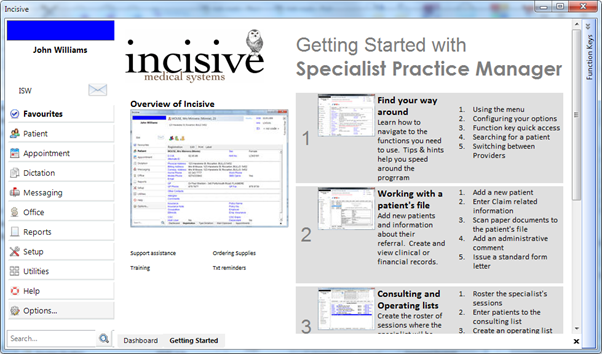
Show Popup Message Alerts
When you receive a new internal message, a small pop-out windows will appear in the lower right corner of your screen, informing you of the message and allowing you to reply to it.
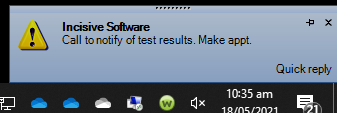
See NOTIFICATIONS for more information.
Start Message Centre
Automatically start the Message Centre when you start the SPM or PHM application
Activate Default tab
This option should not be turned on unless for a very specific purpose
For each of the main menu section you can nominate a sub-menu option that will be automatically loaded when you first open the menu section.
The sub-menu that is the default is marked with an asterisk.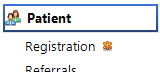
To change the default to a different sub-menu just right-mouse-click on the menu item and select the 'Open by Default' option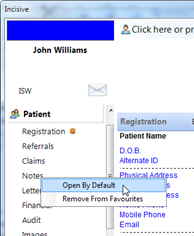
Menu Font Size
If you have large, high pixel monitors (or you're optically challenged), you can easily enlarge the size of the font that displays the menu and toolbar text.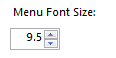
Moving the font size up or down will dynamically alter the menu. Common sizes are between 9.5 and 11.0.