If you are unsure which menu option will provide you with the correct function or report, you can use the 'Search' option at the bottom left corner of the application.
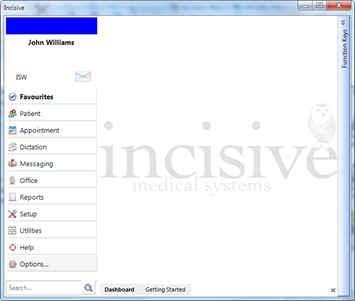

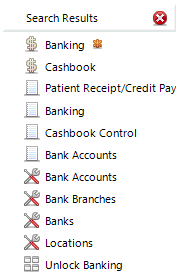
Type in a key word of the function or report that you are looking for and then click on the Search symbol. The results will appear in the menu section and will be grouped in the same order that they would usually appear, that is; modules, reports, setup then utilities. Select the menu option you require, or click on the close button.
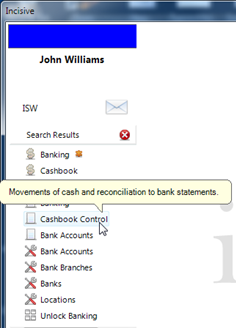
The Search function looks over both the text of the Menu item and also the menu Description. If the search result looks as if it is incorrectly including items, place you mouse over the result so that the Tooltip appears with the Description displayed.
Search using a single word (or part word) and try to make it as short as possible. For example, the search for 'bank' will return results for 'bank', 'banks' and 'banking' .