In addition to editing a form from the Incisive Forms library you can also make copies of a form and modify each copy to add your own specific text or selection so that it doesn't need to be re-entered each time the form is used.
An obvious use of this would be for commonly performed operations. Make a copy of an Admission form for each of the common operations, with all the diagnosis, procedure, nights etc. already completed.
Make a copy of a form
- Go to Setup > Forms > Field Forms
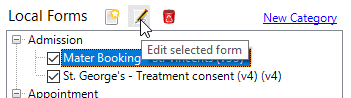
In the Local Forms panel highlight the form you want to copy and click on the Edit button
Make sure that you are making the change for your Provider, not to a Group or someone else.
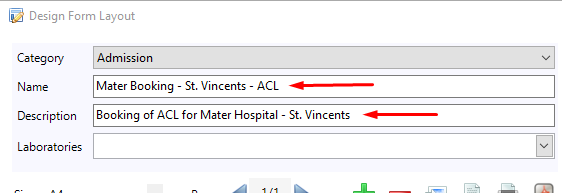
- Change the Name and Description to the reflect the changes that you are making for the copy.
- Make the default changes you want for the form.
TextBox fields - type in the information you want to always include
CheckBox fields - select the CheckBox then change the 'Checked' property for the control to True
ComboBox fields - delete the ComboBox and insert a Label field. In the Text property of the Label control, type in the text you want to see appear instead of a selection list. - To save as a Copy click on the Separate Copy button.
The copy of the original form is now saved. The original form remains as it was.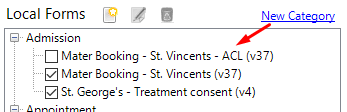
- Put a tick in the check-box to enable the form for use.