Invoice items are services or procedures that you routinely 'sell'. By setting them up as Codes, not only will you speed up data entry, but you can also be able to generate an analysis report of the number of each Invoice Item charged in the period.
Each invoice item can have multiple fees, i.e. a separate value for each 'Billing Type'. It is not necessary to add a separate invoice code for each party that you invoice.
On selecting the Invoice Items Tab, any existing entries will display with their Code, Description and Amount.
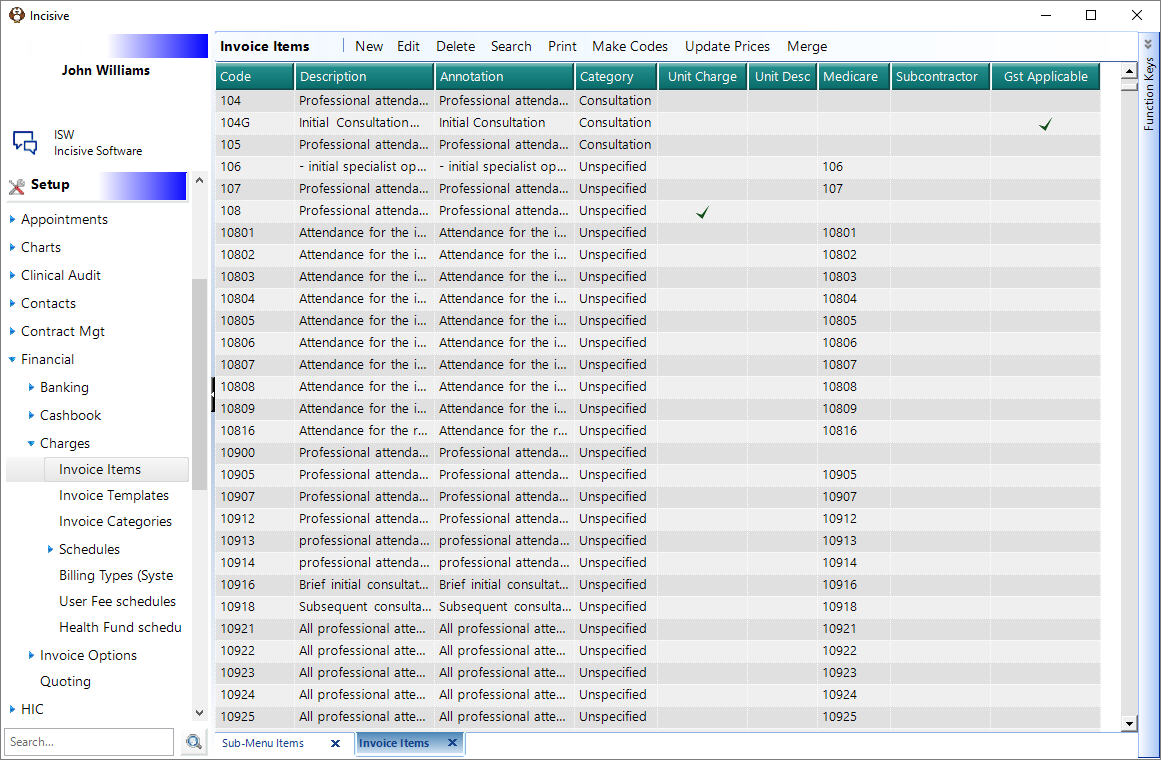
New Invoice Item
- From the Invoice Items tab select 'New'.
- Complete the Invoice Code screen as applicable for the item being added.
- Select 'OK' to save the Invoice Code.
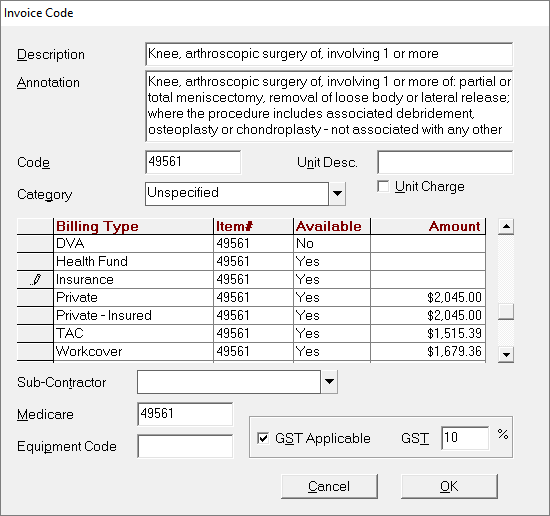
Description | The description is purely for to assist with selecting the correct code and for reporting purposes, as the full annotation may be much longer. | ||||||
Annotation | This is what will appear on the Invoice. Do not type the amount here. You may type up to 10 lines of text, so you need not feel limited by the amount of detail you include. | ||||||
Code | The code is used to access the entry. Make it something that is easily remembered. In the example above, ICA (Initial Consultation - Adult) would be a suitable code. ICC could be the code allocated to Initial Consultation - Child. | ||||||
Category | The Invoice Category allows you to group Invoice items together for reporting purposes. For instance you might set up categories called Consultations, Operations and Materials. | ||||||
Unit Description | Types a Unit Description (e.g. Each) if the Unit Charge box was ticked, otherwise leave the field blank. | ||||||
Unit Charge | Some Invoice Items may be charged out on a quantity or time basis, materials are a good example of this. If the Unit Charge field is ticked, then when you select this Invoice Code when entering an Invoice you will be prompted for the number of units. The amount will then be calculated. | ||||||
Billing Types | For each Billing Type listed:
| ||||||
Sub Contractor | If the item you are entering is to be paid out to a sub contractor, select the sub contractor from the drop down list. Additional sub contractors may be entered via Setup – Inventory – Sub Contractors. | ||||||
Equipment Code | This is used by Medicare / HIC Online and is required if the item being charged for uses equipment that must be registered with Medicare. | ||||||
Medicare | If you are an Australian site, enter the Medicare Item number in this field (even though it may already be entered in the code field and item number fields). This ensures that when a new 'Rates file' is imported (containing the latest Medicare, DVA, AMA, Workcover and Healthfund rates) this entry will automatically be updated. | ||||||
GST Applicable | If this entry is GST Applicable, tick the box. |
Delete
If an Invoice Code has been used you cannot delete it.
- Highlight the Invoice Code to be deleted.
- Select 'Delete'.
- Select 'Yes' to confirm the entry is to be deleted.
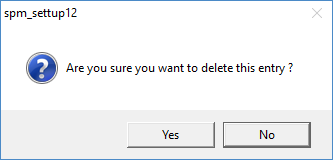
If an Invoice Code cannot be deleted because it has been used, either:
- Edit the Invoice Code and set 'Available' to No for all Billing Types; or
- Consider merging the Invoice Code with another Invoice Code if this is appropriate.
Search
The Search option allows the Invoice Items that are displayed to be filtered either by Category and / or a Code Range of Medicare Range.
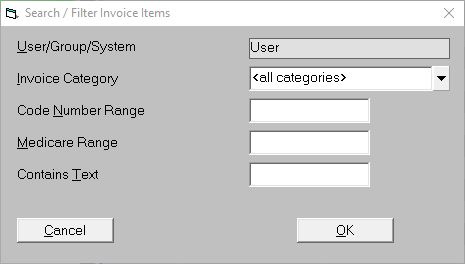
Invoice Category | Either select a single Category, i.e. Consultations from the drop down list, or leave as the default <All Categories>. |
Code Number Range | |
Medicare Range | Enter the Medicare range if applicable, i.e. 40,000 - 50,000 |
Contains Text | The text search works on the first word in the Invoice Code Description. |
The Print option allows for the printing of Invoice Items in various formats.
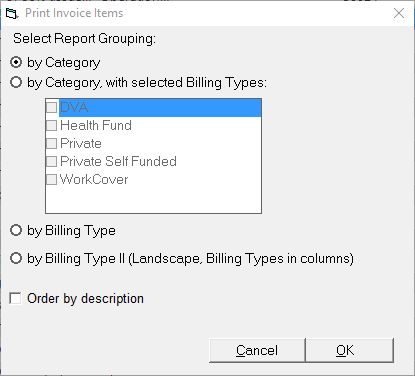
Make Codes
This option allows you to make Invoice Codes from a range of Medicare Item Numbers. It is useful when adding a new User / Provider to the database, or when new item numbers are added by Medicare.
- From Invoice Items select 'Make Codes'.
- From the drop down list, select an Invoice Category to assign the new codes to.
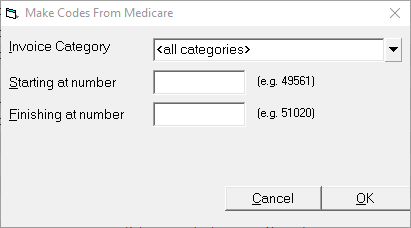
- Enter the Medicare Code number to start at.
- Enter the Medicare Code number to finish at.
- Select 'OK'.
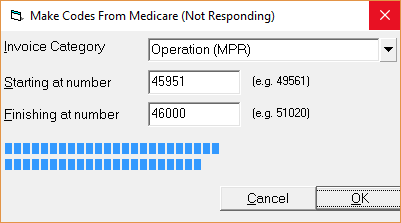
- The program will scan the existing codes and the imported Medicare Codes before prompting to confirm the number of new codes to add.
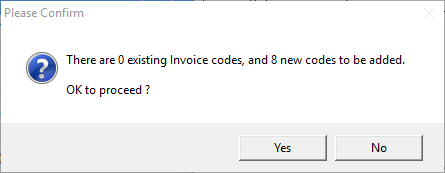
- Select 'Yes' to confirm the addition of the new Invoice Codes.
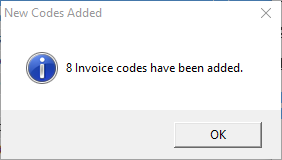
The program will add the new codes.
You are better run Make Codes several times with smaller ranges of Medicare Item numbers rather than enter one large range, i.e. 30,000 to 70,000. The later would result in Invoice Codes being made for all Medicare Item numbers and will slow down the system markedly.
Only import the Medicare Item numbers that you require for your specialty or sub specialty. More can be added if necessary.
Update Prices
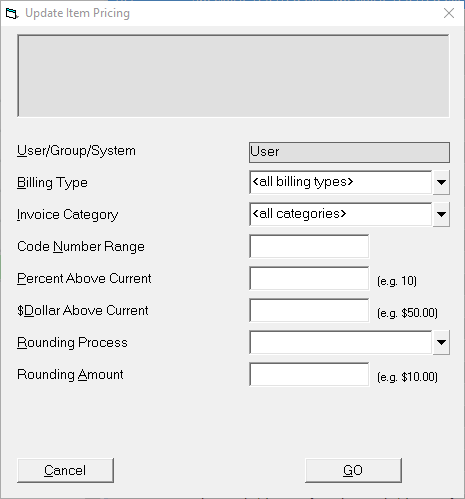
This option allows you to apply either a percentage increase (or decrease) or a fixed dollar amount to your existing charges base on Billing Type, and Invoice category. The price changes can also be rounded.
- Select Update Prices.
- Complete the entries on screen as required.
- Select 'GO' to apply the changes.
User/Group/System | |
Billing Type | Either select a single billing type from the drop down list or select to apply the update to All Billing Types (while the default, this would seledom happen in practice). |
Invoice Category | Either select a single invoice category from the drop down list or select to apply the update to All Categories. |
Code Number Range | If you want to apply a price increase to a set range codes, enter it here, i.e. 30000-30030. |
Percent Above Current | Enter the percentage increase to apply, i.e. 10 would give a 10% increase in fees. |
$Dollar Above Current | If you want update your invoice items by a dollar amount, enter it here. |
Rounding Process | Select from: No Rounding Round Down Round Nearest Round Up |
Rounding Amount | If you have selected something other than 'No Rounding' select the amount to round by, i.e. $1.00 etc. |
Merge
The ability to merge invoice codes enables you to bring together items into a single entry where previously there have been multiple different codes entered. i.e. Cataract Right Eye and Cataract Left eye are essentially the same procedure (and chargeable amount). While the invoices can be individually annotated with the side, a separate code is not required for each eye (but it would be sensible to have a separate invoice code for a Bilateral Cataract as the amount charged is different.
If you Search to have a limited range of codes on screen before beginning, the Merge process is easier.
- Select 'Merge'.
- A list of Invoice Codes will appear based on what you had previously searched for.
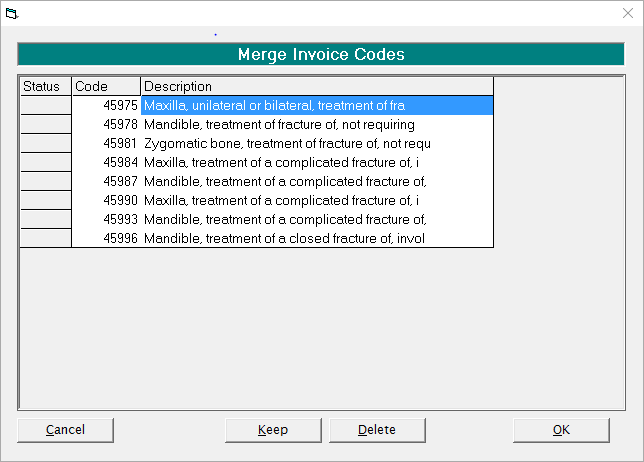
- Tag one item to 'Keep' and tag one (or more) Invoice Codes to 'Delete'.
Select "OK'.
On This Page:
How Do I...
- ACC invoicing
- ACC Online portal configuration
- Submitting invoices & schedules to ACC portal
- Resending invoices not delivered to ACC
- ACC Non-Core Invoicing
- Delete ACC Invoice after claim has been uploaded
- Add a New Transaction Au
- Add a New Transaction NZ
- Quick Invoicing
- Invoicing the Patient
- Invoice to 3rd Party
- Invoice a Solicitor
- Change Referral for an Invoice
- Make invoice codes from Medicare
- Adding Assistants or Alternate Providers
- Print Balance for Invoice
- Billing Types
- Advanced Invoicing Options
- Hospital Invoicing Au
- Hospital Invoicing NZ
- Tutorial - Invoicing
- GST Rounding adjustment