The Incisive application needs to be configured to interact online with:
NZ Formulary
NZePS Hub (broker)
The NZePS service is configured at a System and Provider level, which means that configuration will be required at both levels.
The NZ Formulary medicine lookup is ‘live’ which means it is always up-to-date and does not need to have monthly files downloaded and installed.
Pharmacy names and contact details can be imported directly from the online Healthpoint directory.
The NZMC or NZDC number is not now required, but the HPI Number does need to be added for each Prescriber
Requirements
Internet connection
Specialist Practice Manager (SPM) or Private Hospital Manager (PHM) v414.0 or newer
Health Professional Identifier Common Person Number (HPI-CPN) for each prescriber
Health Facility ID (HPI-FAC) for each Provider (if they are engaged by their own organisation and not employed by the medical facility).
Menu access permissions assigned to a Role that only allows an authorised Prescriber to use the ‘Send’ button on the toolbar in Patient > eScripts
Optional:
Importing pharmacies into Contacts from the online Healthpoint lookup that is integrated into the Incisive application.
Choosing the ‘Preferred Pharmacy’ for the patient.
Steps
NZePS need to be informed of the name of the Provider using ePrescriptions, to issue the HIE Entity & Client ID’s (meghan.downs@health.govt.nz)
Update SPM or PHM to v414.0 (or newer)
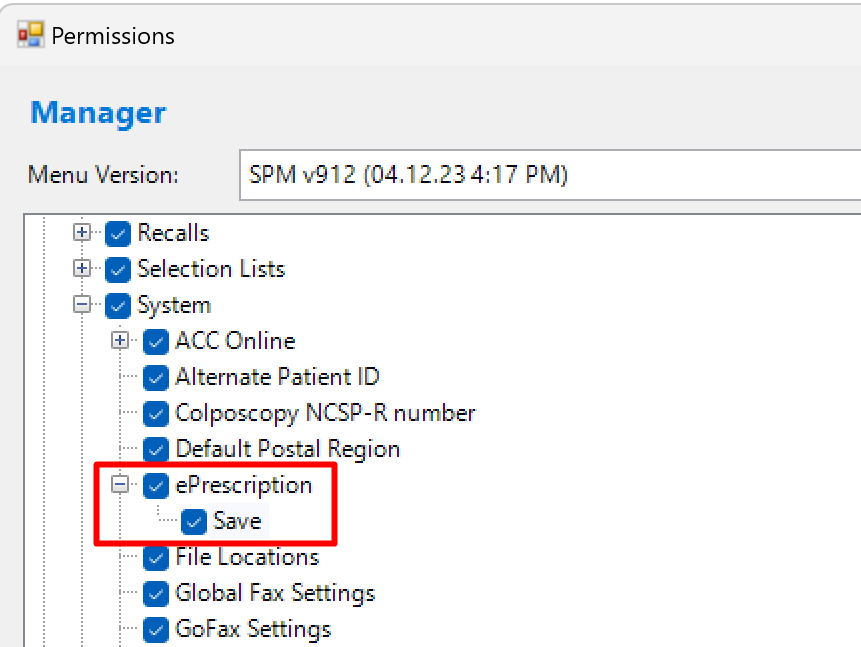
Go to Setup > Personnel > Permissions and enable menu access to Setup > System > ePrescriptions and Setup > Provider > ePrescriptions for a manager/sysadmin level role. Log out then back in again.
Add the necessary digital certificates to a common (shared) file location
Enter the certificate names & paths and also the relevant ID’s
Setup > System > ePrescriptions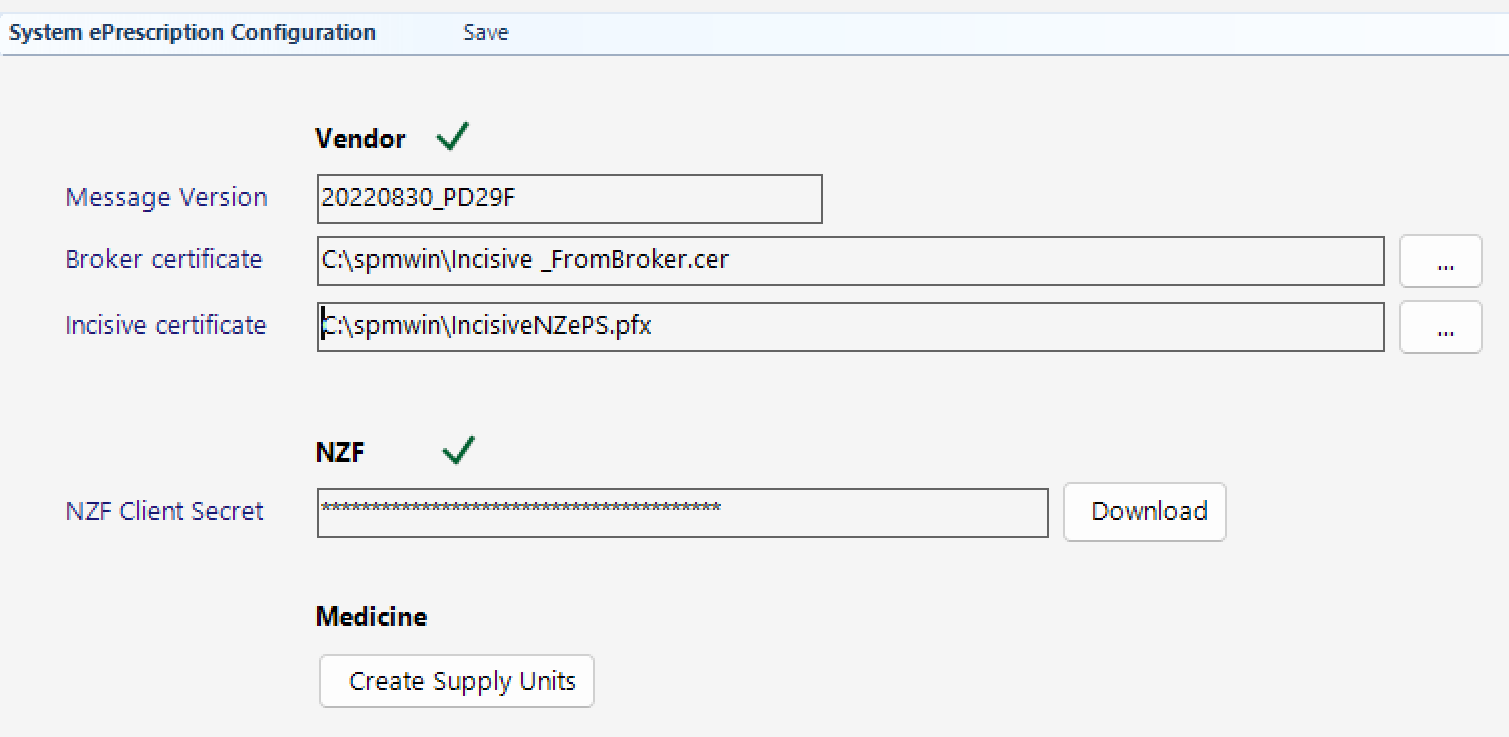
Add the HPI Facility ID and HIE Client ID for the Provider
Setup > Provider > ePrescriptions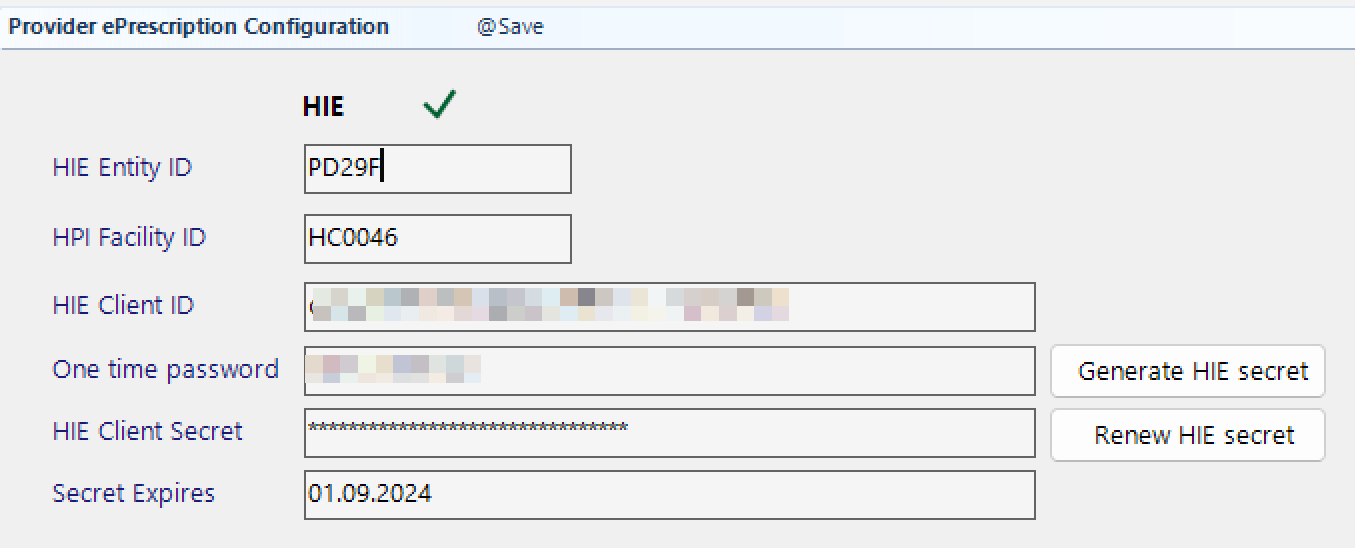
Add the HPI-CPN and HPI Facility ID for each Provider in Setup > Provider > Config1
NZMC or NZDC not required.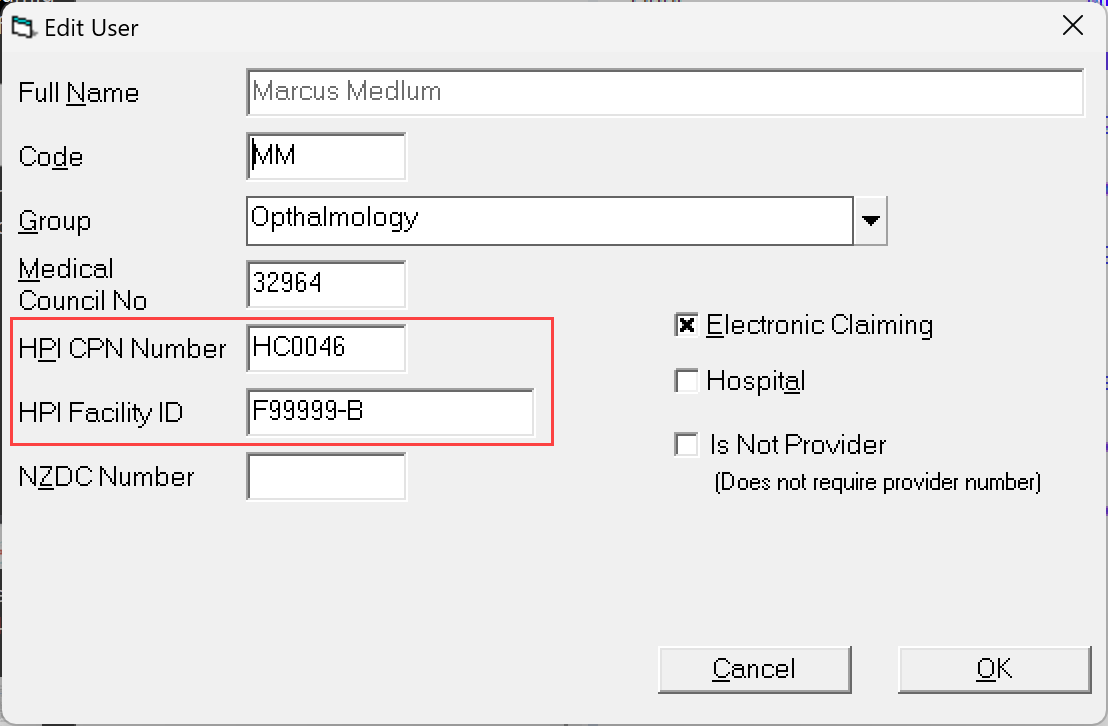
Optional but recommended. Import local or regional pharmacy names and contact details from the online HealthPoint directory, instead of entering them manually.
Configure Roles so that only the Prescriber has the ability to use the Send button in Patient > eScripts.
See: Role permissions for the Prescriber & StaffCheck that the barcode is printing on the prescription. If not, the font Code128bWin needs to be installed as a font in Windows > Control Panel > Fonts. Use Administrator login to install the font for all users by double-clicking on the Code128bWin.ttf file in the Incisive program directory.