Appointment 'Book(s)' enhance the ability to make appointments that are not directly related to the Provider. They are often used for Nurse treatment lists or Equipment bookings. In a Hospital environment, a book is normally created for each operating room, i.e. Theatre 1, Theatre 2 etc.
These will not show as booked against the User or Specialist on the Appointment tab and are ideally suited to appointments for patients with a nurse, technician or research assistant. Care should be taken when setting the books up to ensure the correct use for your practice. Please ring Incisive for clarification if you are unsure how their use is best suited to your practice. In a Hospital environment, a book is normally created for each operating room, i.e. Theatre 1, Theatre 2 etc.
The books derive appointment codes and sessions type from a primary user. In a multi user/specialist practice, it would be beneficial to have a practice user set up. Please contact Incisive Software for this.
The 'Books' do not replace the current method of making bookings for a Provider - they are supplementary to this.
Appointments made against a 'Book' will not automatically show up in Type Dictation. You need to use the Display option to select which Books are to appear.
To add a new Book
- From the Books tab select 'New'.
- Complete the details for the new book as applicable.
Select 'OK' to save the Book.
To add a new book select New.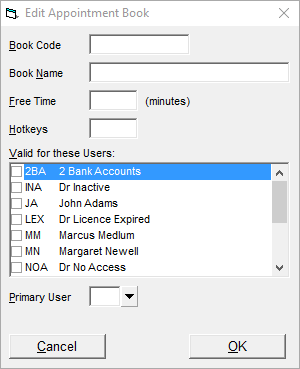
Book Code
Enter a code for the book, i.e. N for Nurse.
Book Name
Enter the name for the book, i.e. Nurse
Free Time
If you require the book to be ruled up in time slots, enter this as the Free Time i.e. 15 minutes.
Hotkeys
Enter a Hotkey to access the book in Appointments Mode, i.e. N for Nurse. This should not clash with other Hotkeys such as 'T' for today or 'H' for the hold tab.
Valid for these Users:
Select which Providers the Book is to be available to in Appointment Mode (often the Nurse will be booked by more than one provider)
Primary User
Select the Primary User (for Appointment Codes, Sessions and creating sessions against).
How To...
- Appointment Confirmation
- Cancel a Clinic
- Change an Appointment
- Create or Roster a Session
- Delete Appointment
- Deleting multiple sessions
- Find 1st Free Appointment
- Link Session to a Facility
- Make a further appointment
- Make an Appointment
- Notify
- Print a Session
- Print Labels for a Session
- Referral Entry
- Reorder Appointments
- Resources - Configuration
- Resources - Stop double-booking of treatment room
- Search
- Sending an Appointment List
- Setup New Session Type
- Share an Op list with Anaesthetist - using inTOUCH app
- Transfer Appointment to/from Wait-list
- Transfer Session
- Waiting Lists