Appointments are made by selecting an Appointment Type. This allows the appointment to be made quickly and without the need to type repetitive data. The (default) length of an appointment is recorded against the Appointment Type meaning staff do not have to commit to memory the preferences of each Provider.
Appointment Types are validated against Session Types meaning a patient cannot be inadvertently booked into an incorrect Session, i.e. a consultation appointment cannot be booked into an operating list if the system has been correctly configured.
You can set up as many or as few Appointment Types as you like. Each Appointment type includes a code (for quick selection when making an appointment), a description and a default appointment length (although this can be overwritten at the time of making the appointment). Optionally you can also select Resources if these are required for the appointment.
Various reports are availalbe based on Appointment Type.
To add a new Appointment Type
- From the Appointment Types tab select 'New'.
- Complete the details as required.
- Select 'OK' to save.
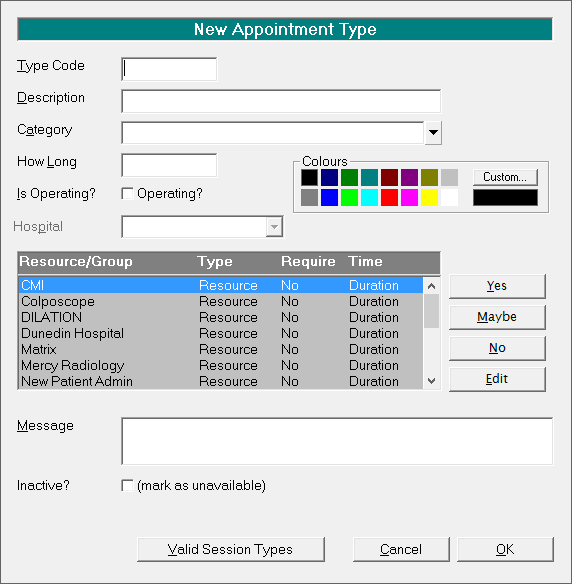
Type Code | Type a unique code for the appointment type that is meaningful for the Appointment Type, e.g. IC. |
Description | Type a description, e.g. Initial Consultation. |
Category | Select a category from the drop down list, or if necessary add a new category. Appointments types can be grouped into Categories for reporting purposes, i.e. Consultations, Operations etc. A category can then be further classified. |
How Long | Type the default appointment length in minutes, e.g. 30. |
Colours | If you wish to assign a colour to individual appointment types, select one of the 16 standard colours, or select custom to select from 48 basic colours. When selecting colours, you need to be mindful of the background colour that it will be displayed against. |
Is Operating | If the Appointment Type is an operation, tick this field. |
Hospital | This field is only applicable if the previous field, 'Is Operating' is ticked. This is to record the projected number of nights stay in hospital (or Day Stay). It is intended for future development. |
Resources | Select any resources if these are required. For example if you were making an appointment type for a procedure that required a particular room, select the resource so that no one else can book the resource at the same time. If you choose a Resource 'Group' then you will be prompted to select one of the Group 'members' when you are making the appointment. For example, if the practice nurses were members of the Resource Group then you would need to select a nurse that was not already allocated. |
Message | If you want a message to pop up every time the selected appointment type is entered, type the message in the 'Message' field. This is intended as a reminder to staff to convey information to the patient, particularly with new or changing staff members. |
Inactive? | It is not possible to delete Appointment Types if they have been used (although Appointment Types can be Merged). If the Appointment Type is still required for reporting purposes (and merging the Appointment Types is not appropriate) then the code can be marked as inactive, meaning it can no longer be selected. Check this option on to mark the Appointment Type as unavailable. |
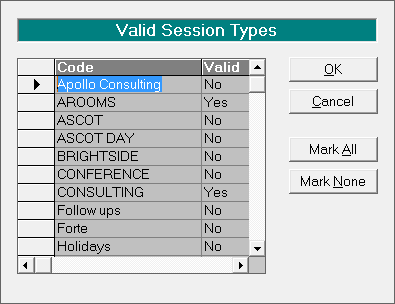
Valid Session Types | Appointment Types can only be selected if they have been validated for against the Session Type. Select Valid Session Types. From the list of Session Types, select which sessions the Appointment Type is valid for (Yes). If the Appointment Type is valid for most sessions, use Mark All to set all Sessions to Yes, and then individually change the sessions it is not valid in to No. You can also mark appointments as being valid for a session from Setup > Appointments > Session Types |
To Edit an existing Appointment Type
- Highlight the Appointment Type to change.
- Select 'Edit'.
- Make the required changes.
- Select 'OK'.
If you change the duration (length) of an appointment, it will not change the length of appointment already made. It will only apply to new appointments.
Similarly, if you edit an appointment type and now require a resource to be used; this will only apply to new appointments made. Existing (future) appointments using this appointment type would need to be edited to 'book' the resource.
Delete an Appointment Type
You can only delete Appointment Types if they have not been used.
- Highlight the Appointment Type to delete.
- Select 'Delete'.
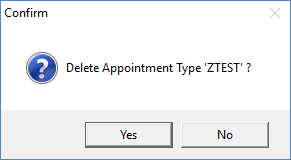
- Confirm the deletion of the Appointment Type by selecting 'Yes'.
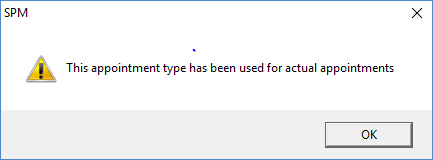
- If the Appointment Type has been used the following message will appear and you will be unable to delete the Appointment Type. You are better to make the Appointment Type 'Inactive'.
Related:
How To...
- Appointment Confirmation
- Cancel a Clinic
- Change an Appointment
- Create or Roster a Session
- Delete Appointment
- Deleting multiple sessions
- Find 1st Free Appointment
- Link Session to a Facility
- Make a further appointment
- Make an Appointment
- Notify
- Print a Session
- Print Labels for a Session
- Referral Entry
- Reorder Appointments
- Resources - Configuration
- Resources - Stop double-booking of treatment room
- Search
- Sending an Appointment List
- Setup New Session Type
- Share an Op list with Anaesthetist - using inTOUCH app
- Transfer Appointment to/from Wait-list
- Transfer Session
- Waiting Lists