Sometimes there are other clinical or rehabilitation Providers that you have either referred the patient to or are also involved with the care of the patient and you would send copies of your reports. You can set them up in the Associate Providers section.
- To add Associate Providers, which you can then use in Dictation and Patient - Letter mode, go to the Patient - Details of Referral.
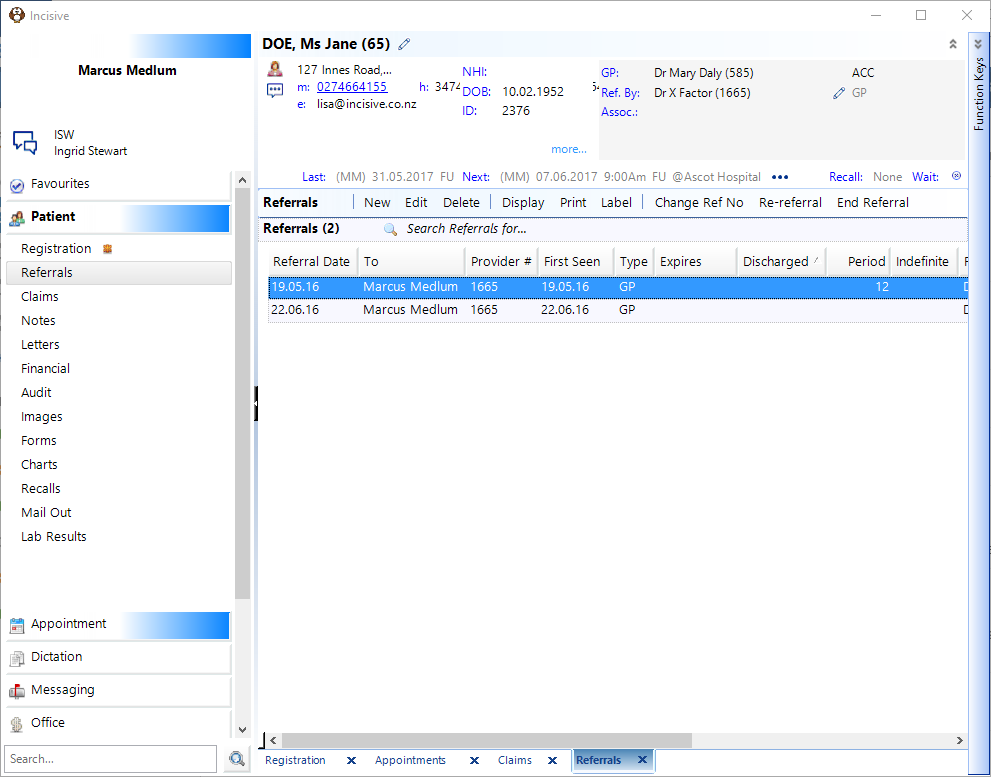
- Then click on the Referral you want to add the Associated Providers to and press 'Edit'.
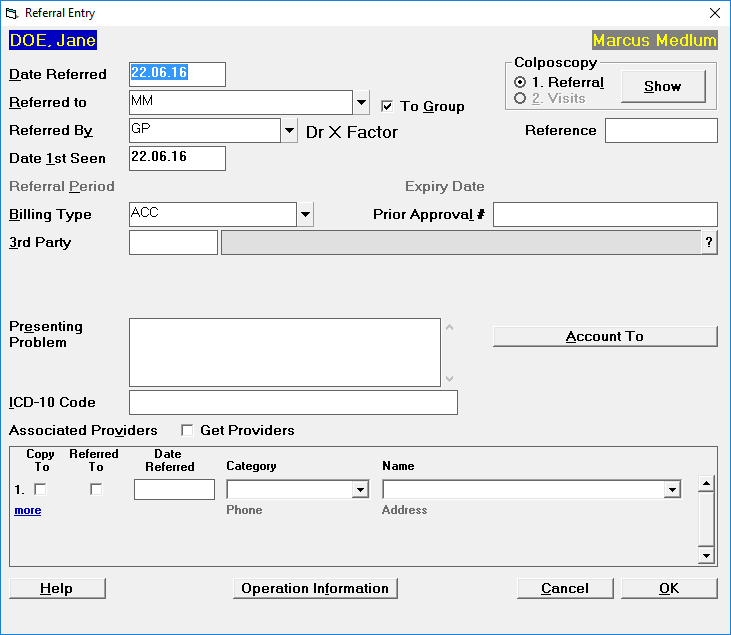
- Click on the 'CopyTo' and put a tick in the box. Please ignore the Referred To and Date Referred to as they are not really used. Select the Category from the drop down list
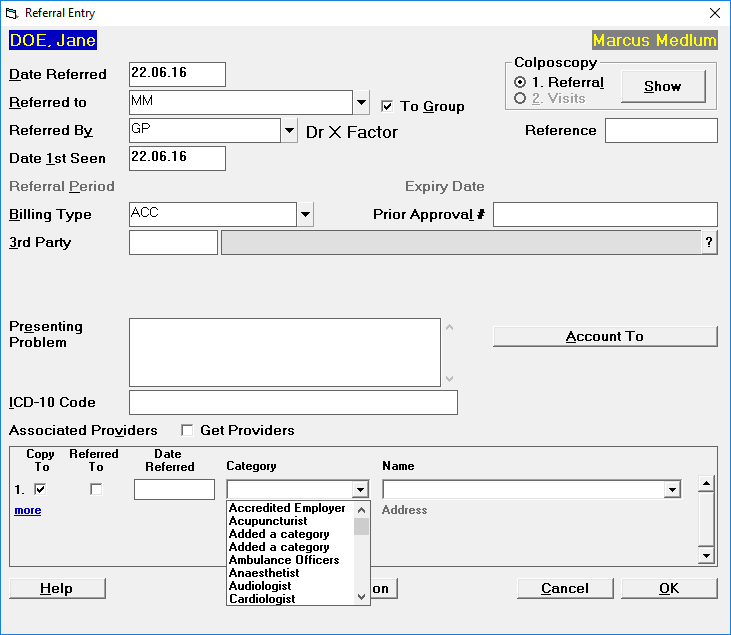
- Make your selection and then tab and the address details should appear in the Address field. The details should appear like below.
The 'Get Providers' tick box is used when the original Referral has expired and you want to copy across all the Associate Providers to the new Referral.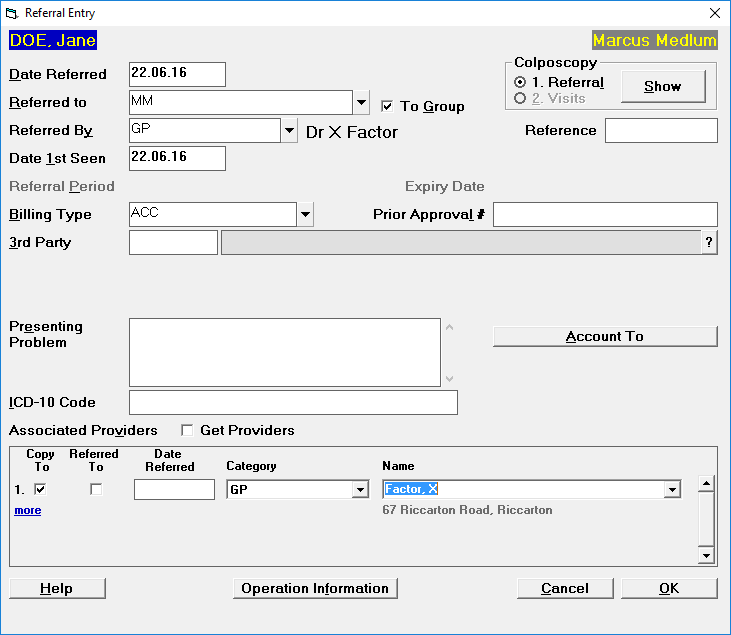
- Then go into Letter for the patient, this should be the same for Dictation mode as well, press 'New'.
- From the 'Select Letter To' you can select the Associated Providers at this point.
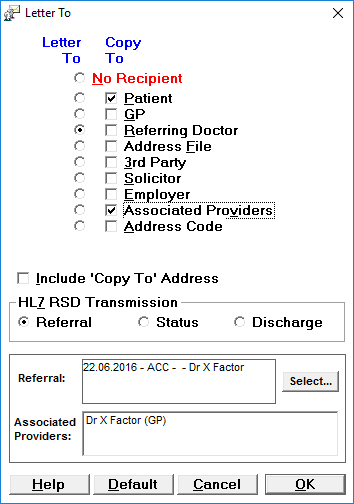
- Then press 'ok' to continue with the letter.
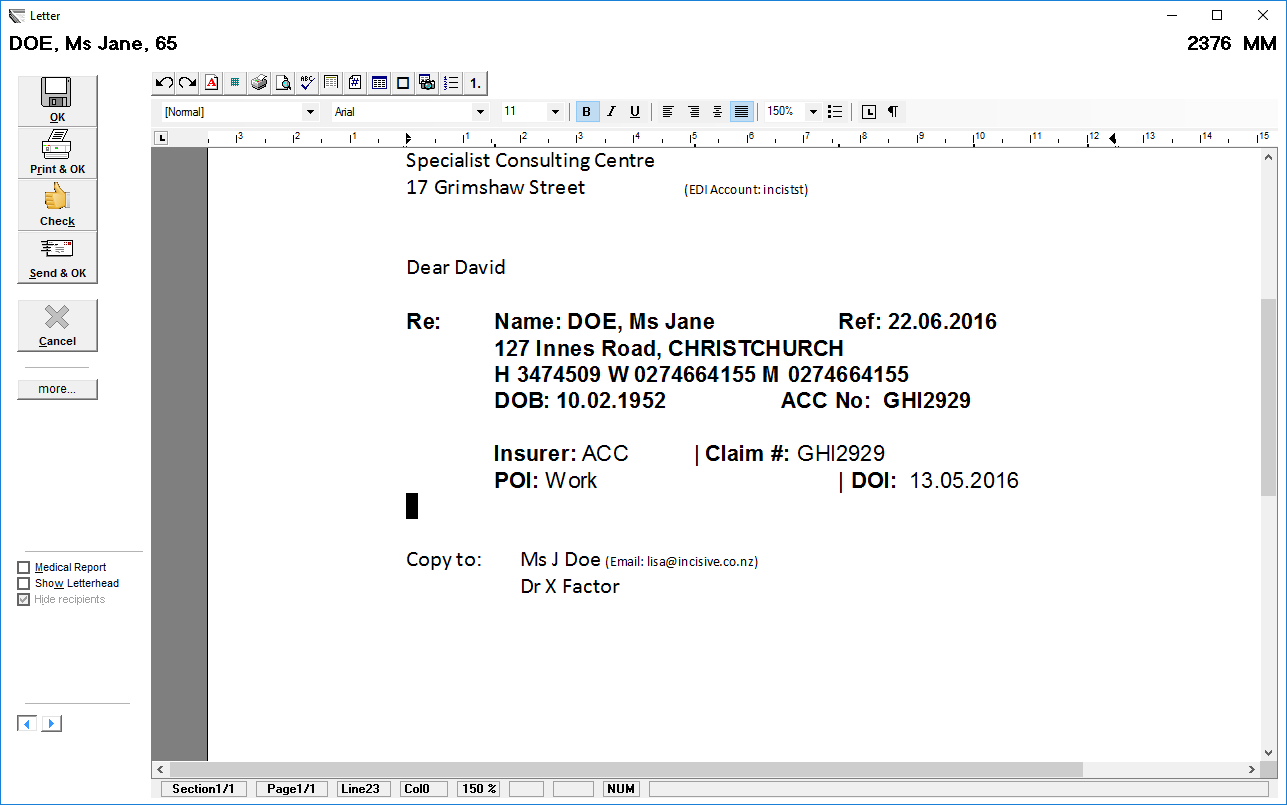
- Or once you are in the letter you can press the arrow head at the side of the 'Print & Ok' button and select the Copy To there.
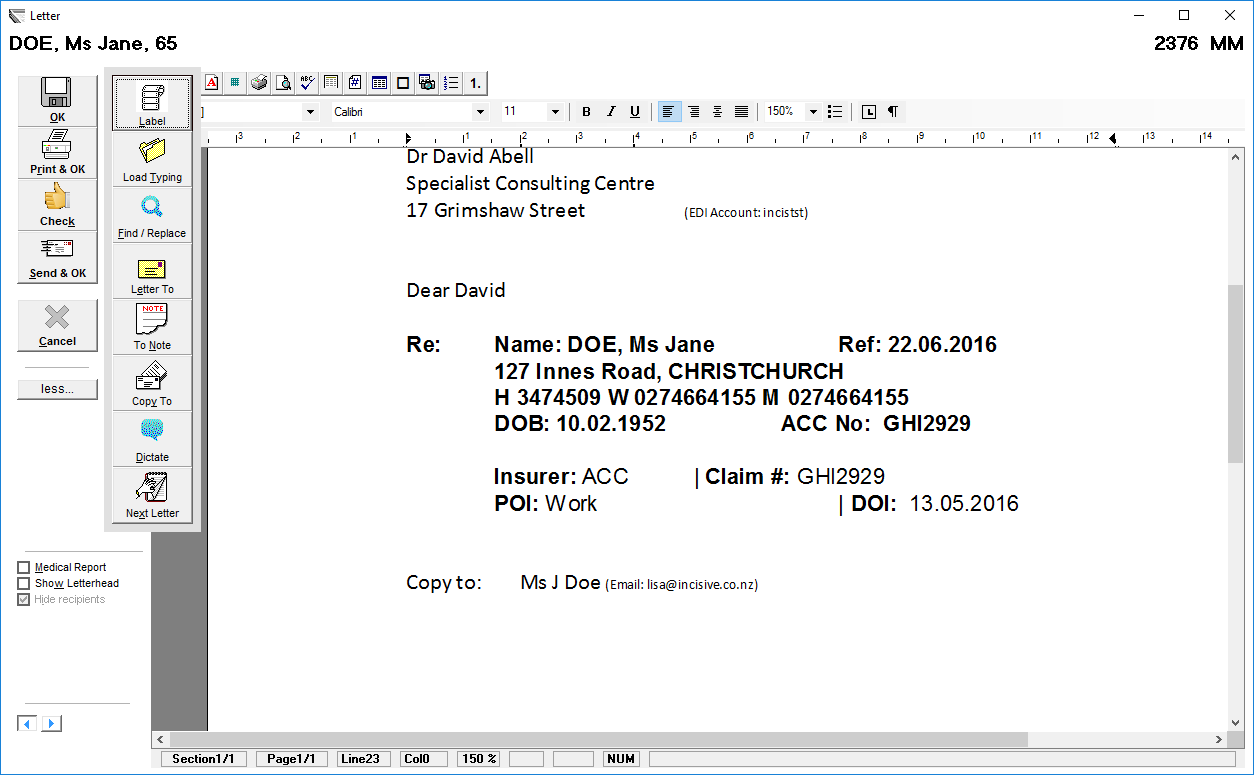
- Then the 'Select Letter To' will come up again and you can add your Associated Providers from there.