Setting up to Use
Go to Setup – Operator – Settings, when the Settings screen comes up press the Edit button. 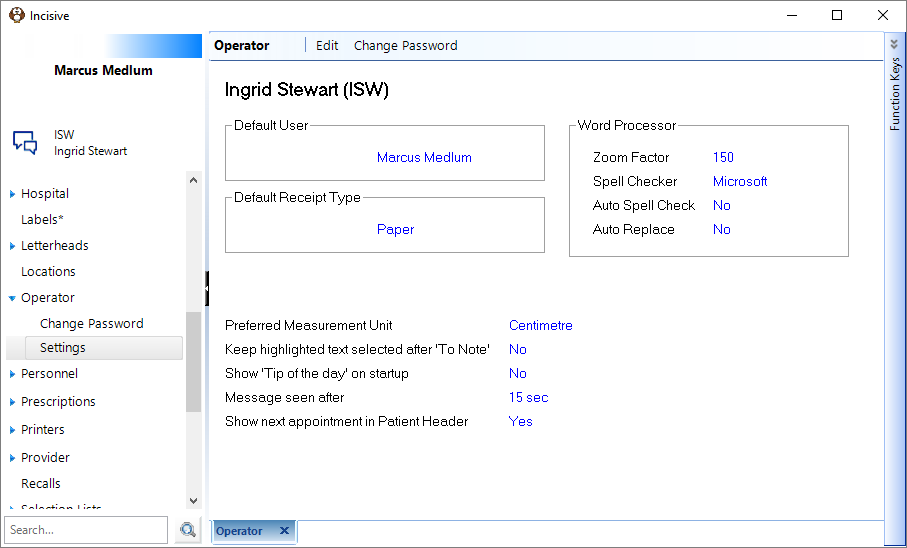
You have the options to either use the Incisive Spell Checker or Microsoft Spell Checker. This will set the Spell Checker options for the User that is logged into SPM at that time.
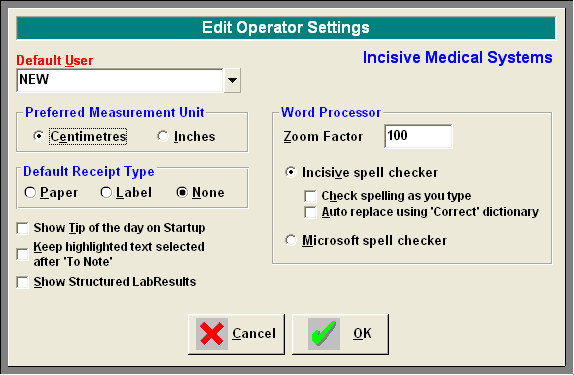
If you have decided to go with the Incisive Spell Checker then proceed to setup the Dictionary Path and the Dictionary you wish to use.
Setting Path for Dictionary
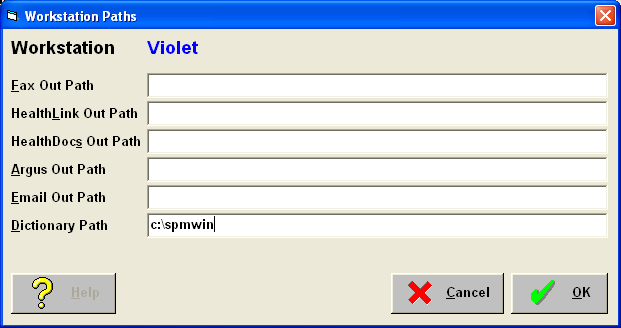
You can decide to either use the Dictionaries stored locally on your spmwin folder on your computer or the Dictionaries stored on the spmwin folder on the server. If you wish everyone to use the same Dictionary then you would set the Dictionary path to point to the server spmwin folder. To set this path you would go to Setup – Workstation – Workstation Paths
Setting Dictionary to be used
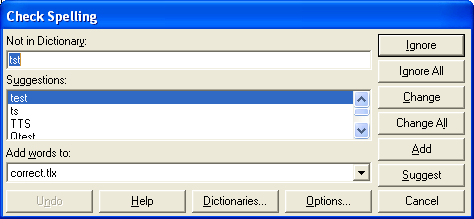
When you are typing letters in Dictation or in Patient mode under Letters you can decide which Dictionary you use for your Spell Check. Most commonly used is the Correct.tlx dictionary but you can also use the Userdic.tlx if this is available for you, just select the dictionary from the drop down list.
Go to Dictation mode and start a letter for any patient.
Select the spell check icon  at the top of the page which will open the following box.
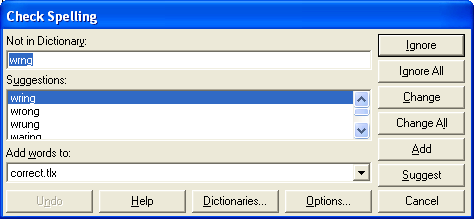
Press the Dictionaries button which will open the following box
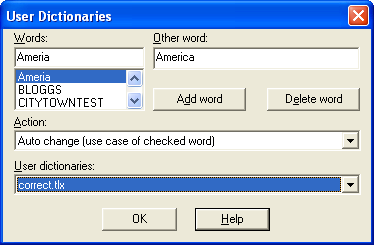 .
.
Mark sure that you select the Dictionary that you wish to use from the list in the User dictionaries drop down list, press OK to save this.
Adding or Deleting Words from the Dictionary
Go to Dictation mode and start a letter for any patient.
Select the spell check icon  at the top of the page which will open the following box.
Press the Dictionaries button which will open the following box (it may take a few seconds to open)
Add Word(s)
To add words to your Dictionary, type in the new word in the Words: field and then enter the correct spelling in the Other word: field and then press the Add word button.
Delete Word(s)
To delete a word from your Dictionary, scroll down the list of words on the left, click on the word you wish to delete so that the details appear in the Words: and Other word: fields then press the Delete word button.
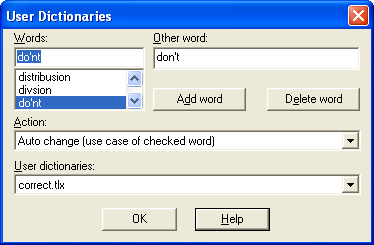
Auto correct a misspelt word
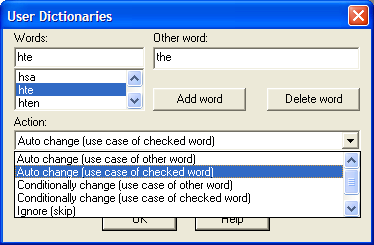
To automatically change a misspelt word when typing, make sure that the 'Action' for the incorrect word is set to 'Auto change'. In the example above the word 'hte' will change to 'the'
Check Spelling Options
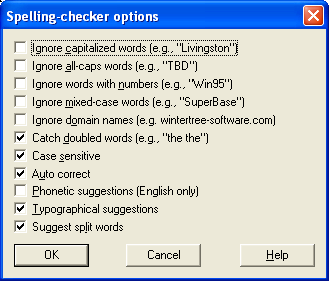
To set your spell check options click on the Options button.
From here you can tick what you want to do with your spell checker. Press Help button for full explanation of which each option does, press OK to save options.