An alternative to using the Incisive F8 quick codes is to use the Autocorrect feature of the word-processing package.
To use this:
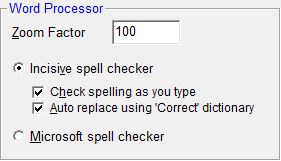
- Ensure that your Operator Settings (Setup – Operator – Settings) are set as follows: - Incisive spell checker option is selected - Check spelling as you type is ticked - Auto replace using 'Correct' dictionary is ticked
- Begin to type a letter (or similar) with a spelling mistake.
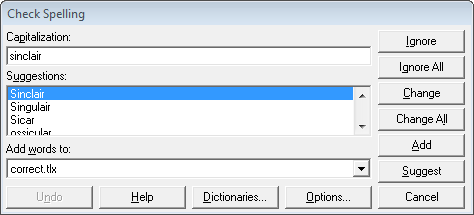
- Activate the Spell Checker (Ctrl + S or icon).
- Select 'Options'.
- Ensure Auto correct is ticked.
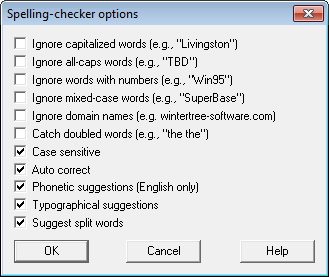
- Select OK.
- Select 'Dictionaries'.
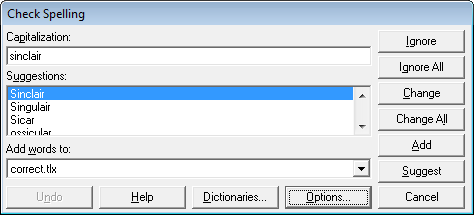
- Select the User dictionary – 'correct.tlx'.
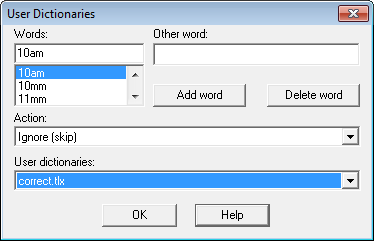
- In the Words field, type the codeIn the Other word field type what you want the code to expand to.
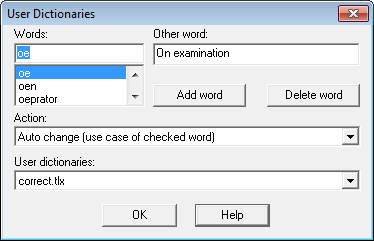
- Set the Action to 'Auto change (use case of checked word).
- Select Add word.
- Continue to add entries as required.