As you are typing, you can delete words added to the dictionary incorrectly.
Select the  button from the toolbar to activate the spell checker (you may need to make a spelling mistake for this to work).
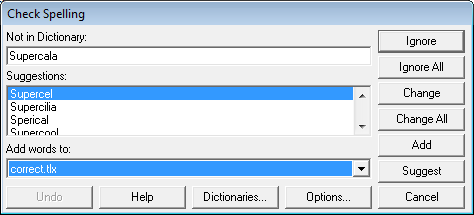
Select Dictionaries from the Check Spelling screen:

The User Dictionaries screen then appears.
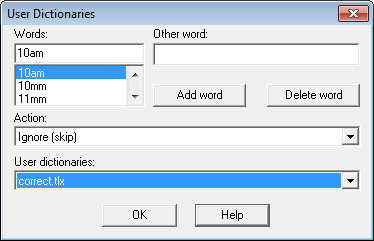
Ensure that the correct User Dictionary is selected from the drop down list. Normally words added to the dictionary will be added to 'Correct.tlx'.

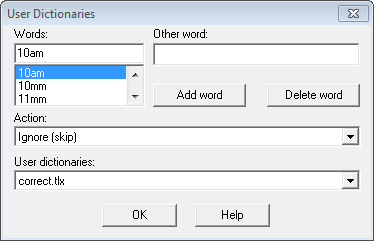
Click in the Words field and type the word (or part of) that is incorrect.
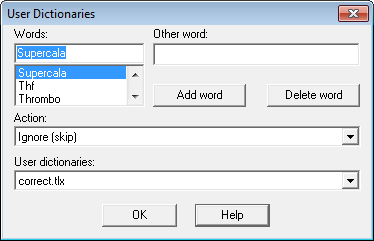
The menu of words will appear and the word you typed will be Blue (highlighted)
Select 'Delete Word'. Repeat with any additional words you want to delete.
When finished, select 'OK' to exit.
Alternative option
Alternatively you can open up the dictionary file in Notepad. Normally the file will be stored in the local program directory (c:\spmwin). From Start – Run type c:\spmwin\correct.tlx
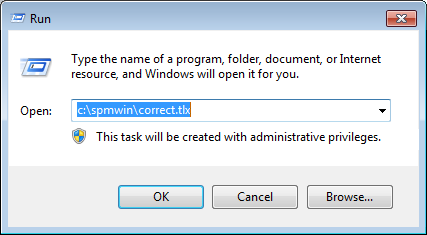
Locate the incorrectly spelt words one at a time. Delete out the complete line with the word on it.
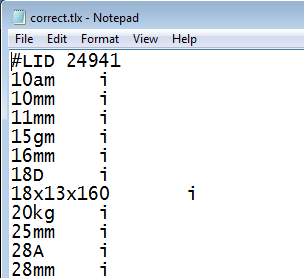
When finished, save the file (File – Save) and then Exit.