Importing code sets
Audit codes can be imported in separately for a:
- User
- Group; or,
- System (Hospital or Practice wide)
This process is performed by Incisive. Please contact them to arrange.
Choosing which code sets to use
You can choose which sets of codes you want to see when entering audit code entries against the patient and also which code set will be the default set selected.
If using the ICD-9 or any of ICD-10 code sets you need to make sure that the relevant code sets have been imported into the database and that an index file is available for you.
If unsure contact the Incisive Helpdesk
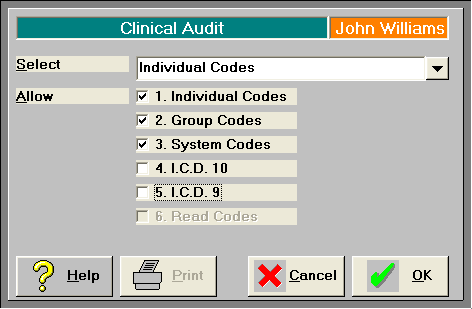
- Click on Setup > Clinical Audit > Configuration.
- In the 'Select' list choose the code set you want to be shown by default.
- In the 'Allow' field, choose the code sets that will be available to list.
Creating your own audit codes
Audit codes can be created to suit your individual requirements.
The 'codes' can be alphabetical (A-Z) or numerical (0-9) and up to 6 characters in length.
To group the codes you can set up separate 'Trees'. Some examples of commonly used Trees are:
Site
Diagnosis
Procedure
Histology
Complication
Adverse event
Image
To assist with the finding of the relevant code the 'branch' type navigation is used. For example:
Site
├ Head
├ Arm
│├Upper limb
│├Lower limb
│ ├ Forearm
│ │ ├ Radius
│ │ └ Ulna
│ └ Hand
└ Chest
The first capital letter in the word is used as the 'code'. For example the H in the word Head is capitalised and therefore the H becomes the code letter. A letter or number cannot be used twice in the same level of the branch. You can capitalise one of the other letters in the word to make it the 'code' e.g hEad – the letter E is the code
So the code to identify the Radius in the above example is SALFR
To add a new code 'Tree'
- Go to Setup > Clinical Audit > Code Trees
- Highlight the Category that you want to add the new code to eg. User, Group, System.
You cannot add new codes to the ICD9 or ICD10 code sets.
Note that only the Categories that you have chosen will be displayed. Some in the above example may not be listed.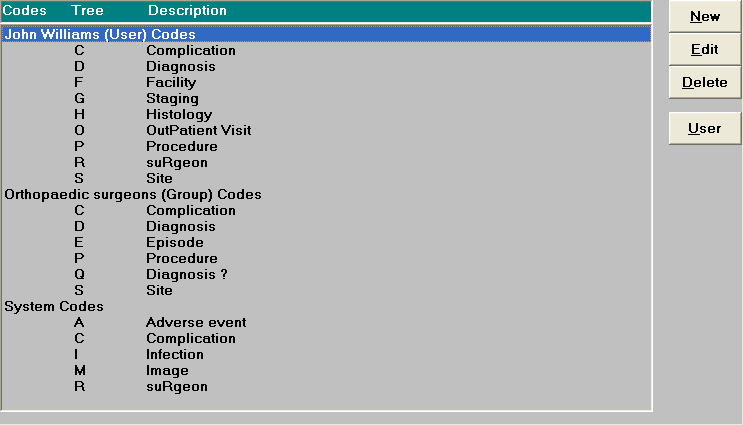
For hospitals, you should add your code trees under the 'System' category.
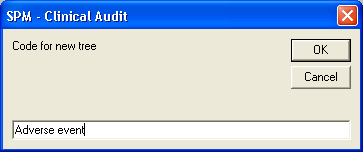
- Click on the 'New' button to add a new code 'tree' and type in the name of the new code Tree. Make capital the letter that you want to be used as the tree code. That is, a tree name of 'Adverse event' will use the letter A as its code. If that letter is already taken for another code tree make capital another letter, for example 'adVerse event' will use the letter V as the code.
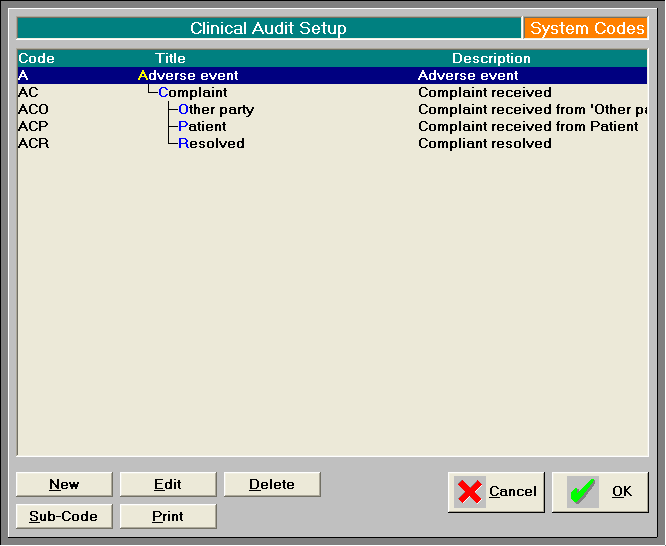
- The screen that appears is where you will create the 'branches' of the 'tree' to identify the codes.
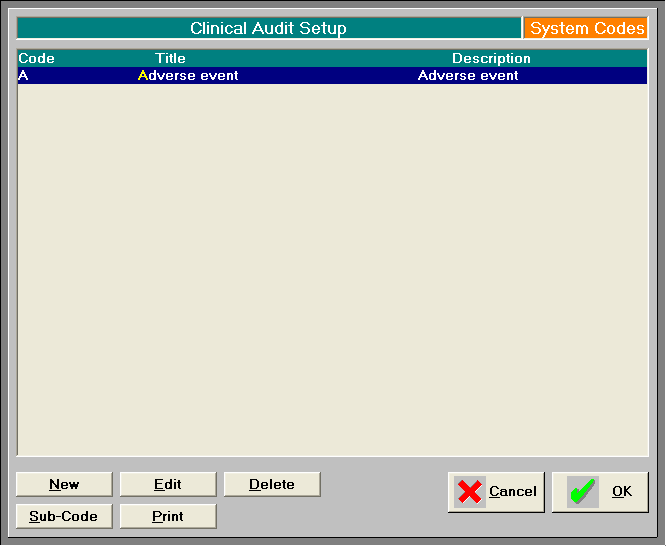
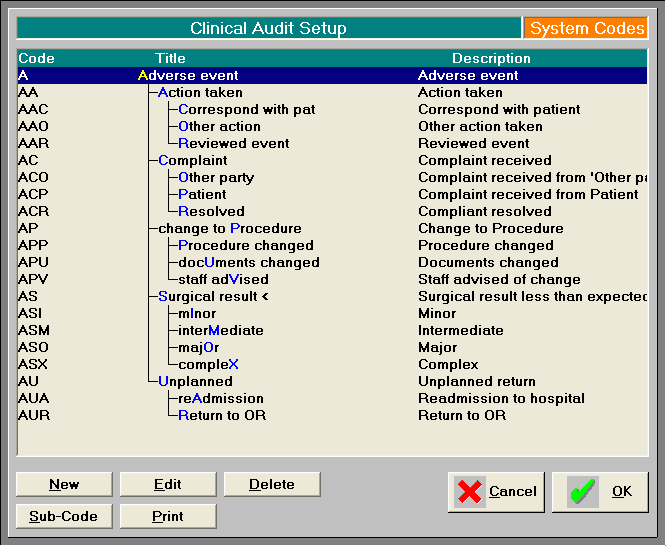
- To add a 'branch' highlight the code line that you want to add the new code under (this is a 'parent-child' system) and click on the 'Sub-code' button, NOT the 'New' button, and type in the name of the new branch into the Title field. Use a capital letter to identify the code for the branch
Try to keep the Title name as succinct as possible. If necessary abbreviate it.
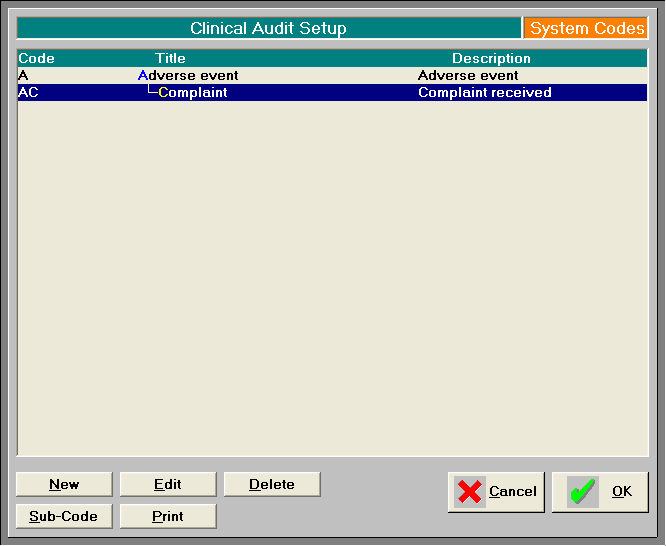
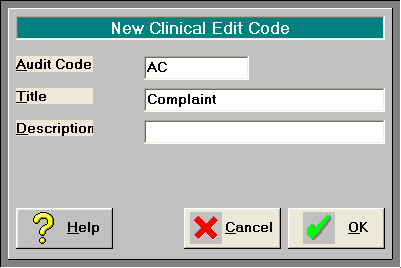 See how the second letter of the code has been automatically added when the word Complaint was typed in.
If you tab or press Enter the contents of the Title field will be automatically transferred to the Description field. You can add to this to more fully describe the new code.
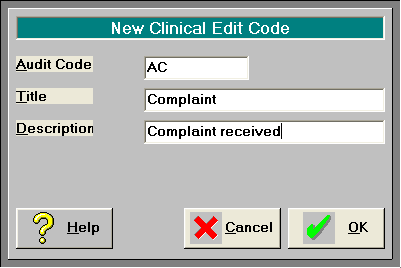
When you have completed this you will see the new code entry.
Continue adding branch codes as required