For the specialist
Audit codes may be created for the patient at varying stages of the patient encounter. Commonly, the following codes are entered:
Initial Consultation-Site, Query diagnosis
Review consultation-Histology, Pathology
Operation/Treatment- Final diagnosis, Procedure, (Complication)
Post Op consultation-Complication
There are a number of ways the correct audit code can be generated – but in the end, if you are wanting to use the audit results for clinical purposes the codes should be identified by the specialist to ensure they are correct.
The specialist can identify the correct code to use by:
- Writing the codes aside the patient's name on the daylist or theatre list
- Write the codes on the patient's paper file
- Dictate the codes
- Enter the codes directly into SPM.
From Patient module
- Go to Patient module, select the patient and go to the Audit tab.
- If this is the first entry of codes for the patient's current referral click on the 'New' button.
If you are adding codes to ones previously entered, highlight the relevant episode entry and then click on the 'Edit' button.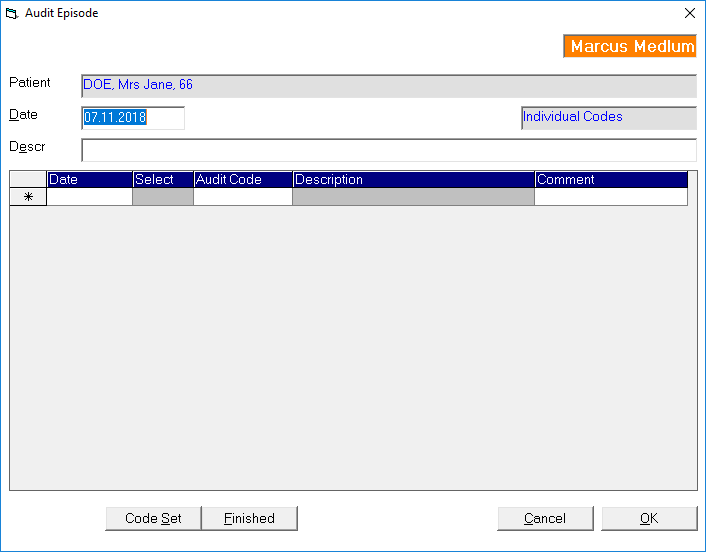
- In the 'Date' field either press the Enter date to insert today's date in or type in the date you want to use.
- In the Description field either type in a description of this episode of care, or leave it blank and it will be automatically completed using the text of the first audit code entry.
- Check to see which set of codes selected as the default. This will appear to the right of the form. If you want to use a different set of codes other than the default code set, click on the 'Code Set' button at the bottom of the screen and choose the code set you require.
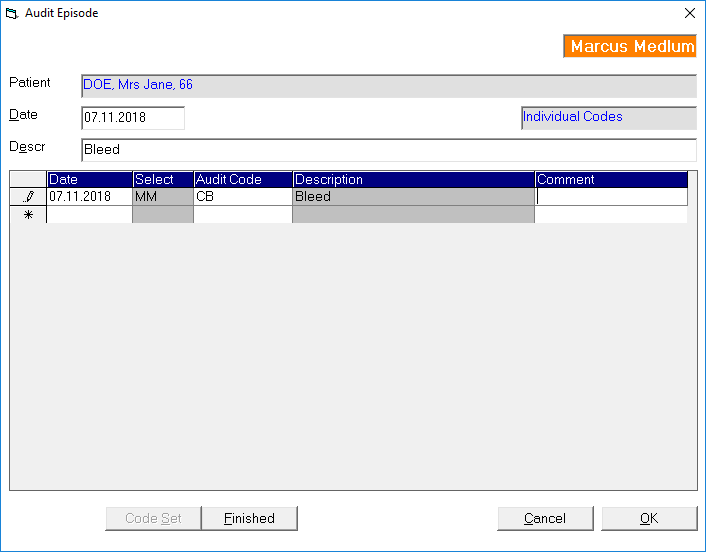
- In the 'Date' column, press the Enter key to insert today's date or type it in manually
- In the 'Code' column either type in the exact code that you want to use or, if you are not sure of the complete code, type in the code used for the 'tree' (eg S for Site) and then type a ?
- Navigate through the branches using the arrow keys on the keyboard.
Where there is a '…' (e.g. Site…) after a word it means that there is a further branch of codes. If the word is selected you can press the RIGHT arrow to expand the branch and view the next branch of codes.
The LEFT arrow will collapse the branch up one level.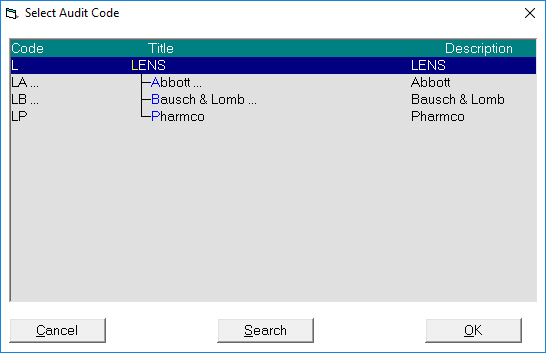
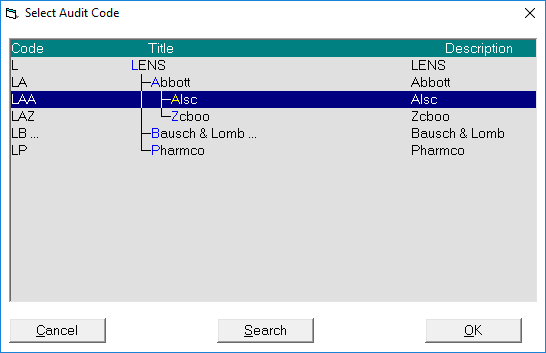
Highlight the entry you want to select and either press the Enter key or click on the OK button.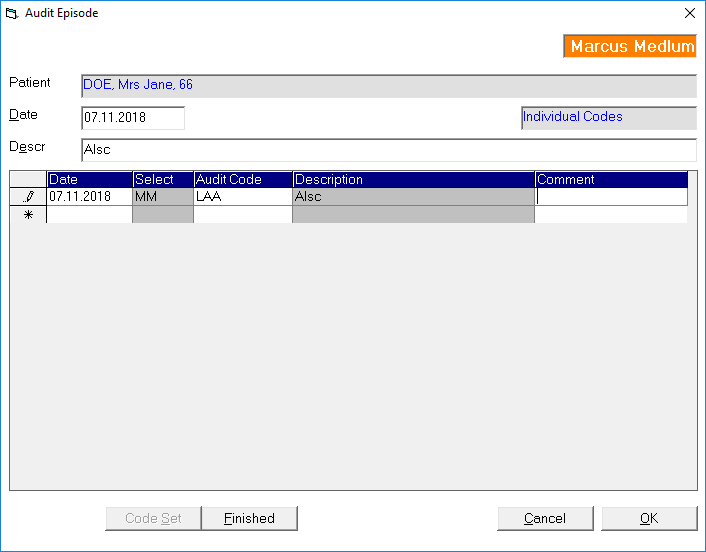
- If you wish to expand on the entry you can add text in the 'Comment' field. This will display in audit reports
- The code has then been entered. Press the Enter key to go to the next line to continue with other code entries as required.
From Dictation module
If the specialist has dictated the audit code, the typist can enter it while they are in the Dictation module.
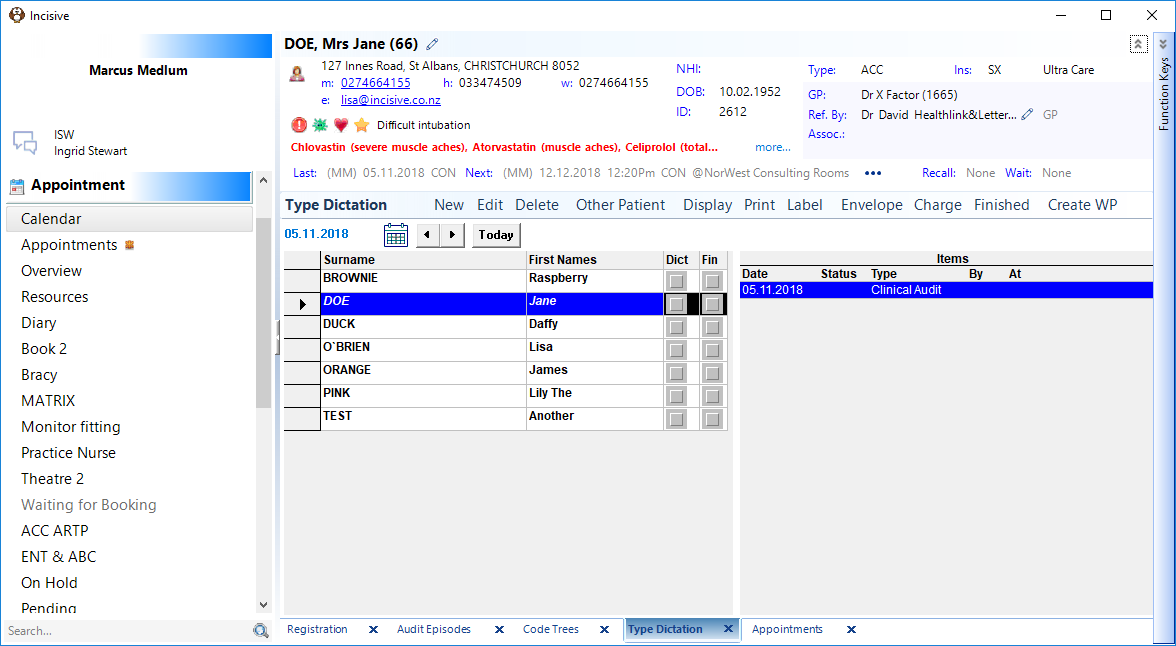
- Go to Dictation -Type Dictation. Select a patient and click on the 'New' button
- Select the 'Audit' option
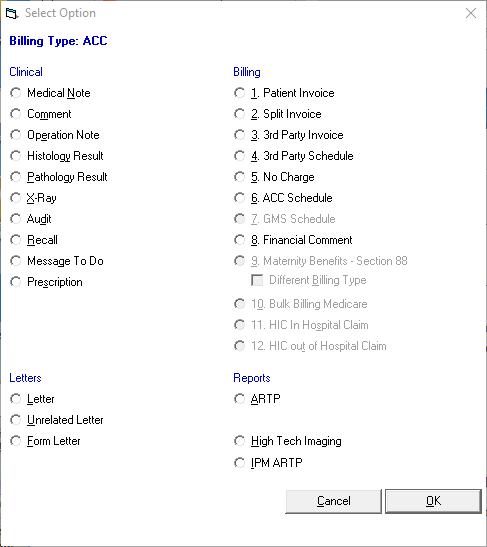
- Enter in the audit code using the same entry or navigation process as described above
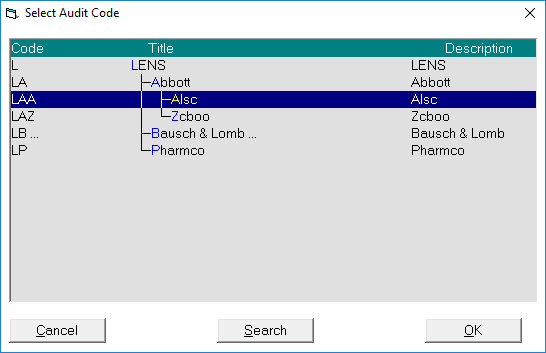
- Once the code has been entered an entry will display in the right-hand column when the patient's name is selected. The audit code entered will appear immediately for the patient in Patient mode – it does not need to be processed first.
For the hospital
Coding for a hospital is usually for the purpose of either:
- compliance reporting,
- diagnosis based funding; or,
- adverse outcome recording
The structured ICD or MBS-e code sets are most commonly used for diagnostic and procedure coding, and the in-house code sets are often used for other recording such as Adverse Events.
Code sets
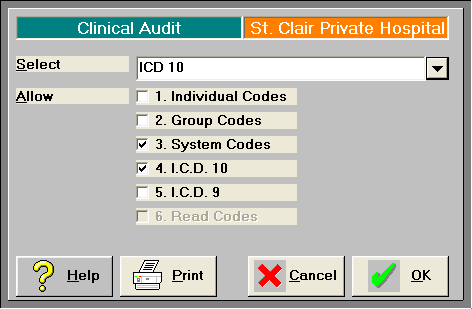
Commonly, the Categories of code sets used are restricted to 'System' and 'ICD10'. This is set in Setup Clinical Audit Code Trees and choose the User button. Restricted the 'Allowed' options to only the ones you want available.
Principle diagnosis
For hospitals that are coding the full diagnosis of a patient which may require many separate code entries, the first diagnosis is treated as the 'Principle diagnosis'
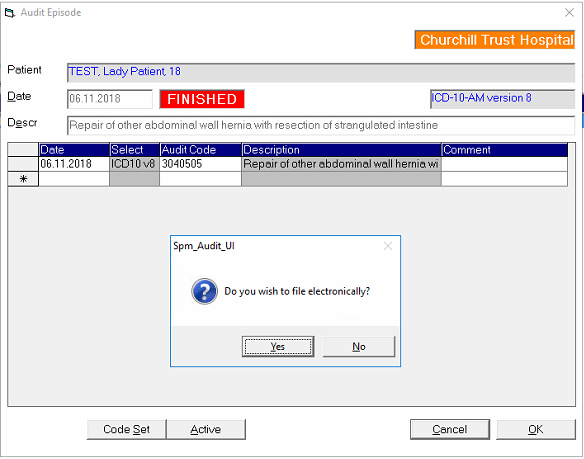
Entering ICDxx audit codes
- In Patient module select the patient and go to the Audit tab
- If you are adding codes for a new episode of care select the 'New' button, otherwise, if you are adding codes to ones previously entered select the audit episode and click on the 'Edit' button.
- Enter the date by pressing the Enter key or type it in.
The Description field it will be filled automatically for you by the first audit code entry if you don't type anything into it.
- In the 'Date column of the grid press the Enter key for today's date, or type it in.
- In the Code column either:
- enter the number for a specific ICD code; or,
- type in the text or number that you want to search for and put an ' *** ' immediately after the word, eg menisc*
this will cause the application to then search through all the ICD codes to find words that start with 'menisc'
Note that you can refine the search further by adding another full or partial word, for example 'menisc* knee' reduces the results from 51 down to only 7.
Enter in only the common part of a word, and add the ' * ' where you may want to search for several forms of the word. For example, 'arthroscop*' will return all words that begin with 'Arthroscop' such as Arthroscopy, Arthroscopic etc.
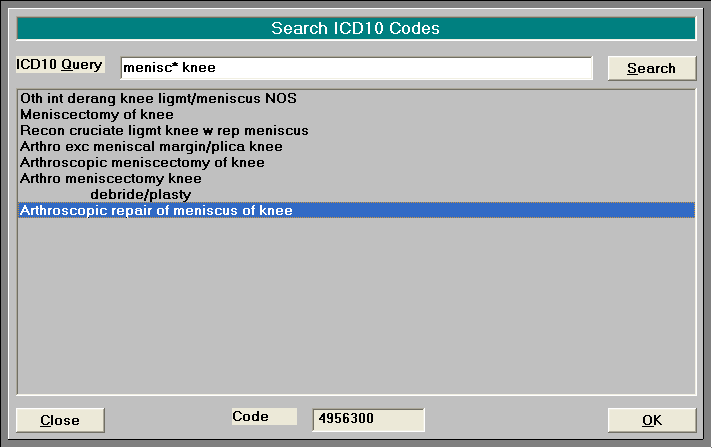
The numeric code is shown at the bottom pf the screen
- Double click on the selected entry or click on the OK button.
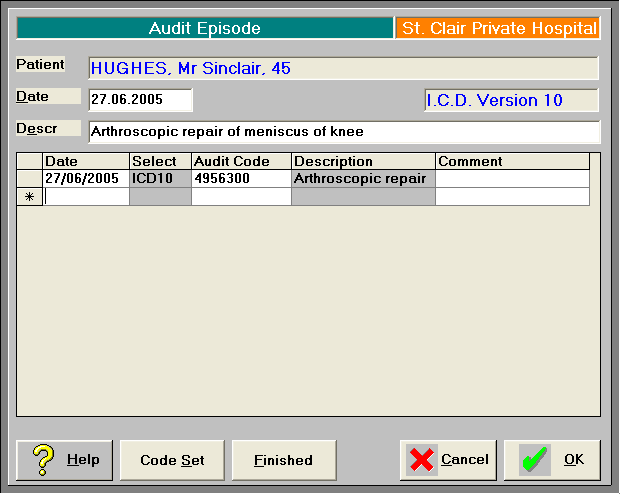
- Add text in the 'Comment' field if you require additional details.
- Continue entering the codes required for this episode of care.
Finished