How to ensure Procedure/ Treatment Rooms are not double booked on days when they are to be used by an External Physician.
Set up required:
Resources
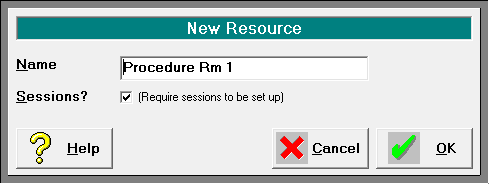
- If not already created, add a Resource for each of your Procedure / Treatment Rooms. Tick the option Sessions? (Require sessions to be set up) for each of the resources that is one of the rooms. Setup > Appointments > Resources > New (or edit existing entries).
Sessions
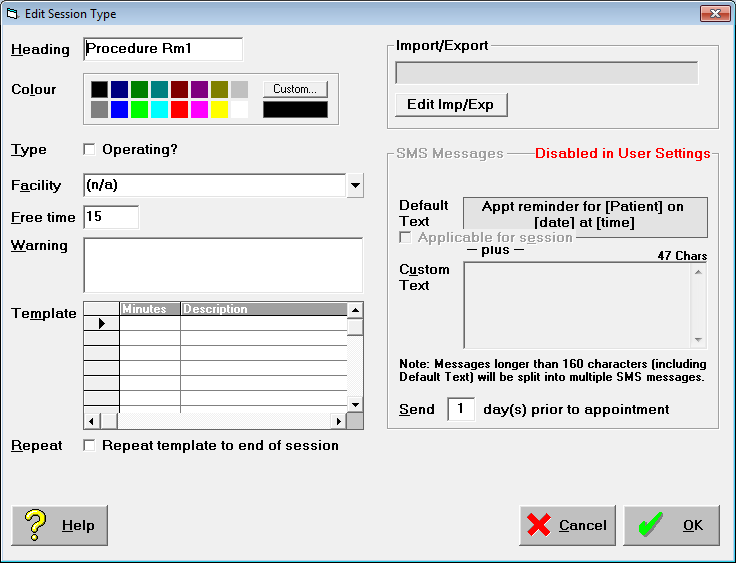
- Create a Session for each of the rooms, i.e. Procedure Rm 1, Procedure Rm 2 to match the description of the resource. Setup > Appointments > Sessions > New
Appointment Types
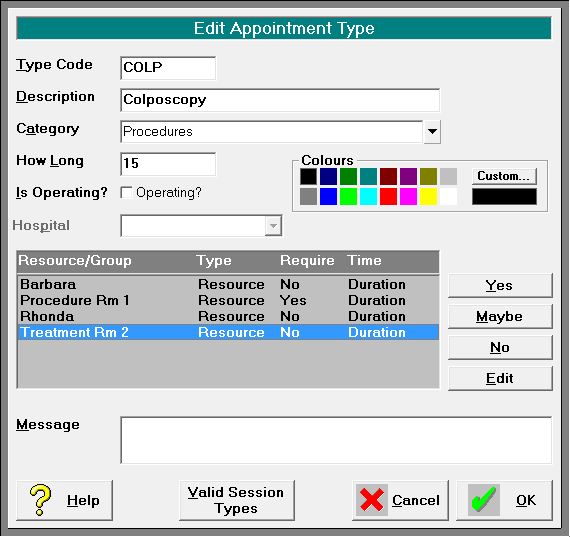
- Configure your existing Appointment Types (for various Users) that use the Procedure / Treatment Rooms to require the appropriate Resource room.Depending whether a piece of equipment can be moved between rooms, you may need to mark 'Require' as Maybe rather than Yes if you want to choose between one of the rooms.
Create Sessions against the Resource
- On the days that the clinicians will be using these rooms, create a session against the Resource, i.e. Procedure Rm 1, using the relevant Session Type.
- Select the User.
- From the Appointment tab, select the Resource icon

- Select one of the rooms from the list
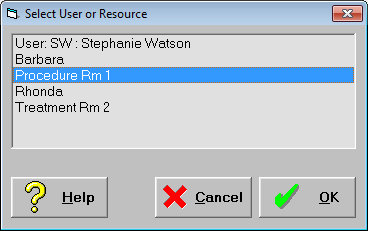
- You will see the date, Resource Name and the User

- Create a Session Press Enter or select New – Session.
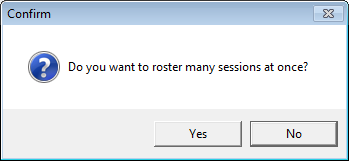
- Confirm that you want to create more than one session by selecting 'Yes'.
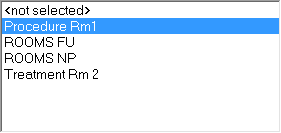
- Select the Session Type from the drop down list, note that this should match the Resource you have selected to avoid confusion.
- Enter the Starting and Finishing Times that the room is available on the day in question.
- Repeat every 1 week for the days when the external physician is not using the room, and every 2 weeks on the alternate Thursday.
- Enter a description as required.
- Repeat steps b) – j) for the other rooms.
- Select the User.
Making Appointments
- Make appointments for your patients in the normal way (against the appropriate User, i.e. Richard Dover), selecting an Appointment Type that will 'book' the resource.
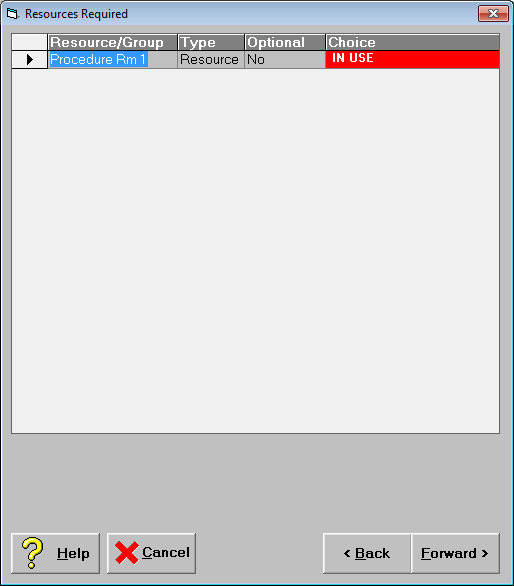
- On days where there has not been a session created for the Resource, the Resource will display as 'In Use'.
- If the Appointment Type is booking two (or more) resources then these will both display.
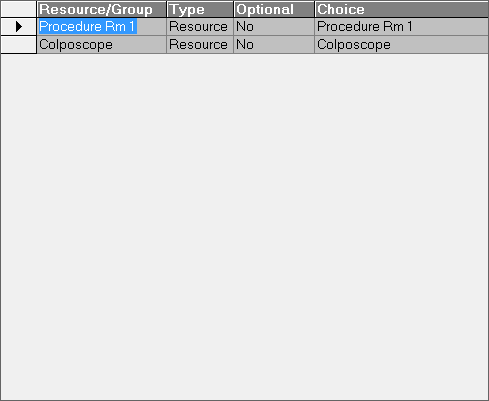
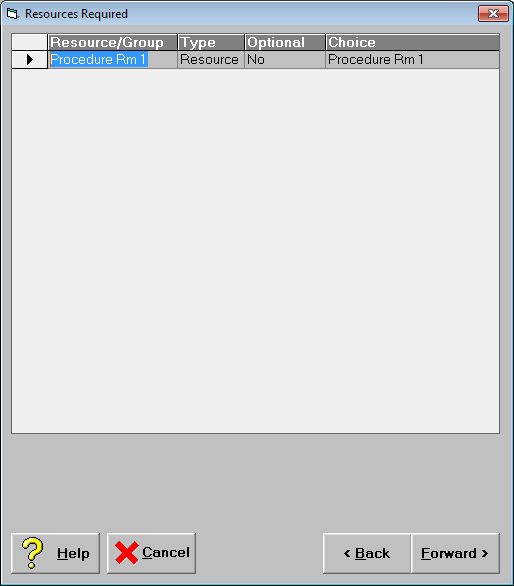
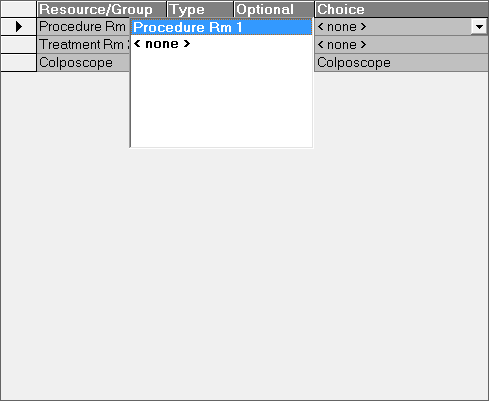
- If you need to choose between a Resource, i.e. Procedure Room 1 or Treatment Room 2, then in the Choice Column, select which resource is required from the drop down box
Providing you do not create a session on the alternate Thursday afternoons that the external physical is booking the Procedure Room(s) AND you have set up each of the relevant appointment types to require the use of 1 or other of the rooms, you should not be able to double book the space.
Please note that once you start to implement the above steps you must correctly configure the changes across all Users and Appointment Types.
You may need to implement these changes when no one is using the Appointment Book as once you start making the changes, you will need to complete the configuration.