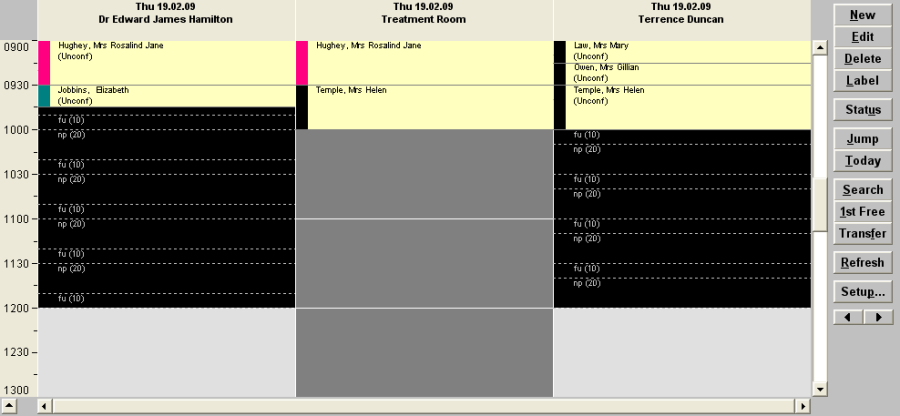
A resource is something that is limited. It cannot be double booked. It may be a special piece of equipment, a room, or even a person. It can only be booked for one patient at a time. If may be booked for a longer duration than the appointment itself, i.e. x minutes before the appointment, or x minutes after the appointment to allow for cleaning etc. Resources are available across all users (providers). The appointment (type) books the resource.
Setup
Create the Resource
Do this via Setup – Appointment Book – Resources.
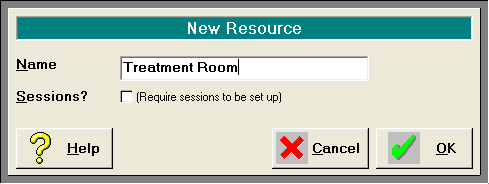
If a resource is only going to be available during certain hours (e.g. its use depends on a certain staff member or technician being available) then you may require a session to be set up. Alternatively you may consider using a 'Book' rather than a resource.
Create Appointments that 'book' the resource
Do this via Setup > Appointments > Appointment Types.
If you have an existing Appointment Type that needs to utilize the resource, select Edit. Otherwise create a new Appointment Type.
From the list of available resources, highlight the resource that the appointment requires and set require to 'Yes'
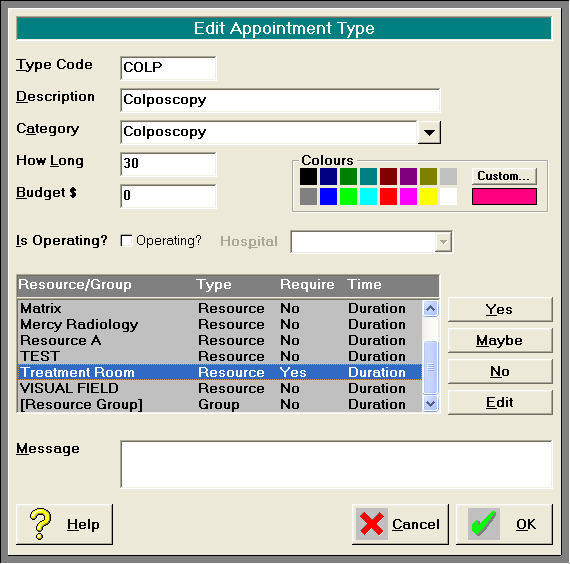
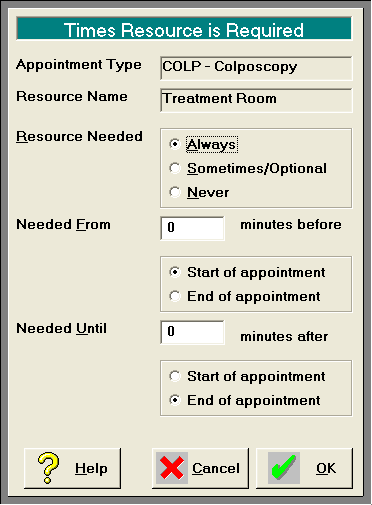
If the resource is required for longer than (or less than) the appointment, select Edit.
Configure the 'Needed from' and 'Needed Until' fields if applicable.
Appointment Book
Making Appointments
When you make an appointment that uses an appointment type that requires a resource, you will have an additional screen to complete.
If the resource is flagged as 'Required – Yes' you will not be able to alter the choice.
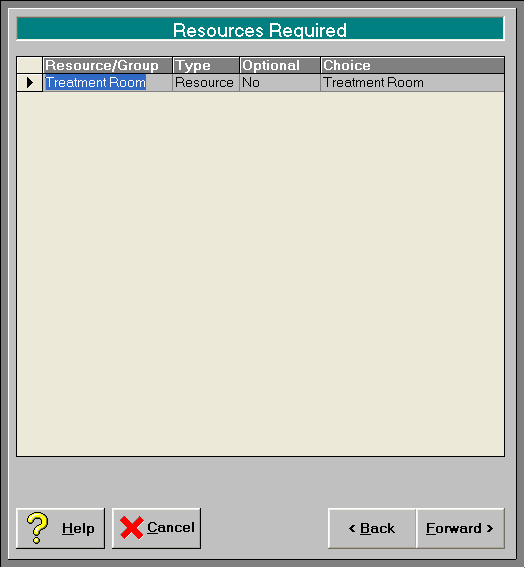
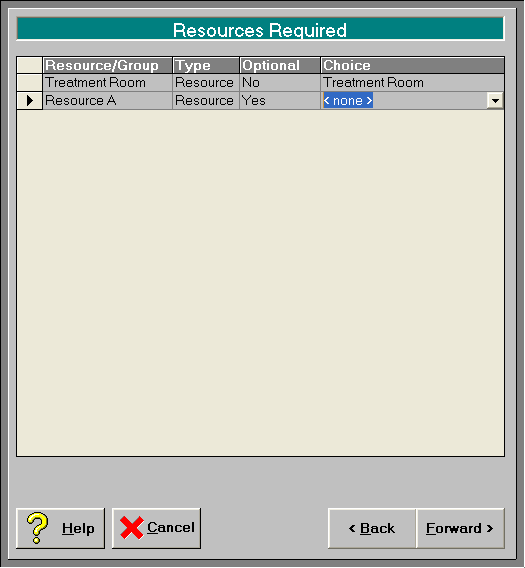
It is only when a Resource is flagged as 'Required – Maybe' that you have the ability to choose it.
If you try to book an appointment that utilizes a resource and the resource is already booked you will get the following display on the 'Resources Required' screen.
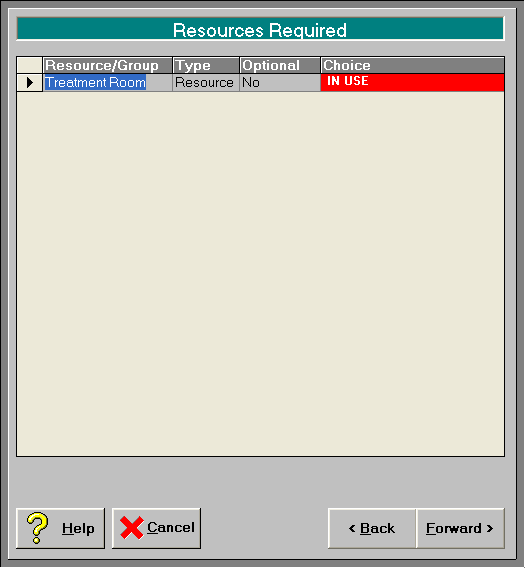
You will be unable to continue making the appointment at that time.
Viewing Resources in use
For a list of what patients are booked to use the resource(s), go to the Resources tab.
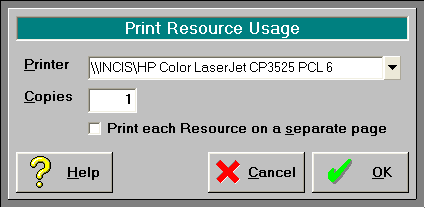
This list can also be printed with the option of printing each resource on a separate page.
Alternatively, if you wish to view the resources used together with the appointments for a number of different providers, configure the 'Overview' tab to include the resource(s) and the Users. Select the 'Setup' icon to configure how the Overview screen is to display.
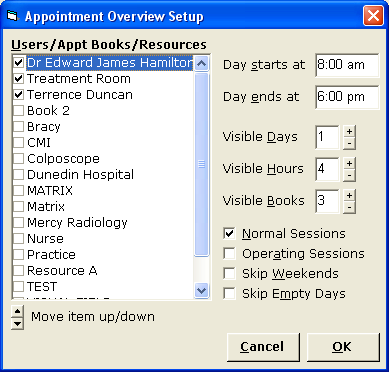
The overview screen will allow you to identify time slots where the resource and user are both available.