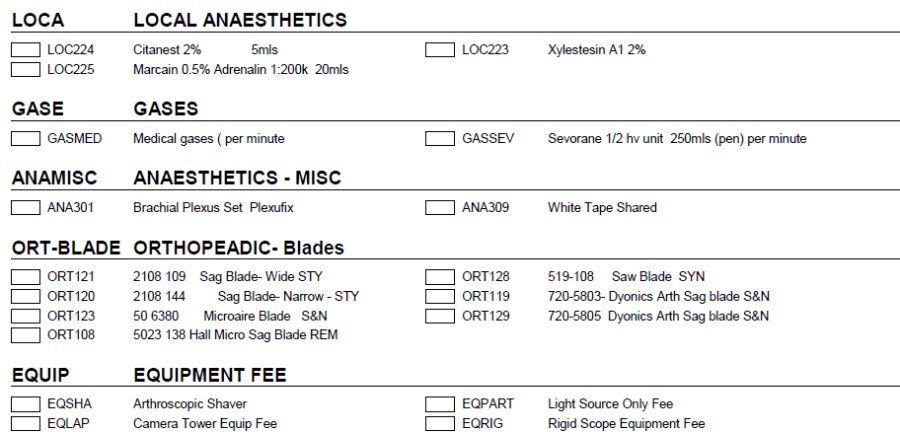
You can specify the order that you wish the Categories to appear on the Worksheets. The default is Description order.
Often you may want the Items that occur early in the patient's journey to appear on the first page of the Worksheet and the Items that are used later will be on the final pages.
The order you select will be used for ALL worksheets.
- Navigate to Setup > Stock > Categories
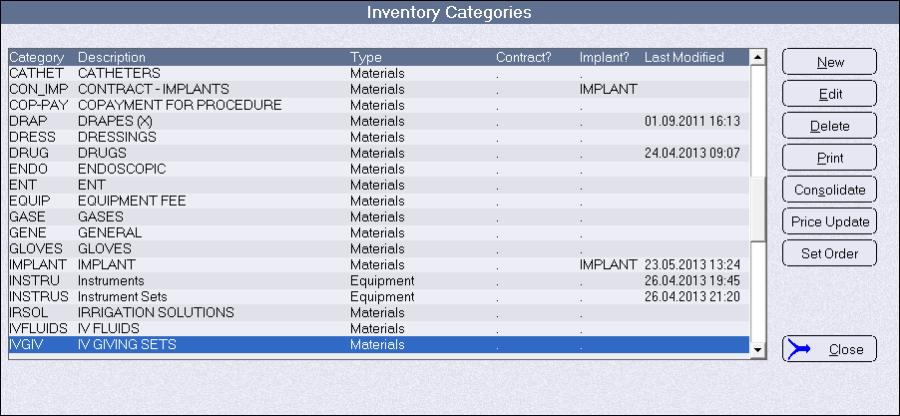
- Select the 'Set Order' button
- Change the order by either
- Drag the Category into the position you want, or;
- Double-click on the Order number on the left-hand side and type in the number of the position you want it to be.
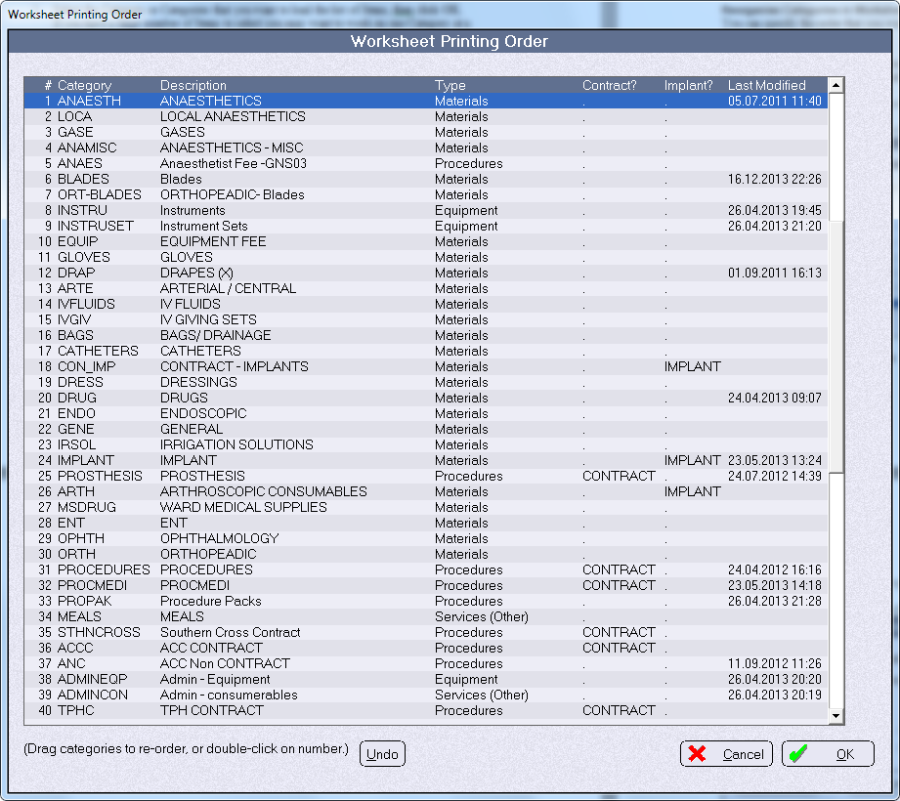
Use the 'Undo' button to reverse the changes you don't want to keep.
- Click OK to save the order.
Example Worksheet printed with rearranged order.
Note that it omits Categories that have not been allocated to this Worksheet.