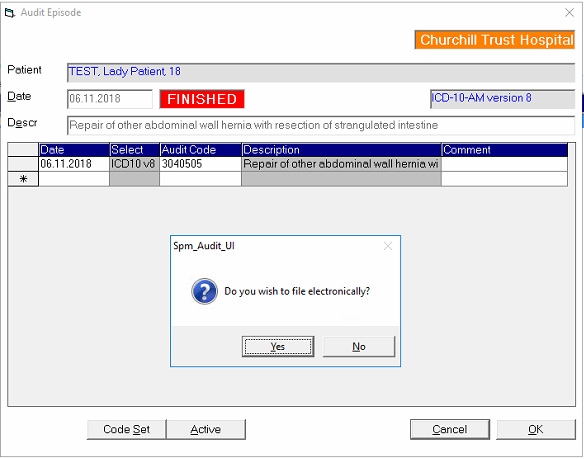
Hospital Coding
Coding for a hospital is usually for the purpose of either:
- compliance reporting,
- diagnosis based funding; or,
- adverse outcome recording
The structured ICD or MBS-e (ACHI) code sets are most commonly used for diagnostic and procedure coding, and the in-house code sets are often used for other recording such as Adverse Events.
Code sets
Commonly, the Categories of code sets used are restricted to 'System' and 'ICD10'. This is set in Setup > Clinical Audit > Code Trees and choose the User button. Restricted the 'Allowed' options to only the ones you want available.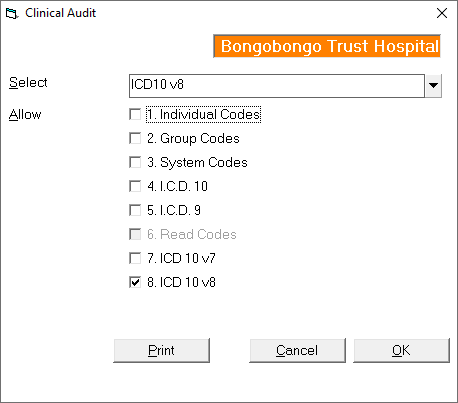
Principle diagnosis
For hospitals that are coding the full diagnosis of a patient which may require many separate code entries, the first diagnosis is treated as the 'Principle diagnosis'
Entering ICDxx audit codes
Audit tab
- In Patient module select the patient and go to the Audit tab
- If you are adding codes for a new episode of care select the 'New' button, otherwise, if you are adding codes to ones previously entered select the audit episode and click on the 'Edit' button.
- Enter the date by pressing the Enter key or type it in.
The Description field it will be filled automatically for you by the first audit code entry if you don't type anything into it.
- In the 'Date column of the grid press the Enter key for today's date, or type it in.
- In the Code column either:
- enter the number for a specific ICD code (don't use . or -); or,
- type in the text or number that you want to search for and put an ' * ' (asterick) immediately after the word, eg menisc*
this will cause the application to then search through all the ICD codes to find words that start with 'menisc'
Note that you can refine the search further by adding another full or partial word, for example 'menisc* knee' reduces the results from 51 down to only 7.
Enter in only the common part of a word, and add the ' * ' where you may want to search for several forms of the word. For example, 'arthroscop*' will return all words that begin with 'Arthroscop' such as Arthroscopy, Arthroscopic etc.
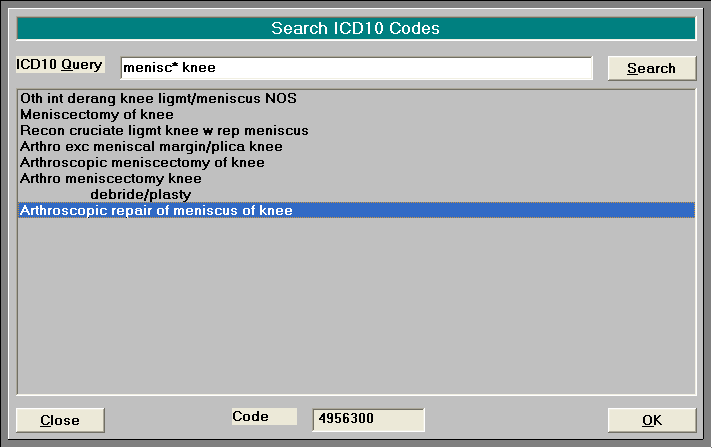
The numeric code is shown at the bottom of the screen
- Double click on the selected entry or click on the OK button.
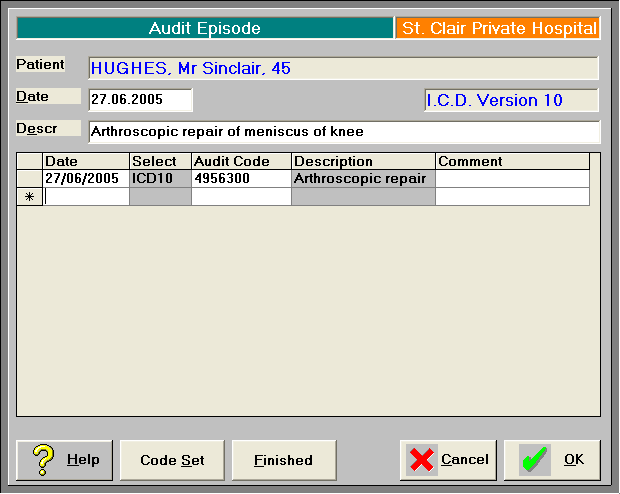
- Add text in the 'Comment' field if you require additional details.
- Continue entering the codes required for this episode of care.
Stock Used tab
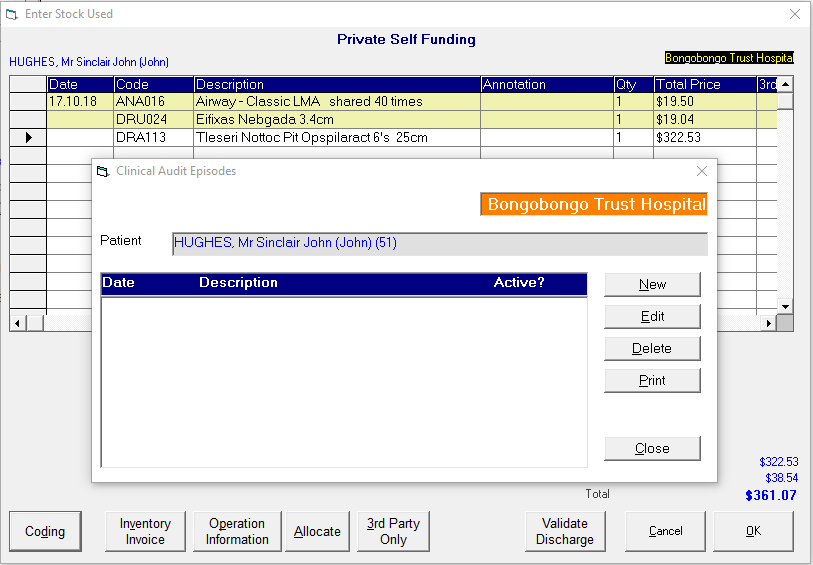
Codes can also be entered when entering stock items in Patient -> Stock Used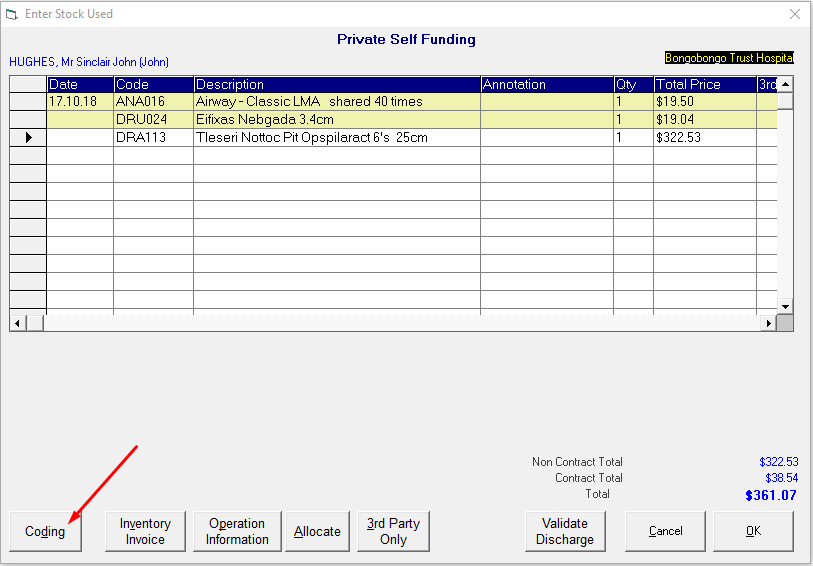
Dictation module
If the coder has a number of entries to make, it may be easier to enter to the codes in the order they were operated on.
- Go to Dictation > Type Dictation and change the date to see the relevant operating list.
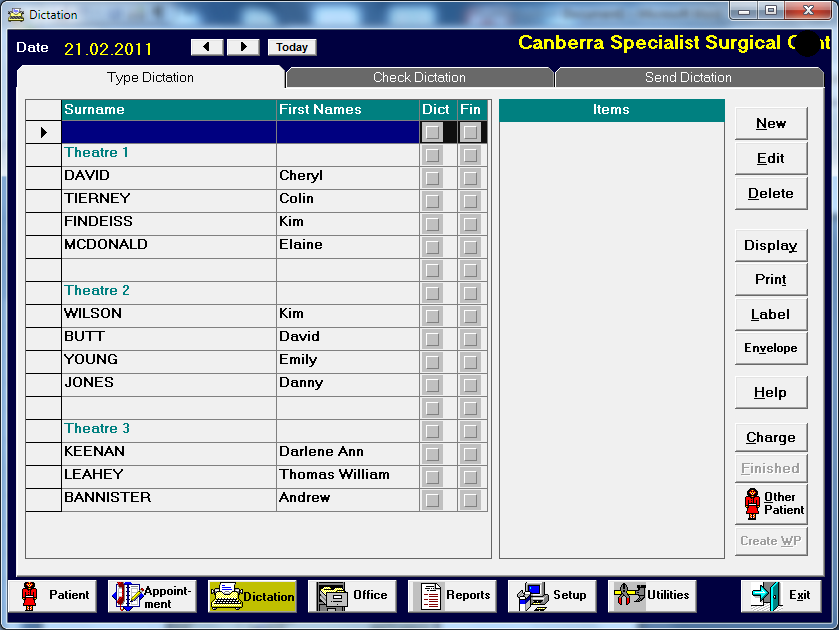
- Highlight a patient and click on the 'New' button
- Select the 'Audit' option
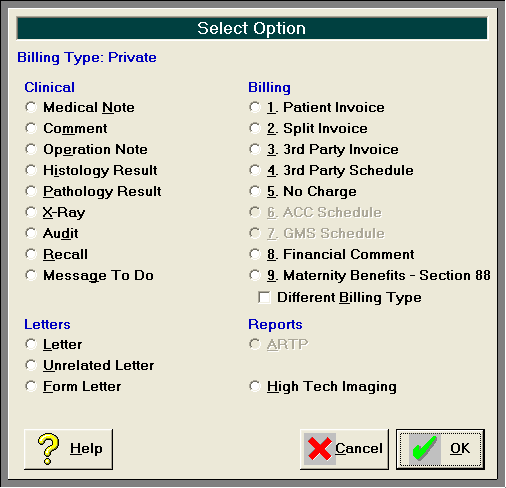
- Enter in the audit code using the same entry or navigation process as described above
- Once the code has been entered an entry will display in the right-hand column when the patient's name is selected. The audit code entered will appear immediately for the patient in Patient mode – it does not need to be processed first.
- Mark the episode as Finished