In Appointment, click on the Session that you wish to print out.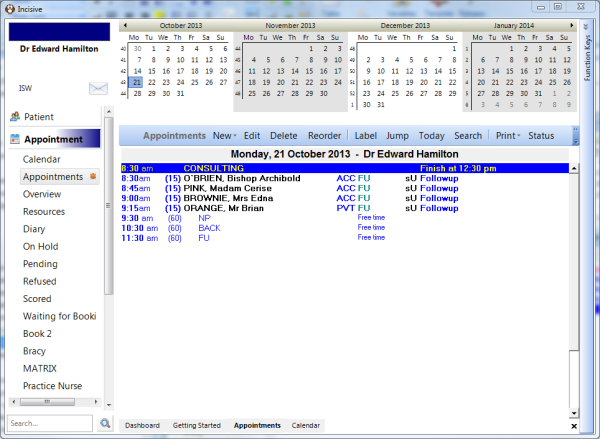
Setup your Default Options
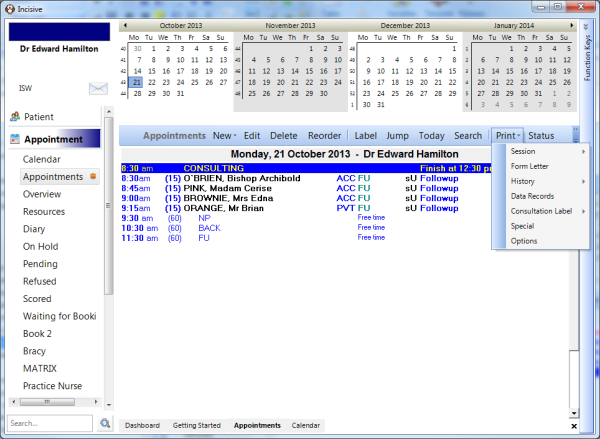
- Press the 'Print' button and select 'Options'.
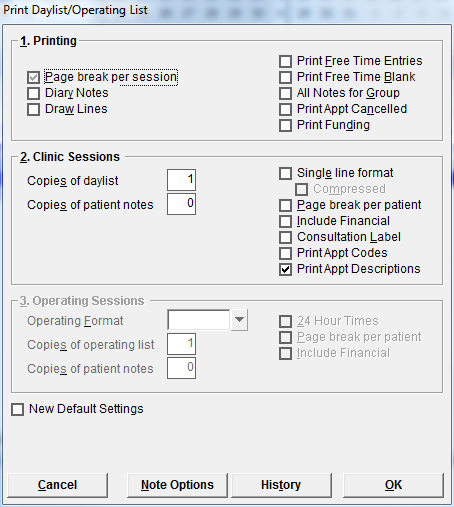
- From this screen tick all the options you want for your print out, decide if you want 'OpList', 'DayList' or 'Theatre' as your Operating Format.
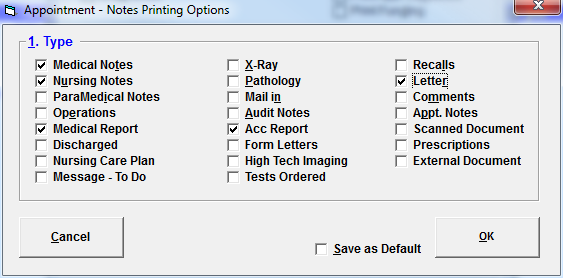
- If you wish to just print out certain Types of notes, press the 'Notes Options' and tick the Types required. Tick 'Save as Default' and press 'OK'.
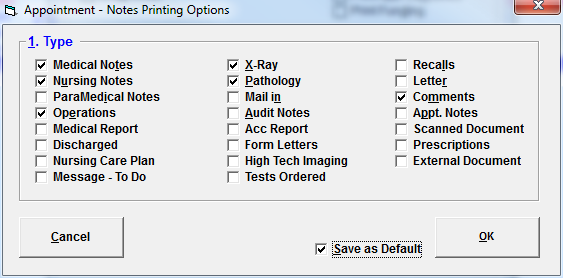
- Once you have set all your options click twice on the 'Save as Default' to make sure there is a dark tick in there and then press 'OK'.
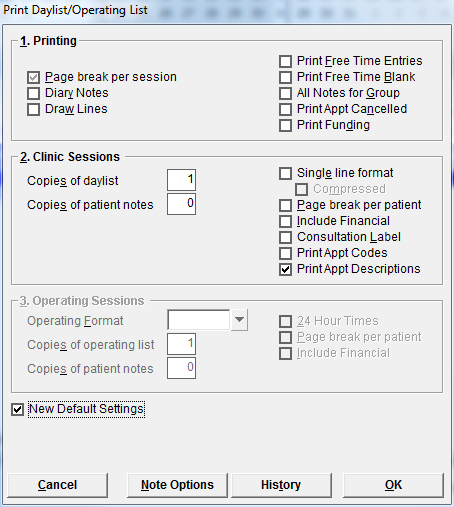
Print from your Default Settings
Go to Print > Session > Current, to print off the Session List you have just setup as your Default.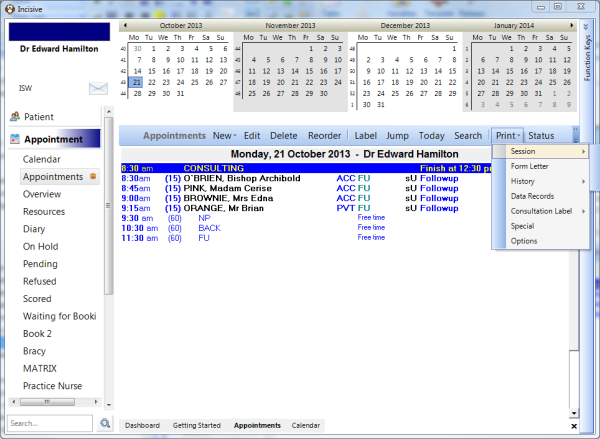
Special Print
- If you wish to do a one off print that is different from your default setup, then go Print > Special.
Going into Special and ticking the 'Save as Default' will not hold the settings, you will need to go into Print > Options to change your Default settings. - From this screen tick all the options you want for your print out, decide if you want 'OpList', 'DayList' or 'Theatre' as your Operating Format.
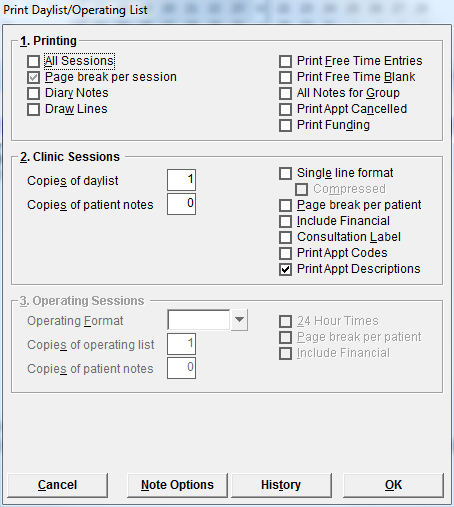
- If you wish to just print out certain Types of notes then press the 'Notes Options' and tick the Types required.
- Press 'OK', then press 'OK' again and it will print out your Session in the required format.