This option allows you to find the 1st available appointment(s) for a selected appointment time.
- Select '1st Available'.
- Select the patient you require the appointment for in the normal way; or Press Escape to skip selecting a patient and find the appointment first. This is because you don't want to go to all the trouble of adding a new patient and then have them decide that they will try and find an earlier appointment with another doctor!
The 'Find First Free Time' screen displays.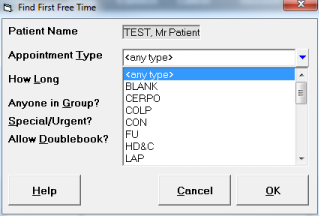
- Select the required Appointment Type from the list.
The default Appointment length for the selected Appointment type appears in the How Long field. - Press 'Enter' to accept this or type in how long you require and press 'Enter'.
- Select 'OK'.
A list of possible appointment time slots displays.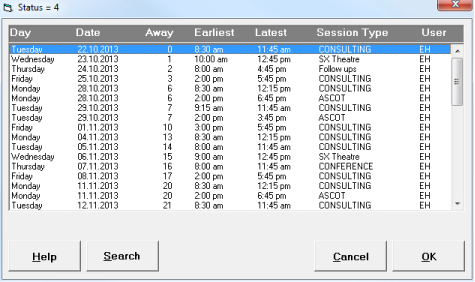
The list displays the day of the week, the date, the number of days from today, the earliest and latest available appointment in the time slot and the Session. - Select the most suitable time slot from the list.
- Select 'OK'.
You will be taken to the chosen time slot. - Continue to make the appointment in the usual way.
Anyone in Group
If you wish to search for the first available appointment across all Users/Users in the Group, check the box on the Find First Free Time screen.
Special / Urgent
If you wish to select other than a valid appointment type for this particular session (that is a Maybe Appointment type), check the box on the Find First Free Time screen.
Allow Double Book
If you are using Resources, checking the Allow Double Booking field allows you to double book an appointment for the selected User, but only if the required resource(s) are available.
Obviously if resources are not required and you want to double book someone in the first available slot, you would not use the 1st Free Appointment option.
Advanced Search
If you want to be more specific about the 1st Free Appointment time, select 'Advanced' from the "Find First" screen, or 'Search' from the "Possible Appointments" screen. This allows you to select specific days of week (by default Monday to Friday are selected), an Earliest and Latest time, and an Earliest and Latest date.
- Select 'Advanced' or 'Search'.
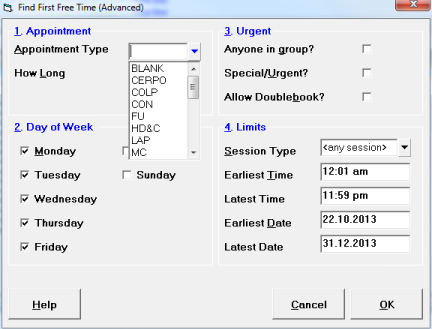
- Configure the Days of Week and Time and Date Limits as required.
- Select 'OK'.
- From the list of possible Appointment Times select the most suitable time.
- Select 'OK'.
You will advance to the chosen date and time slot.