If you have a significant number of sessions entered into the appointment book that are no longer applicable and deleting them one by one is not an option then there is a function to delete sessions in bulk.
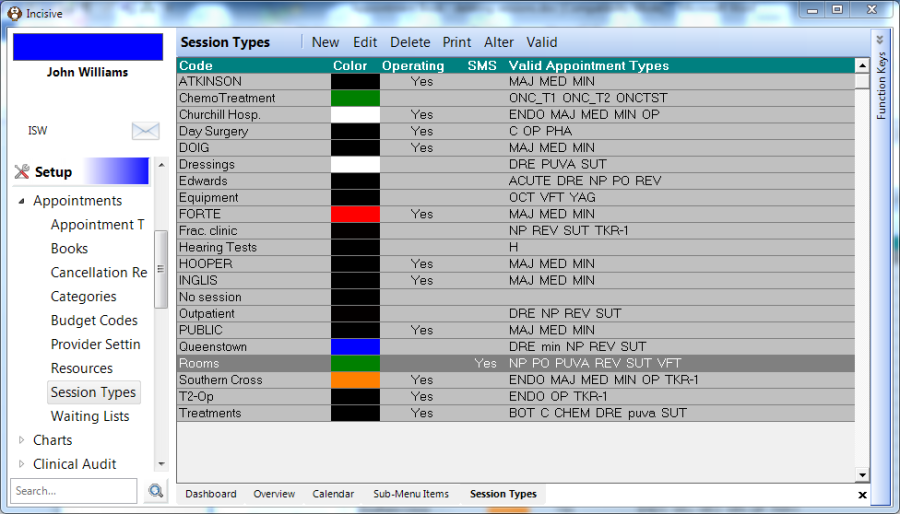
For example, you want to change a Monday morning session which has been rostered for the next 18 months.
Go to Setup – Appointments – Session Types
Click on the Alter button. A screen similar to the one below will display.
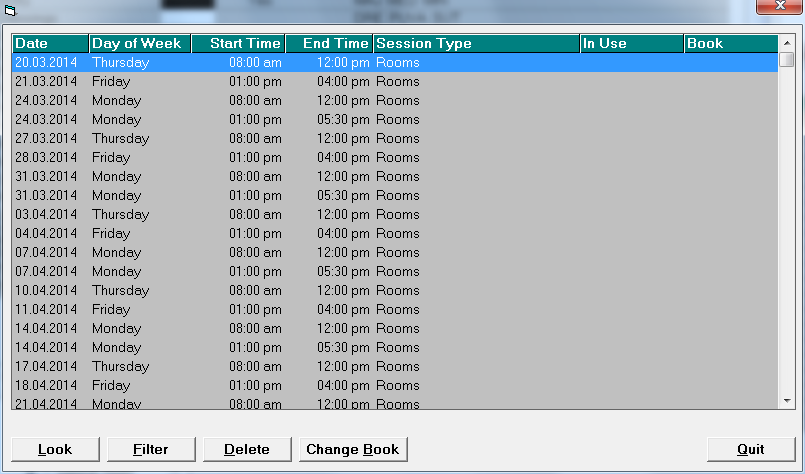
This shows all the sessions set for this user; you can see the sessions that have appointments in them already. You will not be able to delete sessions with appointments.The first filter you do is on Day of Week. Click on the Day of Week heading. Your list is now sorted accordingly.
For our example we are using Monday so click on the first Monday, scroll down, then hold the shift key down and click on the last Monday. All the Mondays will now be highlighted.- Select filter.
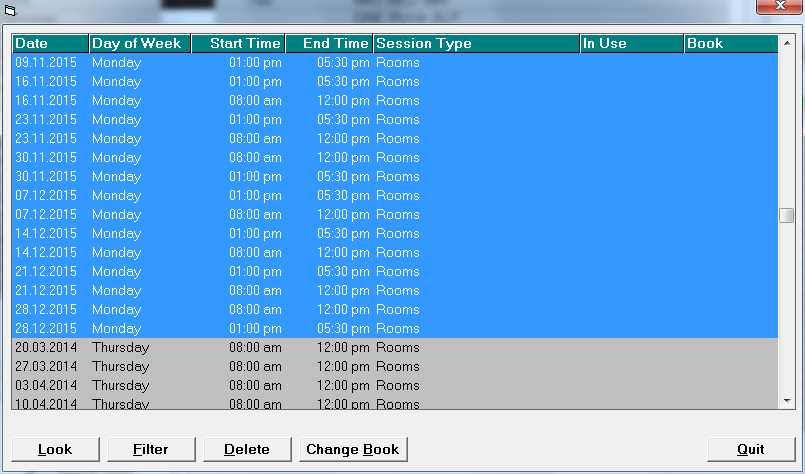
On the screen you will now have only Mondays. - Now click on the Start Time. Once you have all the morning clinics together highlight the first 0800, then scroll down to the last one, hold the shift key down and click, highlighting all the morning sessions.
- Select filter.
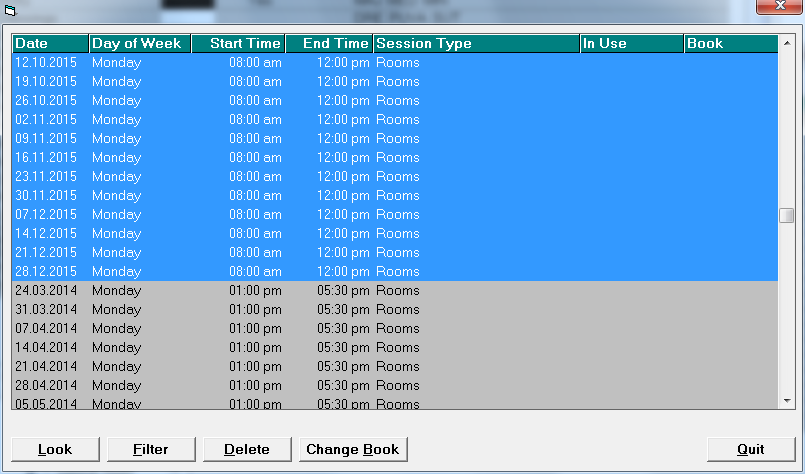
You now have all the morning sessions on screen. - Click on the Date heading. You now have the remaining sessions in date order.
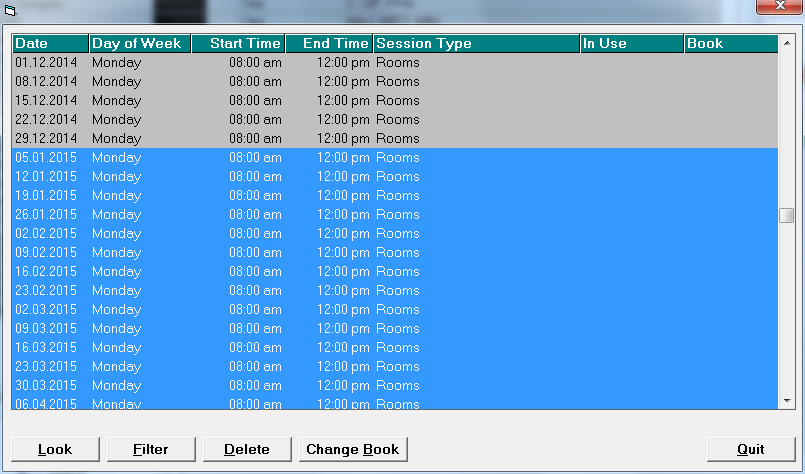
- Click on the first date you want to delete. Scroll to the last date you want to delete, hold the Shift key down and click on the last date, thereby highlighting all the sessions to delete. At this point check your user again! Check that you have the right sessions to delete!
- Select delete – the program will ask you to type "delete" to confirm.
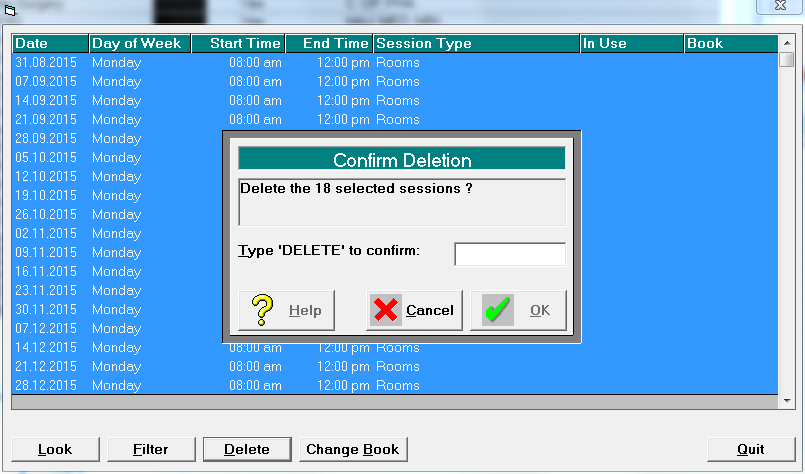
If you have the appointment book open you will need to exit out to allow the changes you have made take effect.
Now you are ready to go back into the appointment book and reschedule your clinics with the new times and/or description.