Adding the procedure details
There are two menu options available to modify an existing booking to add further information.
- Either, edit the actual booking in the relevant Theatre session for the surgeon
Appointment > Theatre > Edit - Or, choose Appointment > Hospital Bookings > Operation List
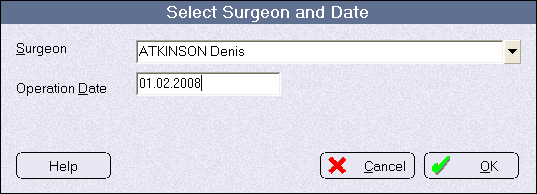
- Select the Surgeon that you are entering the operations for.The list of surgeons is derived from the entry of names marked as surgeons which is made in Inventory module > Setup >Subcontractors.If you want to see the list of all patients in all operating sessions select the [All-Surgeons] option in the list.
- Enter the date of the operating session for the surgeon(s).
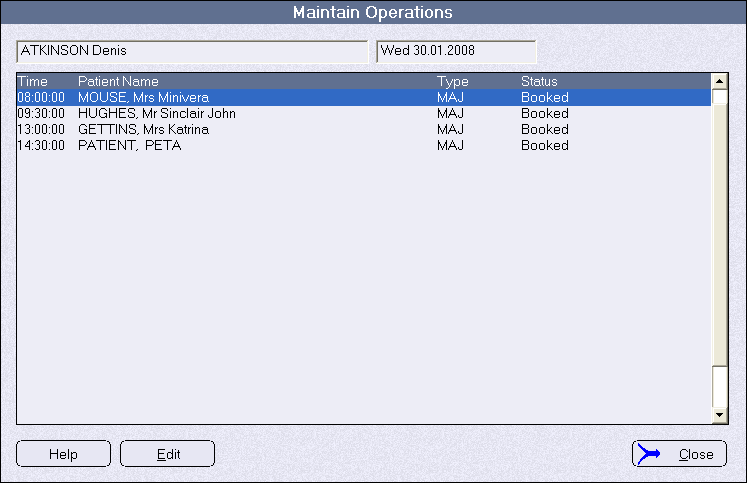
A list of patients, entered in the Appointment module in PHM for the date and surgeon specified, will appear. - To enter the details of the operation for a patient, either double-click on the patient's name or select the patient and then click on Edit.
- In the Operation field type in the description of the operation as provided by the surgeon If required, enter the patients' height and weight to calculate their BMI
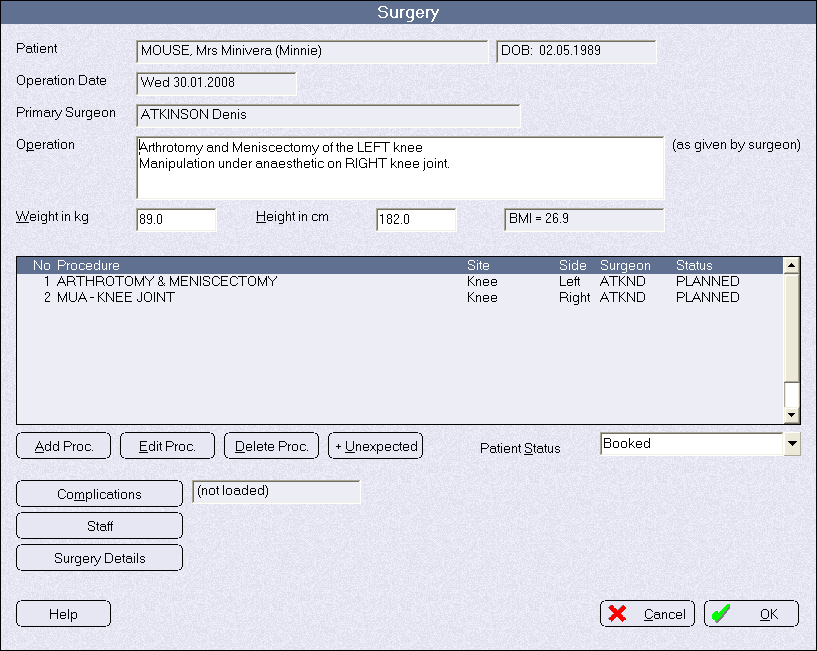
- Add the actual procedures that will be performed on the patient during their time in theatre (the operation). Click on the Add Proc. Button
- Select the Status of the patient. For operating sessions ahead of today this will always default to 'Planned'
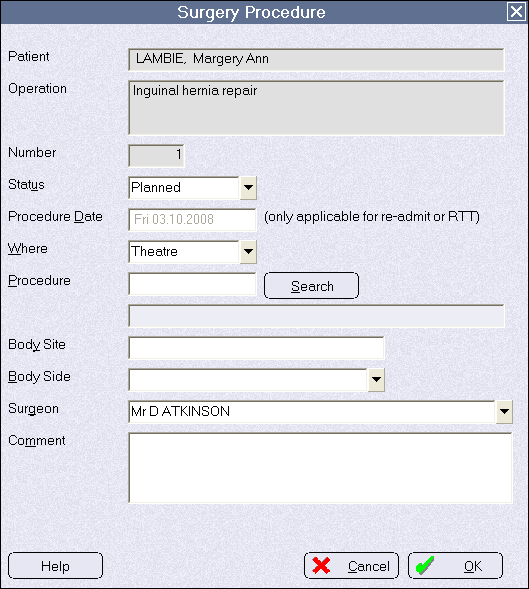
- Choose the location where the procedure will be performed – theatre or recovery
- Type in the code for the procedure and then press the 'Enter' key. If the code is correct, and complete, the relevant procedure description will automatically select. If the code is incorrect, or only part of the code is entered, a list of all of the procedures that match the characters entered will be displayed for you to select from.
Alternatively, use the Search function to scan the procedure description. Preferably, the procedures should be entered in the order that they are likely to be performed.
The list of procedures is derived from the stock items listed in the Inventory module as 'Procedures'. You can restrict the procedures in the list.
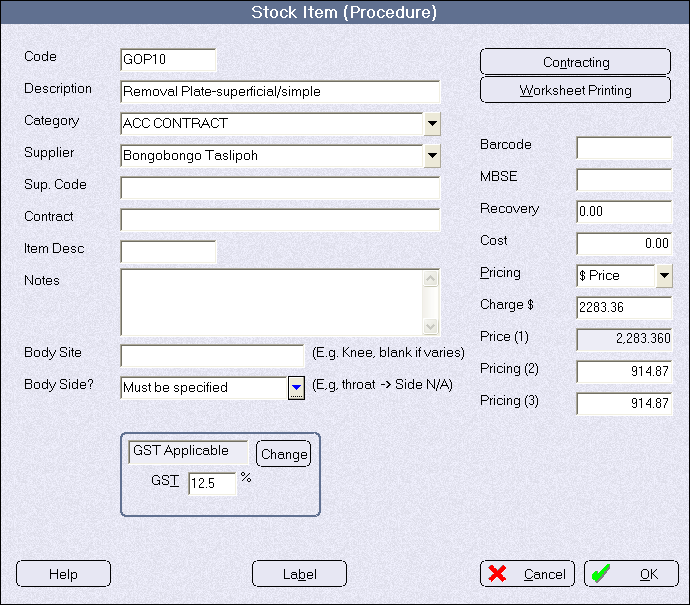
You cannot add new procedures to this list from within the Hospital Bookings application; it can only be done by hospital personnel who have the knowledge and security rights to add them via the Inventory module. - Enter the 'Body Site' and 'Body Side' for this procedure. The selected procedure may have some associated settings which requires that a 'Body Side' must be chosen. The settings are configured by editing a procedure stock item in the Inventory module.
- Select the surgeon who will be performing this procedure.
NOTE: This does not need to be the Primary Surgeon. - Add any additional comments relating to this procedure.
- Click 'OK' or press F12 to complete this entry.
- Change the patient status to 'Booked' (or something similar)
- When all the procedures are entered for a patient's operation click 'OK' or press F12 to select another patient.