There are two menu options to manually enter a new booking. One option is to go to the relevant Theatre session for the surgeon and use New from the Toolbar; the other, used for rapid input of multiple bookings, is to use the Hospital booking > Surgical option, which doesn't require you to navigate to the relevant Theatre session.
- Select the theatre and date you are making the new booking for Appointments > Theatre 1
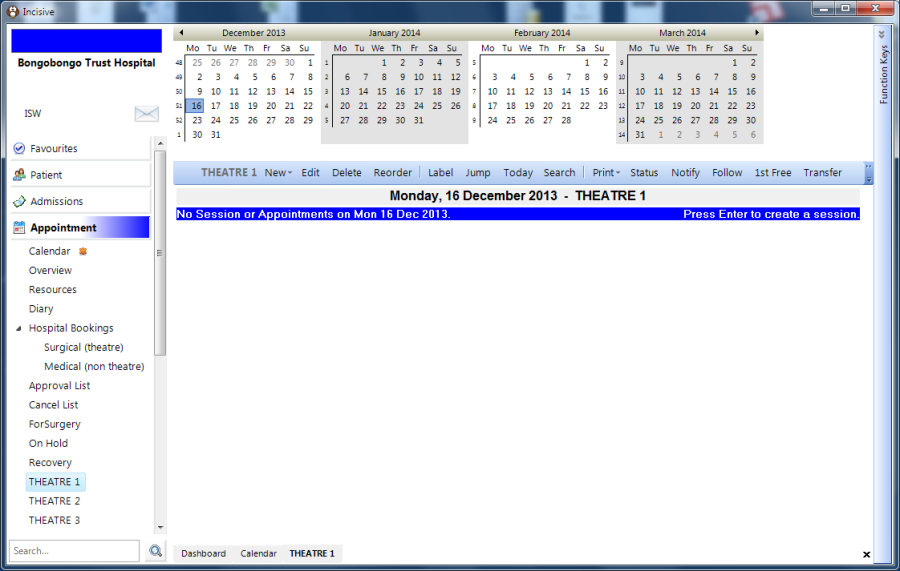
- From the Toolbar then choose New > Appointment
- Alternatively, select Appointments > Hospital Bookings > Surgical
Selecting/Adding a patient
When a new booking is made for a patient a new referral is also automatically created for the Hospital User, with the surgeon as the Referrer.The new booking shows not only in the Operating List and Theatre Register of the Hospital Booking module but also in the appropriate Theatre book in the Appointments module of PHM.
- Select a patient, or click on the 'New Patient' button to add them
If you are adding a new patient you will be sequentially led through the sections of:
- Entering the patient's name and contact details
- Identifying who the referring surgeon is
- Adding any details relating to Claim applications
If the patient already has an operation booked in the future, with any surgeon, a warning will appear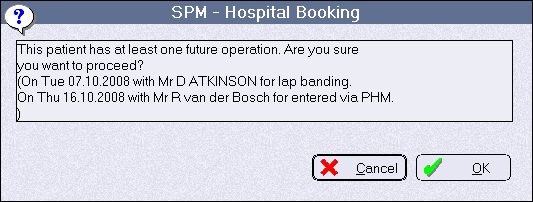
Booking the operation
- Select the primary surgeon.
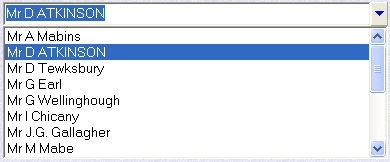
The primary surgeon is usually the referring doctor, but not always. - If the patient has just been registered as a 'new' patient, then the Billing Type, 3rd Party and Claim number will be already entered and the fields will be greyed out. To select a different referral click on the 'Existing Ref' button.
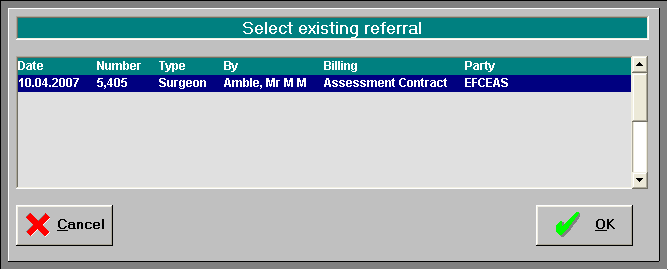
- Select an existing referralIf a referral for the patient has been previously entered a button will appear which allows you to select an earlier referral instead of automatically creating a new one.
- Click on the
 button.
 - Choose the referral from the list.
- Click on the
- Select an existing referralIf a referral for the patient has been previously entered a button will appear which allows you to select an earlier referral instead of automatically creating a new one.
- Choose the Billing Type
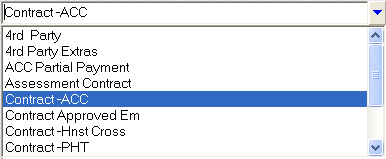
- Choose the party who will be funding the operation.
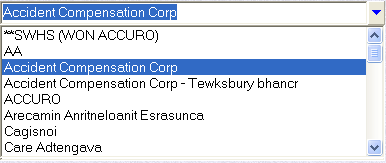
The '3rd Parties' can be added via Setup > Address Files > 3rd Party Billing/reports option in the PHM application. If the Billing Type was marked as 'Private' or Self-funded' then the sections requiring the Third-Party and Claim numbers will be skipped. - Select the appropriate Claim number. Claim numbers can be added or altered in the Claim tab for the patient in the Patient module of the PHM application.
- Enter the date of the operation. The date can be entered with or without the usual separators e.g.
 will change to
  when you move to the next fieldIf the operation is in the current month you can just enter in the day date e.g. 4
 - Type in the description of the operation as provided by the surgeon.

- If the operation is routine you can use the 'Procedure' button to select the procedure, and the description will be automatically inserted into the Operation description field.
- You can choose to record more specific detail of the operation and list the individual procedures that will be performed – but you don't 'have' to use the procedure option.

You can run this option several times to enter more than one procedure, but only the text of the first procedure is entered in the Description field.
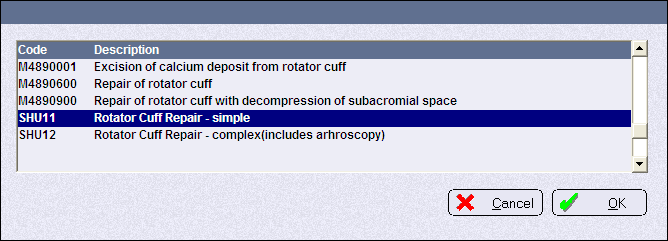
The procedures on the list are derived from stock items in the Inventory that are marked as 'Procedures'. This linkage will allow the easier transfer of procedures completed to the accounting department of the hospital. - Type the code of the procedure then click 'Code', or type in a complete or partial word that is in the test of the Procedure Name and then click on the 'Search Text' button.

- Select the procedure from the list. If there is a direct match the procedure will be automatically inserted.
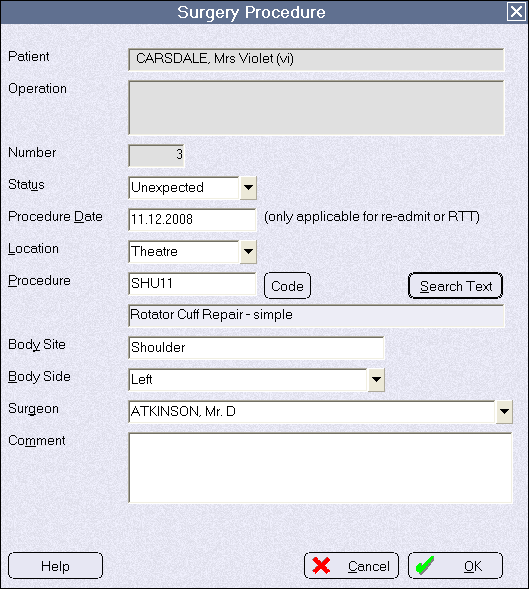
- Complete the remaining fields.
- Choose the 'Operation Type' that is most relevant to the Operation.
NOTE: This list is generated from the appointments that are marked as being 'Valid' for this surgeon's session
Some may like to reduce the appointment type down to just Minor, Medium & Major.If there are no operation types appearing on this list then it is likely that surgeon and/or the operation date is incorrect. The booking therefore cannot proceed. This is by design to reduce the number booking errors. - The default time for the Operation Type is automatically inserted. You can alter this.

The duration should be the total time between cases, including turn-around time.
NOTE: If a 'break' (no bookings allowed) has been entered for the session in the Appointment module of PHM, the period of the break will be automatically reduced from the total surgical time available.That is, if the last booking made was at 10.00 for a 30 min duration, and there was a break entered from 10.30-11.00, the next booking would be entered at 11.00. - Select the Anaesthetic Type. Add to the list in Setup > Anaesthetic Codes

Using the duration entered, the Available Time is then calculated and a list of the session for this surgeon for the date of operation is then shown. Included in the list is the amount of time remaining in the session that has not been allocated to other patients.
If there is no time remaining in this session or there is not even a session for this surgeon on this day, the list will be blank and you will NOT be able to book the patient into the list.You can extend the session but this will need to done from PHM > Appointments and edit the relevant session header to extend the finish time.
Time available Theatre numberSurgeon's nameSession time startChoose the Category. It will default to the last entry made
- Enter details about their expected Admission & Discharge. It will default to the last entry made.
If the Patient Type is set to Day Stay, and this doesn't require a bed to be allocated, you do not need to enter the 'Bed From' or 'Discharge Time' information.
Days before | How many days before the operation date will the patient be admitted? If a value is entered the patient will be included on the list of patients in Recovery/Ward and the word PRE-OP will appear in Orange beside their name |
Admission Date | Planned admission date. |
Days Before | Bed FromTime that a bed will be required from. Used by the Free Bed calculator and Room planner function |
Fasting From | Time the patient is required to fast from. |
Reporting Time | Time of planned admission. If the booking is being imported from SPM, the Reporting time in SPM will become the Reporting time here. Equally, changing the time in this field will update the Reporting Time in PHM |
Nights | Number of nights the patient is expected to stay |
Discharge Date | Calculated date of discharge |
Discharge Time | Expected time the patient will be discharged |
As these dates & times are required for the calculation of bed availability it is preferable to use these fields – even if it is only an estimate of the discharge time.
Bed availability
- Click on the 'Free Beds' button to view a representation of the estimated availability of beds, including this booking being made.
The calculation is not absolute, but it is a best estimate. You could, for example, put a day stay patient temporarily into a bed, but you wouldn't put an inpatient in a recovery chair.
This above screen is showing an estimation that between 0900 and 1800 on the day of his/her admission there are only 3 suitable beds/chairs available for the patient, but from 1800 onwards there will be 4 beds/chairs available. If no bed/chair is available a warning will appear, but you will be able to continue. The parameters for these accommodation rules are established in Setup - Rooms - Click OK to proceed to the next section
Extra operation details
- Enter in the Anaesthetic information. This will display in the patient's theatre record.
- Use the Remarks field to add any further details that you know about this operation and want to record e.g. equipment required, position etc. These will display in the patient's theatre record.
- If known, enter the weight (kg) and height (cm) of the patient to calculate the Body Mass Index (BMI).

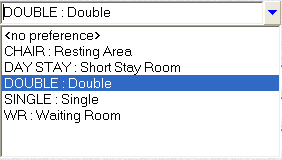
- If known, choose the Room Type the patient prefers. Leave blank or chose <no preference> if unknown. This can be changed at a later date.
- Does the patient need to be isolated?
- Type in any relevant information about the patient's food or dietary requirements
- Type in any special care requirements
- Type in any extras required in the room e.g. TV etc.
Optionally, select the bed that will be allocated to the patient. If no bed is selected now it can be allocated to the patient by the Ward manager at a later date.The beds marked with a tilde (~) do not match the patient's preference but are, nevertheless, still available and can be allocated to the patient.
Modify the Procedure list
Once a procedure has been added to the operation you may want to add extra procedures or modify the existing entries.
There are two methods to perform this function. The following is the simplest.
- Locate and highlight the patient in a Theatre book
- From the Toolbar, select 'Edit'. This will load the Edit Surgery form
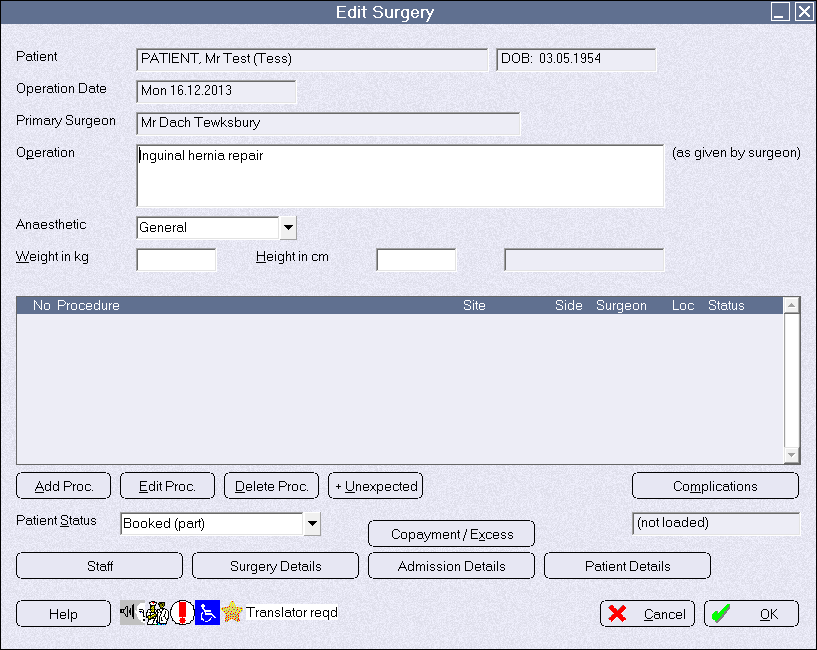
- Click on the 'Add', 'Edit' or 'Delete procedure' button

Deleting a booking
When a booking is deleted several options are presented depending on whether the booking list has been created by the hospital or the surgeon's rooms.
- Find the patient in the theatre list.
- Highlight the patient and click Delete in the Toolbar
- Enter a reason for the deletion. The reason, date, time and Operator is all automatically recorded.
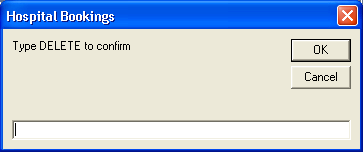
- Type in the word 'DELETE' to complete the deletion
NOTE: The referral is NOT deleted when a booking is removed